Best Laptop for Fusion 360 (Autodesk Fusion): 11 Best Picks for Powerful Performance in 2026



When you’re looking for the best laptop for Fusion 360 (now called Autodesk Fusion), the real difference comes from how well the CPU, processor speed, GPU, and RAM handle complex models, renders, and simulations.
Fusion 360 relies heavily on single-core processor speed when you’re moving parts around, so even laptops that look similar on paper can feel completely different in use. Some users need graphics card power for visual accuracy, others want long battery life for classes or client visits, and some just need consistent performance for long work sessions.
In this guide, I’ll break down laptops for fusion options that fit different workflows (students, engineers, freelancers, and creators) so you can pick something that genuinely supports the way you work.
Jump to:
Our Top Picks for Best Laptops for Fusion 360
Selecting a laptop for Fusion 360 (or Autodesk Fusion) can be confusing, as the ideal balance of CPU, GPU, RAM, and mobility varies from user to user. These three laptops stand out as reliable picks across budgets and workflows:
- GIGABYTE AORUS 16X (2024 Model) – Strong GPU performance and stable thermals for complex Fusion 360 projects.
- ASUS Vivobook (2024 Model) – Budget-friendly option with smooth basic Fusion 360 performance and easy portability.
- ASUS ROG Strix G16 (2024 Model) – High performance for complex modeling with fast multicore processing and a smooth display.
You’ll find even more Fusion 360 laptop options just ahead, organized by how you work and what you need. Keep scrolling to compare.
Best Laptop for Fusion 360 – 11 Top Picks for Outstanding Performance
Finding the best laptop to run Autodesk Fusion depends on how you work and what you need day to day. Some people rely on strong GPU performance like NVIDIA GeForce RTX cards for complex designs and heavy rendering, while others care more about RAM, a familiar operating system, or something light enough to carry to class or client meetings.
The list below is organized for different types of users: students, engineers, freelancers, and professional designers. Each section highlights one laptop with its specs, pros and cons, and a quick verdict to help you decide. Scroll to find the best laptop for Fusion 360 that fits your workflow and pace.
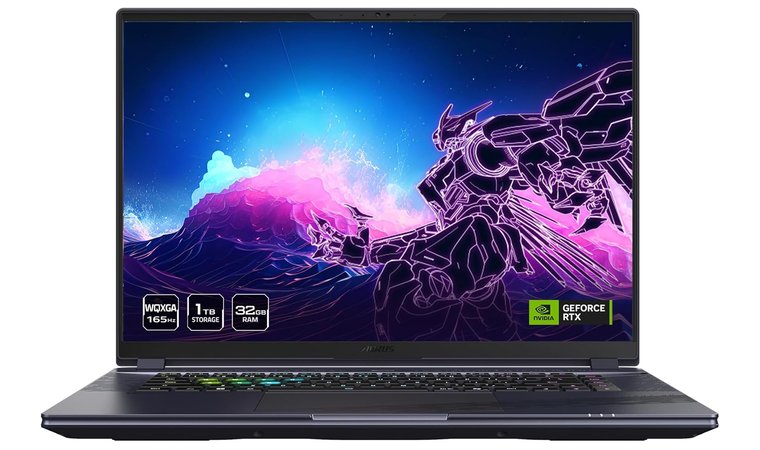
1. GIGABYTE AORUS 16X [Best Overall Laptop for Fusion 360]
| Specs | Details |
|---|---|
| CPU | Intel Core i7-14650HX / up to Intel Core i9-14900HX |
| GPU | NVIDIA GeForce RTX 4070 Laptop GPU (up to 140W TGP) |
| RAM | Up to 64GB DDR5 (2× SO-DIMM) |
| Storage | Dual M.2 PCIe 4.0 slots (supports up to 4TB total) |
| Display | 16″ 2560×1600 (16:10) IPS |
| Refresh Rate | 165 Hz |
| Battery | 99 Wh |
| Weight | 2.3 kg |
| Connectivity | USB-C (Thunderbolt 4), USB-C 3.2 Gen2, 2× USB-A 3.2, HDMI 2.1, RJ-45, microSD, Wi-Fi 7, Bluetooth |
The GIGABYTE AORUS 16X stands out because it’s built for CAD, rendering, simulation, and other Autodesk workflows where processor performance and GPU graphical power matter. The Intel Core HX processors give it excellent single-core and multi-core handling, so manipulating parts in Autodesk Fusion (Fusion 360) feels smooth even in complex assemblies. Paired with a high-TGP NVIDIA GeForce RTX GPU, it handles heavy visualization tasks that many gaming laptops struggle to sustain under continuous load.
This laptop nails the balance between raw power and real workflow comfort, which is why it’s the best overall pick for Autodesk Fusion users, especially engineers, product designers, and students in engineering or computer science who need dependable performance during long modeling sessions.
What I like most about the 16″ 2560×1600 display is the extra vertical workspace because it makes toolbars and modeling views easier to manage without constantly rearranging the UI. The cooling system also deserves credit: the WINDFORCE Infinity setup keeps the CPU stable during long sessions, something that cheaper laptops or ultra-portables can’t manage. Plenty of RAM and storage configurations also mean you can upgrade as your projects grow.
| Pros | Cons |
|---|---|
| ✅ High clock speed CPU keeps modeling smooth in Fusion 360 ✅ NVIDIA GeForce RTX GPU handles rendering and simulation confidently ✅ 16:10 display provides extra vertical workspace for toolbars ✅ Strong cooling prevents thermal throttling in long CAD sessions ✅ Flexible RAM and SSD upgrade options ✅ Ideal for CAD, Autocad, and other Autodesk tools | ❌ A bit heavier than a Dell XPS, but the added power makes it worth it |
Final Verdict: If you work with complex CAD projects and need a laptop that stays fast under pressure, the GIGABYTE AORUS 16X delivers excellent performance with stable thermals and long-session reliability. It also holds up well compared to what would be considered the best laptop in 2025, in terms of sustained performance.
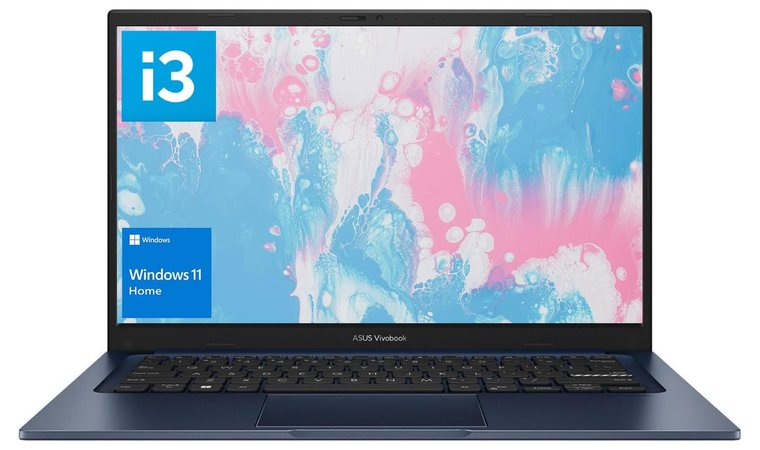
2. ASUS Vivobook [Best Budget Laptop for Fusion 360]
| Specs | Details |
|---|---|
| CPU | AMD Ryzen 5 / Ryzen 7 or Intel Core i5 / i7 (varies by configuration) |
| GPU | Integrated (AMD Radeon Graphics / Intel Iris Xe) |
| RAM | 8GB–16GB (upgradeable in many models) |
| Storage | 256GB–1TB SSD (upgradeable) |
| Display | 14″ or 15.6″ Full HD (1920×1080) |
| Refresh Rate | 60 Hz |
| Battery | 6–9 hours (varies by workload) |
| Weight | 1.5–1.8 kg |
| Connectivity | USB-C, USB-A, HDMI, Wi-Fi 6 (may vary by model) |
The ASUS Vivobook is a wallet-wise choice for students or anyone getting into Autodesk Fusion (Fusion 360) without wanting to invest in high-end gaming laptops right away. Models in this line now come with modern AMD processors like Ryzen 5 / 7 or Intel Core chips, which handle CAD sketching, part modeling, and light Autodesk workflows comfortably. The overall feel is lightweight and easy to carry, ideal if you’re moving between classrooms, coworking spaces, or studio visits.
This laptop hits a sweet spot between price, portability, and capability, which makes it a practical starter device for learners and entry-level designers who need something reliable day-to-day without paying workstation prices. It’s also a great pick when comparing options for the best laptop for students who are learning CAD workflows.
You also get a comfortable keyboard for documentation and multitasking, plus RAM and SSD upgrade flex in many configurations. The screen size is perfectly usable for part modeling, and with the right settings, interaction feels responsive for most academic or early-career projects.
| Pros | Cons |
|---|---|
| ✅ Lightweight and easy to carry between classes or meetings ✅ AMD Ryzen and Intel Core variants offer solid everyday modeling speed ✅ RAM and SSD are upgrade-friendly, so it can grow with your workload ✅ Good keyboard feel for documentation and multitasking ✅ Great price for new designers learning CAD | ❌ Not ideal for large assemblies or heavy rendering, but perfect for light–moderate Autodesk Fusion work |
Final Verdict: If you’re just starting with Autodesk Fusion (Fusion 360), studying engineering, or working on CAD projects that don’t require maximum graphical power, the ASUS Vivobook is one of the most sensible, budget-friendly laptops to begin with (without feeling limited).
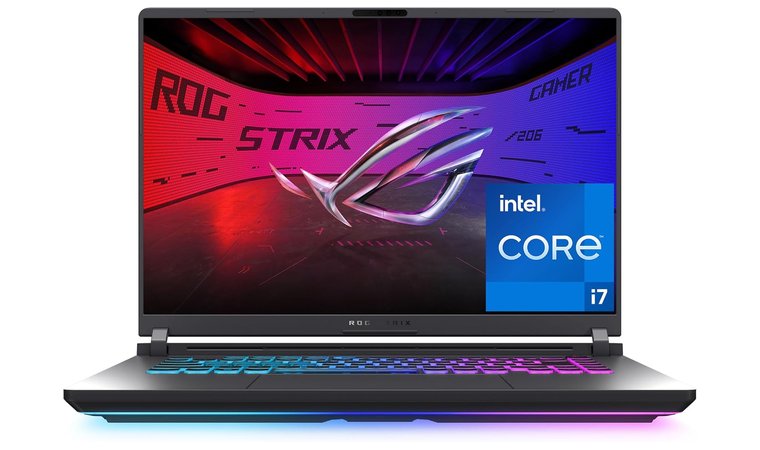
3. ASUS ROG Strix G16 [Best High-Performance Laptop for Advanced Fusion 360 Users]
| Specs | Details |
|---|---|
| CPU | Intel Core i7-14650HX |
| GPU | NVIDIA® GeForce RTX™ 5060 Laptop GPU |
| RAM | 16GB–32GB DDR5 |
| Storage | 512GB–1TB PCIe SSD |
| Display | 16″ 2560×1600 (16:10) |
| Refresh Rate | 165Hz–240Hz |
| Battery | Around 6 hours of mixed use |
| Weight | 2.5 kg |
| Connectivity | USB-C, HDMI 2.1, Ethernet, Wi-Fi 6E |
The ASUS ROG Strix G16 is built for users who push Autodesk Fusion hard: large assemblies, frequent rendering, or simulation-heavy workflows. The 16:10 display gives extra vertical room for toolbars and timeline controls, making the workspace feel less cramped. Its Intel Core i7-14650HX processor and RTX 5060 GPU deliver smooth performance under load, and the cooling system helps maintain stable clock speeds during long modeling sessions, something lighter laptops often struggle with.
This is the laptop you grab when your CAD work goes beyond the basics, when you need real-time responsiveness, viewport stability, and the ability to throw heavy tasks at your hardware without slowdown. It’s reliable under pressure and feels built for professional workflows, not just gaming, and it also performs extremely well in Autodesk drafting tasks, which also puts it in line with the top laptop for AutoCAD – not live yet category.
The high refresh rate also makes interaction feel more fluid, especially when rotating large assemblies or checking simulation previews. Movements look cleaner and more responsive on screen.
| Pros | Cons |
|---|---|
| ✅ High-performance CPU clock speed for fast model updates ✅ NVIDIA RTX 5060 Laptop GPU handles large CAD and simulation workloads ✅ 16:10 screen offers extra vertical space for toolbars ✅ Advanced cooling maintains stable performance in long sessions ✅ Strong connectivity for multi-monitor studio setups | ❌ A bit heavier than more portable laptops, but the power trade-off is worth it for demanding CAD work |
Final Verdict: If your projects involve complex assemblies, simulation, or rendering, the ASUS ROG Strix G16 gives you the sustained performance and screen space you need to stay fast and efficient through long work sessions.
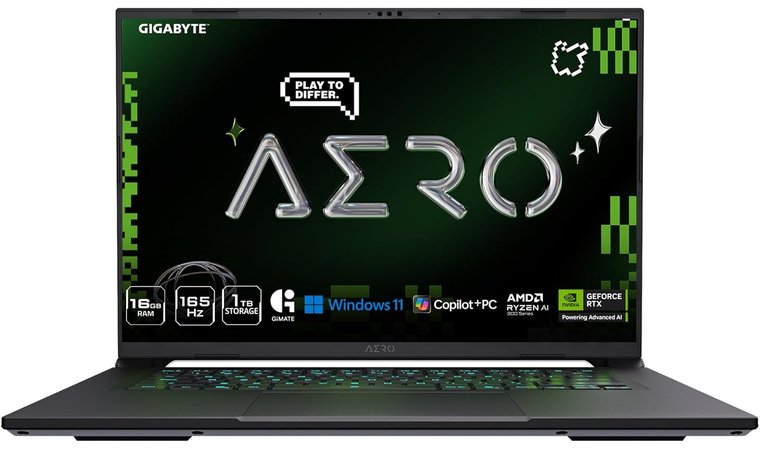
4. GIGABYTE AERO X16 [Best Creator-Class Laptop for Fusion 360 Workflows]
| Specs | Details |
|---|---|
| CPU | AMD Ryzen AI 7 350 |
| GPU | NVIDIA GeForce RTX 5060 Laptop GPU |
| RAM | 16GB–32GB DDR5 |
| Storage | 1TB PCIe SSD |
| Display | 16″ WQXGA (2560×1600), 16:10 |
| Refresh Rate | 165Hz |
| Battery | 7 hours mixed use |
| Weight | 2.0 kg |
| Connectivity | USB-C, HDMI, Wi-Fi 6E, Bluetooth, Ethernet |
If you’re someone who moves between Autodesk Fusion, Photoshop, Blender, and video editing in a single workflow, this laptop can keep up without slowing down. The Ryzen AI 7 350 processor manages multi-step tasks smoothly, and the RTX 5060 dedicated graphics card provides stable rendering and visualization performance even during heavier work sessions. This also makes it a strong fit among the top laptops for architecture, best/top/etc laptop for architecture – not live yet, where visuals and precision matter.
This one hits a really comfortable balance between power and mobility. Compared to bulkier picks (like gaming-focused machines) or something more locked-down like a MacBook Pro, the AERO X16 stays lighter while still handling demanding CAD tasks. It’s the kind of laptop you can actually take to class, the office, or a client space without feeling like you’re hauling a workstation.
You also get fast memory and storage, solid hardware build quality, and a Windows environment that’s compatible with most engineering workflows and plugins without special setup.
| Pros | Cons |
|---|---|
| ✅ Strong CPU + RTX 5060 GPU combo for CAD and rendering workflows ✅ 16:10 screen layout suits Fusion 360 UI well ✅ Lighter than many laptops in this performance category ✅ Windows environment keeps software compatibility simple ✅ Great RAM and storage configuration for growing file sizes | ❌ Not the cheapest option, but you’re paying for premium creator hardware |
Final Verdict: This is a great pick if your workflow leans creative and technical at the same time. It’s powerful enough for serious CAD work, but still light and polished enough to carry daily, and a solid upgrade for students stepping toward professional design, or working engineers who need performance without going full workstation.
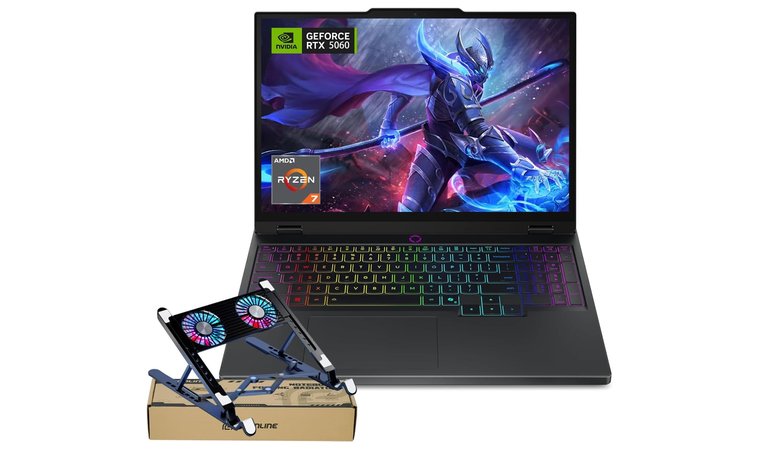
5. Lenovo Legion 5 15AHP10 [Best Cooling System for Extended Modeling Sessions]
| Specs | Details |
|---|---|
| CPU | AMD Ryzen 7 / Ryzen 9 (5800H / 6800HS options) |
| GPU | NVIDIA GeForce RTX 5060 Laptop GPU |
| RAM | 32GB DDR5 |
| Storage | 1TB PCIe SSD |
| Display | 15.1″ OLED WQXGA (2560×1600), 16:10 |
| Refresh Rate | 165Hz |
| Battery | 5–7 hours of mixed use |
| Weight | 1.86 kg |
| Connectivity | USB-C, HDMI, Ethernet, Wi-Fi 7, Bluetooth |
If your Fusion 360 work involves larger assemblies, simulations, or multitasking with other engineering software like AutoCAD or analysis tools, the Lenovo Legion 5 feels like a strong fit. The Ryzen 7 processor handles heavier modeling steps smoothly, while the RTX 5060 Laptop GPU provides enough dedicated graphics power for rendering previews, stress visualization, and high-detail part rotation. The OLED 2560×1600 16:10 display offers a sharper and more comfortable workspace compared to standard FHD panels.
The primary reason we chose this Lenovo laptop is because of its cooling system. Compared to many laptops in this performance category, the Legion 5 runs cooler during long modeling sessions. This means fewer slowdowns and better sustained clock speed over time, which matters when your workflow isn’t just bursts of work but several hours of design and iteration. This makes it especially practical for those comparing options in the best laptop for engineering students best/top/etc laptop for engineering students – not live yet category.
The full-size keyboard is also comfortable for long design days, and the Windows environment keeps plugin support and Autodesk setup straightforward.
| Pros | Cons |
|---|---|
| ✅ Strong Ryzen 7 + RTX 5060 performance for large assemblies ✅ Cooling system keeps performance stable during extended tasks ✅ Upgrade-friendly RAM and storage for long-term use ✅ Comfortable keyboard for documentation and CAD shortcuts ✅ Good connectivity for external monitors and docking setups | ❌ Heavier than ultra-portables, but the cooling benefits justify it |
Final Verdict: A great pick if you spend long stretches modeling or simulating and want performance that stays stable over time. The Legion 5 delivers power, durability, and cooling efficiency that make daily engineering work smoother and less stressful, and it also ranks well when comparing brand-specific options, especially if you’re considering alternatives in the best Lenovo laptop category for professional and technical work.
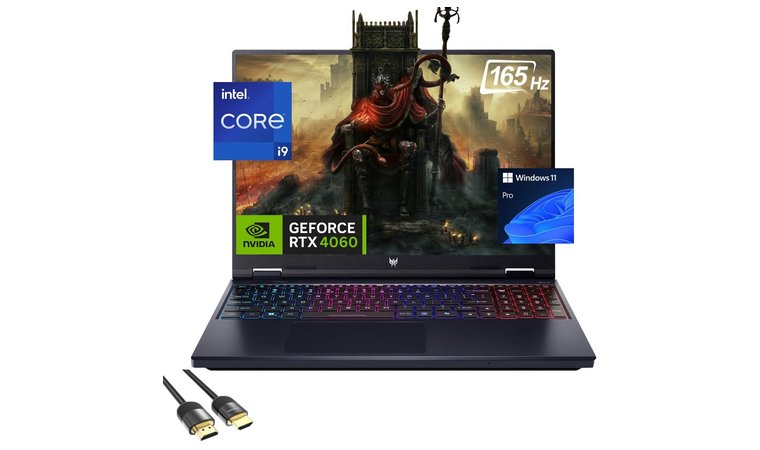
6. Acer Predator Helios Neo 16 [Best Laptop for Rendering and Simulation Tasks]
| Specs | Details |
|---|---|
| CPU | Intel Core i9-14900HX |
| GPU | NVIDIA GeForce RTX 4060 Laptop GPU |
| RAM | 16GB–32GB DDR5 |
| Storage | 512GB–1TB PCIe SSD |
| Display | 16″ 2560×1600 (16:10) |
| Refresh Rate | 165Hz |
| Battery | 5–6 hours mixed use |
| Weight | 2.6 kg |
| Connectivity | USB-C (Thunderbolt), HDMI 2.1, Ethernet, Wi-Fi 6E, Bluetooth |
If your Autodesk Fusion (Fusion 360) work involves rendering previews, simulation tasks, or heavy visualization, the Acer Predator Helios Neo 16 gives you the GPU headroom to handle them smoothly. The RTX 4060 GPU provides strong raster and CUDA performance for Autodesk workflows, and the 16″ high-refresh display helps rotation and camera movement feel fluid when working on large assemblies.
This laptop is built more like a performance workstation than a casual student computer, so it’s better suited for users who expect to push their processor and memory regularly. These specs also make it competitive among the best laptops for SolidWorks, where GPU stability is key.
The standout benefit here is sustained performance during long sessions. The cooling system is designed for high-load workflows, meaning the laptop maintains stable clock speed rather than throttling under heat. If you’re running Autodesk Fusion and AutoCAD side-by-side, adjusting settings, and exporting data files repeatedly, this consistency matters more than raw benchmarks.
This laptop is built more like a performance workstation than a casual student computer, so it’s better suited for users who expect to push their processor and memory regularly. And it’s also upgrade-friendly, so you can expand RAM and storage as your projects grow.
| Pros | Cons |
|---|---|
| ✅ Strong GPU power for rendering and simulation ✅ 16:10 screen gives more workspace for toolbars ✅ Cooling system maintains performance in long modeling sessions ✅ RAM and SSD upgradeable for future workloads | ❌ Heavier than more portable laptops, but that’s what allows the better cooling |
Final Verdict: The Acer Predator Helios Neo 16 is a great pick if your workflow is render-heavy or simulation-focused. It delivers reliable, sustained performance and is built for sessions that go long, not just quick edits.
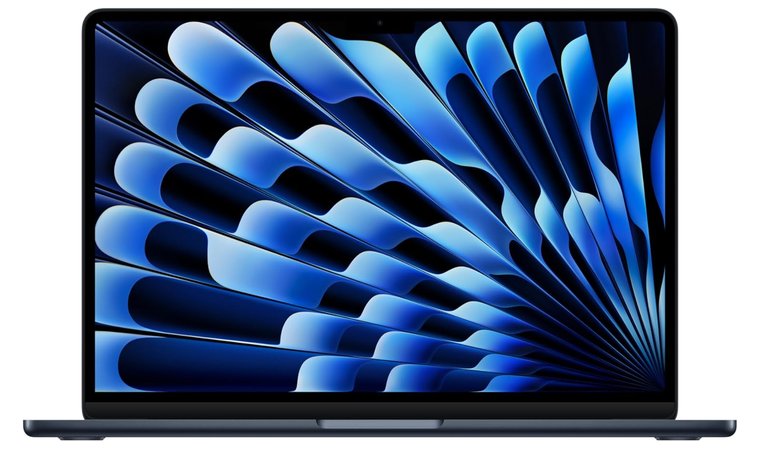
7. Apple 2025 MacBook Air 13 M4 [Best Lightweight Option for Cloud-Based Fusion 360 Workflows]
| Specs | Details |
|---|---|
| CPU | Apple M4 (10-core CPU) |
| GPU | Integrated Apple M4 GPU (10-core) |
| RAM | 16GB Unified Memory |
| Storage | 256GB SSD |
| Display | 13.6″ Liquid Retina (2560×1664) |
| Refresh Rate | 60Hz |
| Battery | Up to 18 hours mixed use |
| Weight | 1.24 kg |
| Connectivity | 2× USB-C (Thunderbolt), MagSafe, Wi-Fi 6E |
For workflows that focus on sketching concepts, reviewing models, or working through cloud-based Autodesk Fusion files, the MacBook Air M4 handles things smoothly. The M4 chip is extremely efficient, so UI interaction stays responsive, and you don’t deal with heat or fan noise (because there aren’t any fans). The Retina display also makes models, materials, and annotation work look sharp, which helps when presenting or reviewing designs.
The main reason is portability without sacrificing day-to-day performance. You can work from a studio, a classroom, on the train, or at a client’s desk without worrying about battery life or carrying a bulky device. The operating system stays stable, everything launches quickly, and the workflow feels smooth and distraction-free.
This setup works best for smaller assemblies and early-stage modeling. For heavier tasks, you can always pair it with a desktop or external workstation when needed, so you stay portable without limiting your workflow. This makes it a strong option when considering the best laptop for working from home, especially for portable workflows.
| Pros | Cons |
|---|---|
| ✅ Extremely lightweight and portable ✅ Long battery life for on-the-go work ✅ Sharp Retina display for reviewing models ✅ Stable operating system and smooth everyday workflow ✅ Quiet, fanless design | ❌ Not built for heavy simulations or huge assemblies, but perfect for concept modeling and cloud-based Fusion workflows |
Final Verdict: A great match if your work focuses on concept development, model review, and portable work setups. It delivers smooth, quiet performance in a slim design that’s comfortable to carry everywhere.
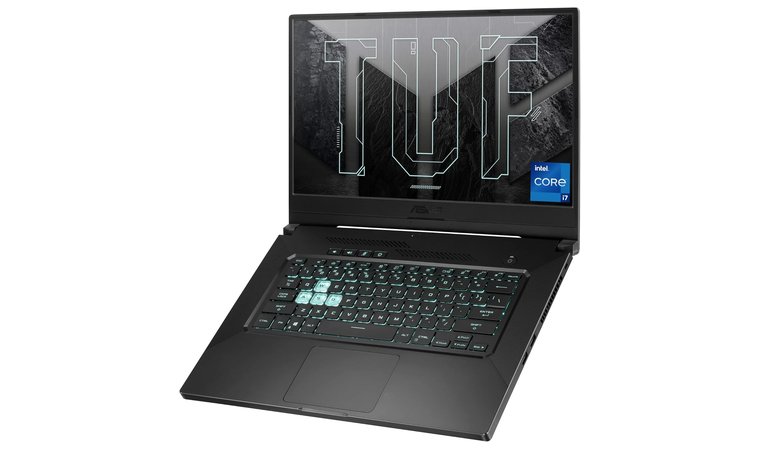
8. ASUS TUF Dash 15 [Best Durable Laptop for Engineering Students]
| Specs | Details |
|---|---|
| CPU | Intel Core i7-11370H (varies by config) |
| GPU | NVIDIA GeForce RTX 4060 Laptop GPU |
| RAM | 16GB DDR5 (upgradeable) |
| Storage | 512GB NVMe SSD (upgradeable) |
| Display | 15.6″ Full HD |
| Refresh Rate | 144Hz / 165Hz options |
| Battery | Up to 8 hours mixed use |
| Weight | 2.0 kg |
| Connectivity | USB-C, USB-A, HDMI, Wi-Fi 6, Ethernet |
If you’re an engineering student or someone learning Autodesk Fusion who needs a laptop that can survive being carried around campus, studios, and workshops, the ASUS TUF Dash 15 is a safe bet. It has a slimmer profile than many gaming laptops, but still brings solid RTX 4060 GPU acceleration for 3D modeling, assemblies, and quick render previews. The 144Hz/165Hz display also makes rotating models feel smoother, a small quality-of-life boost that you notice instantly when working in Autodesk software on Windows.
The durability is the key thing here. The TUF series meets military-grade build standards, meaning it handles real-life knocks (backpacks, crowded desks, shared workspaces) better than a lot of laptops in this category. Pair that with upgradeable memory and SSD access, and you get a machine that can grow with your workload instead of forcing a replacement too soon.
You also get comfortable thermals and a keyboard that feels good for long sessions of CAD shortcuts and documentation notes. It’s simply a practical, student-friendly computer that still performs where it counts, and it also fits well among what would be considered the best ASUS laptops for users who want both performance and value.
| Pros | Cons |
|---|---|
| ✅ Durable build that handles daily campus travel ✅ RTX 4060 GPU accelerates CAD modeling and light-to-medium rendering ✅ High refresh display makes UI and camera movement feel smooth ✅ RAM and storage are easy to upgrade as projects scale ✅ Comfortable keyboard for long design sessions | ❌ Not as thin as an ultrabook, but that sturdier build is what gives it durability |
Final Verdict: The ASUS TUF Dash 15 can take everyday bumps, stay stable during long modeling sessions, and grow with your workload thanks to easy RAM and storage upgrades. That combination makes it one of the smartest long-term picks for engineering students who need durability and dependable performance.
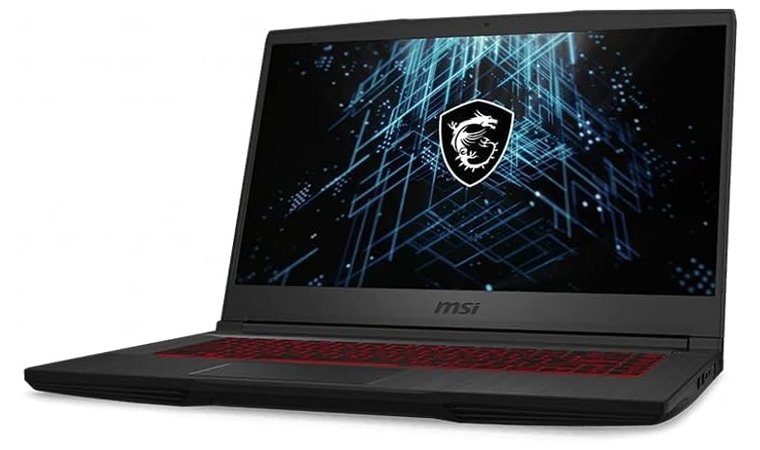
9. MSI Thin GF65 [Best Slim Laptop for Fusion 360 on the Go]
| Specs | Details |
|---|---|
| CPU | Intel Core i5-10500H |
| GPU | NVIDIA GeForce RTX 3060 |
| RAM | 8GB DDR4 (upgradeable to 16GB or 32GB) |
| Storage | 512GB NVMe SSD |
| Display | 15.6″ FHD (1920×1080) |
| Refresh Rate | 144Hz |
| Battery | Up to 5 hours mixed use |
| Weight | 1.86 kg |
| Connectivity | USB-C, HDMI, Wi-Fi 6, Bluetooth |
Instead of jumping into heavy workstation territory, the MSI Thin GF65 gives you a setup that handles Autodesk Fusion smoothly while still being genuinely portable. The RTX 3060 provides enough GPU strength for GPU-accelerated rendering previews and responsive viewport movement, and the Intel i5-10500H keeps everyday modeling work steady. And since it’s noticeably lighter than many performance laptops, it doesn’t feel like carrying a full workstation everywhere.
It delivers real GPU power in a machine you can actually carry every day. It has the performance to handle Fusion 360 modeling and viewport work, but it still feels lightweight and easy to move between classes, workspaces, or client visits.
You also get upgrade flexibility because RAM and SSD can be expanded later as your Fusion 360 files or project folders grow. It runs Windows, so no need to deal with workarounds or compatibility layers for Autodesk software or plugins.
| Pros | Cons |
|---|---|
| ✅ Slim and lightweight while still offering a dedicated GPU ✅ RTX 3060 provides strong performance for Fusion 360 viewports and light rendering ✅ Upgrade-friendly RAM and storage for future needs ✅ Good value for the performance level | ❌ Battery life is average, but that’s typical for slim laptops with real GPU power |
Final Verdict: A great pick for students or designers who need real CAD performance in a lightweight form factor. It’s powerful enough for Autodesk Fusion, and portable enough for everyday carry.
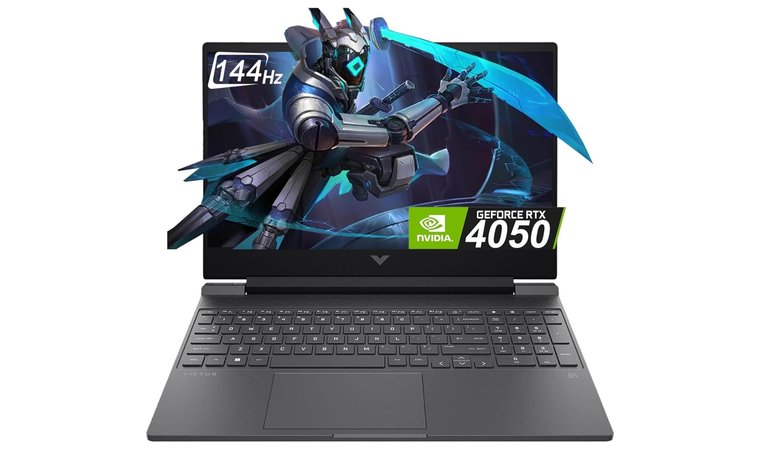
10. HP Victus 15.6″ [Best Entry-Level Laptop for Fusion 360 Beginners]
| Specs | Details |
|---|---|
| CPU | Intel Core i5-13420H |
| GPU | NVIDIA GeForce RTX 3050 |
| RAM | 16GB DDR4 |
| Storage | 512GB NVMe SSD |
| Display | 15.6″ Full HD (1920×1080), 16:9 |
| Refresh Rate | 144Hz |
| Battery | 6 hours mixed use |
| Weight | 2.3 kg |
| Connectivity | USB-C, HDMI, Ethernet, Wi-Fi 6, Bluetooth |
The HP Victus 15 is a solid starting point for anyone learning Autodesk Fusion and wanting a laptop that won’t choke during basic mid-level CAD modeling. The Intel H-series processor and RTX 3050 GPU give you enough performance headroom to sketch, extrude, assemble parts, and preview simple renders without stutter. The 15.6″ display provides enough workspace so toolbars don’t feel cramped, and the layout is comfortable for long study or project sessions.
This is one of the most approachable beginner-friendly options that still includes a dedicated GPU, which is important for viewport performance. A lot of entry-level laptops rely on integrated graphics, but the Victus gives you real GPU acceleration without the price jump into full gaming/workstation territory.
It also has a good cooling design for the price, meaning it stays reasonably consistent during longer modeling sessions. And since the RAM and SSD can be upgraded later, you’re not locked in as your projects start involving more parts or larger assemblies.
| Pros | Cons |
|---|---|
| ✅ Dedicated RTX GPU for smoother viewport performance ✅ Easy to upgrade RAM and SSD ✅ Large display makes CAD tool layouts comfortable ✅ Good value for students starting CAD | ❌ Plastic build doesn’t feel premium, but durability is reliable for everyday use |
Final Verdict: A great pick if you’re new to Autodesk Fusion and want a laptop that feels smooth to work on without overspending. It’s reliable, capable, and has room to grow as your CAD skills advance, and it fits well within what many would consider a top HP laptop choice when looking for strong performance at a fair price.
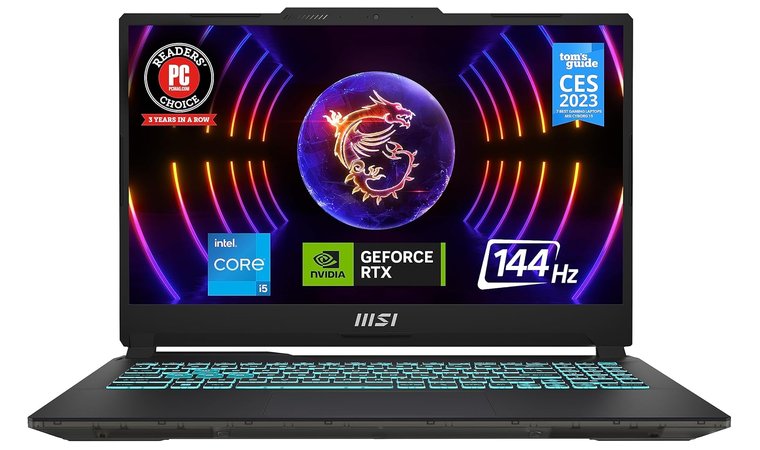
11. MSI Cyborg 15 [Best Affordable Gaming Laptop for 3D Modeling on Fusion 360]
| Specs | Details |
|---|---|
| CPU | Intel Core i5-12450H |
| GPU | NVIDIA GeForce RTX 2050 |
| RAM | 16GB DDR5 |
| Storage | 512GB NVMe SSD |
| Display | 15.6″ Full HD (1920×1080) |
| Refresh Rate | 144Hz |
| Battery | 6 hours mixed use |
| Weight | 2.0 kg |
| Connectivity | USB-C, HDMI, Wi-Fi 6, Bluetooth |
The MSI Cyborg 15 is a good pick if you want a dedicated graphics card and solid modeling performance without jumping into high-end workstation pricing. The RTX 2050 provides smooth viewport movement and light rendering performance, while the Intel Core i5-12450H handles core modeling tasks and assemblies reliably. The 15.6″ screen gives enough room for toolbars and part views without feeling cramped, and it still fits easily in a backpack, which is relevant if you’re moving between home, studio, classroom, or coworking spaces.
The big win here is performance for the price. You get GPU acceleration for Autodesk Fusion right out of the box, and because the RAM and storage are easy to access and upgrade, it can scale as your data and project complexity grows.
Running Fusion on Windows also means no extra workarounds or compatibility concerns like on a MacBook Pro, which is relevant if you’re interested in getting started smoothly and don’t want to juggle virtual machines or cloud setups.
| Pros | Cons |
|---|---|
| ✅ RTX 2050 provides smooth viewport performance and light rendering ✅ RAM and SSD upgrades keep it useful longer ✅ Comfortable size to carry daily ✅ Strong value for students moving into 3D workflows | ❌ Build quality isn’t premium, though the lighter weight makes everyday use and upgrades easier |
Final Verdict: The MSI Cyborg 15 finds a sweet balance between cost and capability. It gives you real GPU power for modelling and rendering, without jumping into workstation pricing. A solid, confidence-building starting point for students or new designers who hope to improve fast.
What Makes a Laptop Good for Autodesk Fusion (Fusion 360)?
Autodesk Fusion is pretty flexible, but it still needs certain hardware to feel smooth, especially once you start working with complex designs, assemblies, or render previews. So instead of just grabbing the first laptop that looks powerful, it helps to know what actually matters for Autodesk workflows.
Here are the key components that make a real difference in day-to-day modeling.
Processor (CPU)
Autodesk Fusion relies heavily on single-core processor speed for modeling, sketching, and general UI responsiveness. A higher clock speed makes rotating parts and editing sketches feel smoother. Multi-core CPUs come into play during rendering and simulation tasks, so a good balance is ideal. Think Intel Core i7 or AMD Ryzen 7 and up for consistent performance.
Graphics Card (GPU)
While Autodesk Fusion isn’t as GPU-dependent as full-scale 3D animation software, a dedicated graphics card still helps a lot with viewport performance, visual clarity, and certain rendering tasks. An NVIDIA RTX or similar GPU will make 3D navigation feel fluid, especially with larger parts. This also keeps performance stable on high-resolution screens.
RAM (Memory)
RAM determines how many files, browser tabs, reference images, or background tools you can have open before the laptop slows down. For Autodesk Fusion, 16GB RAM is the comfortable starting point, but 32GB is ideal if you’re working with multiple apps or large assemblies.
Storage (SSD)
Go for an SSD, not a hard drive. Anything else will feel painfully slow when loading files or importing large data sets. 512GB SSD is workable, and 1TB is better for long-term projects and downloaded reference models.
Display & Resolution
A 15–16″ screen with 1080p or 1600p resolution is the sweet spot. Extra vertical space (like 16:10 displays) is particularly relevant because Autodesk Fusion’s toolbars take up room. A MacBook Pro works fine for cloud-based workflows, but remember Fusion runs best in Windows for full plugin compatibility.
Cooling & Power
Sessions can run long, especially when iterating designs. A computer with good thermal management maintains stable performance instead of throttling. Gaming laptops often win here simply because they’re built to move heat efficiently.
Battery Life & Portability
If you work on the go (classroom, studio lab, client site), look for something that balances power and mobility. Ultra-portables are nice, but once they start overheating, performance tanks.
My Overall Verdict on the Best Laptops for Autodesk Fusion (Fusion 360)
It really comes down to how you use Autodesk Fusion. If you’re mostly modeling, doing heavy renders, or bouncing between classes and workspaces, different laptops make more sense. Here’s how the top three break down:
- For users handling complex models and long rendering sessions → GIGABYTE AORUS 16X: Its strong CPU + RTX GPU combo and excellent thermals make it ideal for engineers and advanced CAD users who need consistent performance.
- For students and beginners who want something affordable and reliable → ASUS Vivobook: Lightweight, upgrade-friendly, and smooth enough for sketching, assemblies, and learning workflows.
- For advanced users running simulations or large assemblies → ASUS ROG Strix G16: High refresh screen, strong cooling, and powerful processing make it perfect for professional-level modeling.
No matter where you’re starting, one of these fits your workflow, not just your budget.
FAQs
The best laptop for Autodesk Fusion (Fusion 360) is the GIGABYTE AORUS 16X, because it balances high-end performance with portability and professional display quality. It handles heavy modeling, rendering, and multi-software workflows smoothly, which makes it ideal for advanced users and students leveling up.
Yes, you need a reasonably powerful and good laptop for Autodesk Fusion (Fusion 360) since modeling and rendering rely on CPU and GPU performance. You don’t need a full workstation, but mid-range hardware avoids lag when working with detailed data and revisions.
No, Autodesk Fusion (Fusion 360) can’t run natively on a Chromebook because it requires Windows or macOS. Cloud viewers work, but they’re limited and not ideal for real modeling or part editing.
To install Autodesk Fusion (Fusion 360) on a laptop, download it from Autodesk’s official site and follow the setup settings prompts. Make sure your operating system is updated to the latest version and you’re signed into your Autodesk account.
The best processors for Autodesk Fusion (Fusion 360) are Intel Core i7 or Ryzen 7 chips with strong single-core performance. These handle sketching, assembly navigation, and simulation more smoothly than lower-tier CPUs.
The kind of laptop that is needed for Autodesk Fusion (Fusion 360) and AutoCAD is one with a dedicated GPU, at least 16GB of RAM, and fast SSD storage to keep modeling and drafting smooth. Models like the Dell, Lenovo Legion, or a MacBook Pro running Windows virtualization maintain a good balance of viewport performance and everyday workflow stability.