How to Connect Vizio Soundbar to TV: Simple Setup Guide


How to connect Vizio soundbar to TV? Let me paint you a picture. Your TV’s built-in speakers sound like they’re broadcasting from inside a tin can. You bought a Vizio soundbar to fix that, but now you’re staring at a tangle of cables, wondering which one goes where. Sound familiar?
Connecting a Vizio soundbar isn’t complicated once you know which method works best for your setup. HDMI ARC gives you the best quality with one cable. Optical works great if your TV lacks ARC. Bluetooth handles wireless connections. And good old RCA cables save the day with older TVs.
In this guide, I’ll walk you through every connection method step-by-step, plus give you fixes for the most common problems that stop soundbars from working. Keep reading to get your soundbar playing audio in the next 10 minutes.
Jump to:
What You’ll Need Before Starting
Grab these items before you start connecting cables:
Required:
- Your Vizio soundbar (obviously)
- Power outlets for both TV and soundbar
- At least one connection cable (which type depends on your TV)
Connection Cable Options:
- HDMI cable (for HDMI ARC connection – best quality)
- Optical audio cable (square connector with light inside)
- 3.5mm to RCA cable (for older TVs without digital audio)
- Built-in Bluetooth (no cable needed, but quality suffers)
Check your TV’s back panel before buying cables. Look for ports labeled “HDMI ARC,” “Optical Out,” or “Digital Audio Out.” Match your cable to whatever port your TV actually has.
Method 1: HDMI ARC Connection (Best Quality)
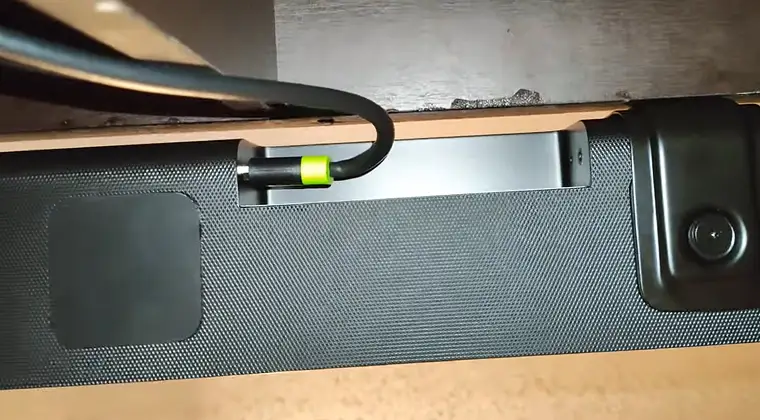
HDMI ARC (Audio Return Channel) is your best bet if both your TV and Vizio soundbar support it. One cable handles everything, delivers the highest audio quality, and lets your TV remote control soundbar volume. It’s a great option if you’ve got a solid gaming soundbar since it’ll dish out the best immersion possible.
Finding the Right HDMI Port
Not every HDMI port supports ARC. Look for one specifically labeled “HDMI ARC” or “HDMI eARC” on your TV. It’s usually HDMI 1, but check your TV’s label to be sure.
On your Vizio soundbar, find the port labeled “HDMI OUT (ARC)” or just “HDMI ARC.” Some newer models only have HDMI eARC, which works the same way.
Step-by-Step HDMI ARC Setup
- Step 1: Power everything off. Turn off both your TV and soundbar. Unplug them from power if you want to be extra safe.
- Step 2: Connect the HDMI cable. Plug one end into your TV’s HDMI ARC port. Plug the other end into your soundbar’s HDMI ARC port. Make sure both connections click firmly into place.
- Step 3: Power on and wait. Turn on your TV first, then the soundbar. Wait about 30 seconds for devices to recognize each other. Your soundbar should automatically switch to HDMI input.
- Step 4: Enable HDMI CEC on your TV. Press Menu on your TV remote and navigate to Settings. Look for options called HDMI-CEC (most brands), Anynet+ (Samsung), Bravia Sync (Sony), SimpLink (LG), or EasyLink (Philips). Enable this setting. It allows your TV and soundbar to communicate.
- Step 5: Set TV audio output. Still in TV settings, find Audio or Sound settings. Change the audio output to: “External Speaker” or “Audio System.” Set digital audio format to “Dolby Digital” or “Bitstream” (not PCM unless you have issues)
- Step 6: Test the connection. Play something on your TV. Audio should come from the soundbar, not the TV speakers. Your TV remote should now control soundbar volume.
If you hear nothing, jump to the troubleshooting section below. Our best budget soundbar guide features VIZIO V-Series 2.1 as #1, so you can learn more about it if that’s the model you’ve just bought.
Method 2: Optical Cable Connection
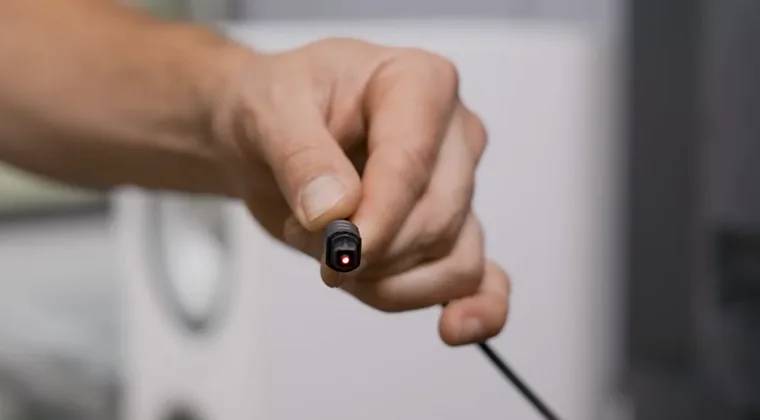
Optical cables (also called TOSLINK or digital audio) deliver excellent quality without needing HDMI ARC. Perfect if your TV’s ARC port is already occupied or doesn’t work properly.
Step-by-Step Optical Setup
- Step 1: Locate the optical ports. On your TV, find the port labeled “Optical Out,” “Digital Audio Out,” or “TOSLINK.” It’s usually a square port with a little door that opens when you insert the cable. On your Vizio soundbar, find “Optical In” or “OPT IN.” Same square shape.
- Step 2: Remove protective caps. Optical cables have rubber caps on both ends protecting the fiber optic inside. Remove these caps. You’ll see red light through the cable if you hold it up.
- Step 3: Connect the cable. Insert the optical cable into your TV’s optical out port. Push until it clicks. Connect the other end to your soundbar’s optical in port. Push firmly until it clicks.
- Step 4: Power on devices. Turn on your TV and soundbar.
- Step 5: Select optical input on the soundbar. Press the Input button on your soundbar or remote repeatedly until “Optical” or “OPT” appears on the display. The soundbar won’t play TV audio until you select this input.
- Step 6: Configure TV audio settings. Go into your TV’s audio settings > set TV speakers to “Off” or “External” > set digital audio output to “PCM” (start here) or “Dolby Digital.” If you hear no sound with PCM, try switching to Dolby Digital or Bitstream
Unlike HDMI ARC, optical doesn’t let your TV remote control the soundbar. You’ll need the soundbar remote to adjust volume. Once you hear the difference for the first time, our guide on soundbar vs speakers for PC gaming will make much more sense.
Method 3: Bluetooth Connection (Wireless)
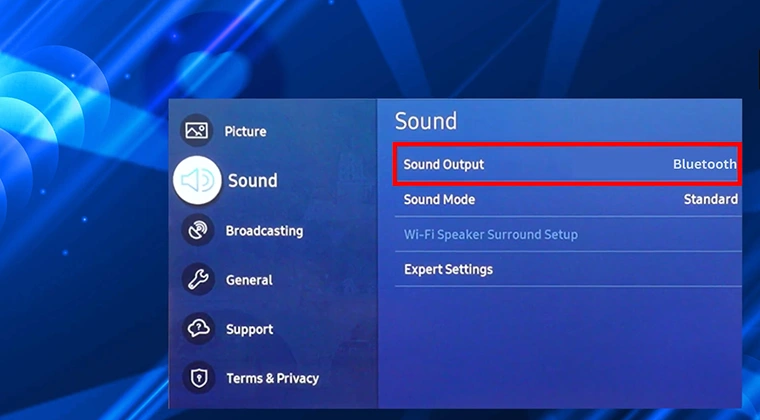
Bluetooth gives you a cable-free setup, but audio quality takes a hit, and you might notice a slight delay between video and sound. Use this for casual viewing, not serious movie watching. Also, if you’ve got a powerful music soundbar, I wouldn’t recommend this option.
Step-by-Step Bluetooth Pairing
- Step 1: Put the soundbar in pairing mode. Press and hold the Bluetooth button on your Vizio soundbar or remote for about 5 seconds. LED lights on the soundbar will start blinking, usually blue. This means it’s ready to pair.
- Step 2: Access TV Bluetooth settings. On your TV, open Settings and find: Sound Settings > Audio Output > Bluetooth, or Settings > Bluetooth > Add Device, or Settings > Connections > Bluetooth. The exact menu varies by TV brand.
- Step 3: Scan for devices. Your TV will search for available Bluetooth devices. Wait for your Vizio soundbar to appear in the list. It usually shows up as “VIZIO SB” followed by model numbers.
- Step 4: Select and pair. Select your soundbar from the list. Your TV will connect automatically. The soundbar LED will stop blinking and stay solid blue when paired successfully.
- Step 5: Test audio. Play content on your TV. Sound should come through the soundbar. If there’s a noticeable delay between lips moving and words you hear, Bluetooth isn’t ideal for your setup.
Note: You’ll need to reconnect Bluetooth every time you power cycle the soundbar. Some TVs remember the pairing, others make you repeat the process.
Method 4: RCA/AUX Connection (Older TVs)
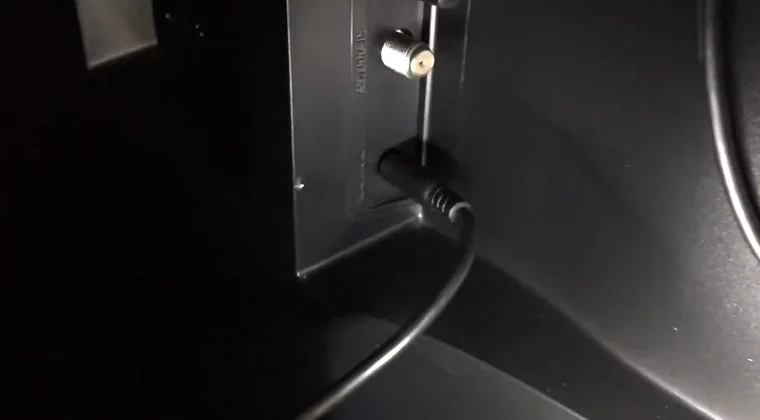
If your TV lacks HDMI ARC and optical ports (common on TVs over 10 years old), you’ll use an analog RCA or 3.5mm AUX connection. Audio quality is the lowest of all methods, but it works when nothing else does. If you have a top-tier gaming soundbar, for example, I suggest investing in a new TV as well for optimal results.
Step-by-Step RCA/AUX Setup
- Step 1: Identify your cable type. You need a cable with a 3.5mm jack on one end (plugs into soundbar) and red/white RCA connectors on the other end (plugs into TV).
- Step 2: Connect to the soundbar. Plug the 3.5mm jack into the port labeled “AUX IN” or “Line In” on your Vizio soundbar.
- Step 3: Connect to TV. Plug the red and white RCA connectors into your TV’s “Audio Out” ports. Red goes to red, white goes to white. These are usually located near the component video inputs.
- Step 4: Select AUX input. Press Input on your soundbar until “AUX” appears on the display.
- Step 5: Set TV audio output. In TV settings, change audio output to “External Speakers” or “Audio Out.” Turn off the TV’s internal speakers.
You’ll control volume using the soundbar remote only. The TV remote won’t work for volume with this connection type.
Configuring TV Audio Settings
After physically connecting your soundbar, you need to configure your TV’s audio settings. These steps work for most TV brands.
Samsung TV Settings
- Press the Home button on the remote
- Go to Settings > Sound > Sound Output
- Select “Audio Out/Optical” or “Receiver (HDMI)”
- Go to Expert Settings > Digital Output Audio Format
- Choose “Dolby Digital” or “PCM”
- Enable Anynet+ (HDMI-CEC) in General settings
LG TV Settings
- Press Settings on the remote
- Navigate to Sound > Sound Out
- Select “Optical/HDMI ARC” or “External Speaker”
- Go to Sound > Digital Sound Out
- Set to “Auto” or “Pass Through”
- Enable SimpLink in General > HDMI Settings
Sony TV Settings
- Press Home > Settings
- Go to Display & Sound > Audio Output
- Select “Audio System”
- Set Digital Audio Out to “Auto”
- Enable Bravia Sync in External Inputs > HDMI Settings
Vizio TV Settings
- Press Menu
- Go to Audio Settings
- Set Speakers to “Off”
- Digital Audio Out to “Bitstream”
- Enable CEC in System settings
Troubleshooting Common Connection Issues
No Sound From the Soundbar
Check these in order:
- Verify input selection. Press the Input button on the soundbar. Make sure it matches your connection type (HDMI, Optical, etc.)
- Check TV audio settings. Make sure TV speakers are set to “Off” and audio output points to external speakers
- Test the cable. Try a different HDMI or optical cable. Cables fail more often than you’d think
- Power cycle everything. Unplug the TV and soundbar from power. Wait 60 seconds. Plug back in and power on
- Check mute status. Your soundbar might be muted. Press the volume up or unmute button on the remote
HDMI ARC Not Working
Fix HDMI ARC issues:
- Enable CEC. Go into TV settings and turn on HDMI-CEC (might be called Anynet+, Bravia Sync, etc.)
- Update firmware. Check for TV and soundbar firmware updates. Outdated software breaks ARC connections
- Try a different HDMI port. Some TVs have multiple ARC ports. Try the other ones
- Use a high-speed HDMI cable. Not all HDMI cables support ARC. Get one labeled “High Speed with Ethernet”
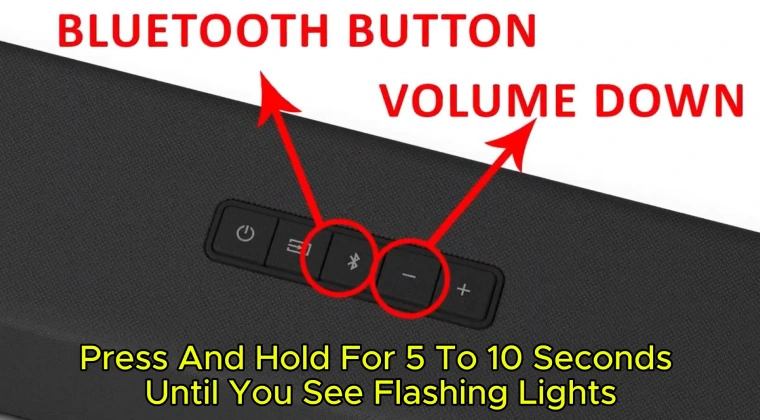
- Factory reset the soundbar. Hold the Bluetooth + Volume Down buttons for 5 seconds until the lights flash three times
Audio Delay with Bluetooth
Bluetooth creates a 50-150ms audio delay. Lips move before you hear words. This is normal and can’t be fixed completely.
Reduce delay:
- Use “Game Mode” or “PC Mode” on your TV (reduces TV processing delay)
- Enable audio sync adjustment in soundbar settings if available
- Switch to a wired connection (HDMI or optical) for zero delay
Optical Cable No Sound
Optical connection fixes:
- Remove plastic tips. Optical cables ship with protective caps. Remove them from both ends
- Check for damage. Shine light through the cable. If you don’t see a red light, the cable is broken internally
- Push firmly until you hear a click. Optical connectors must click into place. Loose connection = no audio
- Change TV audio format. Switch between PCM and Dolby Digital in TV settings. One will work
- Disable TV speakers. Some TVs won’t send optical audio while internal speakers are enabled
Soundbar Connects, But Volume Too Low
Increase output level:
- Set TV volume to maximum (won’t be too loud when using the soundbar)
- Set digital audio output format to “Fixed” or “Variable” in TV settings
- Adjust the soundbar’s input level in its menu settings
- Some content is just mastered quietly – boost the soundbar’s master volume
Connect Your Vizio Soundbar to Your TV Right Now
Connecting a Vizio soundbar to your TV boils down to picking the right cable and configuring a few settings. HDMI ARC delivers the best quality and easiest setup with one cable doing everything. Optical cable works great when ARC isn’t available. Bluetooth handles wireless needs despite audio delay issues. And RCA cables rescue older TVs that lack digital audio ports.
The key is matching your connection method to what your TV actually supports, then diving into TV audio settings to route sound externally. Most “soundbar won’t work” problems trace back to wrong input selection on the soundbar or TV audio still set to internal speakers.
Once connected properly, your Vizio soundbar transforms movie nights, gaming sessions, and music listening. No more straining to hear dialogue or cranking volume to uncomfortable levels. Just clear, powerful audio that makes you wonder why you suffered through TV speakers for so long.
FAQs
HDMI ARC is the best connection method for Vizio soundbars. It delivers the highest audio quality, including Dolby Atmos and DTS:X formats, uses a single cable, and lets your TV remote control soundbar volume.
The most common reason is wrong input selection on the soundbar. Press the Input button repeatedly until it matches your connection type (HDMI, Optical, AUX, or Bluetooth). Second, check your TV’s audio settings – TV speakers must be disabled and audio output set to “External Speaker” or “Audio System.”
Yes, but only with an HDMI ARC connection and HDMI-CEC enabled. HDMI-CEC allows your TV remote to control connected devices, including soundbars. Enable this feature in your TV settings (called Anynet+ on Samsung, Bravia Sync on Sony, SimpLink on LG).
Use an optical cable if your TV has an optical audio out port (a small square port with the protective door). Connect the optical cable from your TV’s “Optical Out” to the soundbar’s “Optical In,” select optical input on the soundbar, and set TV audio output to PCM or Dolby Digital.
Bluetooth audio delay (50-150ms) happens because Bluetooth compresses audio data and transmits it wirelessly, which takes time to process. This creates noticeable lag between video and sound. The delay is inherent to Bluetooth technology and can’t be fully eliminated.