9 Best Vertical Monitors for Coding, Gaming, and Office Work in 2026

Eneba Hub contains affiliate links, which means we may earn a small commission if you make a purchase through them—at no extra cost to you. Learn more


To get the best vertical monitor, check for two must-haves: a dependable 90° rotating stand and an IPS screen that keeps colors accurate when vertical. Without that combo, anything long – code, research, spreadsheets – turns into a wide-screen mess that makes your eyes wander and your efficiency vanish.
A vertical setup solves this problem immediately. It lets you see more lines of code, read full PDF pages without zooming, or keep a dedicated stream chat open while gaming. In this guide, I will walk you through the top monitors that support portrait mode right out of the box. We will look at options for every budget and use case to upgrade your workspace efficiency.
Jump to:
Our Top Picks for Vertical Monitors
There are dozens of monitors on the market, but only a few offer the right balance of ergonomics, viewing angles, and price for vertical use. After reviewing the specs and performance of numerous models, I have narrowed it down to the top performers. These three stand out because they make switching to portrait mode easy and reliable.
- AOC 27″ 27G4H – It offers a fantastic balance of screen and performance with a sturdy stand and a Fast IPS panel that ensures that text remains crisp even when you are scrolling quickly.
- ViewSonic VA2408‑HDJ – This monitor is perfect for a secondary display dedicated to email or Discord and proves you do not need to spend a fortune to get a functional ergonomic stand.
- Alienware AW2725DM – It delivers incredibly high refresh rates, making it the ideal choice if you want your vertical screen to double as a gaming monitor for casual play.
Keep scrolling to see the full breakdown of all nine monitors to find the one that fits your desk perfectly.
9 Best Vertical Monitors to Handle Every Task
Here is the complete list of the best vertical monitor options available this year, ranging from budget-friendly office screens to high-end gaming displays.
1. AOC 27″ 27G4H [Best Overall Vertical Monitor]
| Specs | Details |
|---|---|
| Screen Size | 27 Inches |
| Aspect Ratio | 16:9 |
| Panel Type | Fast IPS |
| Response Time | 1 ms (GtG) |
| Resolution | 1920 x 1080 (FHD) |
| Refresh Rate | 200 Hz |
| Brightness | 300 nits |
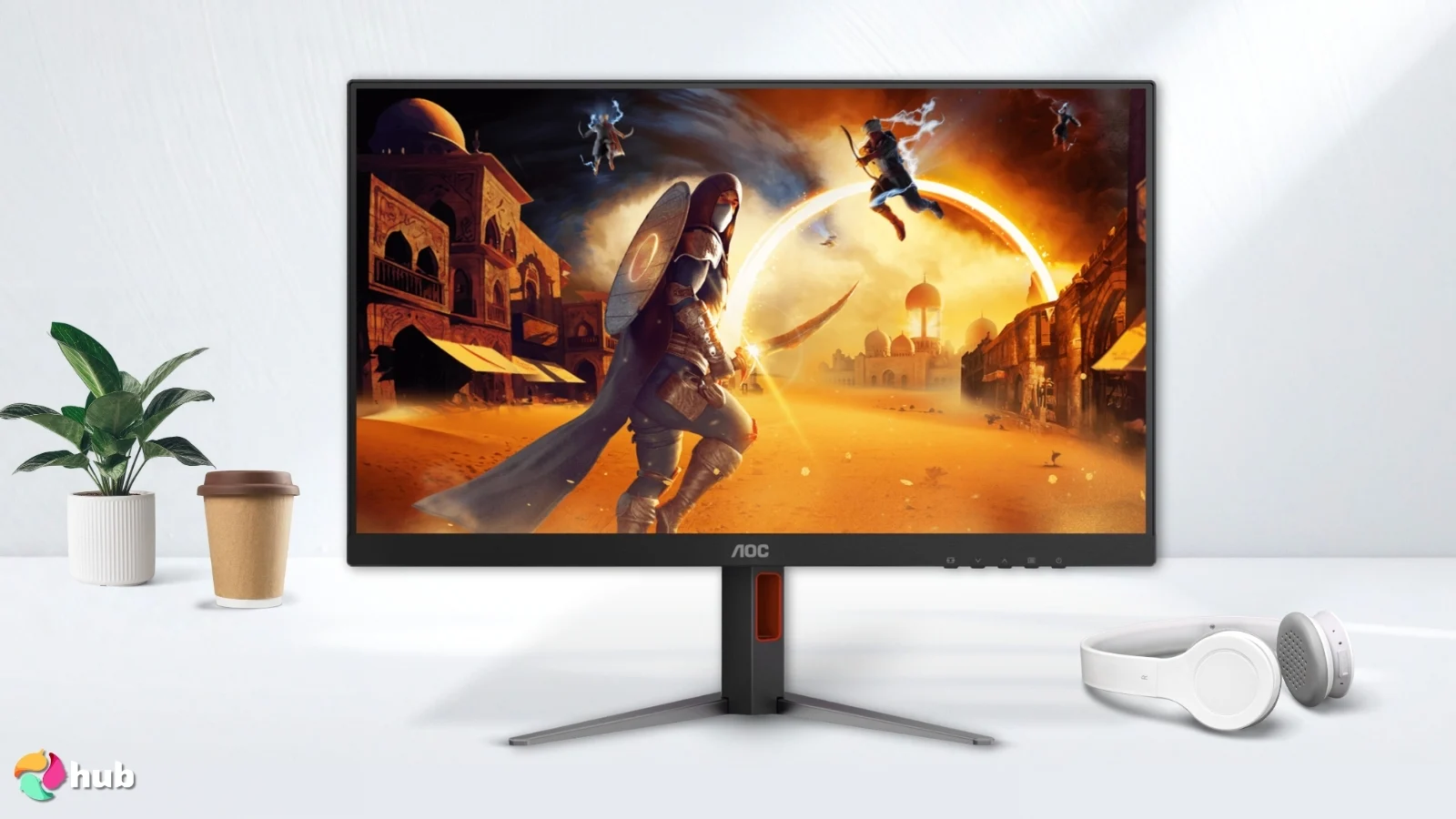
The AOC 27G4H takes the top spot because it does everything well without breaking the bank. It features a Fast IPS panel, which is crucial for a vertical setup. IPS panels provide wide viewing angles, so colors do not shift or look washed out when the screen is tall rather than wide.
The stand is the highlight here. It offers height, swivel, and a full pivot range from -90° to +90°. You can rotate it left or right depending on where your PC sits on your desk.
I picked the AOC 27G4H as the best overall because it offers premium ergonomics at a mid-range price. The ability to pivot 90 degrees in both directions gives you total flexibility in how you arrange your desk.
The ultra-narrow bezel design makes this monitor seamless in multi-screen setups. It also supports HDR10, providing a slight boost in contrast and color depth for watching videos during work breaks.
The 200 Hz refresh rate makes scrolling through websites or long documents feel incredibly smooth. Text stays sharp, which reduces eye strain during long work sessions. While the 1080p resolution is standard, it is perfectly adequate for a 27-inch secondary screen.
| Pros | Cons |
|---|---|
| ✅ Excellent 200 Hz refresh rate for smooth scrolling. ✅ The stand pivots 90 degrees in both directions. ✅ The fast IPS panel offers great viewing angles. ✅ Sturdy build quality feels secure in portrait mode. ✅ Thin bezels look great in multi-monitor setups. ✅ Includes Adaptive Sync support. | ❌ 1080p resolution might feel low for some creative work. |
Final Verdict: The AOC 27G4H is the most versatile choice for the average user. It bridges the gap between gaming specs and office ergonomics perfectly.
2. ViewSonic VA2408‑HDJ [Best Budget Vertical Monitor]
| Specs | Details |
|---|---|
| Screen Size | 23.8 Inches |
| Aspect Ratio | 16:9 |
| Panel Type | IPS |
| Response Time | 5 ms GtG (1 ms MPRT with blur reduction) |
| Resolution | 1920 x 1080 (FHD) |
| Refresh Rate | 120 Hz |
| Brightness | 250 nits |
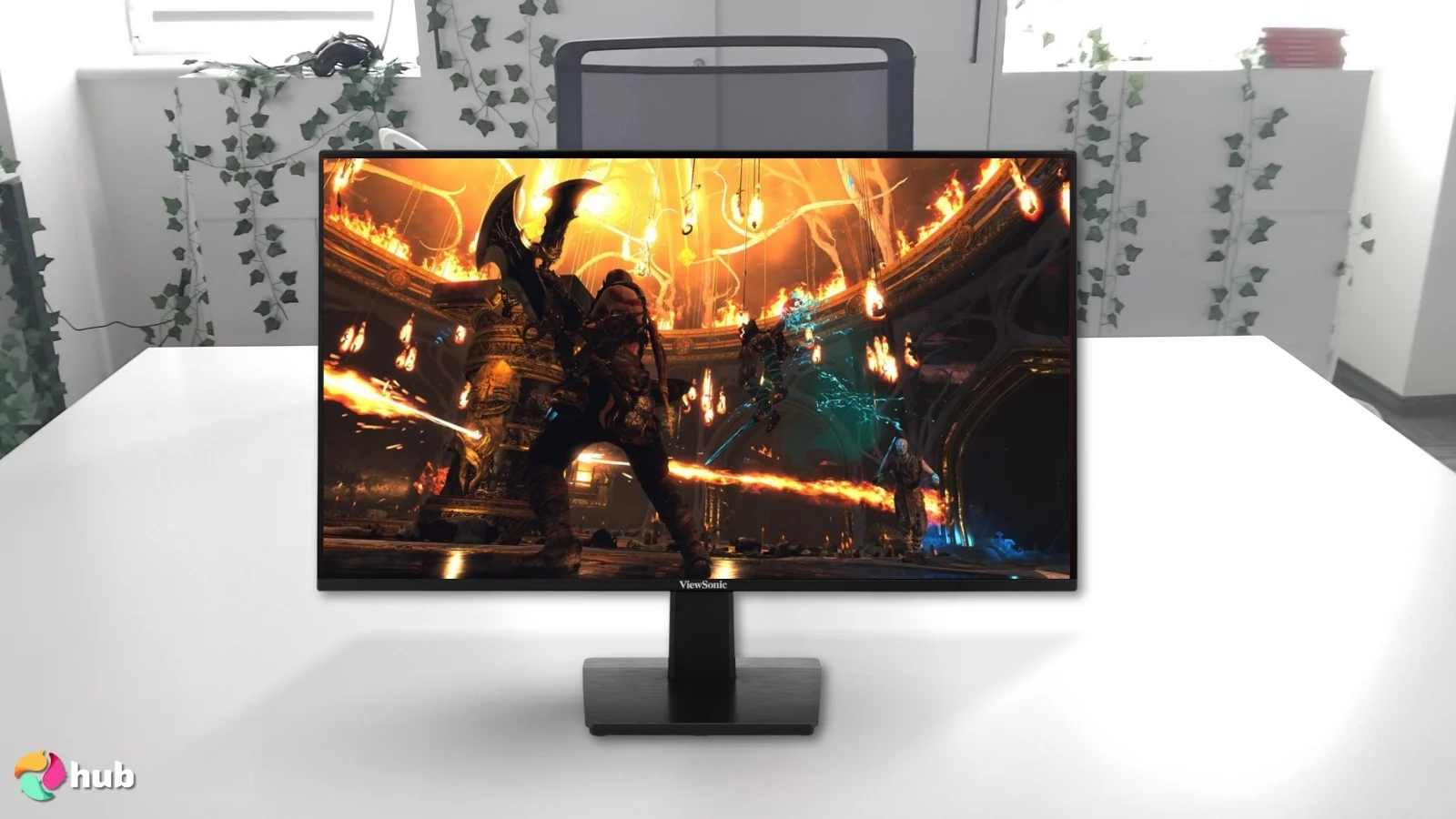
The ViewSonic VA2408‑HDJ is an excellent choice for anyone hunting for a budget vertical monitor, and it’s surprisingly classy for something with such a wallet-friendly price tag. It is a compact 23.8-inch display, which is often better for vertical use than larger screens because you do not have to crane your neck up to see the top toolbar.
The SuperClear IPS panel ensures consistent brightness from all angles. This is vital when the monitor is rotated. Its 120 Hz variable refresh rate is a nice step up from standard 60 Hz office monitors and makes mouse movement look fluid.
When setting it up vertically, always manage your cables first. Leave a little extra slack in the HDMI and power cords so they don’t pull tight or disconnect while you are working.
The text clarity is sharp enough for reading emails and writing documents. I noticed the footprint is small, so it fits easily on crowded desks. It serves well as a dedicated rotatable monitor for Slack or Spotify.
ViewMode presets optimize contrast for specific tasks like reading text or browsing the web. VESA compatibility also allows you to mount a mini PC directly behind the screen to save space.
The connectivity is decent, offering HDMI, DisplayPort, and VGA, making it compatible with older computers too.
| Pros | Cons |
|---|---|
| ✅ Very affordable price point. ✅ Compact size is easy to fit on small desks. ✅ The stand allows for full pivot and height adjustment. ✅ 120 Hz refresh rate is better than standard office screens. ✅ Includes legacy VGA port for older PCs. | ❌ Brightness is limited to 250 nits which isn’t too bad. |
Final Verdict: The ViewSonic VA2408‑HDJ is the smart choice for students or remote workers on a budget. You get full ergonomic freedom without the high cost.
3. Alienware AW2725DM [Best Vertical Monitor for Gaming]
| Specs | Details |
|---|---|
| Screen Size | 27 Inches |
| Aspect Ratio | 16:9 |
| Panel Type | Fast IPS |
| Response Time | 1 ms (GtG) |
| Resolution | 2560 x 1440 (QHD) |
| Refresh Rate | 180 Hz |
| Brightness | 400 nits (Peak) |
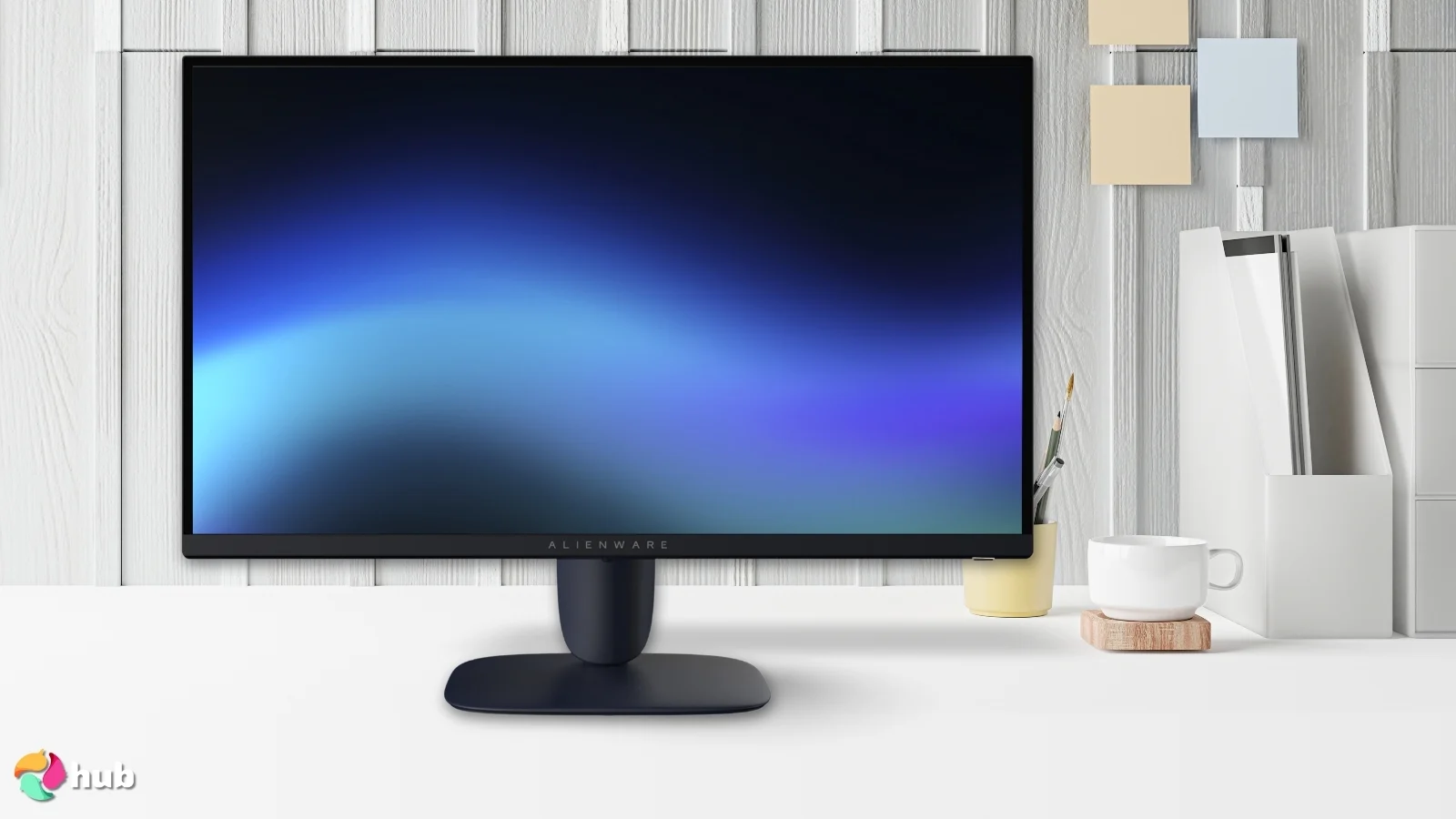
The Alienware AW2725DM is a top gaming monitor. While most people use this as a main landscape display, its stand supports a full pivot, making it a fantastic secondary vertical monitor or a primary screen for vertical gaming (like pinball or shmups). It features a QHD resolution, which gives you much more screen space than 1080p. You can fit more windows or higher-quality graphics on the screen.
The Alienware AW2725DM supports NVIDIA G-SYNC and VESA AdaptiveSync. This eliminates screen tearing. The design is sleek, with the iconic Alienware aesthetic and customizable RGB lighting.
I chose the Alienware AW2725DM for its refusal to compromise. It combines high resolution and high speed with a stand that handles portrait mode securely, making it perfect for streamers who need a high-quality chat monitor.
The features don’t stop here. The customizable AlienFX lighting system syncs with other supported peripherals for a unified look. Additionally, the rear joystick control makes navigating the on-screen display menus fast, intuitive, and frustration-free.
The color coverage is fantastic, covering 95% of the DCI-P3 color space. If you want a monitor that handles gaming and vertical workflows equally well, this is it.
| Pros | Cons |
|---|---|
| ✅ Sharp QHD resolution provides plenty of workspace. ✅ High refresh rate and fast response time. ✅ Excellent color accuracy for a gaming monitor. ✅ A robust stand prevents wobbling in vertical mode. ✅ Great build quality and aesthetic. | ❌ The price might be high for some people buying it as a secondary display. |
Final Verdict: If you are someone who wants a vertical monitor for both work and gaming, the Alienware AW2725DM is unmatched. It is fast, sharp, and built like a tank.
4. Dell S2425HS [Best Vertical Monitor for Eye Comfort]
| Specs | Details |
| Screen Size | 23.8 Inches |
| Aspect Ratio | 16:9 |
| Panel Type | IPS |
| Response Time | 4 ms (GtG) |
| Resolution | 1920 x 1080 (FHD) |
| Refresh Rate | 100 Hz |
| Brightness | 250 nits |
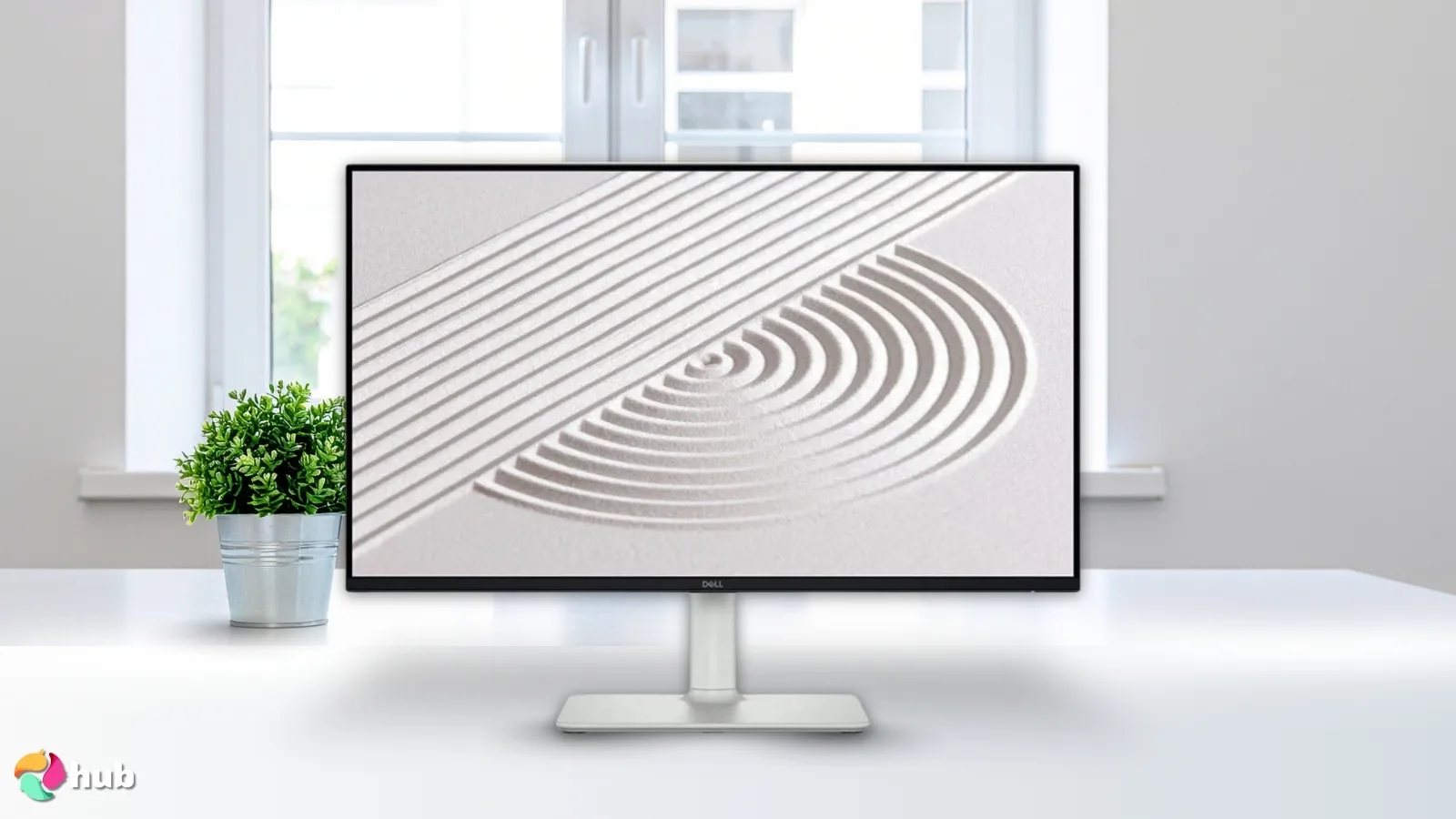
The S2425HS is one of the best Dell monitors designed for the modern office. I found the stand to be one of the easiest to adjust in this list. It lifts, tilts, and pivots with very little force. The main focus of this monitor is eye health.
It uses Dell’s ComfortView Plus technology, which is a built-in low blue light screen feature that is always on but does not turn the screen yellow. This is critical for a vertical monitor because people often use them for reading text, documentation, or code for hours at a time.
Use the Dell Display Manager software to create “Easy Arrange” layouts. This lets you snap windows into predefined zones on your vertical screen, so your email and Spotify barely overlap.
The 100 Hz refresh rate also helps reduce eye fatigue by making scrolling smoother compared to traditional 60 Hz screens. The built-in speakers also are a nice bonus for clear notification sounds without needing extra gear.
Two more things I appreciate are the integrated cable management slot in the riser and the rear joystick control. The former keeps wires hidden while the latter allows for easy menu access without fumbling for buttons in the dark.
Just a quick note: even though the S2425HS supports portrait rotation, Dell advises against using it when it’s teamed up with other monitors. Go vertical only if it’s your only screen.
| Pros | Cons |
|---|---|
| ✅ ComfortView Plus reduces harmful blue light. ✅ The stand is highly adjustable and smooth. ✅ Integrated speakers save desk space. ✅ Clean cable management system in the riser. ✅ Good refresh rate for office work. | ❌ No USB-C video input – you’ll need HDMI from your laptop or a USB-C–to–HDMI/DP adapter. |
Final Verdict: The Dell S2425HS is the best option for writers and researchers. It prioritizes your eye health during those long reading sessions.
5. ASUS ProArt Display PA278QV [Best Vertical Monitor for Creatives]
| Specs | Details |
|---|---|
| Screen Size | 27 Inches |
| Aspect Ratio | 16:9 |
| Panel Type | IPS |
| Response Time | 5 ms (GtG) |
| Resolution | 2560 x 1440 (WQHD) |
| Refresh Rate | 75 Hz |
| Brightness | 350 nits |
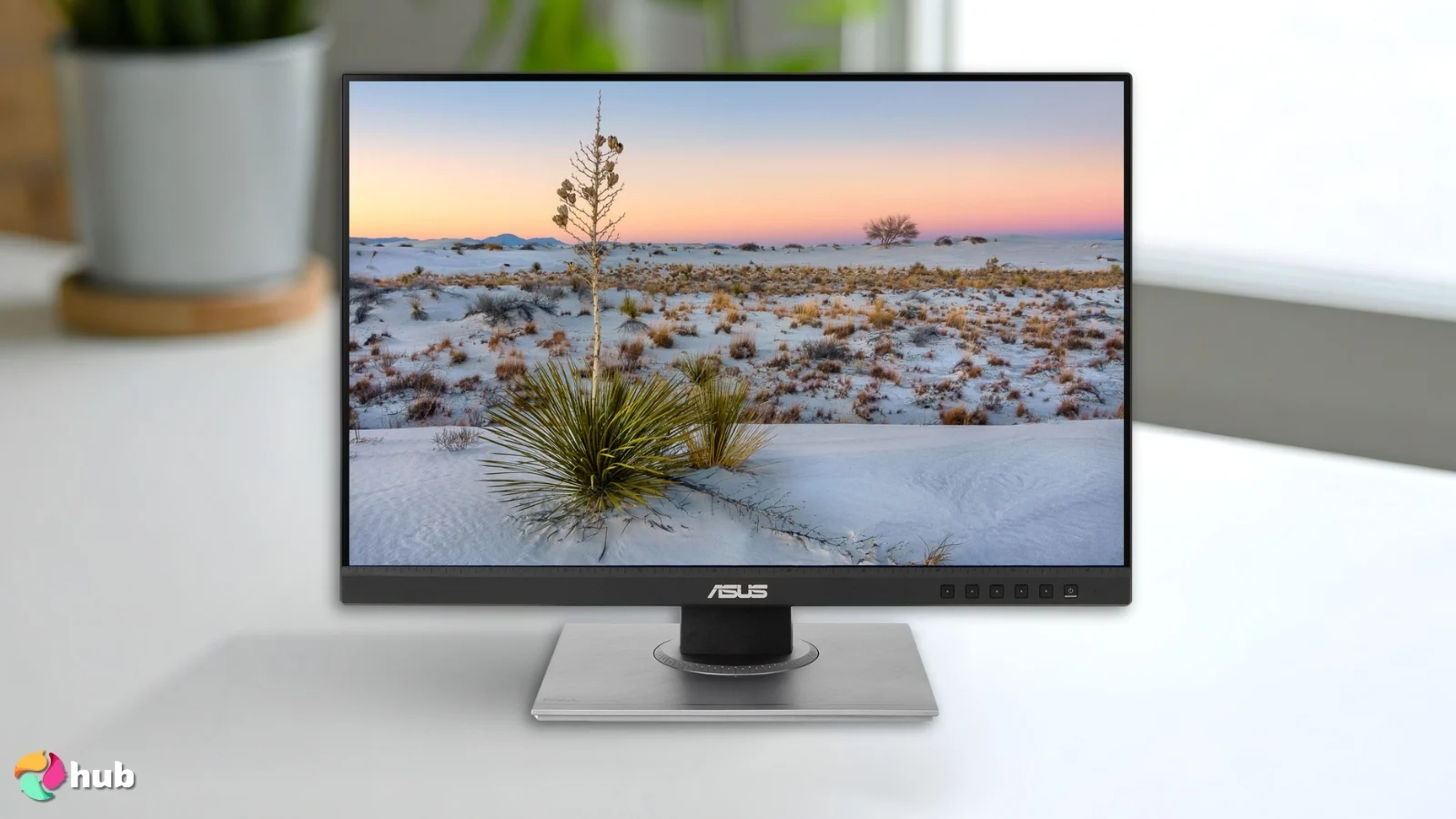
The ASUS ProArt Display PA278QV is a favorite among graphic designers and photographers. If you are editing portrait photography or designing mobile app layouts, this is the monitor you need. It comes factory calibrated with a color accuracy of Delta E < 2. This means the colors you see on the screen are true to life.
The ASUS ProArt PA278QV provides accuracy in creative work. Standard monitors often shift colors when rotated, but this panel maintains professional-grade color consistency from top to bottom.
It is one of the best ASUS monitors for work. The WQHD panel gives you crisp details making sure you don’t miss anything. The stand is professional-grade, allowing for a smooth 90-degree pivot with no worries whatsoever.
The built-in USB hub lets you connect drives or peripherals easily. Additionally, the QuickFit Virtual Scale feature displays real-size document grids on the screen, helping you preview layouts before printing.
The ASUS ProArt Display PA278QV also has a ruler scale on the bottom bezel, which is a handy physical reference for designers. And if you are working on designs in a bright room, the screen’s anti-glare coating makes sure the external light doesn’t wash out the image.
| Pros | Cons |
|---|---|
| ✅ Factory calibrated for excellent color accuracy. ✅ High WQHD resolution is great for detail. ✅ Extensive connectivity (DisplayPort, MiniDP, HDMI, USB hub). ✅ Ergonomic stand with a quick-release design. ✅ Specific ProArt presets for different workflows. | ❌ 75 Hz refresh rate might be a little low for those used to 100+ Hz screens. |
Final Verdict: Creatives and artists should look no further. The ASUS ProArt Display PA278QV ensures your vertical designs look exactly the way they should.
6. BenQ RD240Q [Best Vertical Monitor for Programming]
| Specs | Details |
|---|---|
| Screen Size | 24.1 Inches |
| Aspect Ratio | 16:10 |
| Panel Type | IPS |
| Response Time | 5 ms |
| Resolution | 2560 x 1600 (WQXGA) |
| Refresh Rate | 60 Hz |
| Brightness | 300 nits |
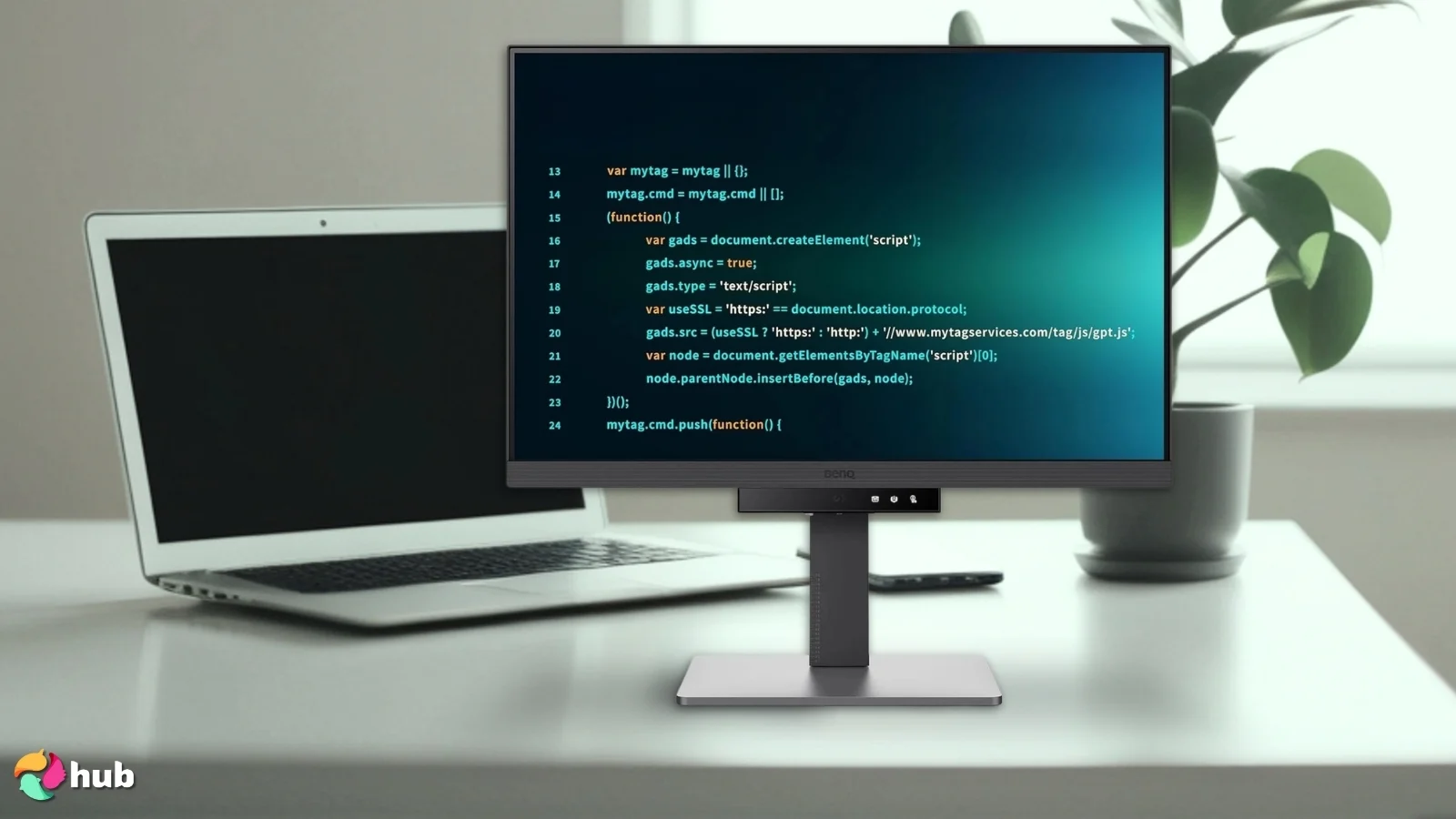
The BenQ RD240Q is built specifically for developers. It features a unique 16:10 aspect ratio which provides extra vertical space compared to standard 16:9 monitors. When you rotate this monitor to portrait mode, that extra width becomes extra height, allowing you to see even more lines of code.
I chose the BenQ RD240Q for its 16:10 aspect ratio. That extra screen real estate is invaluable for programmers, and the dedicated coding features show BenQ understands this audience.
BenQ includes a specialized “Coding Mode” that enhances the contrast of text to make it stand out against dark backgrounds. This makes syntax highlighting pop and reduces the strain of reading code all day.
Another top feature is its unique “Night Hours Protection” feature that automatically adjusts brightness in low light. The anti-glare coating is specifically fine-tuned to ensure code remains readable without eye-straining reflections.
The stand pivots effortlessly, and the setup is very simple as well. It pairs perfectly with a good programming laptop to create a powerful dev station.
| Pros | Cons |
|---|---|
| ✅ The 16:10 aspect ratio offers more usable space. ✅ Dedicated coding mode for better text visibility. ✅ 300 nits brightness allows you to see every detail. ✅ Anti-glare coating makes sure your eyes don’t hurt while working for longer hours. ✅ Matte finish reduces reflections effectively. | ❌ 60 Hz refresh rate isn’t top-tier but works for many. |
Final Verdict: For developers, the BenQ RD240Q is a productivity booster and will make you cherish the work you do. The aspect ratio and text clarity make it the superior choice for coding.
7. Samsung 32″ Odyssey Neo G8 [Best Premium 4K Vertical Monitor]
| Specs | Details |
|---|---|
| Screen Size | 32 Inches |
| Aspect Ratio | 16:9 |
| Panel Type | VA (Mini-LED) |
| Response Time | 0.03 ms |
| Resolution | 3840 x 2160 (4K UHD) |
| Refresh Rate | 240 Hz |
| Brightness | 2000 nits (Peak) |
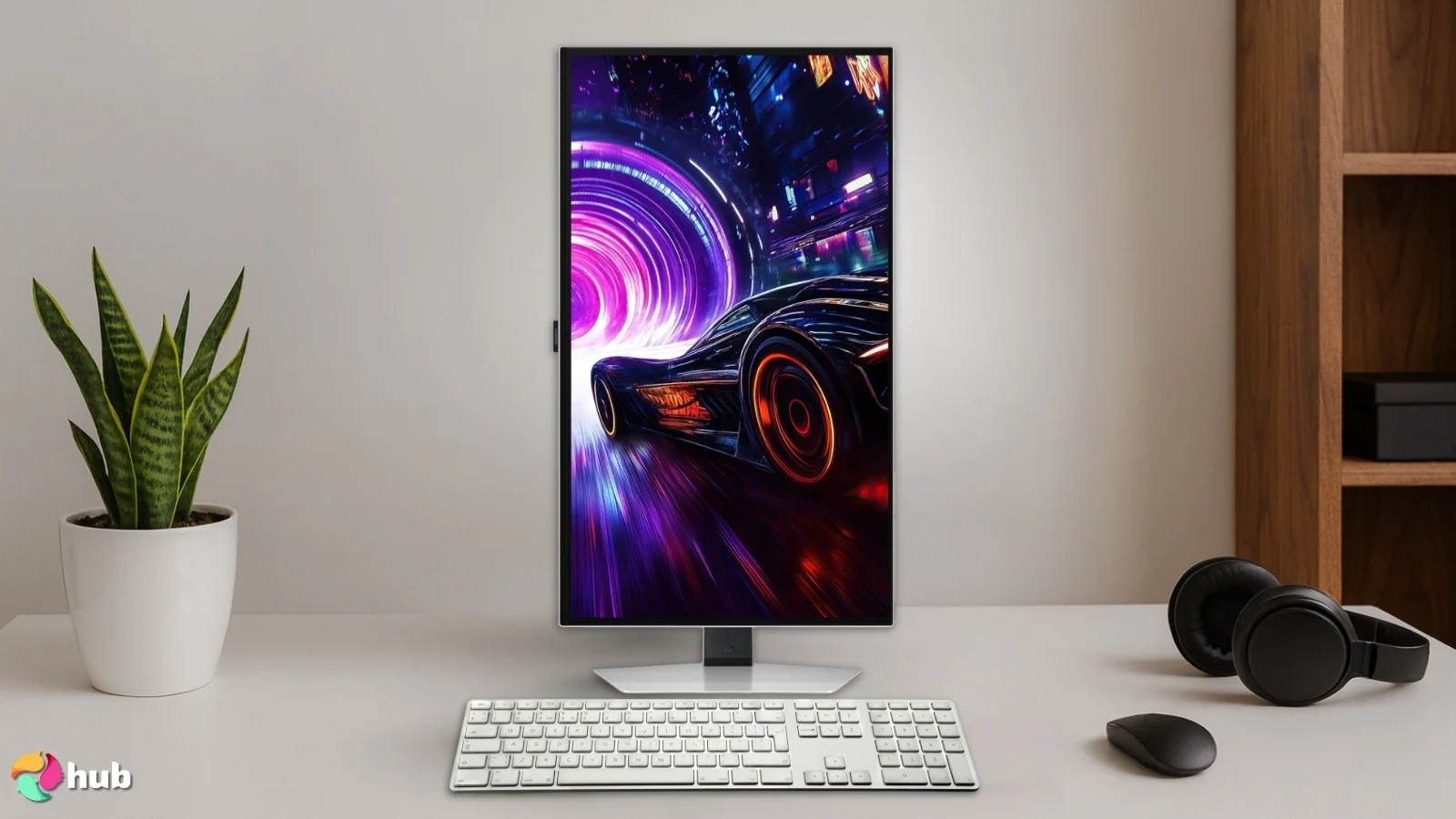
The Samsung Odyssey Neo G8 is an absolute beast. It is a 4K monitor with a blistering 240 Hz refresh rate. While it is curved (1000R), the stand allows for a pivot to portrait mode. This creates a towering, immersive vertical display that wraps around your field of view slightly. It is perfect for a top gaming PC setup where you want the highest possible specs.
Because this monitor is curved and tall in portrait mode, position it slightly further back on your desk. This helps you see the top and bottom edges without moving your head too much.
The Mini-LED technology delivers incredible contrast with deep blacks, making it amazing for viewing HDR content. However, using a 32-inch monitor vertically is intense – you have a massive amount of space for stacking windows.
The Neo G8 has a lot to offer for gamers. Its Quantum HDR 2000 technology delivers peak brightness that reveals hidden details in dark shadows. Its CoreSync lighting matches your game’s on-screen colors, projecting them into your room for immersion.
For connectivity, you get two HDMI 2.1 ports and a DisplayPort 1.4 input, so both consoles and high-end PCs can drive 4K at high refresh rates.
| Pros | Cons |
|---|---|
| ✅ Incredible 4K resolution and 240 Hz speed. ✅ Mini-LED offers stunning brightness and contrast. ✅ Futuristic design with CoreSync lighting. ✅ The matte display handles glare well. ✅ Supports full pivot despite the curve. | ❌ The 1000R curve can look strange for straight lines in vertical mode but users get used to it. |
Final Verdict: If you want the ultimate tech specs and budget isn’t an issue, the Odyssey Neo G8 is it. The premium experience it offers is pretty hard to beat.
8. Dell S2725QS [Best Vertical Monitor for Picture Quality]
| Specs | Details |
|---|---|
| Screen Size | 27 Inches |
| Aspect Ratio | 16:9 |
| Panel Type | IPS |
| Response Time | 0.03 ms |
| Resolution | 3840 x 2160 (4K UHD) |
| Refresh Rate | 120 Hz |
| Brightness | 350 nits |
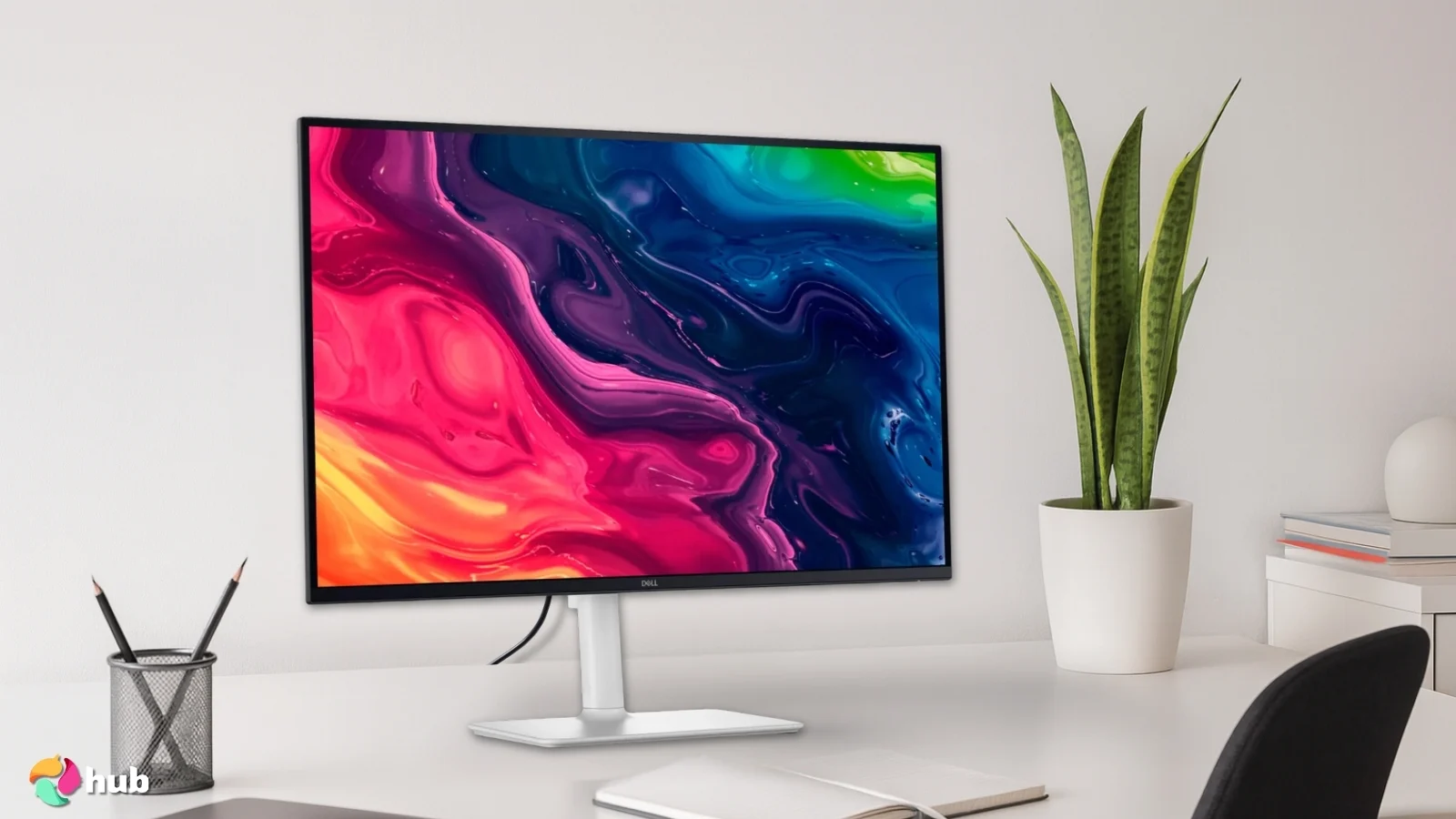
The Dell S2725QS brings 4K clarity to a manageable 27-inch size. The pixel density here is outstanding. Text looks like it is printed on paper, which is exactly what you want in a vertical monitor used for reading or editing documents. You will never see a jagged edge on a font.
I chose the Dell S2725QS for its pixel density. When you are sitting close to a vertical screen, low resolution becomes obvious. This 4K panel stays sharp no matter how close you look.
The stand is white and minimalist, fitting well into modern clean setups. It pivots easily, and the IPS panel ensures the image holds up from top to bottom.
If you want to see your images in high detail and picture-perfect resolution, connect the Dell S2725QS to your laptop for photography via HDMI or DisplayPort and look at the pictures on a bigger, more clear screen.
Last but not least, the textured back panel adds a unique visual touch to any open office and its dual HDMI ports allow seamless switching between a PC and a console without unplugging cables constantly.
| Pros | Cons |
|---|---|
| ✅ Sharp 4K UHD resolution. ✅ Modern, stylish white design. ✅ Dual HDMI ports for multiple devices. ✅ Built-in speakers are decent for daily use. ✅ Great text clarity for documents. | ❌ The stand footprint is a bit wide but it’s not a major issue. |
Final Verdict: The Dell S2725QS is for people who hate pixelated text. It offers a beautiful, sharp image that makes reading a pleasure.
9. FLYTOCCA N3 [Best Portable Vertical Monitor]
| Specs | Details |
|---|---|
| Screen Size | 16 Inches |
| Aspect Ratio | 16:10 |
| Panel Type | IPS |
| Response Time | 2 ms |
| Resolution | 1920 x 1200 |
| Refresh Rate | 60 Hz |
| Brightness | 300 nits |
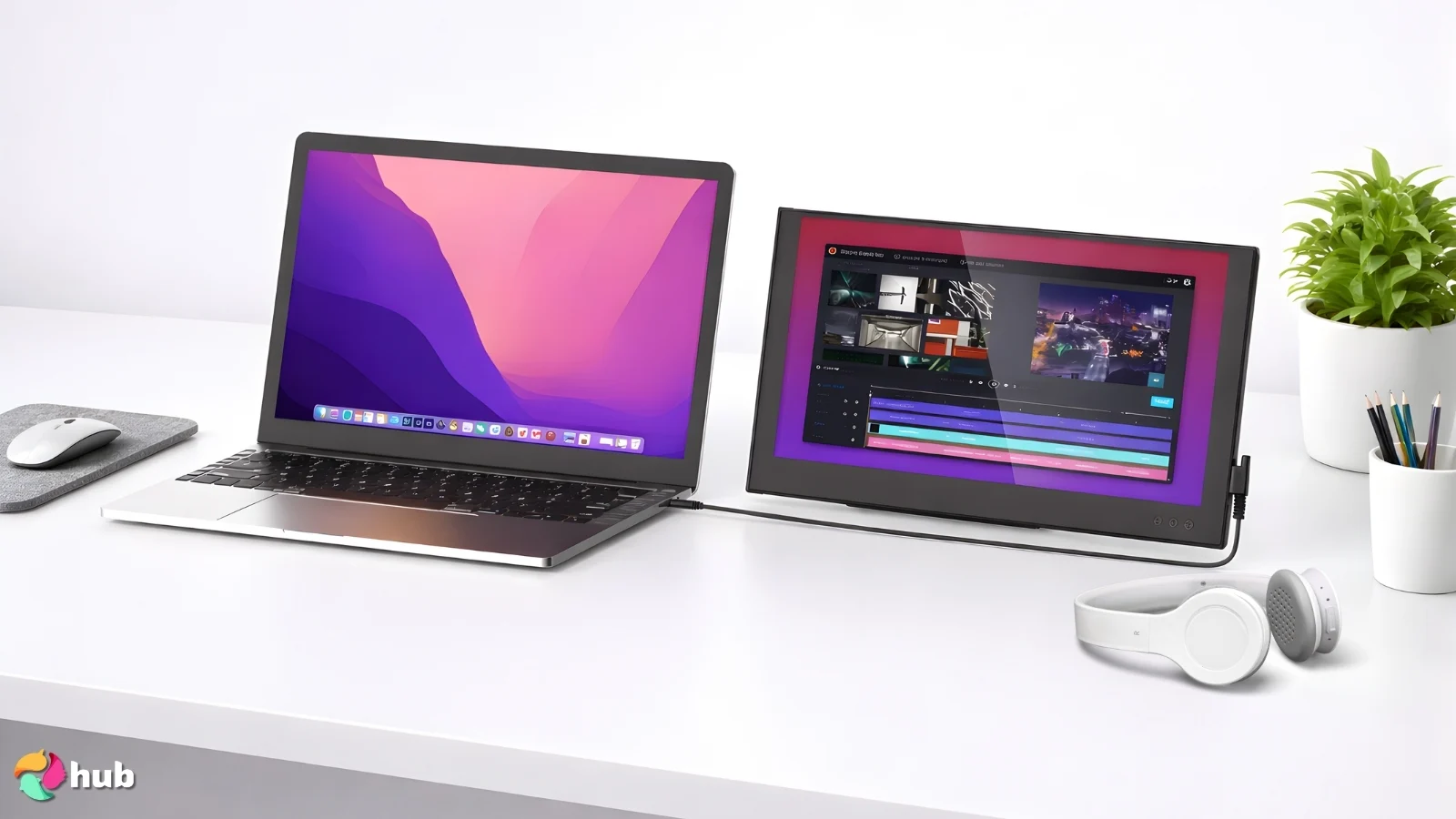
The FLYTOCCA N3 is unique because it isn’t a desktop monitor. It is a portable screen designed to travel with you. It features a dual-screen design that can be stacked vertically which instantly gives you a portrait-style layout powered by a single USB-C cable. It is incredibly slim and fits in a laptop bag.
Mobility is key for many workers today. This monitor gives you the benefits of a vertical screen without tethering you to a single desk.
Ideal for digital nomads, the FLYTOCCA N3 sets up quickly anywhere – even in a café –with a secure built-in kickstand for instant vertical screen use. It works fine on its own, but for a more permanent home workstation, consider integrating it into a reliable dual monitor setup.
This portable monitor is compatible with Windows, Mac, and Android devices. The 360-degree hinge allows for versatile folding, letting you protect the screen during transport without needing a separate bulky case. It has a USB-C port for power + video and a mini-HDMI port (which needs a separate USB power cable when used), meaning it’s highly portable because you can use just one USB-C cable with compatible laptops and avoid extra wires when traveling.
| Pros | Cons |
|---|---|
| ✅ Extremely portable and lightweight. ✅ Simple USB-C plug-and-play connection. ✅ Adds vertical screen space to laptops instantly. ✅ Includes a protective sleeve. ✅ Good brightness for indoor use. | ❌ Smaller screen size compared to desktop models. |
Final Verdict: The FLYTOCCA N3 is perfect for travel. It lets you take your productivity workflow with you wherever you go.
Vertical Monitor Setup Ideas for Productivity and Gaming
Switching a monitor to portrait mode completely changes how you organize your digital workspace. I have found that designating specific “zones” for a vertical screen clears up mental clutter and speeds up almost every task.
Here are the most effective ways to configure your setup.
The Streamer’s Command Center
If you stream on Twitch or YouTube, a vertical monitor is essential. Chat feeds and activity logs are naturally vertical lists. On a landscape monitor, you waste huge amounts of space on the sides of the chat.
In portrait mode, you can stack your OBS status, stream alerts, and the entire chat history in one tall column. This lets you glance over and process all that information instantly without minimizing your game or losing focus.
The Developer’s Waterfall
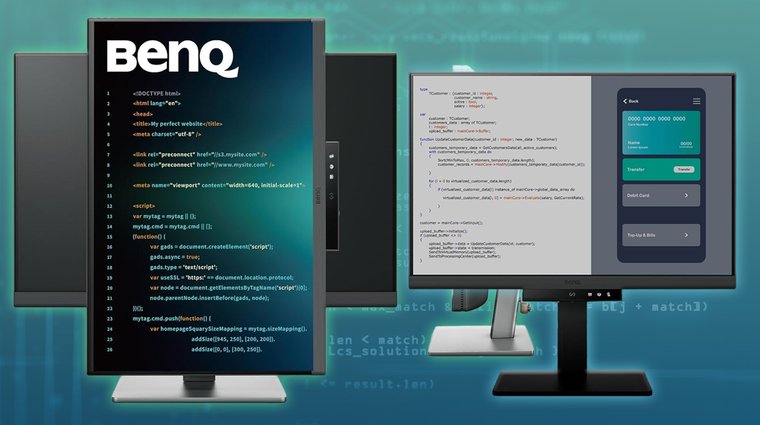
For coding, vertical space is king. I recommend placing your vertical monitor to the right of your main screen and dedicating it solely to your code editor. This “waterfall” view allows you to see 60 to 80 lines of code at once. Add a solid monitor arm into the mix, and you can adjust, rotate, and elevate the display without sacrificing precious desk space.
It drastically reduces the cognitive load because you can see the beginning and end of a long function simultaneously without scrolling back and forth to track variables.
The Research and Data Station
This setup is a lifesaver for students and writers. Keep your main document on your horizontal screen and open your reference materials – PDFs, long articles, or textbooks – on the vertical one.
You can view full pages at a readable text size without zooming or scrolling. It is also the superior way to handle data entry; a vertical screen can display hundreds of Excel rows, making it easy to spot trends or errors in long lists.
The Social Stack
I use this configuration to separate work from communication. You can snap Discord or Slack to the top half of the vertical screen and Spotify or email to the bottom.
This “Comms Tower” keeps your team updates visible but separates them from your primary deep-work monitor, preventing constant alt-tabbing distractions.
The Immersive Arcade
Don’t forget the entertainment value. Many classic arcade shooters and pinball games support “TATE” mode. When you rotate your screen, these games fill the entire display with zero black bars, making these vertical models the best gaming monitors for retro gaming.
My Overall Verdict
Choosing the right vertical monitor depends entirely on what you do at your desk all day. There is no single “perfect” screen, but there is definitely a right choice for your specific workflow.
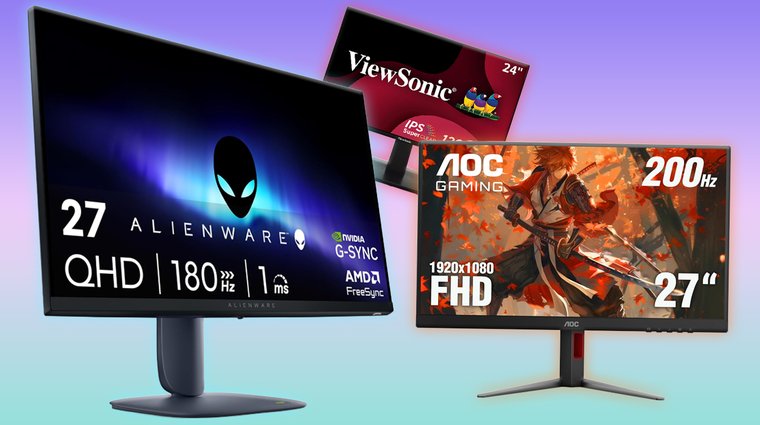
- For the All-Around User: AOC 27″ 27G4H. It adapts to everything you throw at it – work, browsing, and light gaming – thanks to its fast IPS panel and 200 Hz refresh rate.
- For the Gamer: Alienware AW2725DM. It is fast enough for competitive shooters but rotates easily for chat or retro gaming.
- For the Programmer: BenQ RD240Q. The 16:10 aspect ratio and coding mode are features that genuinely make development easier and less tiring for your eyes.
- For the Budget-Conscious: ViewSonic VA2408‑HDJ. It gives you the ergonomic freedom you need without wasting money on features you won’t use for a secondary text screen.
FAQs
The best vertical monitor is the AOC 27″ 27G4H. It balances a high-quality IPS panel, a fully adjustable stand, and a reasonable price. It works equally well for office tasks and gaming.
Yes, technically any monitor can be used vertically as long as it has VESA mount holes on the back. However, always verify the manufacturer’s guidelines – some screens are designed only for landscape orientation and shouldn’t be rotated even with a VESA mount.
No, 27 inches is not too big for vertical. In fact, it is a popular size for vertical use. However, you will need to tilt your head up to see the very top. For many users, 24 inches is the “sweet spot” where you can see the whole vertical height without moving your neck.
To check if a monitor can be used vertically, you need to look at the product specifications for “Pivot” in the stand adjustments. It usually says “Pivot: 90 degrees” or similar. Also, look for “VESA Mount Compatible” if you plan to use a separate arm.
Programmers use vertical monitors because a vertical monitor displays more lines of code at once, which helps programmers read functions and logic without constant scrolling. Contrarily, a standard wide monitor leaves a lot of empty space on the right side.
Yes, a vertical monitor is good for specific types of gaming. It is ideal for retro arcade shooters, pinball games, and flight simulators. It is also perfect as a secondary screen for displaying maps, guides, or chat while you play on your main screen.