


How to Connect Samsung Soundbar to TV


How to connect Samsung soundbar to TV is one of the first things players and movie fans search after unboxing new gear, and the scene is always the same. You set the bar down, flip both devices around, and suddenly you’re staring at ports and cables like you just discovered alien hieroglyphs. The manuals rarely help, which is why I made this guide.
Samsung soundbars work with any TV brand, but Samsung TVs include Anynet+, a system that auto-syncs power and volume so the soundbar and TV behave like they were engineered in the same lab. Other TVs still connect without issue, but they need a quick settings check first.
In this guide, I’ll cover HDMI ARC and eARC, optical audio, and Bluetooth. I’ll also include Samsung TV settings, pairing steps, and troubleshooting for the most common connection problems. If you’re ready, scroll down and let’s wire this thing up.
Jump to:
What You Need Before Starting

So, you’ve got your amazing soundbar, now what? Check the ports on both your TV and Samsung soundbar before grabbing any cables. The connection method you use depends entirely on which ports both devices have.
Look at the back of your TV for an HDMI port labeled “ARC” or “eARC.” Most TVs manufactured after 2009 have at least one HDMI ARC port somewhere on the panel. This is your best connection option because it handles audio and allows your TV remote to control the soundbar volume.
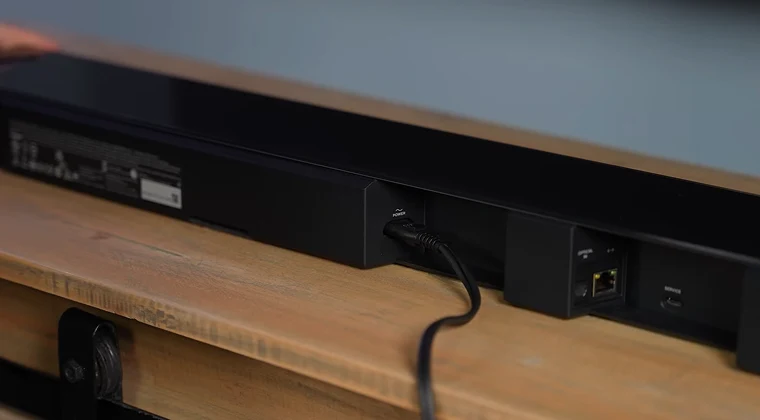
Your Samsung soundbar has a port labeled “HDMI OUT (TV-ARC)” or “HDMI TO TV (eARC/ARC),” depending on the model. This is where you connect the HDMI cable that runs to your TV.
If your TV lacks HDMI ARC, look for an optical port instead. It’s a small square or hexagonal opening, usually with a protective flap, labeled “Digital Audio Out” or “Optical Out.” Your Samsung soundbar has a corresponding port labeled “DIGITAL AUDIO IN (OPTICAL)” or simply “OPTICAL.”
Older TVs might only have RCA ports (red and white) or a 3.5mm headphone jack. These work but deliver lower audio quality than digital connections.
Samsung typically includes an HDMI cable or optical cable in the box with the soundbar. If you need extras, make sure you get a High Speed HDMI cable with Ethernet certification for ARC functionality, or a Premium High Speed HDMI cable if you want to use eARC.
Method 1: Connect with HDMI ARC (Recommended)
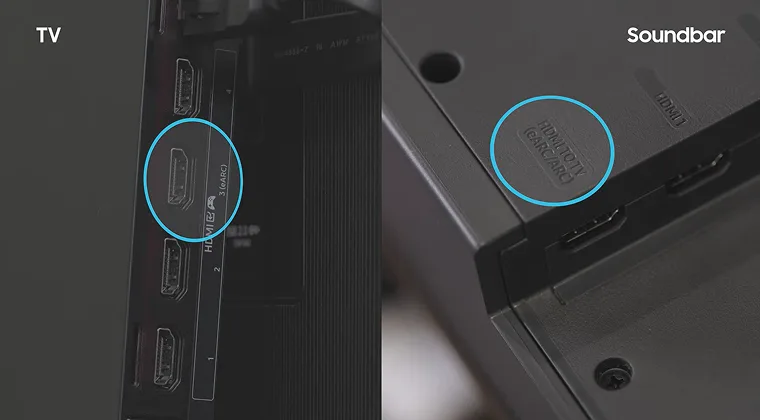
HDMI ARC provides the best audio quality and the simplest setup, and it’s the easiest way to connect a soundbar to TV. This connection allows your TV remote to control soundbar volume, supports advanced audio formats like Dolby Atmos (with eARC), and uses a single cable for everything. Here’s how to do it:
- Power off both your TV and Samsung soundbar before connecting anything.
- Find the HDMI port labeled “ARC” on your TV’s back panel. On Samsung TVs with a One Connect Box, the ARC port is usually the third HDMI port.
- Connect one end of your HDMI cable to this ARC port on the TV.
- Connect the other end to the “HDMI OUT (TV-ARC)” or “HDMI TO TV (eARC/ARC)” port on your Samsung soundbar.
- Power on both devices.
- Press the Source button on your Samsung soundbar remote until “D.IN” appears on the display. After a few seconds, this should automatically switch to “TV ARC” if the connection is successful.
- If you’re connecting a Samsung soundbar to a Samsung TV, Anynet+ should detect the soundbar automatically and switch the audio output. With other TV brands, you may need to manually change your TV’s audio output settings to “Receiver (HDMI)” or “HDMI ARC.”
Why HDMI ARC works best: Audio Return Channel sends sound from your TV’s built-in apps (Netflix, YouTube, Disney+) directly to the soundbar through the same HDMI cable. You don’t need separate cables for streaming content and external devices.
The newer eARC standard provides higher bandwidth for lossless audio formats like Dolby TrueHD and DTS-HD Master Audio. If both your TV and soundbar support eARC, they’ll use it automatically with a standard HDMI cable. Samsung TVs from 2020 onwards (T, A, B, and C model series) all support eARC on their Neo QLED, OLED, and QLED models.
Method 2: Connect with Optical Cable
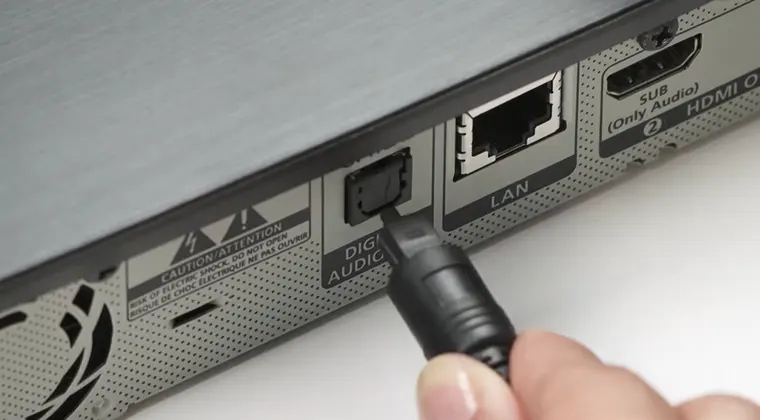
Optical cables transmit digital audio using light pulses, providing excellent sound quality without electrical interference. This is your second-best option when HDMI ARC isn’t available or isn’t working properly. Here are the steps:
- Power off both devices before connecting.
- Locate the optical output on your TV, labeled “Digital Audio Out” or “Optical Out.” Remove the protective cap from the port.
- Remove the protective caps from both ends of your optical cable. These small plastic tips block the light signal if left in place.
- Connect one end to your TV’s optical output port. The cable only fits one way.
- Connect the other end to the “DIGITAL AUDIO IN (OPTICAL)” port on your Samsung soundbar.
- Power on both devices.
- Press the Source button on your soundbar remote until “D.IN” or “OPTICAL” appears on the display.
Optical limitations: These cables support Dolby Digital 5.1 surround sound but can’t handle Dolby Atmos, DTS:X, or other advanced audio formats. You’ll also need to use the soundbar’s remote for volume control since optical connections don’t support HDMI-CEC functionality.
The audio quality is still excellent for everyday viewing. Movies, TV shows, and streaming content all sound great through optical. You’ll only notice the difference with 4K Blu-ray discs that use lossless audio formats. If you want to add a bit of bass, my guide on how to connect a subwoofer to soundbar has you covered.
Method 3: Connect via Bluetooth
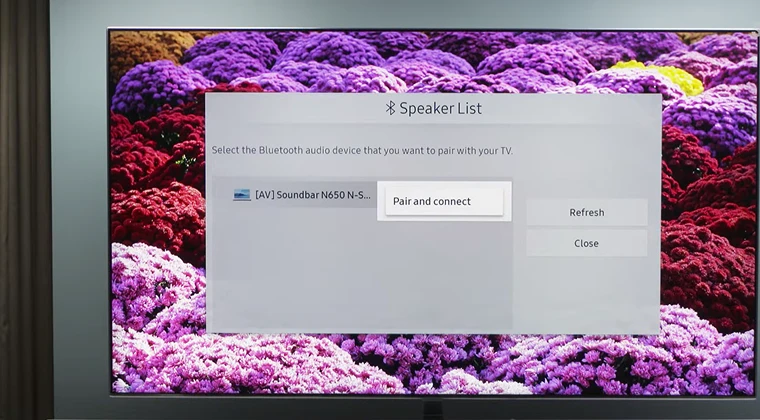
Bluetooth provides a connection without any cables, which keeps your entertainment center looking clean. Good Samsung soundbars make Bluetooth pairing fairly straightforward. Here’s what to do if you want to go wireless:
- Press the “Pair” button on your Samsung soundbar remote to enter pairing mode. The display will show “BT PAIRING” when ready.
- If you don’t have the soundbar remote, press and hold the “Source” or “Multi Function” button on the soundbar itself for more than 5 seconds until “BT PAIRING” appears.
- On your TV, navigate to Bluetooth settings. On Samsung TVs, go to Settings > Sound > Sound Output > Bluetooth Speaker List. Select your soundbar when it appears.
- Wait for the devices to pair. The soundbar display will show “BT” followed by your TV’s name when connected successfully.
Bluetooth drawbacks: Audio delay is the biggest issue with Bluetooth connections. You’ll experience 30 to 150 milliseconds of lag between what you see on screen and what you hear. This makes dialogue scenes frustrating because lips don’t match voices.
Many Samsung TVs have audio delay compensation, but the synchronization isn’t always perfect. Bluetooth also compresses audio, so you’re not getting the full quality your soundbar can deliver.
When Bluetooth makes sense: Use this for temporary setups, when running cables isn’t practical, or for content where perfect sync doesn’t matter much (news, documentaries, music). I keep Bluetooth as a backup but use HDMI ARC for my main setup.
Configure Your Samsung TV Settings
Samsung TVs require specific settings for optimal soundbar performance. These steps ensure your TV properly routes audio to the soundbar and enables remote control functionality.
- Enable Anynet+ (HDMI-CEC): This is crucial for HDMI ARC connections. Navigate to Settings > General > External Device Manager > Anynet+ (HDMI-CEC). Make sure it’s turned on. On newer Samsung TVs (2021 and later), the path is Settings > All Settings > Connection > External Device Manager > Anynet+ (HDMI-CEC).
- Set sound output: Go to Settings > Sound > Sound Output and select “Receiver (HDMI)” or your soundbar’s name if it appears in the list.
- Enable eARC Mode (if supported): Navigate to Settings > Sound > Expert Settings > HDMI eARC Mode and set it to “Auto.” This allows lossless audio passthrough for compatible content.
- Set audio format: In Settings > Sound > Expert Settings > Digital Output Audio Format, select “Bitstream” or “Auto” rather than “PCM.” This enables surround sound passthrough to your soundbar.
When Anynet+ is working correctly, your Samsung TV remote will control the soundbar volume automatically. You can power off the TV, and the soundbar will turn off with it. Just remember to power off the TV first, not the soundbar, or the TV will stay on and switch back to internal speakers.
Settings for Non-Samsung TVs
Samsung soundbars work with any TV brand, but you’ll need to enable HDMI-CEC manually. Each manufacturer uses a different name for this feature. So, whether you have a great TV for gaming or 4K streaming, here’s what you need to do:
- LG TVs: The feature is called “SimpLink.” Navigate to Settings > General > Devices > HDMI Settings > SimpLink (HDMI-CEC) and turn it on.
- Sony TVs: Look for “Bravia Sync.” Go to Settings > Watching TV > External inputs > Bravia Sync settings and enable it.
- Vizio TVs: Enable “CEC” in Settings > System > CEC.
- TCL/Roku TVs: Find “System” > “Control other devices (CEC)” and enable the relevant options. After enabling HDMI-CEC on your TV, change the audio output setting to “HDMI ARC,” “Receiver,” or “External Speaker” depending on how your TV labels it. Test by playing some content and confirming sound comes from the soundbar.
Troubleshooting Common Problems
Here are some of the most common issues you’ll probably face at some point and how to deal with them:
- No sound from soundbar: First, make sure you selected the correct input source on the soundbar by pressing the Source button. The display should show “TV ARC” for HDMI connections or “D.IN” for optical. Check that your TV’s sound output is set to external speakers or Receiver (HDMI), not TV speakers.
- “TV ARC” doesn’t appear on the soundbar display: Confirm you’re using the HDMI port labeled “ARC” on your TV, not just any HDMI port. Enable Anynet+ (or your TV brand’s equivalent HDMI-CEC feature) in settings. Try pressing the Anynet button on your soundbar remote once, then twice, to toggle the Anynet function.
- HDMI ARC not working at all: Power cycle both devices by unplugging them for 30 seconds, then reconnecting. Use a certified High Speed HDMI cable. If problems persist, reset your Samsung soundbar by pressing and holding both Volume Up (+) and Volume Down (-) buttons simultaneously for 5 seconds until “INIT” appears on the display. Then power on both devices and try again.
- Audio and video out of sync: This lip-sync problem is common across all connection types. On Samsung TVs, go to Settings > Sound > Expert Settings > Digital Output Audio Delay and adjust until dialogue matches lip movements. On the soundbar side, look for audio sync or delay settings in the Samsung SmartThings app.
- TV remote doesn’t control soundbar volume: Make sure HDMI-CEC (Anynet+) is enabled on both the TV and soundbar. For Samsung soundbars, press the Anynet button on the soundbar remote to ensure it’s On. This feature only works with HDMI ARC connections, not optical or Bluetooth.
- Soundbar powers off randomly: This usually happens when HDMI-CEC auto-power settings conflict. Check your TV’s CEC settings for device auto-power options and adjust as needed. On Samsung TVs, you can disable “Auto Power Off” in the External Device Manager menu if needed.
- Poor Bluetooth audio or disconnections: Move the soundbar closer to your TV. Remove obstacles and other Bluetooth devices that might cause interference. Delete the existing pairing on both devices and re-pair from scratch.
Fix Your Audio Chain – Pick the Right Port and Pair Again
You now know how to connect a Samsung soundbar to a TV. HDMI ARC is still the cleanest one-cable setup, optical is the plug-and-play lifeline, and Bluetooth is fine when wires aren’t happening.
Samsung TVs get the bonus round with Anynet+ auto-syncing power and volume. Other TV brands just need HDMI-CEC turned on in settings, then the handshake works. You don’t need to overthink ports if you match labels and sources.
Troubleshooting usually boils down to the same villains: cables that aren’t certified, the wrong HDMI port, or CEC settings playing dead. Power cycling, switching sources, or a quick soundbar reset fix most of it faster than arguing with the manual. Once it clicks, it stays clicked.
If your goal is lag-free streaming, security, and bulletproof routing, I recommend checking our NordVPN. It gives you great speeds for long sessions, DDoS resilience, and privacy that’s been independently checked. It also unlocks the best streaming catalogs, so you can jump between libraries like a digital tourist. Want UK Atmos and US catalog depth in the same night? Done. Your location stops mattering, your queue starts behaving, and the content buffet opens up.
FAQs
Yes. Samsung soundbars work with any TV brand that has HDMI ARC, optical, or Bluetooth capabilities. You just need to enable your TV’s version of HDMI-CEC (SimpLink on LG, Bravia Sync on Sony, etc.) for remote control functionality.
Most Samsung soundbars include an HDMI cable in the box. Some models also include an optical cable. Check your packaging contents list if you’re unsure what’s included.
No, standard HDMI ARC has limited bandwidth and typically compresses Dolby Atmos content. For full lossless Dolby Atmos support, you need eARC, which is available on Samsung TVs from 2020 onwards and premium Samsung soundbar models.
Frequent disconnects usually point to HDMI cable issues or conflicting HDMI-CEC settings. Try a different certified HDMI cable, power cycle both devices, or reset the soundbar using the Volume Up + Volume Down button combination for 5 seconds.
Yes. Connect using HDMI ARC if your projector supports it, or use optical or Bluetooth if HDMI ARC isn’t available. The setup process is identical to connecting to a TV.