Can You Play Steam Games Offline? Complete Guide


If you’re asking, “Can you play Steam games offline?”, the good news is, yes, you can play Steam games offline. I’ve spent countless hours testing offline mode across different devices, and I can confirm it’s one of Steam’s most reliable features. The platform lets you access your entire library without internet once you’ve set things up properly.
This guide covers everything you need to know about playing Steam games offline. You’ll learn which games work without internet, how to enable offline mode on different platforms, and how to avoid the frustrations I dealt with.
Jump to:
Understanding Steam Offline Mode and How It Actually Works
Steam offline mode lets you play downloaded games without connecting to Valve’s servers. The system caches your account credentials and game licenses during your last online session. When you go offline, Steam verifies everything locally instead of pinging remote servers.
The technology works through local authentication files stored in your Steam directory. These files tell your computer that you own specific games and have permission to launch them.
The catch is that not every game supports offline play. Publishers control DRM settings individually. Some implement always-online requirements that Steam’s offline mode can’t bypass.
Platform Support Across Windows, Mac, Linux, and Steam Deck
Steam offline mode works on every platform Valve supports. Windows users get the most stable experience because that’s where Valve focuses development. Mac users face occasional hiccups with credential caching. Linux users through Proton generally have smooth offline experiences.
Steam Deck handles offline mode differently than traditional PCs. The device automatically switches to offline when WiFi disconnects. No manual activation needed. This makes the Deck perfect for portable offline gaming.
I tested offline functionality on all four platforms last year while preparing our Steam Deck coverage. The Deck’s automatic offline transition beat manual activation on PC every time.
What You Need Before Playing Steam Games Offline
Getting offline mode working requires preparation. You can’t just disconnect your internet and expect everything to function. Steam needs specific conditions met first.
Initial Online Login and Credential Caching
You must log into Steam with an active internet connection at least once on each device. This initial login downloads your account data and game licenses to local storage. Steam creates authentication files that offline mode references later.
The “Remember me” checkbox during login is critical. Unchecking it prevents credential caching. Your device won’t store the authentication files offline mode needs.
Complete Game Downloads and Updates
Every game you want offline must be fully downloaded before disconnecting. Partial downloads won’t launch in offline mode. Steam can’t fetch missing files without internet.
Updates work the same way. Games with pending patches won’t start offline. You need to install all available updates while connected.
Storage Space Requirements for Your Library
Modern AAA games consume massive amounts of storage. Red Dead Redemption 2 needs 150GB. Call of Duty titles regularly exceed 200GB. Planning an offline library means calculating total storage needs carefully.
Steam Deck users face tighter constraints. The 512GB model fills up fast with 3-4 large games. MicroSD cards help but load times suffer compared to internal storage.
I maintain separate offline libraries on my desktop PC and Steam Deck. The desktop gets massive open-world games. The Deck gets smaller indie titles and older games with reasonable file sizes.
Authentication Window and Periodic Reconnection
Steam requires online reconnection every 2-3 weeks. This authentication window refreshes your cached credentials. Exceeding it locks you out of offline mode until you log in online again.
The exact timing varies by account. Some users report 14-day windows. Others get 21 days. Valve hasn’t published official numbers.
How to Enable Steam Offline Mode on PC and Mac
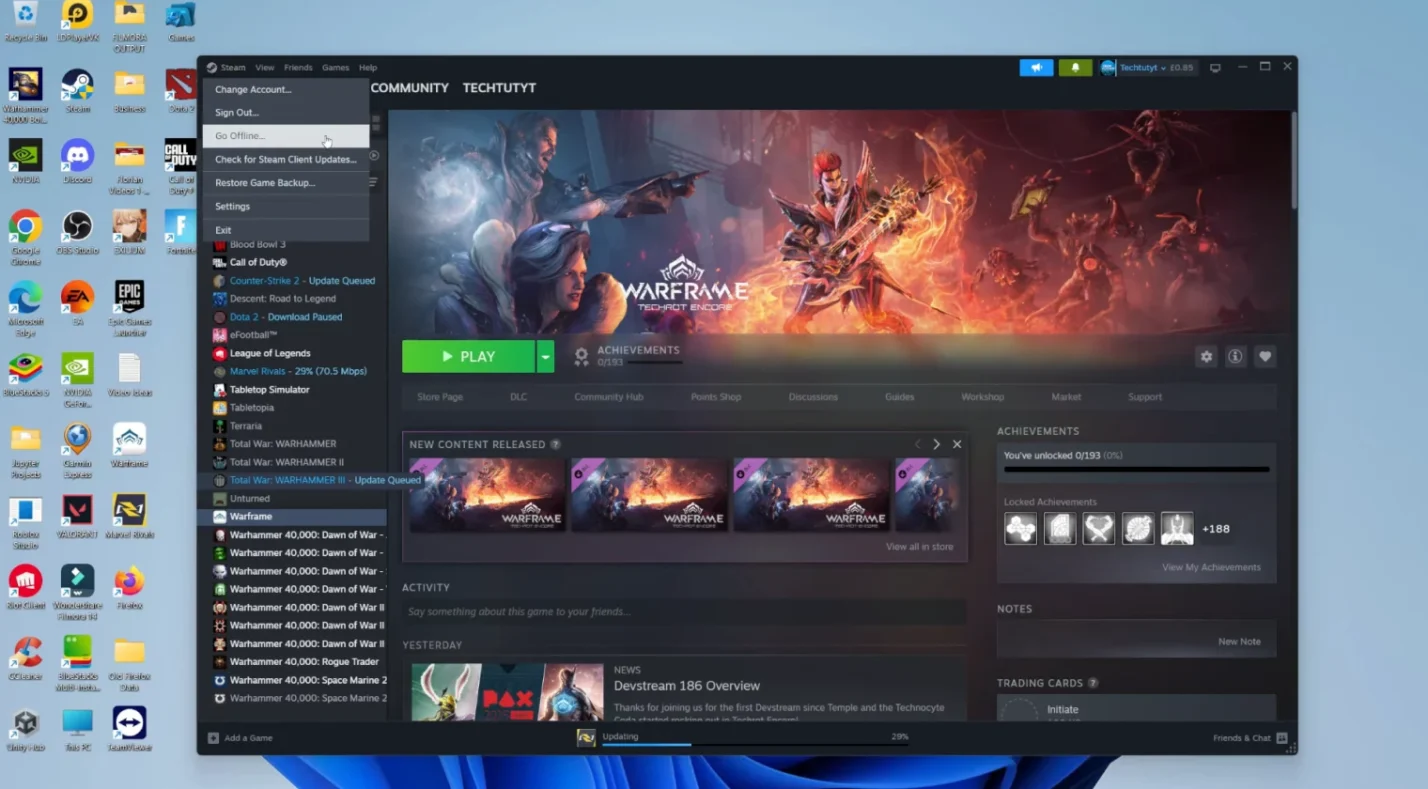
Activating offline mode on traditional computers takes a few clicks. The process is straightforward once you know where to look.
Standard Method Through Steam Menu
Here’s how to activate offline mode the standard way:
- Open Steam while connected to internet
- Click the “Steam” menu in the top-left corner
- Select “Go Offline” from the dropdown
- Review the confirmation dialog explaining feature limitations
- Click “Restart in Offline Mode”
Steam closes and reopens without internet connectivity. The interface shows an offline indicator. Your library remains accessible.
Alternative Activation Using Shift Key
Close Steam completely. Make sure it’s not running in your system tray. Hold the Shift key while launching Steam. A connection options dialog appears.
Select “Start in Offline Mode” from the list. Click confirm. Steam launches without attempting online connection.
Verifying Offline Status in Client
Check the top-right corner of Steam’s interface. You should see “Offline Mode” displayed clearly. The friends list shows no online users. Store pages refuse to load.
Try launching a game you’ve played before. If it starts normally, offline mode is working correctly. If you get connection errors, something went wrong during activation.
Activating Offline Mode on Steam Deck
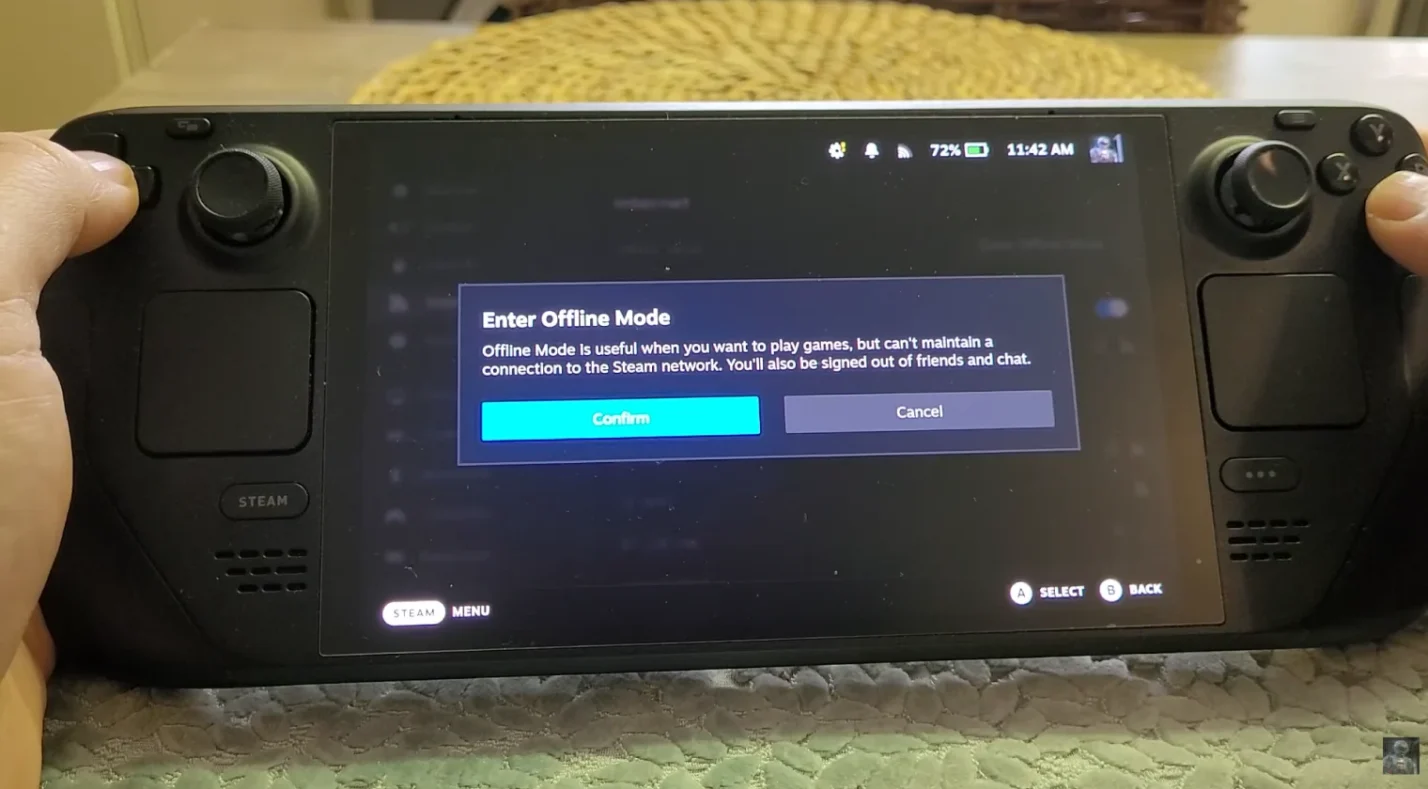
Steam Deck handles offline gaming differently than desktop PCs. Valve designed the portable device with disconnected play in mind.
Automatic Offline Transition
The Deck switches to offline mode automatically when WiFi disconnects. No manual activation needed. Just disable WiFi in settings and keep gaming.
This seamless transition makes the Deck ideal for travel. I’ve used it on trains, planes, and remote campsites without thinking about offline mode once.
Manual WiFi Disable Method
Press the Steam button to open the main menu. Navigate to Settings using the gear icon. Select the Internet or Network section.
Toggle WiFi off. The Deck immediately enters offline mode. Your library stays accessible. Games continue running without interruption.
Battery Optimization for Extended Offline Play
Offline gaming on Steam Deck drains battery faster than you’d expect. The device works harder without cloud sync breaks. Screen brightness and refresh rate impact battery life significantly.
Lower your screen brightness to 40-50% for offline sessions. Cap frame rates at 30fps for story games. Disable haptics if you don’t need them.
Which Games Work Offline and Which Don’t

Game compatibility determines your offline library’s usefulness. Understanding what works saves frustration later.
Single-Player Games with Full Offline Support
Story-driven single-player games offer the best offline experience. The Witcher 3 runs flawlessly without internet. Baldur’s Gate 3 plays identically offline and online. Cyberpunk 2077 needs zero connectivity for the full campaign.
These games process everything locally. No server communication required. Save files stay on your hard drive. Progress syncs to cloud when you reconnect.
I’ve completed entire playthroughs offline during work trips. The experience matches online play perfectly. Only achievement tracking delays until reconnection.
Offline vs Online Game Compatibility Quick Reference
| Game Type | Offline Support | Common Examples | Key Limitations |
| Single-Player Story Games | Full support | The Witcher 3, Baldur’s Gate 3, Cyberpunk 2077 | Achievement sync delays |
| Multiplayer-Focused | No support | Counter-Strike 2, Dota 2, Destiny 2 | Requires active servers |
| Free-to-Play | Usually no support | Warframe, Apex Legends | Online authentication required |
| Indie Single-Player | Full support | Hades, Stardew Valley, Hollow Knight | None |
| AAA with Always-Online DRM | No support | Some Ubisoft titles, EA games with Origin | DRM prevents offline launch |
Multiplayer Games and Always-Online Titles
Competitive multiplayer games don’t work offline at all. Counter-Strike 2 requires active servers. Dota 2 needs matchmaking. Destiny 2 won’t launch without internet.
These restrictions make sense technically. Multiplayer games need server synchronization. Anti-cheat systems require online verification. Game state management depends on remote servers.
Free-to-Play Game Limitations
Most free-to-play games require constant online authentication. Warframe won’t launch offline despite having solo content. Apex Legends needs server connection even for training modes.
Publishers use online requirements to prevent fraud and manage economies. Free games rely on server-side progression tracking. Offline access would enable cheating and account manipulation.
I avoid free-to-play titles for offline libraries entirely now. The disappointment of finding them locked during travel isn’t worth the storage space.
Checking Compatibility Before Purchase
Read Steam store pages carefully before buying games for offline play. Look for warnings about internet requirements. Check the DRM Notice section for third-party account needs.
Search community discussions for offline experiences. Players report compatibility issues publishers don’t mention. PCGamingWiki maintains detailed DRM information for thousands of games.
Major Limitations You Need to Understand
Offline mode works well but comes with real constraints. Knowing these prevents nasty surprises.
Achievement Tracking and Synchronization
Achievements earned offline don’t appear in your profile until reconnection. Steam caches them locally but can’t update servers without internet. Your achievement count stays frozen at pre-offline numbers.
Some games tie progression to achievements. Unlocking cosmetics or special modes might not work properly offline. The game sees achievements as unearned until cloud sync completes.
Cloud Save Conflicts Across Devices
Playing the same game offline on multiple devices creates save conflicts. Steam can’t synchronize progress without internet. Whichever device reconnects first uploads its saves to cloud.
The second device sees a conflict when it reconnects. Steam asks which save to keep. Choosing wrong means losing hours of progress.
Disabled Features During Offline Sessions
The Steam Community becomes completely inaccessible offline. No forums. No guides. No workshop content. Trading and inventory management stop working.
You can’t browse the store or purchase new games. Friend chat disappears. Voice communication fails. Streaming features like Remote Play need internet.
These limitations rarely bother me during actual gaming. But they make troubleshooting impossible. If a game breaks offline, you’re stuck until reconnection.
Update Restrictions and Version Locking
Games can’t update while offline. If a critical patch releases during your offline period, you’re stuck on the old version. Bug fixes wait until reconnection.
Some games receive frequent balance updates. Playing offline means missing meta changes. Competitive games become outdated quickly.
Fixing Common Offline Mode Problems
Even properly configured offline mode occasionally fails. These solutions fix most issues.
Resolving “Unable to Go Offline” Errors
This error means Steam lacks cached credentials. You haven’t logged in online recently enough. Or credential files got corrupted.
Connect to internet. Force quit Steam completely. Relaunch and log in normally. Wait 5 minutes for full synchronization. Try offline mode again.
I encountered this error monthly until I started reconnecting every 10 days. The authentication window is real. Don’t push it to the limit.
Games Refusing to Launch Offline
First-time game launches always fail offline. Steam needs to cache game-specific credentials during initial online launch. Launch every game once while connected.
Verify that the game has fully downloaded. Check for pending updates. Some games won’t start with incomplete files.
If the game supports offline play and is downloaded completely, verify file integrity. Right-click the game. Select Properties. Navigate to Local Files. Click “Verify Integrity of Game Files.”
Steam Client Startup Failures
Steam won’t start in offline mode if the cache files are corrupt. The ClientRegistry.blob file stores offline credentials. Deleting it forces Steam to rebuild the cache.
Navigate to your Steam installation directory. Find ClientRegistry.blob. Delete it. Relaunch Steam while connected to the internet. Let it fully sync. Try offline mode again.
This fix resolved persistent offline failures on my laptop. The cache was corrupted after a Windows update. Rebuilding it took 5 minutes and solved everything.
Optimizing Your Offline Gaming Setup
Proper preparation makes offline gaming smooth and reliable.
Pre-Download Strategy and Update Management
Create a list of games for offline access. Launch each one while online. Let them fully update. Verify they start correctly.
Schedule downloads during off-peak hours if you have bandwidth limits. Large updates can exceed 50GB. Plan accordingly.
I maintain a dedicated “Offline” category in my Steam library. Every game in it gets launched and updated before trips. This routine prevents launch failures during travel.
Storage Management for Large Libraries
Regularly audit your offline library. Remove games you won’t actually play. Large AAA titles consume storage better used for games you’ll definitely launch.
Steam Deck users should prioritize smaller games. Indie titles often provide better value per gigabyte. A 5GB roguelike offers more offline entertainment than a 150GB open-world game you’ll play once.
Disabling Automatic Updates
Automatic updates can break offline mode. Steam tries to update games when you launch them. These attempts fail offline and generate errors.
Right-click each offline game. Select Properties. Navigate to Updates tab. Set “Automatic updates” to “Only update this game when I launch it.”
This setting prevents update attempts during offline sessions. Games launch immediately without checking for patches.
Hardware Considerations for Offline Play
Offline gaming generates more heat than online play. Your CPU and GPU work harder without periodic network breaks. Ensure adequate cooling.
Close background applications before offline sessions. Disable unnecessary Steam features like screenshot capture. Maximize available resources for games.
I use quality controllers for extended offline sessions. Comfortable hardware matters more when you can’t take breaks to chat with friends or browse community content.
Platform Comparison for Offline Gaming
| Platform | Authentication Window | DRM Approach | Library Size | Multi-Device Support |
| Steam | 2-3 weeks | Varies by game | 50,000+ games | Excellent |
| GOG | None (DRM-free) | No DRM | 5,000+ games | Excellent |
| Epic Games Store | 2-3 weeks | Varies by game | 1,000+ games | Good |
| Xbox Game Pass PC | 30 days | Subscription-based | 400+ games | Limited |
| Origin/EA App | 1 week | Always-online for most | 500+ games | Limited |
Building Your Perfect Offline Library
Selecting the right games makes offline mode valuable instead of frustrating. Steam’s offline capabilities work best with single-player narrative games. Story-driven RPGs consistently offer the most reliable offline experiences. Action games work well too. Puzzle games rarely have problems. If there are titles you’re itching to try, unlock them by learning how to change your region for Steam.
I’ve tested hundreds of games across different genres for our gaming coverage. Games like The Witcher 3, Baldur’s Gate 3, and Cyberpunk 2077 exemplify perfect offline compatibility. These titles run complete 100+ hour campaigns without internet. No features require connectivity. Progress saves locally without issues.
If you’re looking for cozy games perfect for offline play, games like Stardew Valley represent ideal choices. These indie farming sims need no online features. They offer deep single-player experiences with low system requirements. Perfect for Steam Deck or laptop gaming during travel.
For Steam Deck users specifically, optimizing your portable setup matters. Learn how to use Steam Link for situations where you do have internet but want to stream from your main PC. This complements offline mode by giving you options for both connected and disconnected scenarios.
When you need to troubleshoot connectivity issues that make offline mode attractive, understanding VPN solutions for gaming helps. VPNs improve connectivity for users who have internet but face restrictions or poor connections.
Quality hardware enhances offline sessions. Using premium PC controllers makes extended offline gaming more comfortable. When you can’t take breaks to chat with friends or browse community content, comfortable peripherals become essential.
For those ready to build their offline library, Baldur’s Gate 3 stands as one of the best purchases you can make. This 100-hour RPG works flawlessly offline and provides incredible value for portable gaming sessions.
FAQs
Can I start Steam in offline mode without ever connecting to the internet?
No, you cannot start Steam in offline mode without at least one prior successful online connection on that device. Steam requires initial online authentication to cache your account credentials, download game files, and verify your game licenses locally before allowing offline access.
Do I need to launch every Steam game online at least once before playing offline?
Yes, you should launch each game at least once while Steam is connected to the internet before attempting to play it offline. This first online launch allows Steam to download additional files, verify your ownership, and cache authentication credentials that offline mode needs to function properly.
How long can I stay in Steam offline mode before needing to reconnect?
Steam allows you to remain in offline mode for approximately 2-3 weeks before requiring re-authentication with an online connection. This authentication window refreshes your cached credentials, and exceeding it will require you to log in online again before offline mode functions.
Are all Steam games playable offline or do some require an internet connection?
Not all Steam games are playable offline because compatibility depends on each game’s design and DRM requirements. Single-player story-driven games work fully offline, while multiplayer-focused games, always-online titles, and many free-to-play games require constant internet connections and won’t launch in offline mode.
Is Steam a cloud gaming service or do games download to my computer?
Steam is a digital distribution platform that downloads games directly to your computer’s hard drive, not a cloud gaming service. When you purchase and install a game through Steam, you’re downloading complete game files to your local storage, which is what enables Steam’s offline mode to function without internet connectivity.