How To Clear Cache Android: A Gamer’s Guide To Freeing Up Storage And Improving Performance


As a gamer, I know how frustrating it can be when an Android phone slows down during an intense match or when you do not have enough room to install the next big release. Old files accumulate in your cache, a storage area that helps apps and browsers load quickly. Over time, this hidden data can bog down performance. In this guide, I will explain how to clear cache Android devices, why it matters for gamers, and how often you should do it to keep your phone or tablet running at its best. I will also share some personal tips from my own experiences and point you to helpful resources from Eneba Hub.
Jump to:
How To Clear Cache Android: Step‑By‑Step Guide
Your Android device stores temporary files each time you open an app or visit a website. These files are called cache data. Clearing your cache is different from deleting data for apps; you are only removing temporary files, not saved progress or login details. Here’s how you can clear the cache on an Android phone or tablet:
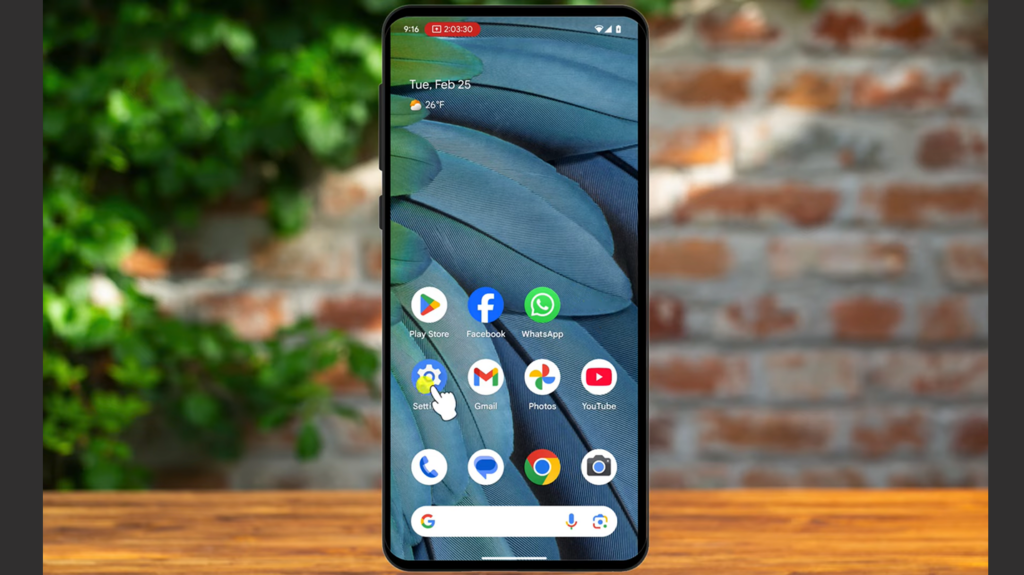
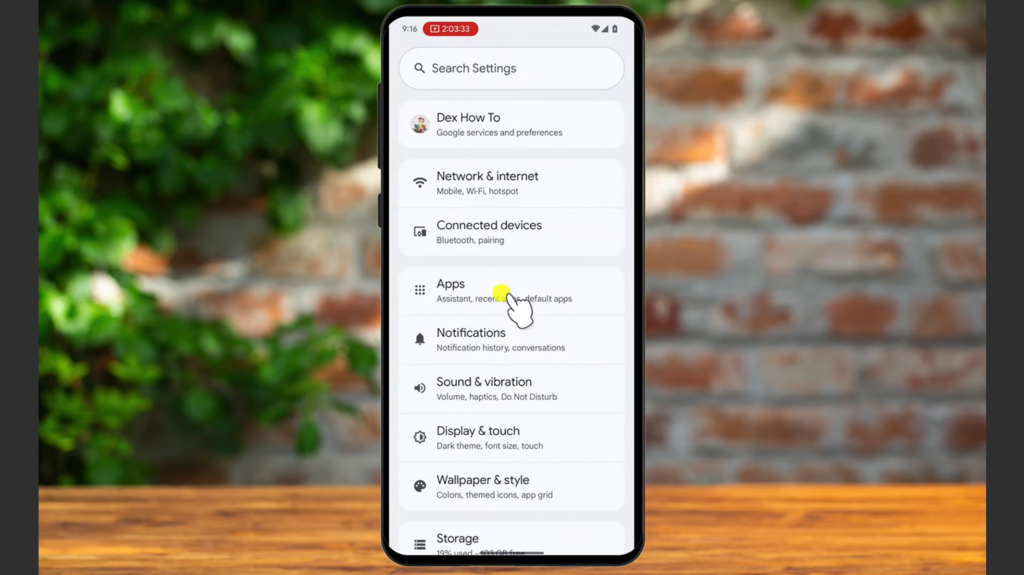
- Open Settings. Tap Settings and choose Apps or Applications. This list shows all installed apps.
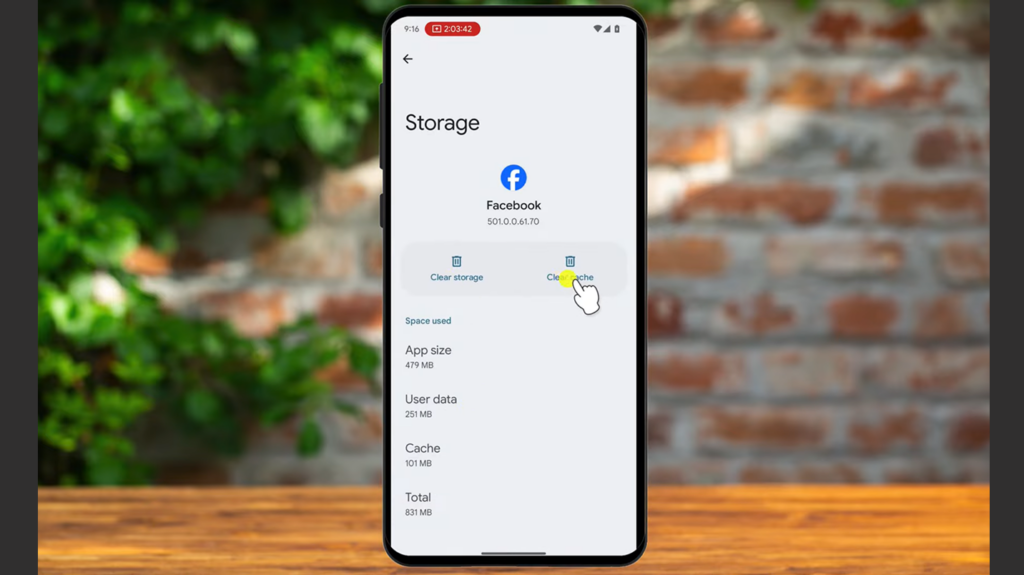
- Select the app you want to clear. Scroll through and pick a game or other app that seems sluggish. Tap Storage & cache or Storage.
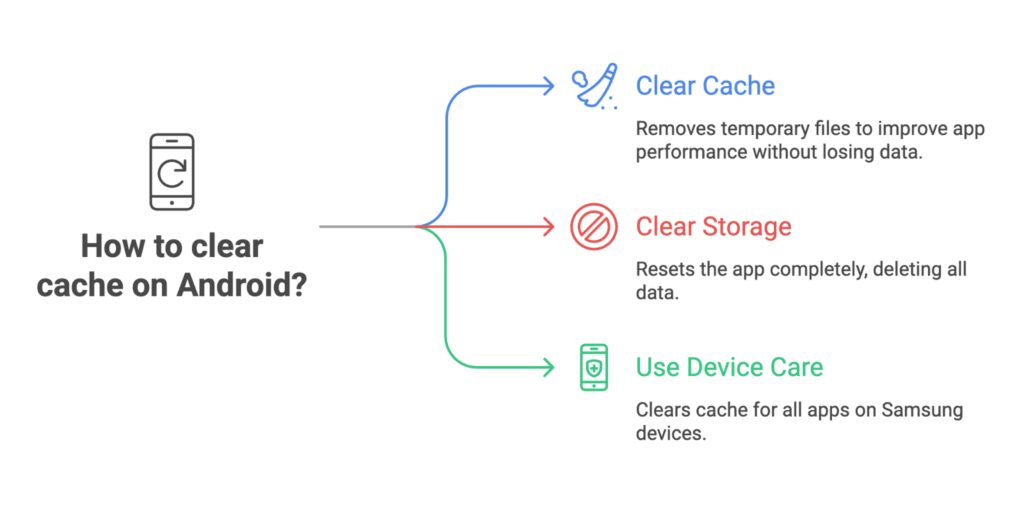
- Tap Clear Cache. You will see two options: Clear Cache and Clear Storage (sometimes shown as Clear Data). Tap Clear Cache to remove temporary files. Avoid clearing storage unless you want to reset the app completely.
- Repeat as needed. You must clear each app individually because newer versions of Android no longer have a “clear all cache” button. If you have a Samsung device, you can use Device care in Settings. Tap Optimize now, and it will clean up the app cache for you.
I like to start with games that use a lot of memory. For example, after marathon sessions of the open-world role‑playing games on Eneba’s list of best open-world games, I noticed my phone felt warm and laggy. Clearing the cache helped the game load faster the next day.
Why Clearing Cache Helps Your Android Device Perform Better
Caches exist to speed up loading times. Apps and browsers store images, scripts, and other files so they do not have to download them again. When the cache grows too large or contains outdated information, it may slow down the phone. Clearing the cache frees up storage space, reduces the amount of temporary files stored, and can improve overall performance. This is especially important for gamers who install large titles and need smooth gameplay.
A cleaner phone means fewer stutters in high‑intensity MOBA matches. If you enjoy competitive titles, you might find our roundup of the best MOBA games helpful once your device is running smoothly.
A full cache can also cause older data to conflict with updated app files, which might lead to glitches or crashes. Clearing it resets those temporary files, which often resolves technical issues like freezing or failure to launch. On my own phone, I once experienced random force‑closes with a puzzle game after an update. After clearing the cache, the problem disappeared. Clearing mobile cache helped but you should also know how to delete cookies on desktop browsers.
What Happens When You Clear Cache On An Android Phone
Clearing your cache removes temporary files stored by apps and websites. What happens when you clear?
You will notice the following changes:
- Free up space: Removing cached files can reclaim megabytes or even gigabytes, depending on how much you use certain apps. More space means you can install bigger games or capture more screenshots.
- Delete outdated files: The cache will rebuild with fresh data, which ensures you see the latest versions of web pages and in‑game assets.
- Short‑term slowdowns: The first time you reopen an app, it may load more slowly because it has to create a new cache. After that, it will return to normal speed.
- Stay signed in: Clearing the cache will not remove your logins or saved game data. If you also clear cache and cookies in a browser, you may have to sign in again. This is one reason I rarely clear browser cache unless I am troubleshooting.
How Often Should You Clear Cache On An Android Phone
You might wonder how often you should clear the cache. The cache will not delete itself, so you need to decide when to clear it. I recommend doing it once or twice a month to keep things tidy. If your phone feels slow, storage is low, or apps misbehave, go ahead and clear the cache immediately. There is no need to clear it every day; doing so too often can delay loading times without any benefit.
Remember that the cache on Android phones works quietly in the background. Clearing it is a maintenance task, like dusting your console or updating drivers. You might want to time this cleanup before downloading a big update or installing new titles. That way, you ensure you have enough space for fresh content. For example, before trying out some new creature‑collecting games from our list of games like Palworld I cleared several gigabytes of old cache files. This freed up space and prevented installation errors.
Clearing Browser Cache On Android Phones
Different apps use their own caches, but browsers also store files and cookies. Clearing the browser cache helps when websites do not load correctly or display outdated content. Here’s how you can clear cache in popular Android browsers:
Chrome
To clear the cache and cookies in Chrome:
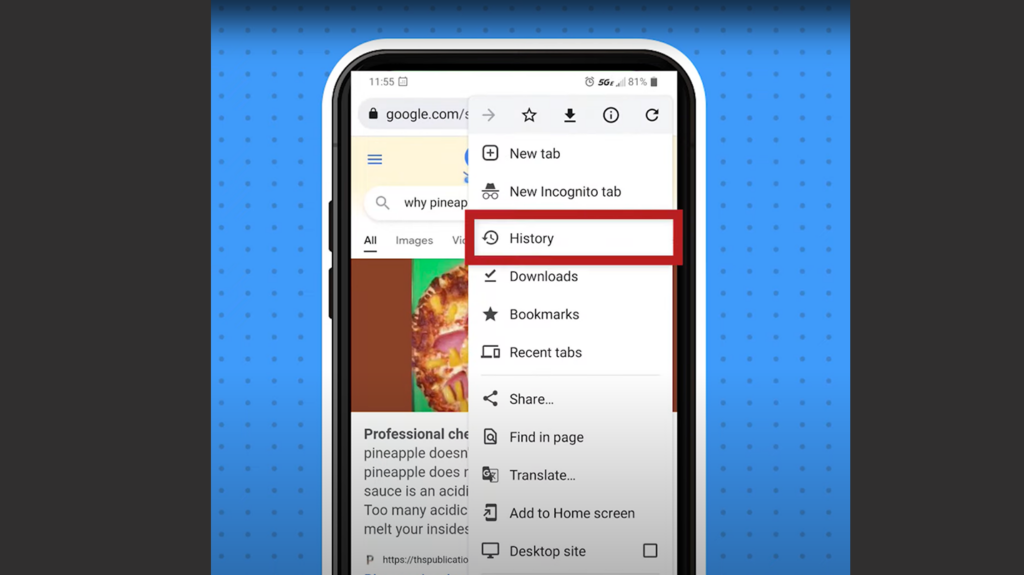
- Open the Chrome app and tap the three dots in the top right.
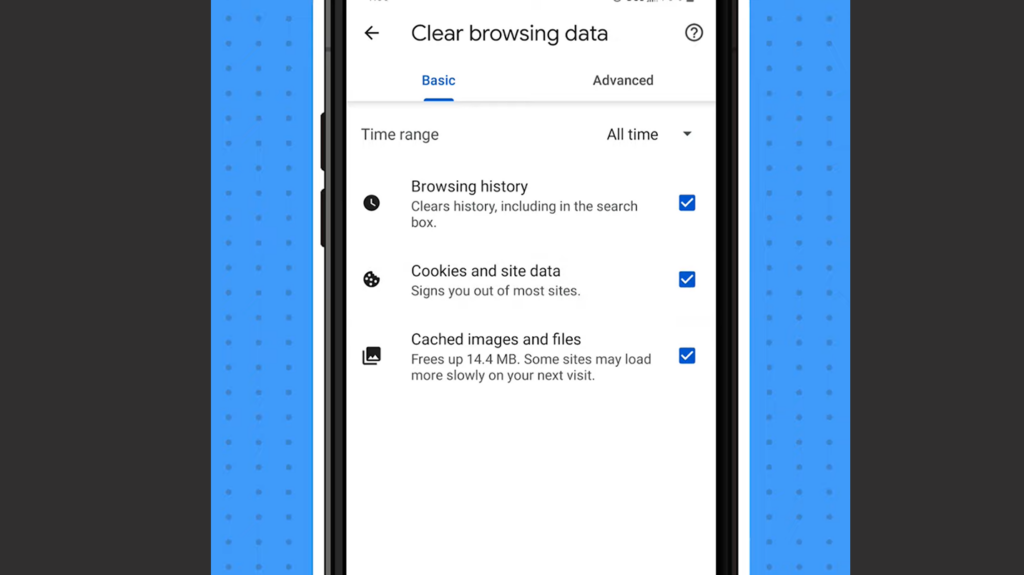
- Tap History and then Clear browsing data.
- Select a time range. Choose All time if you want a complete cleanup.
- Check Cached images and files. You can also select Cookies and site data if needed.
- Tap Clear data.
Firefox
In Firefox:
- Tap the three‑line menu icon and choose Settings.
- Tap Delete browsing data.
- Select Cached images and files and any other data you want to remove.
- Tap Delete browsing data at the bottom.
Other browsers
Most browsers follow similar steps: open settings, look for history or privacy options, and clear cache or browsing data. Remember that clearing cookies will sign you out of websites. For gamers, clearing browser cache is useful when web‑based games lag or when you switch between accounts. Once you have cleaned things up, you can browse the store to check for new games or updates without worrying about old data causing issues.
Clearing Hidden Cache And App Data: Advanced Options
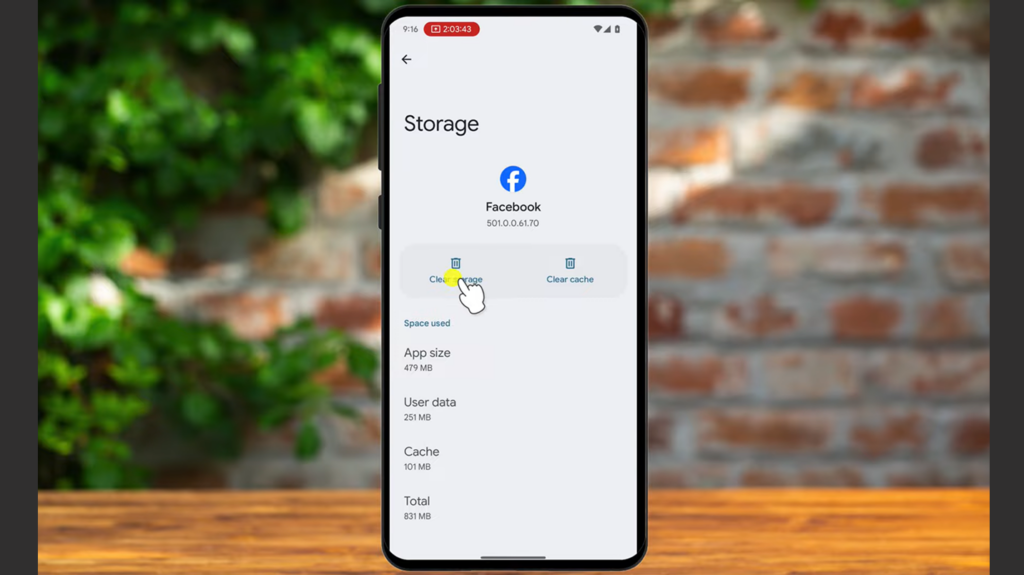
Sometimes apps misbehave even after clearing the cache. In that case, you may need to clear app data (also called storage). This deletes all user data: saved settings, accounts, game progress, and downloads. Use this option only when an app is corrupted or unresponsive.
To clear app data:
- Go to Settings > Apps and select the app.
- Tap Storage & cache.
- Tap Clear storage or Clear data and confirm. The app will reset as if you had just installed it.
Another advanced option is to wipe the cache partition on your phone. Older Android versions included a system‑wide cache that could accumulate errors. To clear it, power off the device and hold a combination of keys (often Volume Up + Power) to enter recovery mode.
Use the volume keys to choose Wipe cache partition and press the power button to confirm. This removes system cache but not personal data. Newer phones handle this automatically, but if your phone is lagging badly, wiping the cache partition can help.
Samsung and some other manufacturers offer built‑in optimization tools. On Samsung phones, open Settings > Battery and Device care and tap Optimize now. This process clears app caches, checks for battery issues, and frees memory with one tap. Using these tools regularly keeps your device running smoothly without manual effort.
Tips For Gamers: Managing Storage And Performance
As gamers, we often install large titles that quickly eat up storage. Clearing the cache is just one part of managing your device’s performance. Here are a few tips I have learned over the years of gaming on Android:
- Uninstall games you no longer play. It is tempting to keep every game installed, but unused titles take up space and create unused cache files. Every couple of weeks, I look through my library and delete what I have not touched recently.
- Use an app manager. Some phones have built‑in storage tools that identify large files and seldom‑used apps. These managers help you clear cache, remove duplicate files, and free up even more space.
- Keep your software up to date. System updates often include performance improvements and bug fixes. They may also modify how the cache behaves.
- Avoid third‑party cleaning apps. Many claim to optimize your phone, but they often contain ads or unnecessary services. Clearing the cache manually through the settings is safer and just as effective.
Make Room For More Adventures
Clearing the cache on your Android phone is a simple maintenance task that pays off in smoother performance, fewer glitches, and more room for games. If you are exploring vast open worlds or battling friends in your favorite competitive titles, keeping your cache files clean ensures that your device can handle the action. I make it a habit to clear my cache once a month and before installing any big updates. It is a quick process that keeps my phone running like new.
Now that you know how to clear cache on Android devices, you can enjoy your games without worrying about sluggish performance or storage issues. If you’re looking for a convenient way to grab new titles and apps on your Android device, consider using a Google Play gift card. It lets you pick up games, apps, or in‑app items without entering payment details each time. You can find good deals on Eneba, like this Google Play Gift Card, which is perfect for stocking up on your favorite mobile games. Happy gaming!
FAQs
How do I clear the cache on my Android phone?
To clear the cache on your Android phone, open Settings, select Apps, choose the app you want to clean, and tap Clear Cache under Storage & cache. This removes temporary files without deleting your data, helping the app run smoothly again.
What happens when you clear the cache on an Android phone?
When you clear the cache on an Android phone, the system deletes temporary files stored by apps or browsers, which frees up space and resolving minor glitches. The next time you open the app, it may load more slowly as it rebuilds the cache, but your personal data and progress remain intact.
How often should you clear your cache on Android?
You should clear your cache on Android once or twice a month or whenever your device feels sluggish or low on storage. Regular maintenance keeps performance steady without causing unnecessary delays during app startup.
Will clearing cache delete data on Android?
No, clearing cache will not delete data on Android; it only removes temporary files. If you choose Clear storage or Clear data, the app resets and deletes user‑specific information, so be careful to select the correct option when cleaning.
Is it good to clear cache on Android?
Yes, it is good to clear cache on Android because it frees up space, resolves minor issues, and improves privacy by removing old files. Just avoid clearing it too frequently, as the cache helps apps load quickly once it rebuilds.