


Can You Play Minecraft on Steam Deck? A Complete Guide for 2025


If you’ve ever wondered can you play Minecraft on Steam Deck during a commute or while relaxing on the couch, the answer is yes. Minecraft’s open‑world sandbox is endlessly fun, and many players want to take that experience on the go.
This guide explains how to get both Java and Bedrock versions running on Valve’s handheld, covers the basics of installation, and shares tips for smooth performance.
Jump to:
Can You Play Minecraft on Steam Deck? Quick Overview
You can play Minecraft on Steam Deck, though the steps differ depending on the version. The device runs SteamOS, a Linux‑based system, and Minecraft’s Java Edition already supports Linux. Installing a launcher like Prism enables you to run the game natively and add it to your Steam library.
The Bedrock Edition isn’t available for Linux but can still run through an Android compatibility layer. Once configured, both editions feel similar to playing on a PC. You can build, explore, and join servers from anywhere.
Whichever you pick, Minecraft is still one of the best games for Steam Deck for me. You get endless playtime for a one-time buy.
Java vs Bedrock: Which Version to Use
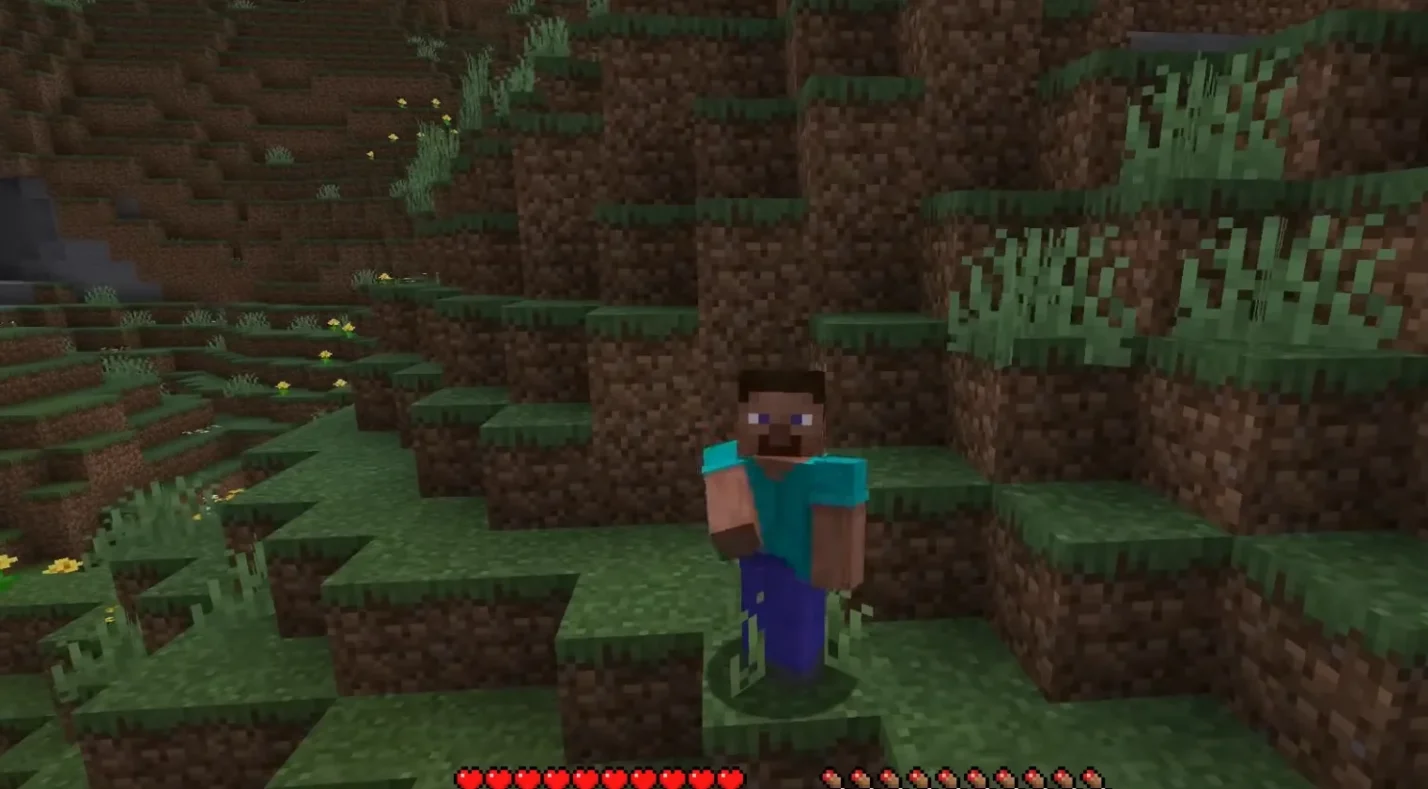
Your choice of version affects how you play. Java Edition is the classic PC version, offering deep mod support, custom shaders, and community servers. Because the Steam Deck uses Linux, Java runs natively via Prism Launcher. Modding tools work through this launcher. If you mostly play on PC and enjoy mods, Java is the better fit.
Bedrock Edition is designed for consoles and mobile devices. It has built‑in controller support and allows cross‑play with Xbox, PlayStation, Switch, and mobile players through Microsoft accounts.
On the Steam Deck, you access Bedrock by installing an Android launcher from the Discover store and logging in with the Google account that owns the mobile version. Bedrock can lag behind Java in features and has limited mod support, but it’s ideal for cross‑platform play.
Installing Minecraft on Steam Deck
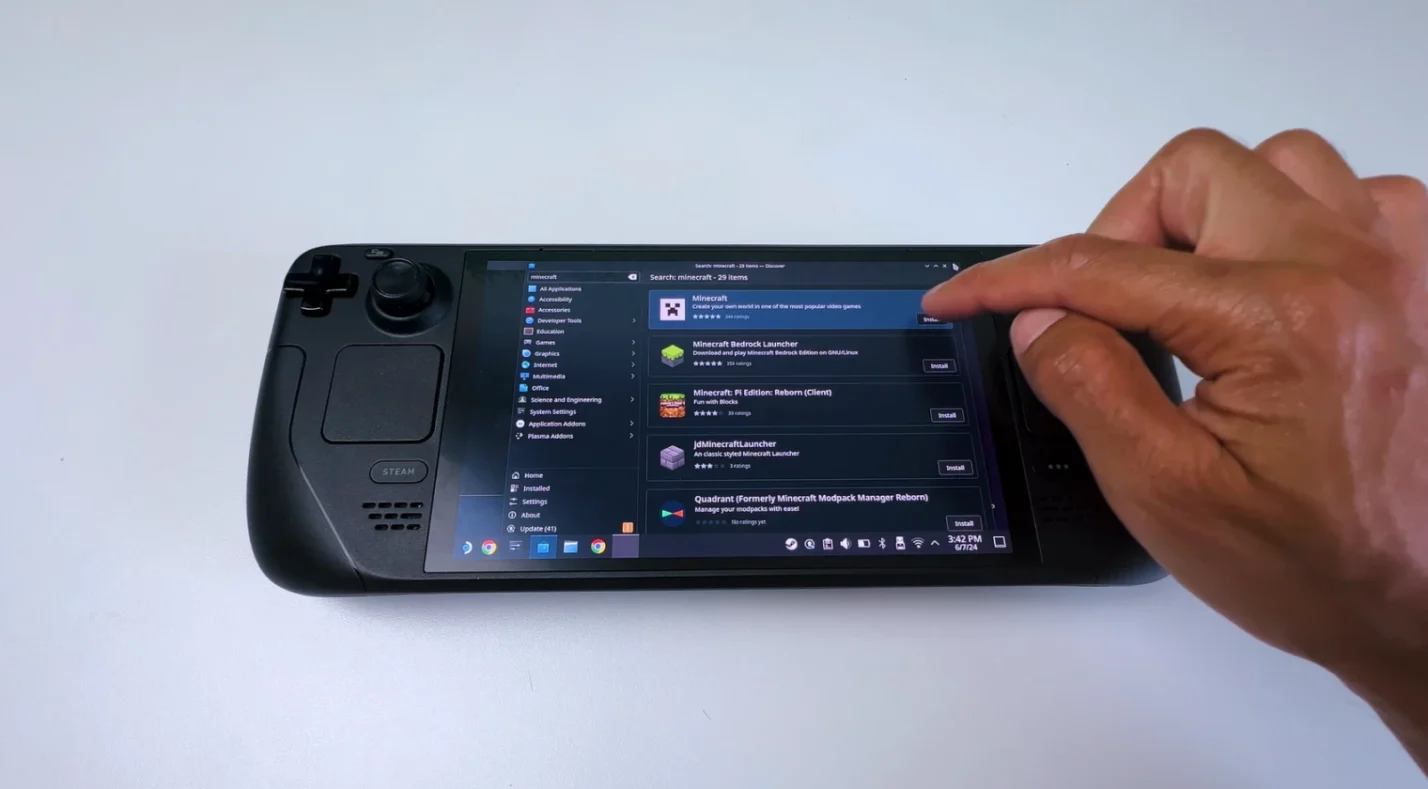
Both versions require switching the Steam Deck into Desktop Mode. Press the Steam button, choose Power, and select Switch to Desktop Mode. Once in the desktop environment, follow the steps that correspond to your chosen edition:
- Java Edition setup: Open the Discover store and install Prism Launcher. Launch the app, sign in with your Microsoft account, and create a new Minecraft instance. Add Prism Launcher as a non‑Steam game in your library so it appears in Gaming Mode. Selecting this entry opens the game directly from Gaming Mode.
- Bedrock Edition setup: In the Discover store, search for “Minecraft Bedrock Launcher” and install it. Run the launcher, sign in with the Google account that owns Minecraft for Android, and download the game. Then add the launcher as a non‑Steam game so you can open it from Gaming Mode. Bedrock will load with built‑in controller support, and you can join Realms or cross‑play servers.
After installation, return to Gaming Mode using the desktop shortcut. You can now launch either edition directly from your library and play with the Steam Deck’s controls. For me, switching between versions takes only a few taps once everything is set up.
Our guide on the best Steam Deck docks covers docks with Ethernet ports and additional USB connections. A dock lets you connect a wired network for more stable online play or hook up a keyboard and mouse.
Optimizing Performance and Controls
The Steam Deck is capable, but Minecraft can be demanding if you enable fancy graphics. Here are a few ways to get the best experience:
- Tweak in‑game settings: Lowering render distance to 8-10 chunks reduces how many blocks the game draws and helps keep frame rates stable. Avoid turning on heavy shaders unless you’re willing to sacrifice battery life.
- Use mods wisely: For Java players, Prism Launcher makes it simple to add performance mods. These mods optimize rendering and world ticks without changing the game’s look.
- Adjust system limits: Press the Quick Access button on the right of the Deck, go to Performance, and set an FPS cap or adjust thermal settings. Capping the frame rate at 40 or 60 frames per second extends battery life without hurting responsiveness.
With these tweaks, I regularly enjoy several hours of smooth gameplay, and the fan stays quiet. Our roundup of the best Steam Deck accessories discusses microSD cards, screen protectors, and cases that fit the handheld perfectly.
Cross‑Play, Mods, and Online Play
Bedrock Edition is the only way to enable cross‑play on Steam Deck. When you log in with your Microsoft account, you can join Realms or servers with players on consoles or mobile devices.
If you and your friends play on PC, Java Edition will serve you better because of the larger modding community and custom servers. Some servers use GeyserMC to allow Bedrock and Java players to connect together, but this requires server‑side configuration.
Modding is where Java excels. Prism Launcher supports Fabric and Forge, and you can add visual packs, new biomes, or gameplay tweaks. Bedrock offers marketplace packs and behavior packs, but they aren’t as flexible.
Conclusion: Steam Deck Is a Great Way to Play Minecraft
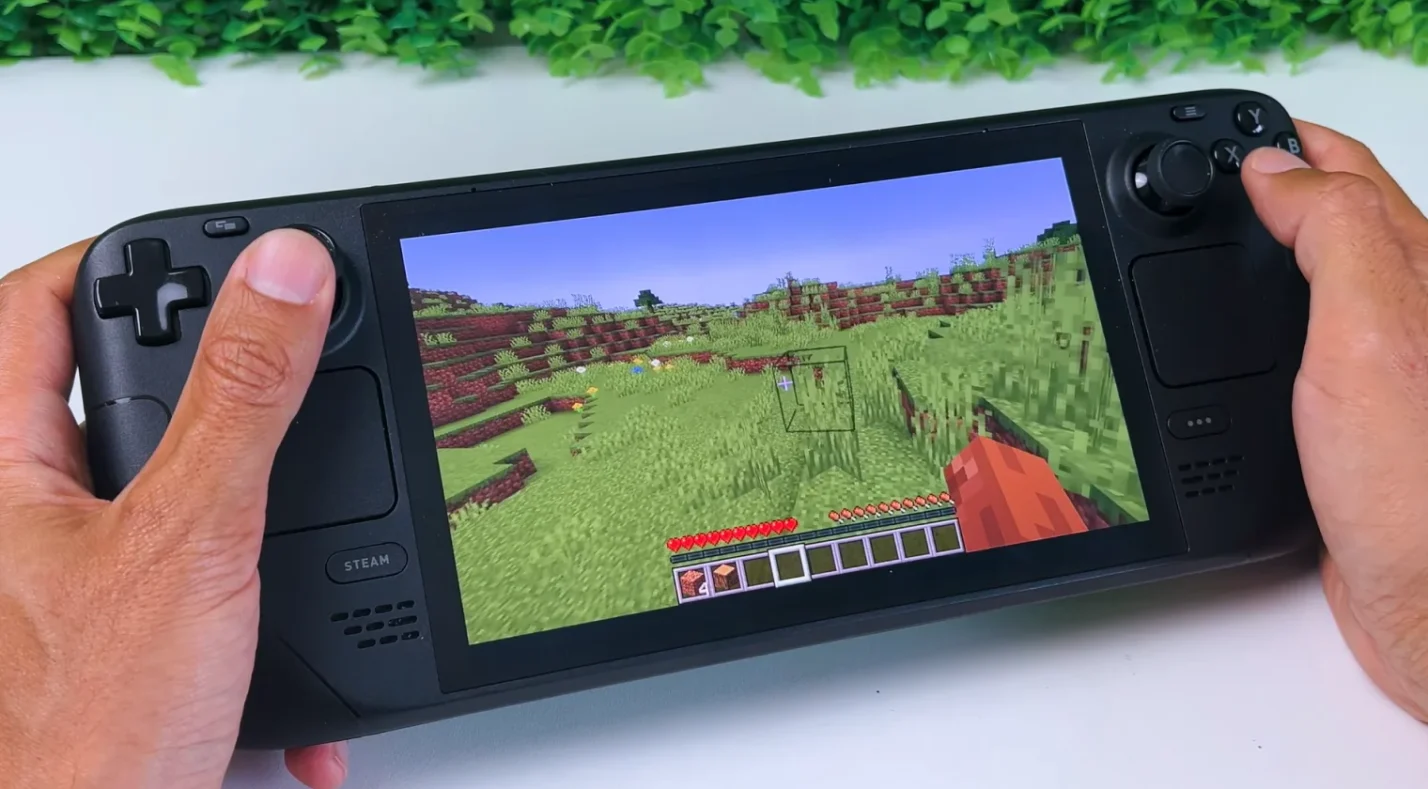
The Steam Deck’s mix of portability and PC‑like flexibility makes it a strong platform for Minecraft. Whether you choose Java for mods or Bedrock for cross‑play, the setup takes only a few minutes once you switch to Desktop Mode and install the right launcher.
If you’re ready to dive in, our Minecraft: Java & Bedrock Edition PC key includes both versions so you can switch between them whenever you like. Getting your copy through Eneba means quick delivery and a competitive price, making it easy to start building your world on the go.
FAQs
How do you install Minecraft on Steam Deck?
To install Minecraft on Steam Deck, you must switch to Desktop Mode and use the Discover store to download the appropriate launcher. For Java Edition, install Prism Launcher, sign in with your Microsoft account, create a game instance, and add the launcher as a non‑Steam game. For Bedrock Edition, install the Minecraft Bedrock Launcher, sign in with the Google account that owns the Android version, download the game, and then add the launcher to your Steam library.
Can the Steam Deck run Minecraft smoothly?
Yes, the Steam Deck can run Minecraft smoothly when you adjust settings and use performance mods. Lowering render distance and capping the frame rate helps maintain stable performance. Java Edition players can install mods like Sodium to improve efficiency, while Bedrock Edition runs well with its default settings.
Do I need a Microsoft account to play Minecraft on Steam Deck?
Yes, you need a Microsoft account to play Minecraft on Steam Deck because the launchers require you to verify your purchase. Prism Launcher for Java Edition prompts you to log in with your Microsoft credentials. The Bedrock Edition requires a Google account to download the Android app and a Microsoft account to access cross‑play features and Realms.
Is Minecraft on Steam Deck cross‑platform with consoles?
Yes, Minecraft on Steam Deck can be cross‑platform with consoles if you use the Bedrock Edition and sign in with a Microsoft account. Bedrock Edition connects to the same Realms and servers as Xbox, PlayStation, Switch, and mobile versions. Java Edition doesn’t support cross‑play natively, but some servers use GeyserMC to bridge the versions.
Which Minecraft version is better on Steam Deck: Java or Bedrock?
The better Minecraft version on Steam Deck depends on your priorities; Java Edition offers extensive modding and community servers, while Bedrock Edition provides cross‑play and built‑in controller support. If you like custom mods and PC‑style servers, choose Java. If you plan to play with friends on consoles, choose Bedrock.