How to Play CoD Mobile with Controller: Complete Setup Guide for Android and iOS

Eneba Hub contains affiliate links, which means we may earn a small commission if you make a purchase through them—at no extra cost to you. Learn more


Recent update
This list is regularly updated to match what’s trending and in-demand among gamers.
Knowing how to play CoD Mobile with controller support changes the experience significantly, and that’s especially the case if you are coming from console gaming. Activision built controller support directly into the game, so you do not need third-party apps or workarounds to make it happen.
The catch is that the setup steps vary depending on your device and controller type. Getting it wrong means spending time troubleshooting instead of playing.
This guide covers every step of the process: controller compatibility, pairing instructions for PS4, PS5, and Xbox controllers, in-game settings configuration, sensitivity tuning, and how to fix the most common connection problems.
By the end, you will know exactly which controllers work with CoD Mobile and how to connect them on Android, iOS, or PC through an emulator.
Jump to:
How to Play CoD Mobile with Controller – Controller Compatibility for Every Platform
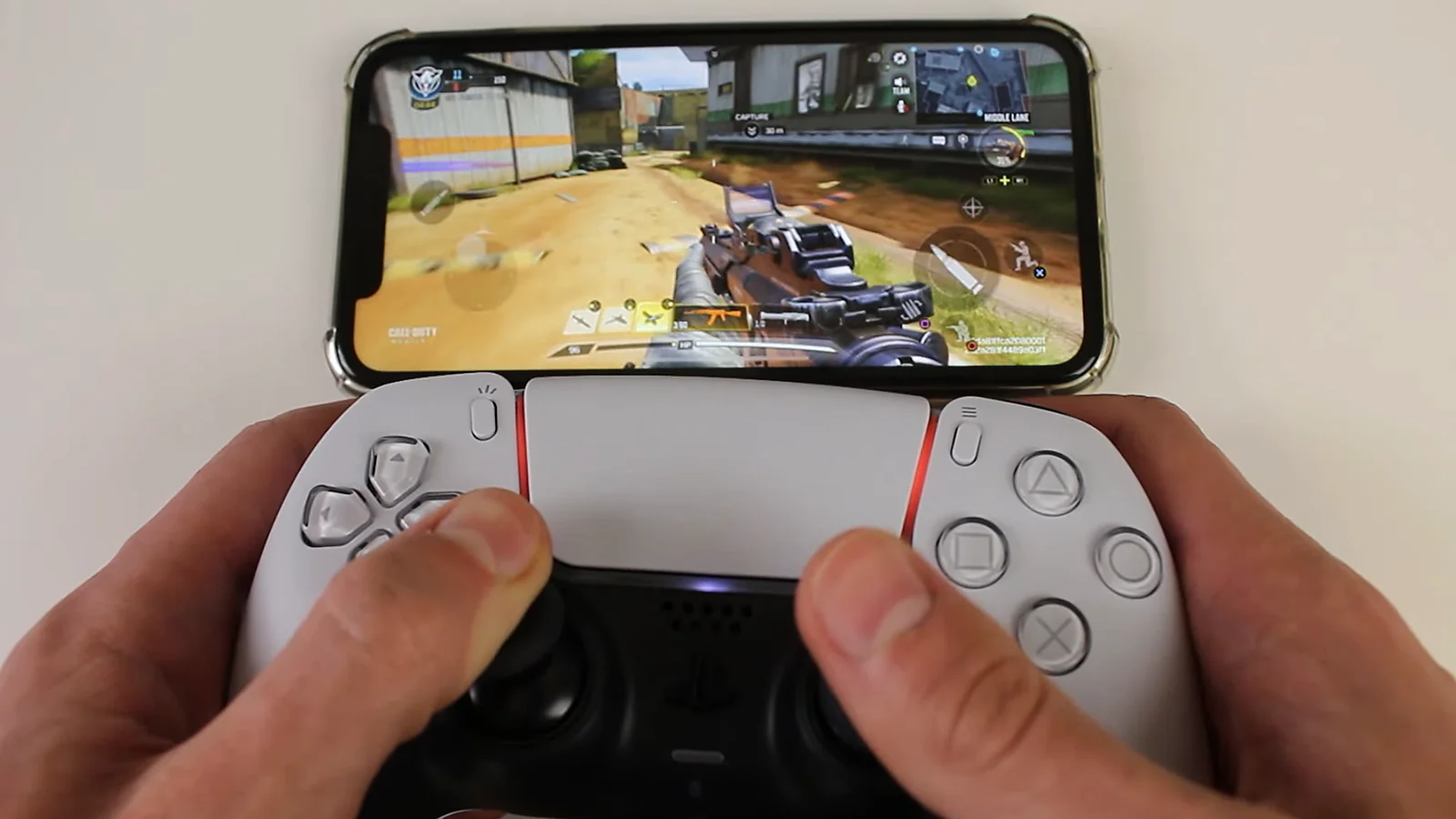
So, can you play CoD Mobile with a controller? Yes, you can. Activision added official controller support to the game, which means both Android and iOS support gamepad input without any side-loading or modified apps.
The game detects an active controller automatically. When it does, the control scheme changes, and the matchmaking system puts you in lobbies with other controller players, which keeps things fair against touchscreen users.
Not every controller works reliably. Major brand controllers from Sony and Microsoft offer the most consistent experience. Third-party Bluetooth controllers can work, but button mapping problems are common with cheaper models.
The basics before you pair anything:
- Device OS: Android 10 or newer and iOS 13 or newer provide native controller support
- Bluetooth version: Your device needs Bluetooth 4.0 at a minimum for stable pairing
- Controller firmware: Keep your controller updated to avoid compatibility issues
- Game version: Always run the latest CoD Mobile update, as older versions have known controller bugs
Here is a quick table for reference:
| Controller | Android | iOS | PC Emulator | Notes |
|---|---|---|---|---|
| PS4 DualShock 4 | Yes | Yes (iOS 13+) | Yes | Fully supported, reliable |
| PS5 DualSense | Yes | Yes (iOS 14.5+) | Yes | Adaptive triggers inactive |
| Xbox One controller | Yes | Yes (iOS 13+) | Yes | Wireless or USB-C wired |
| Xbox Series X/S | Yes | Yes | Yes | Best ergonomics for mobile |
| Nintendo Switch Pro | Limited | Yes | Yes | Better support on iOS |
| Third-party Bluetooth | Varies | Varies | Varies | Test before committing |
How to Connect a PS4 or PS5 Controller to CoD Mobile
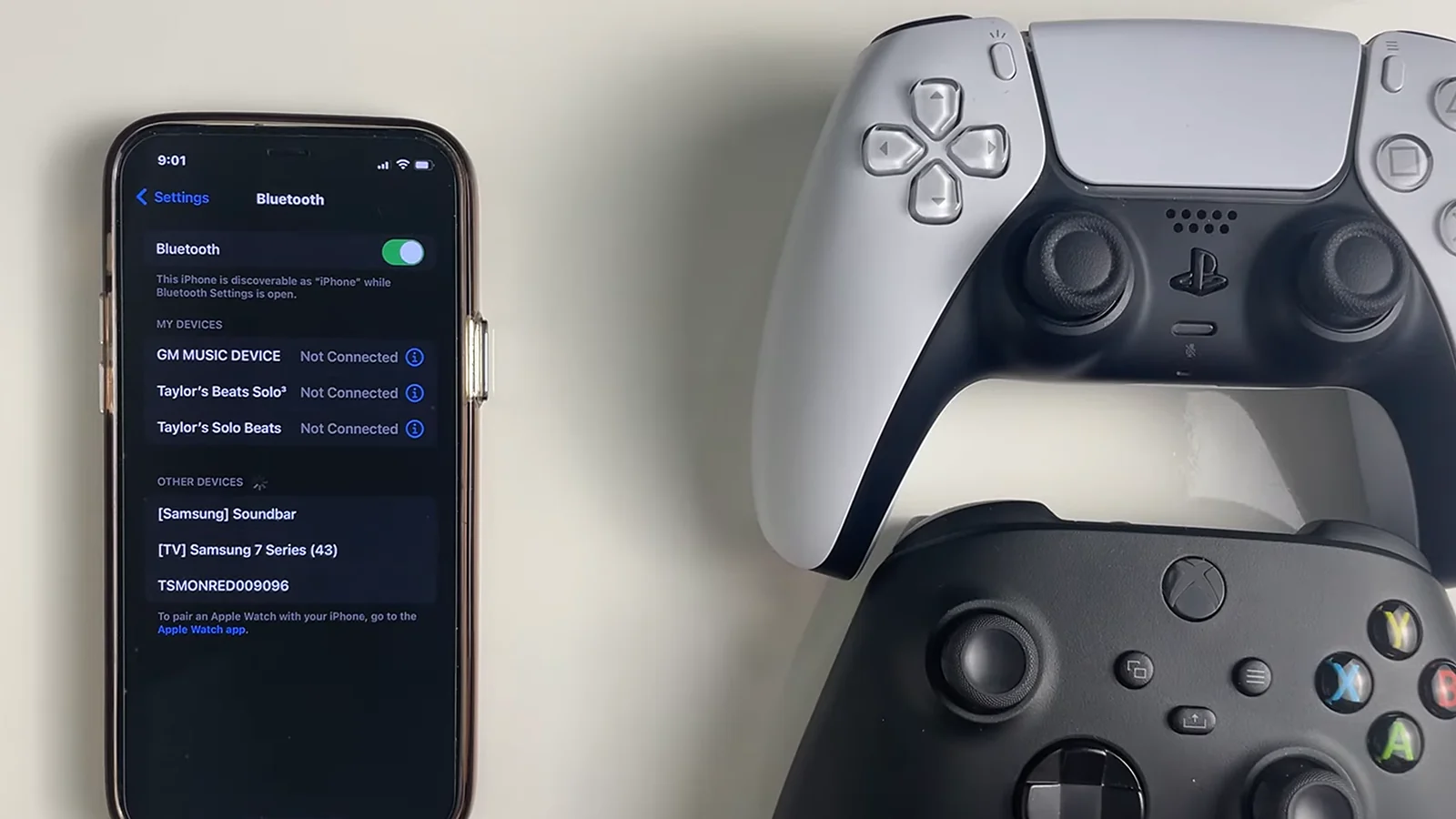
Setting up a PlayStation controller on Android or iOS takes about two minutes once you understand the pairing sequence.
How to connect a PS4 controller:
- On Android, open Settings and go to Connected Devices or Bluetooth. On iOS, open Settings and tap Bluetooth.
- Hold the PlayStation button and the Share button at the same time until the light bar starts flashing rapidly.
- Your phone displays the controller in the available devices list.
- Tap the controller name to pair. The light bar stops flashing and stays solid once connected.
- Launch CoD Mobile. The game switches to controller layout automatically.
How to connect a PS5 DualSense controller:
- Enable Bluetooth on your device.
- Hold the PlayStation button and the Create button simultaneously until the light bar pulses.
- Select the controller from your Bluetooth device list.
- Open CoD Mobile once connected.
If the controller will not pair, press the small reset button on the back near the L2 trigger using a pin or paperclip. This clears any stored pairing data. A USB OTG adapter with a cable is also a reliable fallback if you keep having Bluetooth issues.
For a deeper look at which controllers perform best for mobile gaming, our best mobile controllers guide covers current top picks with hands-on testing notes. If you are specifically looking at the PS5 DualSense for other games too, the best PS5 controllers roundup breaks down the options across use cases.
How to Connect an Xbox Controller to CoD Mobile
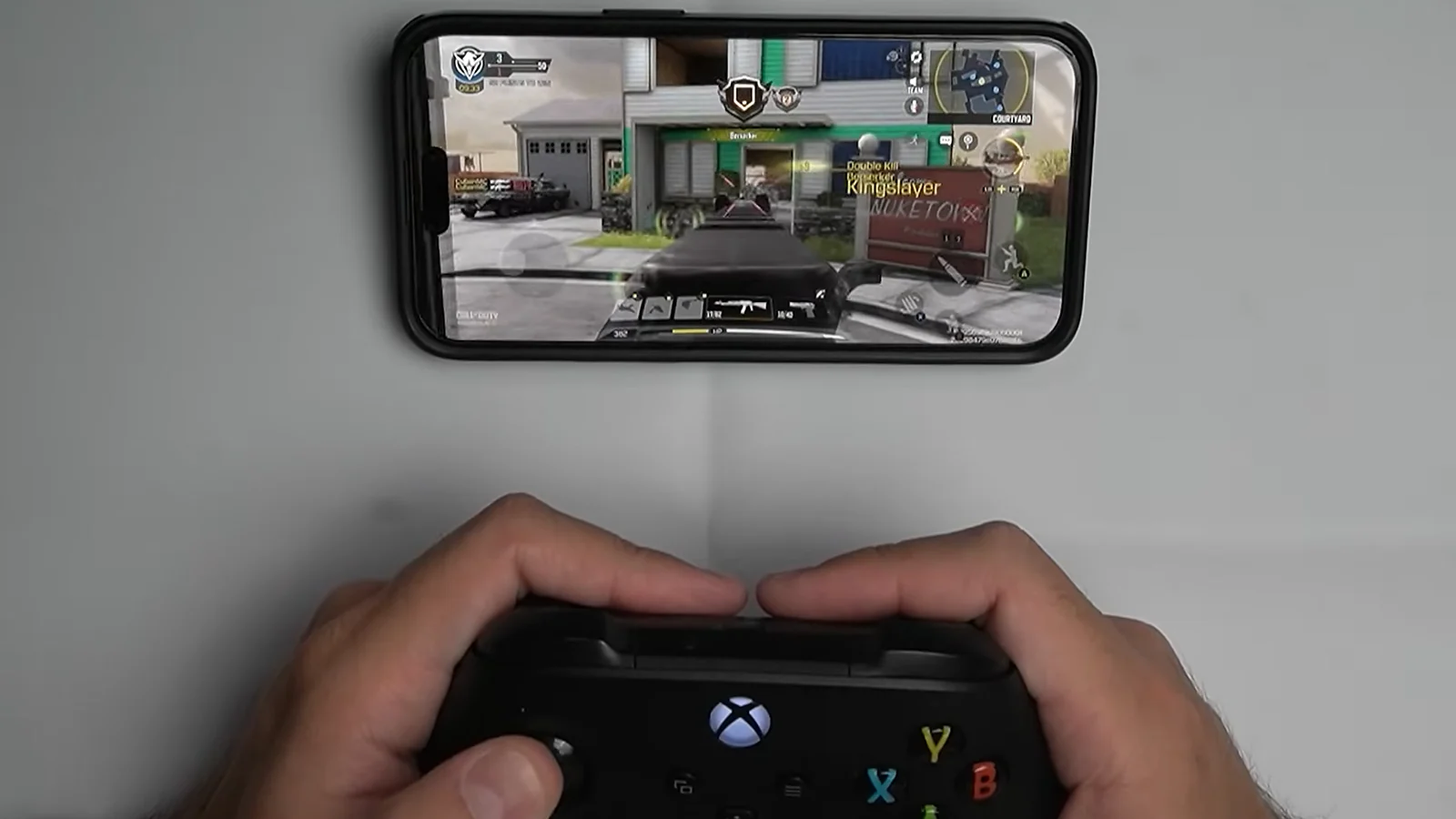
Xbox One and Xbox Series controllers both work with CoD Mobile on Android and iOS. The wireless pairing process is straightforward.
- Enable Bluetooth on your mobile device.
- Press and hold the Xbox button to turn the controller on.
- Press and hold the pairing button on top of the controller near the USB port until the Xbox button flashes rapidly.
- Select the controller name in your phone’s Bluetooth menu.
- The Xbox button stays lit once the connection is confirmed.
- Open CoD Mobile and the game recognizes the controller immediately.
Xbox controllers sometimes disconnect randomly on certain Android devices. If this happens, forget the device in your Bluetooth settings and re-pair from scratch. Wired connections through a USB OTG adapter work as a stable alternative.
The best Xbox controllers article is worth checking if you are deciding between models before buying.
Can CoD Mobile Play with Xbox or PS5 on PC via Emulator?
Playing Call of Duty Mobile on PC requires an Android emulator like BlueStacks or GameLoop.
- Download and install your preferred emulator from the official website.
- Install CoD Mobile through the emulator’s app store or sideload the APK.
- Connect your controller to your PC via USB or Bluetooth before launching the emulator.
- Most emulators detect controllers automatically. If not, go to emulator settings and enable gamepad mode.
- Some emulators include a button mapping tool. Use it to customize layouts to your preference.
Playing through an emulator matches you with other emulator users and keeps the competitive scene balanced. For PC controller options compatible with emulators, check the best PC controllers guide.
Call of Duty Mobile Controller Support iOS – In-Game Settings to Configure
Connecting the controller is only step one. You also need to configure a few in-game settings to get the best experience from Call of Duty Mobile controller support on iOS and Android.
After pairing your controller, do this in-game:
- Tap the gear icon at the top of the main screen.
- Go to the Controller tab, then tap Settings.
- Enable Controller Support if it is not already on.
- Under Button Layout, choose the preset closest to your preferred controller style. You can also customize individual button assignments.
- Set Hip Fire to active for all weapons except sniper rifles, which work better on ADS.
Button layout tips:
- Left stick: Movement. Keep the dead zone low (5-10%) to reduce input lag.
- Right stick: Camera and aim. Adjust sensitivity based on your play style.
- L2/LT: ADS (aim down sights). Set to toggle if you prefer.
- R2/RT: Fire. Use with Advanced Mode for precise trigger control.
- L1/LB and R1/RB: Crouch, jump, or reload depending on your preset.
Advanced Mode is worth enabling. It gives you manual control over when to fire, which prevents accidental shots and helps with stealth plays.
How to Use Controller on CoD Mobile – Sensitivity Settings Guide
Sensitivity tuning is where most controller players lose time. The right settings reduce your adjustment period significantly.
Recommended starting point for controller sensitivity:
| Setting | Beginner Range | Advanced Range | Notes |
|---|---|---|---|
| Standard (look) | 50-65 | 70-85 | Adjust based on comfort |
| ADS (aim down sights) | 80-90 | 90-100 | Higher = faster tracking |
| Gyroscope | Off | Off or Low | Controller players usually skip this |
| Left stick dead zone | 5-10% | 5% | Keep low to reduce lag |
| Right stick dead zone | 5-10% | 5% | Match the left stick for consistency |
Start with medium sensitivity, around 65 for standard and 85 for ADS. Run a few practice mode sessions and adjust from there. Dropping the sensitivity too low makes target tracking sluggish. Going too high makes precision shots harder. Most players find their zone after five to ten practice sessions.
One practical note: Controller sensitivity in CoD Mobile is independent from touch controls. If you switch between both input methods, you will need to configure separate profiles.
How to Solve Controller Connection Problems in CoD Mobile
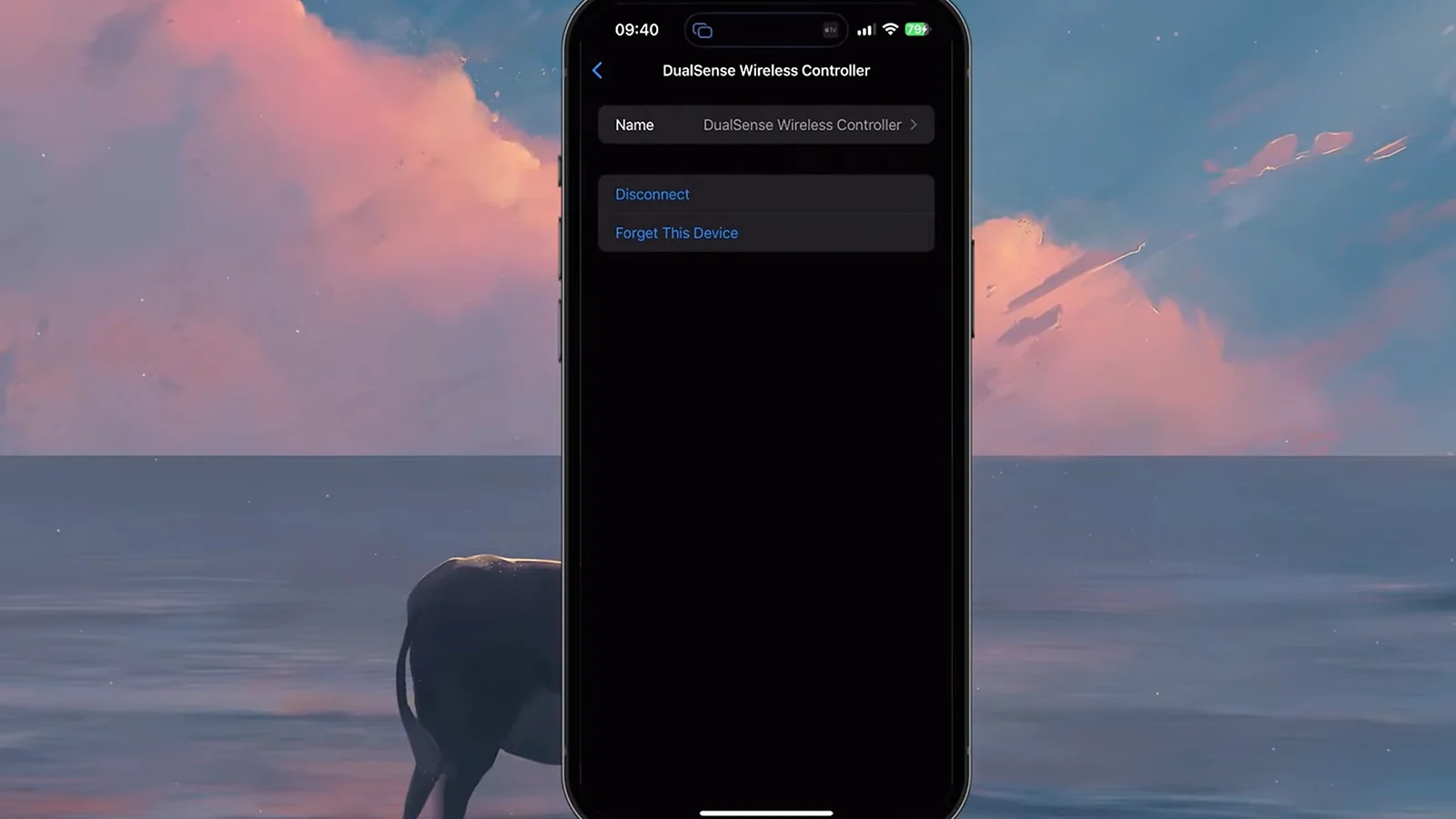
Controller not syncing is the most common issue. Most connection problems come down to a few repeatable causes.
Controller not detected at all:
- Turn the controller off completely, then restart your phone.
- Delete the controller from paired devices and pair again fresh.
- Make sure no other device is actively connected to the controller.
- Check that the game is updated to the latest version.
Input lag or delayed responses:
- Keep the controller within one meter of your device.
- Remove thick phone cases or metal covers that interfere with Bluetooth signals.
- On Android, go to battery settings and whitelist CoD Mobile and Bluetooth from power optimization.
- Disable any “smart” Bluetooth features that throttle background connections.
Buttons mapped incorrectly or not responding:
- Update your device operating system. Controller support improvements come with OS patches.
- Check for game updates. Call of Duty competitive patches often fix input mapping issues.
- Reset your in-game controller settings to default and reconfigure from scratch.
Random disconnections on Android:
- Go to Developer Options and disable Bluetooth timeout.
- Turn off battery saver mode entirely while gaming.
- Try a wired connection via USB OTG as a last resort.
Best Controllers for CoD Mobile – Top Picks by Category
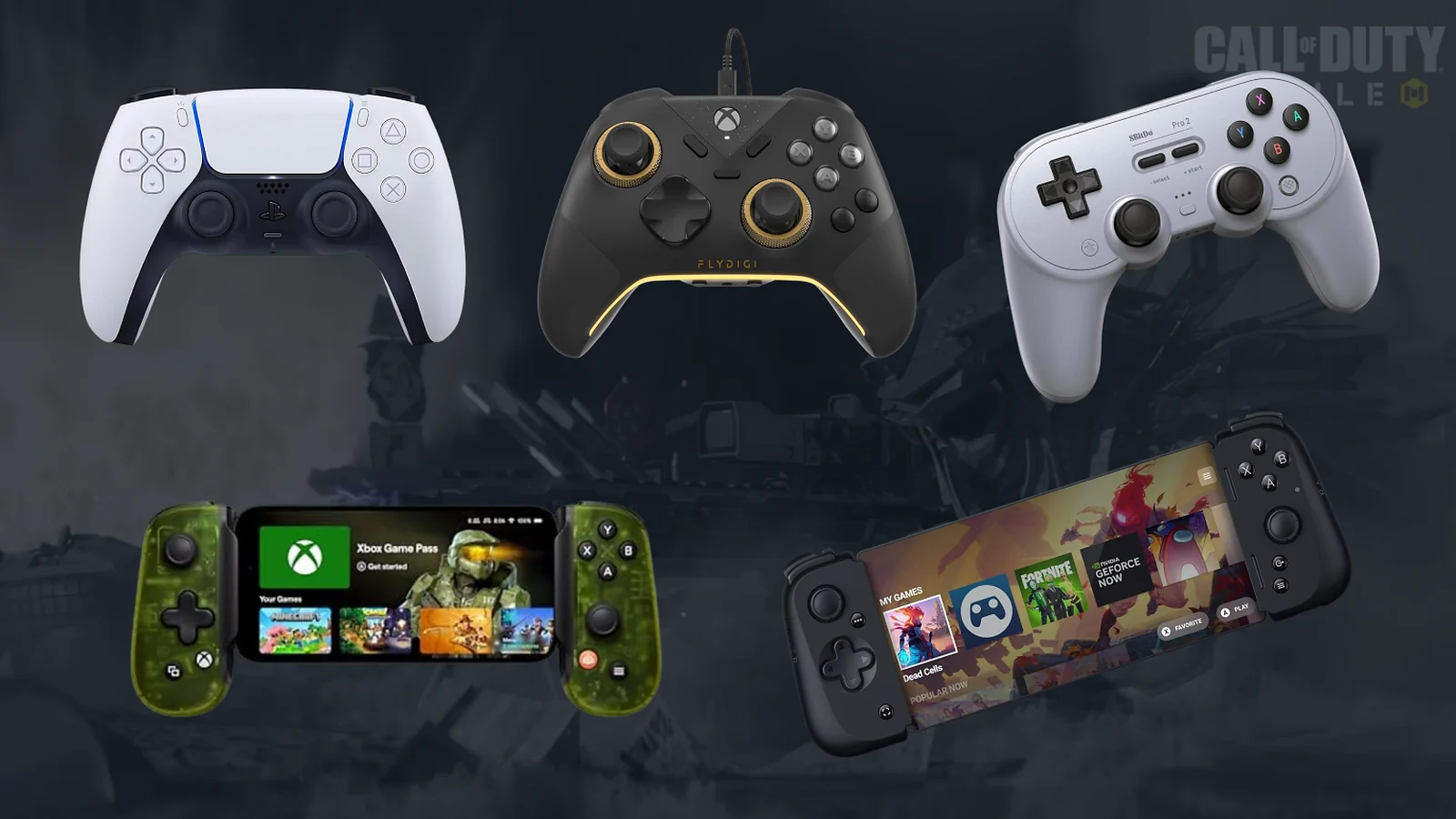
Not all controllers are equal for mobile gaming. Here is what works well based on consistent compatibility and build quality.
Top picks:
| Controller | Best For | Key Benefit | Compatibility |
|---|---|---|---|
| PS5 DualSense | Console-grade feel | Premium build, responsive buttons | Android, iOS |
| Xbox Series X/S | Ergonomics | Textured grips, offset sticks | Android, iOS |
| Backbone One | Zero latency | Wired via charging port | iOS, some Android |
| 8BitDo Pro 2 | Budget option | Multi-platform, app customization | Android, iOS |
| Razer Kishi V2 | Portability | Compact, no Bluetooth needed | Android, iOS |
The Backbone One stands out for mobile-specific play. It connects via your phone’s charging port, which eliminates Bluetooth latency entirely. The pass-through charging port lets you play while keeping the battery topped up.
PlayStation 5 DualSense controllers deliver excellent button feel and reliable connectivity. The adaptive triggers do not function in CoD Mobile, but the overall build quality is worth the price for long sessions.
Xbox Series controllers have a slight edge in ergonomic design for shooter games. The offset analog stick layout feels natural for FPS titles, and both Android and iOS support them with minimal setup friction.
Getting the Most from Controller Gameplay in CoD Mobile
Knowing how to play CoD Mobile with controller is the starting point. Getting comfortable takes a bit more work.
The adjustment period is real. Even experienced console players need five to ten hours of mobile play before their muscle memory adapts to the smaller screen. Keep the phone propped on a stand so you can focus on the game without neck strain.
Practice mode is your best tool. Use it specifically for sensitivity calibration. Run the same scenarios repeatedly, adjusting one setting at a time until movement and aim feel precise.
Controller advantages in CoD Mobile:
- More consistent aim: Analog sticks produce smoother tracking than swipe gestures, especially at mid-range
- Physical button feedback: Reduces the chance of misclicking during intense moments
- Comfort in longer sessions: Grip controllers reduce hand fatigue compared to holding a phone flat
- Better trigger control: Analog triggers allow variable pressure, which helps with semi-automatic fire rates
Playing ranked matches becomes more sustainable with a controller. If you are grinding for CoD Points to unlock battle pass rewards while climbing ranks, our guide on how to get free CoD Points covers the most reliable methods.
Call of Duty Mobile is part of a long franchise with a lot of competitive history. If you want context on where this game fits in the lineup, the Call of Duty games in order breakdown covers the full series.
FAQs
To play CoD Mobile with a controller, start Bluetooth on your device, put the controller in pairing mode, and connect through your system Bluetooth menu. Once paired, launch the game and go to Settings, then Controller, to enable controller support and configure your layout.
You can play CoD Mobile with a controller on iOS using any PlayStation (iOS 13+), Xbox (iOS 13+), or Nintendo Switch Pro Controller. Open Bluetooth settings, pair your controller, then enable controller support inside the game’s settings menu.
Call of Duty Mobile supports the PS5 DualSense controller on both Android and iOS (iOS 14.5 or newer). Hold the PlayStation button and Create button to enter pairing mode, connect via Bluetooth, and the game will recognize the controller automatically.
CoD Mobile supports Xbox One and Xbox Series controllers on both Android and iOS through Bluetooth. Press and hold the Xbox button and the pairing button on the controller until the logo flashes, then select it from your phone’s Bluetooth settings.
To connect a controller to your phone for CoD Mobile, go to your device’s Bluetooth settings, put the controller into pairing mode using the manufacturer-specific button combination, and tap the controller name when it appears in your device list.
PlayStation 4, PlayStation 5, Xbox One, Xbox Series X/S, and Nintendo Switch Pro Controller are all compatible with CoD Mobile. Most Bluetooth controllers function, but official brand controllers guarantee the best compatibility and the fewest connection issues.s rewards faster as you climb the ranks with your new controller setup.