How to Clean MacBook Screen: A Gamer’s Guide to a Spotless Display


As gamers spend hours in front of our laptops. Fingerprints, smudges, and dust build up and ruin the view. Learning how to clean MacBook screen properly is a basic part of caring for your gear. In this guide, I’ll show you safe techniques for removing apps without harming your system, walk you through my personal routine for keeping storage clean, and highlight a few reliable tools and resources from our website that can make the process even easier.
Jump to:
How to Clean MacBook Screen Safely
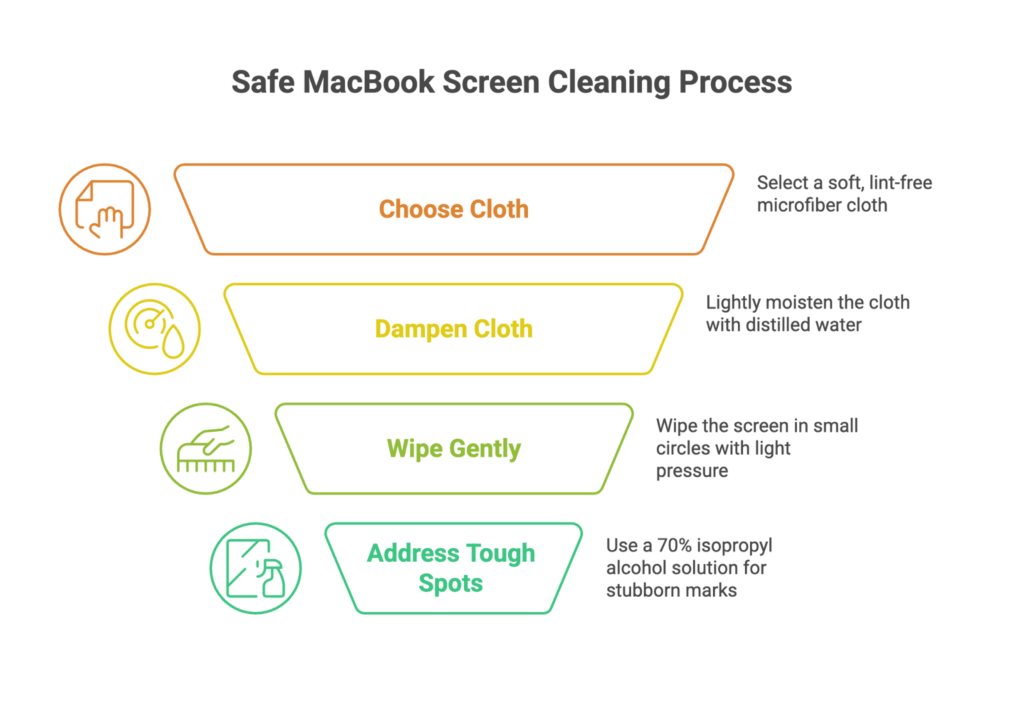
Cleaning a MacBook display is simple, but you must be careful. Improper methods can scratch or cloud the glass. Here’s how to clean MacBook screen safely:
- Power down and unplug. Shut down your MacBook and disconnect the power adapter and any peripherals.
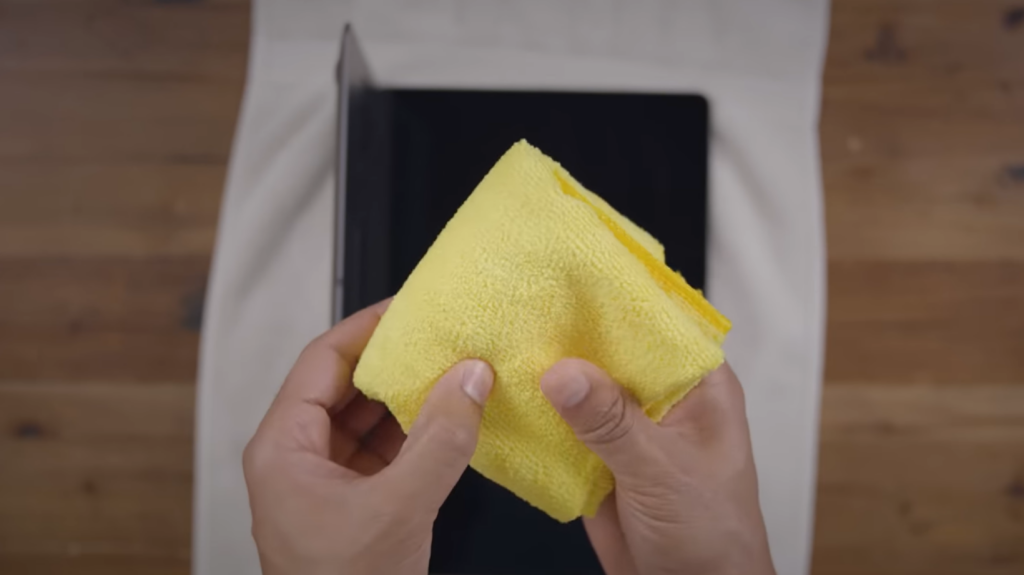
- Use the right cloth. Choose a clean, soft, lint‑free microfiber cloth. Avoid paper towels or rough fabrics that can scratch the screen.
- Dampen, don’t soak. Lightly moisten the cloth with distilled water. Apple warns against using cleaners containing acetone, ammonia, hydrogen peroxide, or other household sprays and against spraying directly onto the screen.
- Wipe gently and address tough spots. Wipe in small circles with light pressure. For stubborn marks, use a cloth moistened with a 70‑percent isopropyl alcohol solution. Never use aerosol sprays or solvents.
These steps keep the display bright and smudge‑free. I include a quick wipe in my weekly gaming routine so I can enjoy games and movies without distractions.
To keep your entire workspace clean, consider a tidy docking station. Our 11 best laptop docking stations article highlights top docks that clear away cable clutter and support both Mac and Windows setups. A clean desk makes cleaning your MacBook easier and prevents dust accumulation around the screen.
Preparing Your MacBook and Workspace
Before wiping, set yourself up for success. Power down and unplug your MacBook so static doesn’t attract dust. Work on a stable surface with good light. Have a microfiber cloth, distilled water, and, optionally, 70‑percent isopropyl alcohol ready. Wash your hands to avoid transferring oils.
Disconnect any docking station or external monitor for easier handling. Also, I keep a separate cloth just for the keyboard so crumbs don’t scratch the screen when I close the lid.
For those considering an upgrade before cleaning, browsing the best MacBook laptops can give you an idea of which models offer the sharpest and most durable displays. A newer MacBook often comes with coatings that resist smudges better, which reduces how often you’ll need deep cleaning.
Choosing the Right Cleaning Materials
Use safe materials to avoid damage:
- Microfiber cloth: Gentle and lint‑free. It won’t scratch or leave fibers behind.
- Distilled water: Leaves no mineral spots.
- 70‑percent isopropyl alcohol: Useful for stubborn smudges. Higher concentrations dry too quickly and may leave streaks.
The same way you compare cleaning materials, it’s also useful to compare your devices. Our Apple vs. Samsung smartphone comparison highlights the strengths and weaknesses of each brand’s displays and build quality. Understanding differences in screen technology can help you better appreciate why your MacBook needs careful maintenance.
Make sure to avoid paper towels, tissues, and any cleaners containing ammonia, acetone, or hydrogen peroxide. These can strip the screen’s coating. If you’re tempted to use household glass cleaner, resist.
Also, for more useful advice on gaming gear, see our article on the 11 best gaming chair picks for unbeatable comfort. A supportive chair keeps your setup comfortable during marathon sessions.
Cleaning the MacBook Screen: Step‑by‑Step Guide
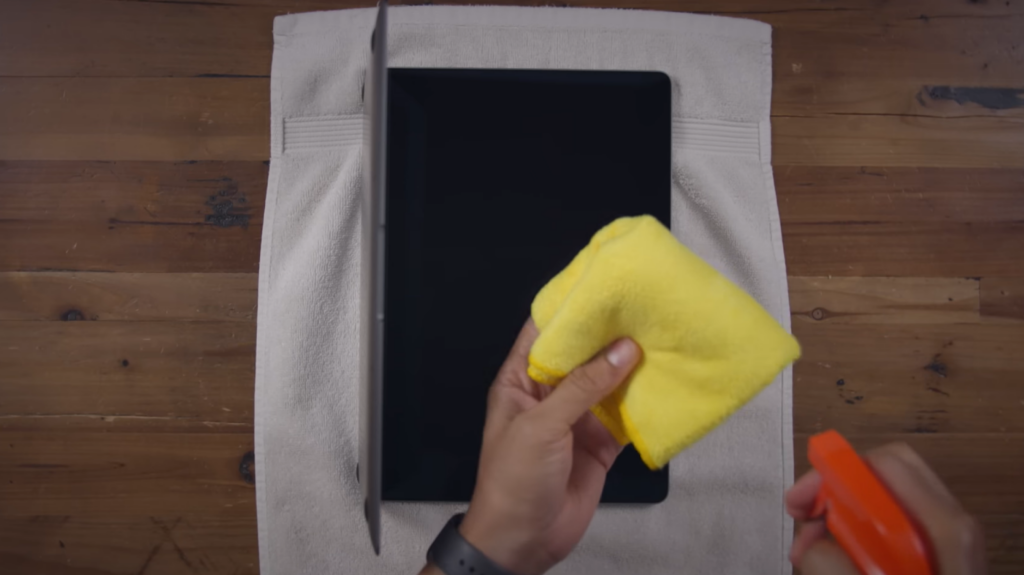
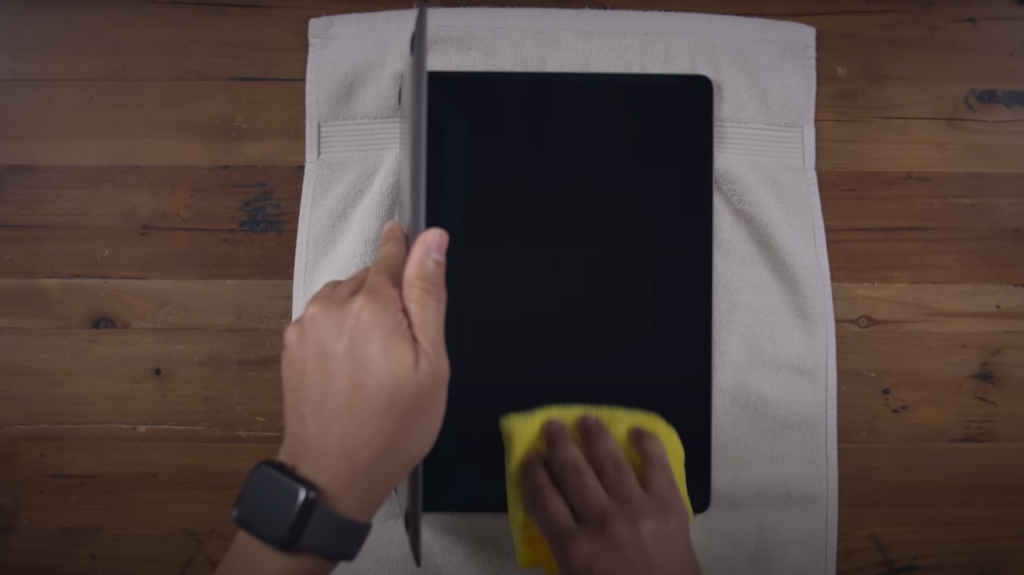
Here’s a simple routine that keeps your display spotless:
- Shut down and prepare. Power off your MacBook, disconnect accessories, and remove any case or screen protector. Dampen a microfiber cloth with distilled water and, if needed, a little 70‑percent isopropyl alcohol.
- Wipe gently. Starting in one corner, wipe in small circles across the screen. Use light pressure so you don’t stress the pixels. For stubborn smudges, use the part of the cloth moistened with isopropyl alcohol.
- Dry and polish. Use the dry portion of the cloth to remove any remaining moisture. Wait until the screen is completely dry before closing the lid. On models with a Touch Bar or Touch ID, clean those areas in the same way.
I’ve used this routine on my MacBook Air for years without issues.
Maintaining a Clean Screen and Workspace
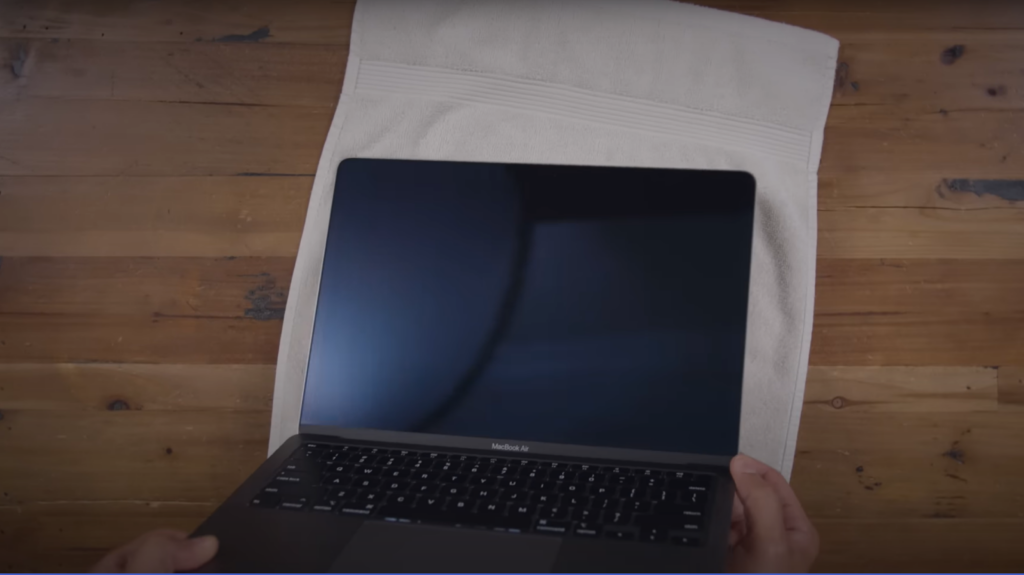
Good habits reduce the need for deep cleaning. Wash your hands before using your MacBook, and avoid touching the display with your fingers. Wipe the keyboard and exterior regularly with a dry or slightly damp microfiber cloth, and use compressed air for dust between the keys. Carrying your laptop in a sleeve reduces exposure to dust and grit. Finally, keep your desk tidy. Dust settles less on a clutter‑free setup.
When deciding how much effort to put into upkeep, it’s worth considering the bigger picture. The ongoing Mac vs. PC debate often includes discussions about long-term maintenance and durability. While Macs generally require less troubleshooting, their sleek displays demand more careful cleaning routines.
When to Seek Professional Help
Sometimes, cleaning isn’t enough. If you notice dead pixels, discoloration, or persistent spots that won’t disappear, the issue may be deeper than surface grime. In that case, it’s best to contact Apple Support or a certified technician. Attempting to fix hardware problems yourself can void warranties or cause further damage. Similarly, if liquid has seeped inside the display or you accidentally used the wrong cleaner and see damage, get professional help.
While Apple’s displays are sturdy, they can scratch or delaminate if mishandled. Taking good care of your screen and knowing when to ask for help protects your investment and prolongs the life of your MacBook.
Upgrading Your Setup After Cleaning
Once your laptop shines, it’s the perfect time to reward yourself. Our Steam Wallet Gift Card 20 USD adds funds to your Steam account so you can pick up a new game or DLC. There’s no expiration date, and redemption only takes a few steps. After cleaning, kick back at your spotless MacBook and dive into a fresh adventure.
FAQs
What can I use to clean my MacBook screen?
To clean your MacBook screen, use a soft, lint‑free microfiber cloth lightly dampened with water or a 70‑percent isopropyl alcohol solution. Do not use paper towels, household cleaners, or sprays containing ammonia or acetone, as they can damage the display. Wipe gently in small circles and let the screen dry completely before closing the lid.
Can I use Windex on my MacBook screen?
No, you should not use Windex or other glass cleaners on your MacBook screen. These products often contain ammonia or other harsh chemicals that can strip the screen’s protective coating and cause discoloration. Instead, use distilled water or a 70‑percent isopropyl alcohol solution on a microfiber cloth to remove smudges safely.
How often should you clean a MacBook screen?
It’s a good idea to clean your MacBook screen once a week or whenever you notice visible fingerprints and dust. Regular cleaning prevents buildup and maintains clarity. If you game or work in a dusty environment, you may need to wipe it more often, but always follow the recommended gentle method.
Is it safe to use alcohol wipes on MacBook screens?
It is safe to use alcohol wipes with a 70‑percent isopropyl alcohol solution to clean MacBook screens. Apple notes that wiping with a cloth moistened with this solution can remove fingerprints and smudges. However, avoid wipes that contain bleach or other chemicals, and make sure the cloth is only slightly damp, not dripping.
Can I use Lysol or disinfecting wipes on my MacBook screen?
No, you should not use Lysol or disinfecting wipes on your MacBook screen. These wipes often contain harsh chemicals that can damage the screen’s coating. Instead, dampen a microfiber cloth with distilled water or a 70‑percent isopropyl alcohol solution for safe cleaning.