What Is a Good CPU Temp?


Understanding your CPU’s optimal temp is essential for maintaining your PC’s performance and longevity. Your processor generates heat during operation, and keeping it within safe ranges prevents throttling, crashes, and potential hardware damage.
What is a good CPU temp? The “right” temperature isn’t a single number – it varies based on what you’re doing. Idle browsing keeps temps low, while gaming or rendering pushes them higher. Modern CPUs can handle significant heat, but consistently running too hot shortens their lifespan and degrades performance.
Knowing your CPU’s thermal behavior helps you spot cooling issues early, optimize airflow, and make informed decisions about upgrades. No matter if you’re building your first PC or troubleshooting slowdowns, monitoring your CPU temperature gives you control over your system’s health. In this guide, I’ll break down normal temperature ranges, explain how to check your temps, and show you how to keep your processor running cool.
Jump to:
What Is a Good and Normal CPU Temp
So, what is a good CPU temp across different workloads? Here’s what you should expect.
- At idle (browsing, light tasks), most CPUs run between 30-45°C (86-113°F). This is your baseline.
- During multitasking (multiple browser tabs, streaming, office work), temps typically rise to 45-65°C (113-149°F) – perfectly normal.
- Gaming pushes harder, with temps usually hitting 65-80°C (149-176°F) depending on the title.
- Heavy workloads like video rendering, 3D modeling, or stress tests can push temperatures to 80-90°C (176-194°F), which is still within spec for many modern processors.
These ranges aren’t absolute. Your specific CPU model matters – Intel‘s latest generations handle heat differently than older chips, and AMD‘s Ryzen processors have their own thermal profiles. Cooling solution plays a huge role, too. A budget air cooler won’t match a 280mm AIO’s performance. Room temperature affects everything – a hot summer day adds 5-10°C to your readings.
Desktop CPUs generally run cooler than laptop processors, since they have better ventilation and beefier coolers. Choosing the best CPU for your needs means balancing performance requirements with thermal considerations.
Average CPU Temperature
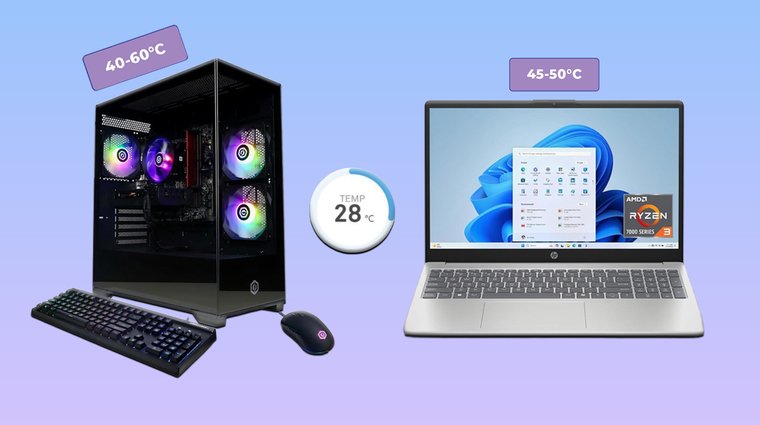
What does “average” actually mean for CPU temps? During typical daily use – web browsing, document editing, watching videos – you’re looking at 40-60°C (104-140°F). This mixed workload gives you a realistic picture of your system’s thermal behavior under normal conditions. It’s the temperature range you’ll see most often, and it’s where your CPU spends most of its life.
Laptop CPUs run hotter than desktops by design. The compact chassis limits airflow, and thinner cooling solutions can’t dissipate heat as effectively. Where a desktop might idle at 35°C, a laptop could sit at 45-50°C doing the same task. This isn’t a flaw – it’s a trade-off for portability. Laptop manufacturers design their systems to handle these elevated temperatures safely. If you’re considering a desktop build, our guide to the best gaming PCs covers systems with superior thermal management.
Environmental factors matter more than most people realize. A room at 25°C produces different results than one at 30°C. Poor case airflow can add 10-15°C to your temps even with a quality cooler. Dust buildup on heatsinks and fans gradually raises temperatures over months. I’ve seen systems drop 8-10°C just from cleaning dust filters.
Intel and AMD processors handle heat differently. AMD‘s Ryzen chips often run slightly warmer at idle but maintain efficiency under load. Intel’s recent generations have higher power draws during intensive tasks, which translates to more heat. Both are engineered to work safely within their thermal ranges – neither is inherently “better” thermally, just different. For a deeper dive into these differences, check out our AMD vs Intel comparison.
Safe CPU Temperature
A safe CPU temperature is one that allows normal operation without triggering protective mechanisms. For most modern CPUs, staying under 80°C during sustained loads is ideal. This gives you headroom before throttling kicks in and ensures long-term reliability. Occasional spikes to 85°C aren’t concerning, but constant operation at that level suggests inadequate cooling.
Manufacturers specify thermal limits through TJunction (TJMax) ratings – the maximum temperature the CPU die can safely reach. Intel chips typically max out at 100°C, while AMD Ryzen processors hit 95°C. These aren’t targets; they’re emergency thresholds. When temps approach these limits, the CPU reduces clock speeds to prevent damage. This is called thermal throttling, and it tanks your performance. Understanding how hot is too hot for a CPU helps you recognize when immediate action is needed.
Exceeding safe ranges consistently causes real problems. Thermal throttling cuts your frame rates and processing speed noticeably. Prolonged exposure to extreme heat degrades the thermal interface material between the CPU die and heat spreader, making cooling less effective over time. In extreme cases, high temps trigger automatic shutdowns to prevent permanent damage. The system protects itself, but you’ll lose work and risk data corruption.
Good CPU Temperature While Gaming

Gaming pushes CPUs hard, but 65-80°C is perfectly acceptable during gameplay. Competitive esports titles like Counter-Strike 2 or Valorant might keep you at the lower end since they’re less demanding. Story-driven AAA games like Cyberpunk 2077 or Starfield will push you toward 80°C, especially during intense scenes. This variation is normal – different games stress your CPU differently.
Your cooling setup dramatically impacts gaming temps. A quality air cooler keeps most CPUs around 70-75°C under gaming loads. A 240mm or larger AIO liquid cooler can drop that to 60-70°C. Your GPU also contributes heat to your case – a power-hungry graphics card running at 75-80°C raises ambient case temperature, which affects CPU cooling. Proper case airflow with intake and exhaust fans helps both components breathe. If you’re building a new rig or upgrading, our guide to the best CPUs for gaming can help you choose a processor that balances performance with thermal efficiency.
Long-term exposure to high gaming temps won’t immediately break your CPU, but it does matter for longevity. Running at 85°C every gaming session for years accelerates thermal degradation. The silicon itself can handle it, but surrounding components like VRMs and the motherboard get stressed too. If you’re consistently hitting 85°C or higher while gaming, consider improving your cooling solution.
How to Check Your CPU Temperature
Monitoring your CPU temp regularly helps you catch cooling issues before they cause problems. You have three main methods: BIOS/UEFI for quick checks, software monitoring for real-time tracking, and infrared thermometers for surface readings. Each approach serves different needs. Most users rely on software since it runs in the background while you game or work, giving you constant feedback. If you’re new to temperature monitoring, our detailed guide on how to check CPU temp walks through each method step-by-step.
Method 1: With BIOS/UEFI
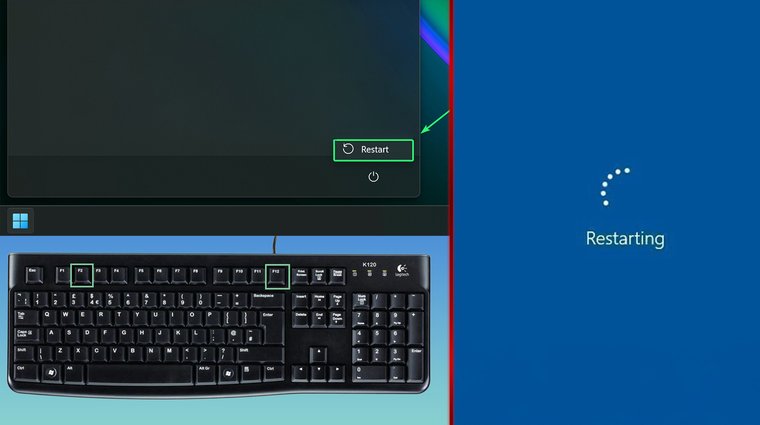
Your motherboard’s BIOS/UEFI firmware includes built-in temperature monitoring that reads directly from CPU sensors. This is the most basic method, requiring no additional software. To access it, restart your PC and press the BIOS key during boot – usually Del, F2, or F12 depending on your motherboard manufacturer.
Once inside the BIOS, navigate to hardware monitoring, PC health, or a similarly named section. You’ll see CPU temperature listed, usually in both Celsius and Fahrenheit. This method only shows idle temps since you can’t run the BIOS while gaming or working. It’s useful for confirming your cooler is properly mounted and functioning, but limited for ongoing monitoring.
Method 2: With Monitoring Software
Software monitoring tools give you real-time temperature data while your system runs normally. Popular options include HWMonitor, Core Temp, HWiNFO, and NZXT CAM – each offers similar core functionality with different interfaces. I won’t recommend one specifically since preference varies, but all are free and widely trusted.
These programs display per-core temperatures, showing you which cores run hottest. They log temp spikes during gaming sessions or intensive tasks, helping you identify thermal issues. Many tools sit in your system tray, providing at-a-glance monitoring without opening the full application. Some even support custom alerts that warn you when temps exceed set thresholds.
Method 3: With an Infrared Thermometer

Infrared thermometers measure surface temperature by pointing them at your CPU cooler or case. This method is less common for personal monitoring but useful for troubleshooting. Point the device at your CPU heatsink or the area above your processor to get a reading.
The major limitation: you’re measuring cooler surface temperature, not actual CPU core temps, which can be 10-20°C higher. This method helps identify hot spots or verify airflow, but it won’t give you the precise core readings you need for accurate thermal monitoring. Use it as a supplemental tool rather than your primary method.
How to Lower the CPU Temperature
High CPU temps usually stem from fixable issues. Improving case airflow is often the easiest fix – add intake fans at the front and exhaust fans at the rear or top. Positive air pressure (more intake than exhaust) reduces dust buildup while maintaining good cooling. I’ve seen temps drop 5-8°C just from adding a second intake fan.
Reapplying thermal paste makes a huge difference on older systems. Over time, paste dries out and loses effectiveness. Clean the old paste with isopropyl alcohol, apply a small amount of quality thermal compound, and remount your cooler. If you’re already in there, clean dust from heatsink fins and fans – compressed air works wonders. Dust acts as insulation, trapping heat. For systems with persistent thermal issues, upgrading to one of the best CPU coolers available can drop your temps by 10-20°C compared to stock cooling solutions.
For advanced users, undervolting reduces heat without sacrificing much performance. This involves lowering the voltage your CPU receives while maintaining stable operation. Tools like Intel XTU or AMD Ryzen Master let you adjust voltage settings. Start conservatively and stress test for stability. Finally, upgrading to a better CPU cooler provides the most dramatic improvement. A $30 tower cooler outperforms most stock coolers, while AIOs offer even better results. Beyond cooling solutions, knowing how to lower CPU usage through software optimization can reduce heat generation from unnecessary background processes.
Common symptoms of overheating include loud fan noise as your cooler spins at maximum RPM trying to compensate, thermal throttling that causes frame drops or stuttering, and system instability that leads to crashes during demanding tasks.
Temperature Ranges by CPU Activity

| Activity Level | Expected Temperature Range | Notes |
|---|---|---|
| Idle | 30-45°C (86-113°F) | Baseline temps with minimal load |
| Light Use | 45-65°C (113-149°F) | Browsing, streaming, office work |
| Gaming | 65-80°C (149-176°F) | Varies by game intensity and cooling |
| Heavy Workloads | 80-90°C (176-194°F) | Rendering, encoding, stress tests |
How Hot Is Too Hot for a CPU?
CPUs throttle when they approach their maximum thermal rating. For Intel processors, thermal throttling typically begins around 100°C. AMD Ryzen chips start throttling closer to 95°C. These temperatures trigger automatic clock speed reductions – your CPU literally slows itself down to generate less heat. Performance drops noticeably: frame rates tank, rendering slows, and your system feels sluggish.
Operating at these extreme temps causes several problems. System instability manifests as random crashes, application freezes, or blue screens. You might experience unexpected shutdowns as the CPU’s thermal protection kicks in, forcing your PC off to prevent damage. Long-term exposure degrades CPU longevity – while modern processors have protections against catastrophic failure, years of thermal stress reduce their operational lifespan.
If you’re regularly seeing temps above 90°C, something needs immediate attention. Check that your cooler is properly mounted with adequate thermal paste, verify all fans are spinning, and ensure your case has proper airflow. Persistent extreme temperatures indicate a cooling solution that can’t handle your CPU’s heat output.
Conclusion
Understanding what is a good CPU temp gives you control over your system’s health and performance. Normal temps range from 30-45°C at idle to 65-80°C while gaming, with room for variation based on your CPU model, cooling solution, and environment. Monitoring these temps through software tools lets you spot problems early – whether it’s degraded thermal paste, dust buildup, or inadequate cooling that needs upgrading.
If you’re consistently hitting high temps, the solutions are straightforward: improve airflow, clean your system, reapply thermal paste, or upgrade your cooler. Modern CPUs have thermal protections, but prevention beats emergency throttling. Keeping your processor cool ensures stable performance, longer hardware life, and smooth gaming sessions without crashes or slowdowns.
Now that you’ve optimized your CPU cooling, make sure the rest of your gaming setup can keep up. Looking to push your CPU further? Learn how to overclock your CPU safely – just remember that proper cooling becomes even more critical with higher clock speeds.
FAQs
A normal temperature for a CPU is 30-45°C at idle and 65-80°C under load during gaming or intensive tasks. These ranges vary by CPU model, cooling solution, and workload intensity, but staying within them provides safe, stable operation.
CPU temp refers to the temperature of your processor’s cores measured in Celsius or Fahrenheit. Modern CPUs have integrated thermal sensors that report real-time temperature data to monitoring software or your motherboard’s BIOS.
CPU temperatures above 90°C are too high for sustained operation. When temps approach 95-100°C, thermal throttling kicks in to protect the processor, reducing performance significantly and potentially causing system instability or shutdowns.
Yes, excessive CPU heat triggers thermal throttling that cuts performance, causes system crashes or freezes, and accelerates long-term hardware degradation. While modern CPUs have safety mechanisms, consistently running hot shortens your processor’s lifespan.
90°C isn’t immediately damaging but indicates your cooling is barely adequate. Brief spikes to 90°C during stress tests are acceptable, but sustained gaming or work at this temperature suggests you need better cooling to prevent throttling and ensure long-term reliability.
Yes, exceeding 100°C triggers emergency thermal protection – your CPU will aggressively throttle or shut down completely to prevent permanent damage. If you’re hitting these temps, your cooling system has failed and requires immediate attention before you risk hardware failure.