




How to Check CPU Temp and Manage Heat for Peak Gaming Performance


A CPU under heavy load becomes the heart of any gaming setup, and its temperature tells you a lot about system health. When I built my first custom PC, I assumed that as long as the fans spun and the games ran smoothly, all was well. A sudden crash while playing a demanding shooter taught me otherwise. Monitoring the CPU temperature can help avoid instability, throttling, or permanent damage. This guide explains how to check CPU temp quickly, provides tools for constant monitoring, and offers tips to keep your processor and core components cool. The advice is aimed at gamers, but anyone who relies on a computer can benefit from understanding system temperature and how it influences performance.
Jump to:
How to Check CPU Temp: Quick Methods
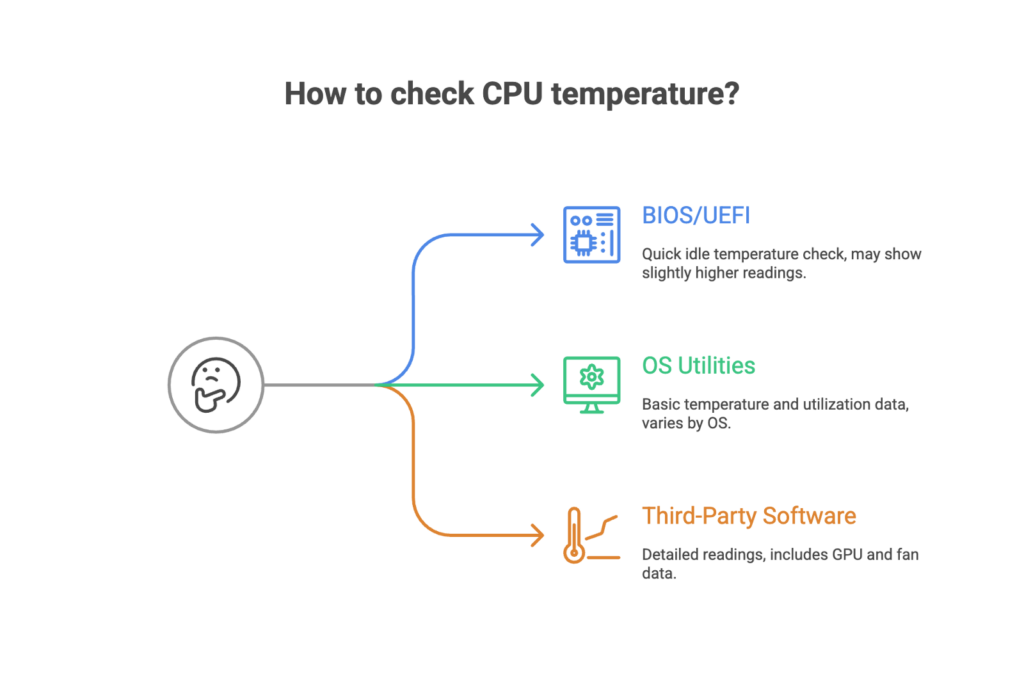
The fastest way to gauge your processor temperature is to use built‑in tools. Most motherboards offer temperature readings inside the BIOS or UEFI firmware. Restart your PC, press the key your system uses to enter setup (usually Delete or F2), and look for a Hardware Monitor or System Temperature section. This screen shows the CPU’s temperature at idle. It might read a few degrees higher than when the operating system runs because BIOS keeps voltage levels elevated to ensure stability.
A second method uses built‑in utilities in your operating system. Windows 10 and Windows 11 don’t include an exact temperature readout in Task Manager, but modern versions of the Xbox Game Bar and the Performance tab in newer builds can show the CPU’s utilization and approximate thermals. Linux users can install packages like lm‑sensors and hddtemp to get readings through the terminal or with a graphical front end. On macOS, the Activity Monitor doesn’t show temperature, but apps such as Macs Fan Control give you quick insight.
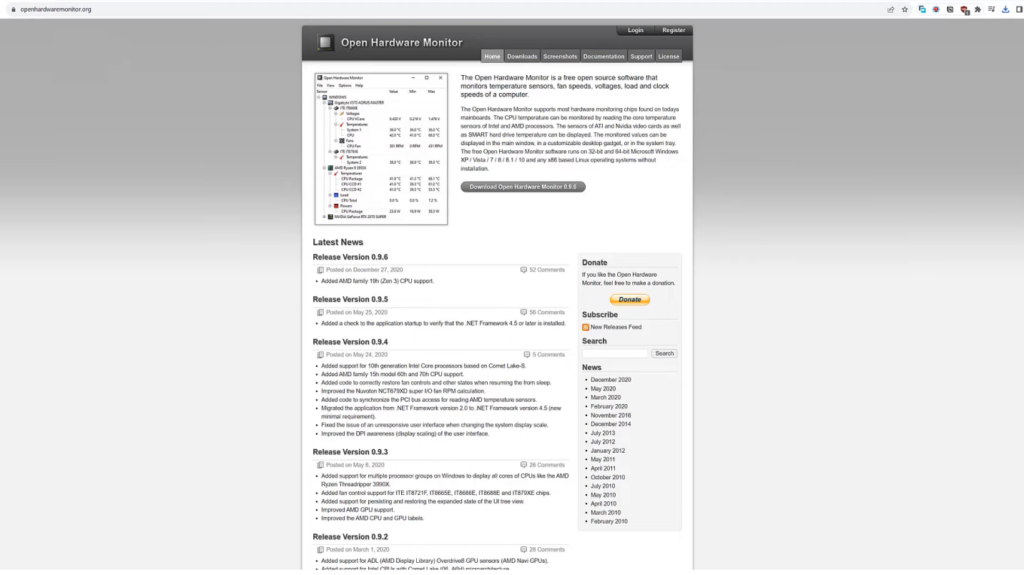

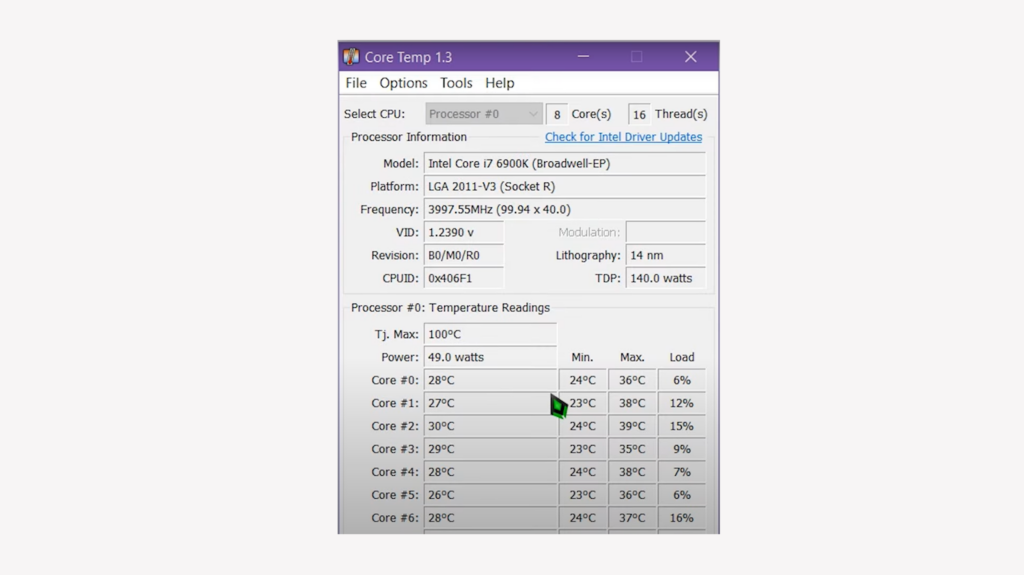
For more detailed readings, you will need third‑party software. Programs like Core Temp, HWMonitor, Open Hardware Monitor, and AIDA64 access the digital sensors inside your CPU and motherboard. They display the core temp for each processing unit and often include GPU temps, fan speeds, voltage, and overall system temperature. Using these tools while gaming or rendering lets you see how high temperatures climb under stress. According to general guidelines, a core temperature consistently over 45–50 °C at idle is a warning sign, while temperatures above 90–105 °C under full load may indicate a serious problem. In my experience, seeing spikes into the mid‑80 °C range during a long render told me to clean dust filters and adjust fan curves before pushing the CPU harder.
Understanding safe ranges helps put numbers into context. Typical CPU usage scenarios and safe ranges look like this: idle or light desktop use stays around 30–50 °C, web browsing and streaming should fall between 40–60 °C, gaming tends to hover between 60–85 °C, and intense tasks like video rendering or stress tests can reach 90–100 °C. Always consider the manufacturer’s maximum operating temperature: recent Intel chips have limits around 100–105 °C, while AMD Ryzen processors top out between 89–95 °C. If your readings regularly approach these maximums, it’s time to investigate.
These quick methods give you an immediate snapshot, but for gamers thinking about upgrading their rig or choosing a new processor, our best gaming CPUs guide delves into chip performance and thermal characteristics. I often cross‑reference temperature readings with the recommendations there when advising friends on which processor to pick.
Choosing the Right Tools for CPU Temperature Monitoring
While a quick reading from BIOS or a built‑in monitor is helpful, ongoing CPU temperature monitoring calls for dedicated software. Core Temp is a free and lightweight program that shows each core’s temperature and load. It runs unobtrusively in the system tray and can record highs and lows, which is helpful when you’re tuning fan curves. HWMonitor and Open Hardware Monitor go a step further by tracking voltages, fan speeds, and GPU temperatures along with the CPU’s internal temperature sensors. I like to keep HWMonitor open on a second screen while stress‑testing a new build to ensure that nothing exceeds its safe operating range.
MSI Afterburner and NZXT CAM offer more advanced features. Although originally designed to monitor GPU temperatures and overclocking, they also track CPU usage and thermal data. In Windows, the Xbox Game Bar’s performance overlay now includes CPU temperature on compatible hardware. These overlays are convenient during gaming sessions because they remain visible without leaving your game. Linux users can use Psensor or Gnome‑shell‑extensions to add temperature readings to the desktop environment. Regardless of the software, ensure that it supports your processor model and motherboard chipset so the readings are accurate.
Monitoring is only the first step; acting on the information prevents problems. If temperatures climb too high, consider checking your fan profiles in BIOS. Most modern boards let you set a fan curve, telling the fans how fast to spin at certain temperatures. You can choose to keep noise down when the CPU temp is low and ramp up fan speed when it climbs. Remember that ambient room temperature also affects readings. My gaming room gets hotter in summer, so I keep a table fan to improve airflow around the case. When ambient temperature falls, CPU readings drop by several degrees.
Regular monitoring also helps you spot trends. A gradual rise in idle temperature over months often signals dust buildup in heat sinks or worn-out thermal paste. In these cases, you can plan maintenance rather than respond to a system crash. To learn more about choosing a complete rig with good cooling and how components like GPU and CPU impact performance, check out our breakdown of the best gaming PCs. This guide not only covers performance but also discusses cooling solutions used by manufacturers.
CPU Temperature Management and Cooling Strategies
Once you know how to monitor your processor temperature, the next step is managing it. The simplest strategy is ensuring proper airflow. Place your computer in an open area where intake and exhaust fans aren’t blocked. Use high‑quality case fans to maintain steady airflow from front to back or bottom to top. A dust filter on the intake helps prevent debris from clogging the heatsink. I clean my case every two months; a quick blow with compressed air reduces idle temperatures by several degrees.
Upgrading Your CPU Cooler Can Also Make a Big Difference
Stock coolers are adequate for non‑demanding tasks, but gamers and content creators benefit from tower coolers or all‑in‑one (AIO) liquid coolers. Tower coolers with large heat pipes and aluminum fins dissipate heat efficiently and often run quietly. AIO liquid coolers move heat to a radiator mounted on the case, allowing for more efficient thermal transfer. When I swapped a basic cooler for a mid‑range AIO, my processor’s peak temperature dropped by nearly ten degrees during long gaming sessions.
Thermal Paste Quality and Application Matter as Well
Over time, paste dries out and loses its ability to conduct heat from the CPU’s heat spreader to the cooler. Reapplying a thin layer of high‑quality paste every couple of years can restore cooling performance. It’s also crucial to mount the cooler properly. Uneven mounting pressure can leave air gaps, creating hot spots on the CPU. Follow the cooler’s installation instructions carefully and alternate tightening screws gradually to ensure even contact.
Fan Speed Control and Case Ventilation Play a Big Role
You can manage fan speeds manually through BIOS or software like Fan Control. Creating a custom curve that ramps up fan speed as temperature increases helps maintain stable thermals without constant noise. Use positive pressure inside the case (more intake than exhaust) to prevent dust intrusion, or negative pressure (more exhaust than intake) if you need to remove hot air quickly. Side panels with ventilation or mesh fronts can also improve airflow; glass panels look sleek but may trap heat.
Managing Workload and Settings Keeps Temperatures in Check
Lowering graphics settings in games, capping frame rates, or using V‑sync reduces CPU and GPU load. Avoid high overclocks unless you have adequate cooling and know your chip’s voltage and temperature limits. AMD and Intel processors will throttle performance to prevent damage when they reach maximum operating temperatures, so pushing them hard without proper cooling leads to lag and instability.
While these strategies improve thermals, it’s also worth considering the entire gaming environment. Our guide on gaming setup ideas explores ergonomic chairs, monitors, and accessories that enhance comfort and ensure that your system temperature stays manageable even during marathon sessions.
Troubleshooting High CPU Temperature and Preventing Damage
If your monitoring software shows high temperatures even after cleaning and adjusting fan curves, you need to troubleshoot further. Start by checking background processes. Malware, runaway updates, or demanding apps can cause sustained high CPU usage. Open Task Manager or your system monitor and close unnecessary programs. On Linux, commands like top or htop can highlight processes consuming the most CPU cycles.
Next, ensure that power settings are appropriate. In Windows, the High Performance plan keeps the CPU running at higher clock speeds even when idle, raising temperatures. Switching to Balanced mode allows the processor to throttle down when not in use. In BIOS, disable features like Multi‑Core Enhancement unless you need the extra performance. For laptops, undervolting the CPU using software like ThrottleStop or Intel Extreme Tuning Utility can lower temperatures without sacrificing stability. Be cautious; undervolting too far can cause crashes.
Inspect your case and cabling. Loose cables blocking fans or tangled wires restricting airflow can create hot spots. Re‑route cables behind the motherboard tray or use cable ties to keep them neat. Some cases support additional fans on the top or side panels; adding these can lower system temperature by several degrees.
If you’ve recently applied new thermal paste and still see high numbers, consider the quality of the cooler itself. Low‑profile coolers in compact cases often struggle to keep high‑performance CPUs cool. Upgrading to a larger tower or an AIO cooler can provide the extra headroom needed for heavy workloads. Also, make sure the cooler’s pump (for liquid systems) is running, and that there are no bubbles or leaks in the loop.
Lastly, consider external factors like ambient room temperature and case placement. A computer sitting near a window in direct sunlight or next to a heater will run warmer than one in a cool, shaded spot. Relocating your PC or adjusting room ventilation can reduce temperatures by several degrees. During heat waves, I place my tower on a stand and run a small desk fan pointed at the intake; this simple change keeps CPU temps within safe limits.
If your CPU frequently reaches its maximum temperature despite these efforts, it may be time for an upgrade. Newer processors often feature more efficient architectures and better power management..
Keeping Your Processor Cool and Gaming on
Monitoring and managing your CPU temperature is about maximizing your system’s lifespan and getting the most from your hardware. You’ve learned how to check temperature readings via BIOS, built‑in OS tools, and dedicated software. You now know typical safe ranges, from 30–50 °C at idle to around 90 °C under heavy load, and you understand that exceeding manufacturer limits can cause throttling.
Effective cooling strategies, such as cleaning dust, improving airflow, upgrading your cooler, applying quality thermal paste, and setting smart fan curves, keep temperatures within those safe boundaries. Troubleshooting high temps involves monitoring background processes, adjusting power settings, reorganizing cables, and, if necessary, upgrading hardware.
Gamers who invest in their rigs want to protect that investment. Keeping an eye on CPU and GPU temps allows you to enjoy smoother gameplay and reduces the risk of unexpected shutdowns during a final boss fight. As someone who has tweaked and rebuilt multiple PCs, I know that a little maintenance goes a long way toward stability.
And if you’re looking for ways to enhance your gaming experience even further, consider topping up your digital library with a Steam Wallet gift card from our marketplace. With extra funds in your Steam account, you can pick up games that put your CPU through its paces and test your cooling setup in style.
FAQs
How do I check my CPU temperature on Windows 10?
To check your CPU temperature on Windows 10, open a monitoring program like Core Temp, HWMonitor, or Open Hardware Monitor. These programs read the digital sensors built into your processor and display real‑time values. Once installed, launch the application, and you’ll see each core’s temperature, load, and sometimes fan speeds. You can also restart your computer and enter BIOS or UEFI to see an idle temperature reading, though it won’t reflect heavy workloads.
How can I monitor CPU temperature on Windows 11?
To monitor CPU temperature on Windows 11, use the built‑in Performance tab in the Xbox Game Bar or install third‑party software like MSI Afterburner or NZXT CAM. The Xbox overlay provides a quick glance at CPU utilization and temperature while gaming, while external apps offer detailed charts and alerts. Setting up a widget or system tray icon ensures that you can watch your processor’s temperature without interrupting what you’re doing.
Is 70 °C a safe CPU temperature?
Yes, 70 °C is a safe CPU temperature for most processors during moderate load. Many modern CPUs can safely operate up to 90 °C or higher under stress, though it’s better to keep temperatures lower to prolong component lifespan. If your CPU consistently stays above 80 °C during everyday tasks or idles near 70 °C, clean dust from your system, check airflow, and ensure that your cooler is working properly.
How do I lower my CPU temperature?
To lower your CPU temperature, clean dust from your case, fans, and heatsinks, and improve airflow by organizing cables and ensuring intake and exhaust paths are clear. Upgrading to a more efficient cooler, applying fresh thermal paste, and setting an aggressive fan curve in BIOS can also reduce temperatures. Lowering graphics settings, limiting background processes, and adjusting power plans help decrease workload and heat output.
Can BIOS show CPU temperature?
Yes, BIOS or UEFI firmware can show CPU temperature on most motherboards. Enter setup by pressing the designated key (often Delete or F2) during startup, then navigate to a hardware monitor section. The temperature shown here reflects your CPU at idle and may be slightly higher because the BIOS uses a higher voltage for initialization. For real‑time monitoring under load, you should use a dedicated software tool within your operating system.