




How to Reset Mac Password: Regain Control of Your Mac in Minutes


Finding yourself locked out of a Mac is frustrating, especially when you need your machine for gaming sessions or daily work. In this guide, I explain how to reset your Mac password using the tools built into macOS. You’ll learn how to use your Apple ID, a FileVault recovery key, macOS Recovery, or another administrator account to regain access. I also share tips on keeping your system secure and optimized so you can get back to enjoying your games.
Jump to:
How to Reset Mac Password: Quick Overview
When you forget your login password, macOS provides several built‑in methods to help you regain access. The right option depends on how your Mac is set up. This quick overview highlights your choices. Detailed steps follow in later sections.
- Use your Apple ID: If you linked an Apple ID to your account, the login window may display a message such as “Reset it using your Apple ID.” Clicking the message lets you authenticate with your Apple ID and create a new login password.
- Use your FileVault recovery key: When FileVault encryption is enabled, you can reset your password with the recovery key you received when you turned on FileVault. Enter the key at the login screen to create a new password.
- Use macOS Recovery: macOS Recovery includes a Reset Password assistant. Boot into Recovery, open Terminal, type resetpassword, and follow the onscreen instructions to reset the password for any user account.
- Use another administrator account: If another admin user exists on your Mac, log in to that account and reset the forgotten password through System Settings.
- Erase and restore as a last resort: If none of these options work, you can erase your Mac and reinstall macOS. Always back up important files before taking this step.
Each of these methods requires different preparation. The next sections walk through them in detail, beginning with the simplest option.
Reset Your Mac Password With Apple ID
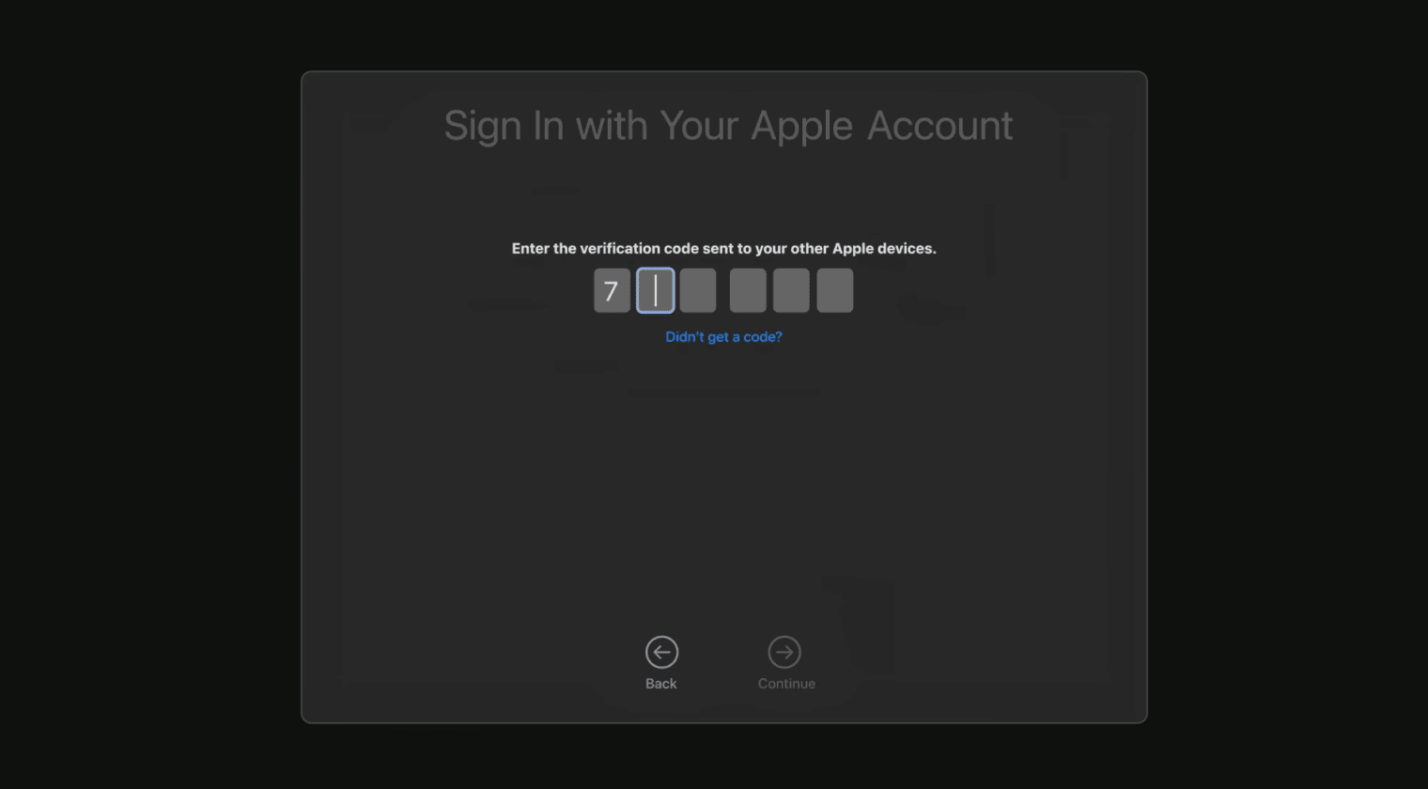
One of the easiest ways to reset a Mac password is to use your Apple ID. This method works if you enabled the option to allow your Apple ID to reset your password when you first set up your user account. It requires an internet connection, so have Wi‑Fi or Ethernet available.
- Restart your Mac and wait for the login screen. If you see a question‑mark icon next to the password field, click it. A prompt may appear, saying: “Reset it using your Apple ID.”
- Click the arrow next to the reset message. You’ll be asked for your Apple ID email or phone number and its password. Enter the requested information. Apple may send a verification code to your other devices; enter the code if prompted.
- Select the user account to reset. If multiple accounts exist, choose the one you can’t log into.
- Create a new login password. Follow the instructions on screen to enter a new password. When finished, restart your Mac and log in with the new credentials.
Using Apple ID is fast and doesn’t require any advanced steps. If you don’t see the reset message, try entering a wrong password up to three times. The prompt sometimes appears only after a few failed attempts.
Reset Mac Password With FileVault Recovery Key
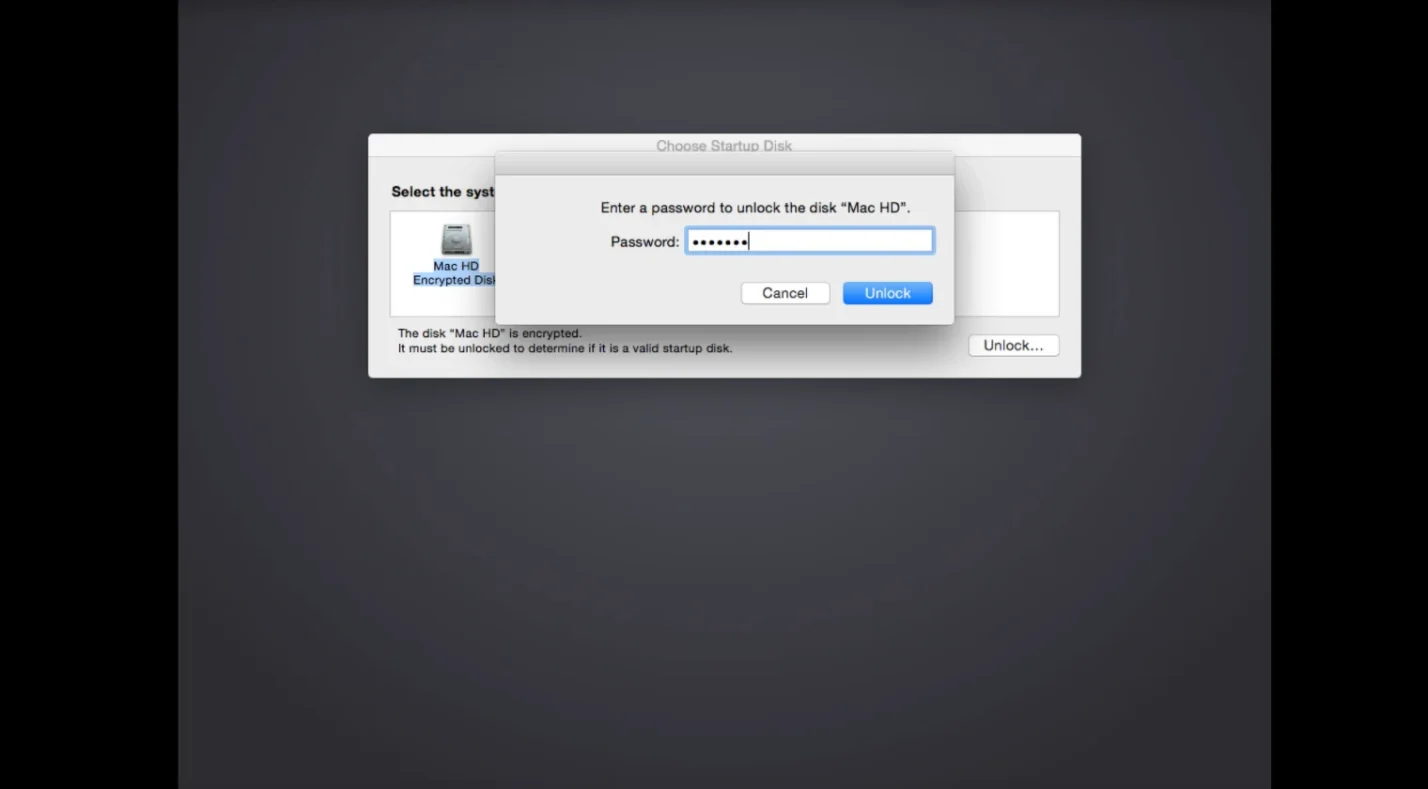
FileVault encrypts your Mac’s hard drive to protect your data. When you enable it, macOS offers a recovery key. If you saved this key in a password manager or wrote it down, you can use it to reset your password at the login screen.
- At the login screen, click the question‑mark icon next to the password field.
- Choose “Reset it using your recovery key.” You’ll be prompted to enter the long string of letters and numbers that serve as your FileVault recovery key.
- Enter the key exactly as provided. The letters are case‑sensitive. Once accepted, you’ll be able to create a new password for your user account. Follow the on‑screen instructions to complete the process.
FileVault’s recovery key is a powerful safety net. Treat it like any other sensitive password by storing it in a secure location. If you lose it, you won’t be able to reset your password using this method.
Reset Mac Password in macOS Recovery
If the Apple ID and recovery key options aren’t available, macOS Recovery provides a universal way to reset passwords. The steps vary slightly between Intel‑based and Apple Silicon (M‑series) Macs, but the concept is the same: boot into Recovery, run the Reset Password assistant, and assign a new password.
For Apple Silicon Macs
- Shut down your Mac completely. Wait a few seconds.
- Press and hold the power button until “Loading startup options” appears. You may see a gear‑shaped icon labeled Options; select it and click Continue to enter Recovery.
- Select your language if prompted, then choose your user account and click “Forgot all passwords?” to launch the Reset Password assistant.
- Follow the instructions to authenticate with your Apple ID or recovery key if asked. If those aren’t available, continue to step 5.
- Open Terminal from the menu bar. In the Terminal window, type resetpassword and press Return. The Reset Password utility opens.
- Choose the startup disk (usually labeled Macintosh HD), select your user account, and click Next. Enter a new password and a hint. Click Save to apply the changes.
- Restart your Mac. Log in with your newly created password.
For Intel‑based Macs
- Shut down your Mac. Immediately press and hold Command (⌘) + R and then press the power button. Keep holding the keys until you see the Apple logo or a spinning globe, which means macOS Recovery is loading.
- When the Utilities window appears, choose your language if prompted. Select the user for which you know the password and click Forgot all passwords? if available. Otherwise, proceed to open Terminal.
- From the menu bar, choose Utilities > Terminal. Type resetpassword (all one word) and press Return to launch the Reset Password assistant.
- Select your startup volume and the user account you need to reset. Enter a new password and password hint. Click Save.
- Restart your Mac and log in with the new password.
macOS Recovery is the most versatile method because it doesn’t require an Apple ID or another admin account. It does require physical access to the computer and the ability to boot into Recovery. Keep your Mac connected to power during this process to avoid interruptions.
Reset Mac Password Using Another Administrator Account
On a shared Mac, you may have more than one administrator account. Admin accounts have the privilege to reset the passwords of other users. If you’ve set up such an account, follow these steps:
- Log in to the alternate admin account. This account must be an administrator; standard accounts can’t reset other users’ passwords.
- Open System Settings (or System Preferences on older macOS versions). In macOS Ventura and later, click the Apple menu and choose System Settings. On macOS Monterey or earlier, select System Preferences.
- Navigate to Users & Groups. You may need to click the lock icon and enter the current admin password to unlock settings.
- Select the account with the forgotten password from the list of users. Click Reset Password and follow the prompts to create a new password and hint.
- Log out of the admin account and sign in to the reset account using the new password.
This method is quick when another administrator is available, for example, on a family Mac with multiple user accounts. If there is only one user and you’ve forgotten its password, use the Apple ID or Recovery methods instead.
Change Your Mac Password Safely
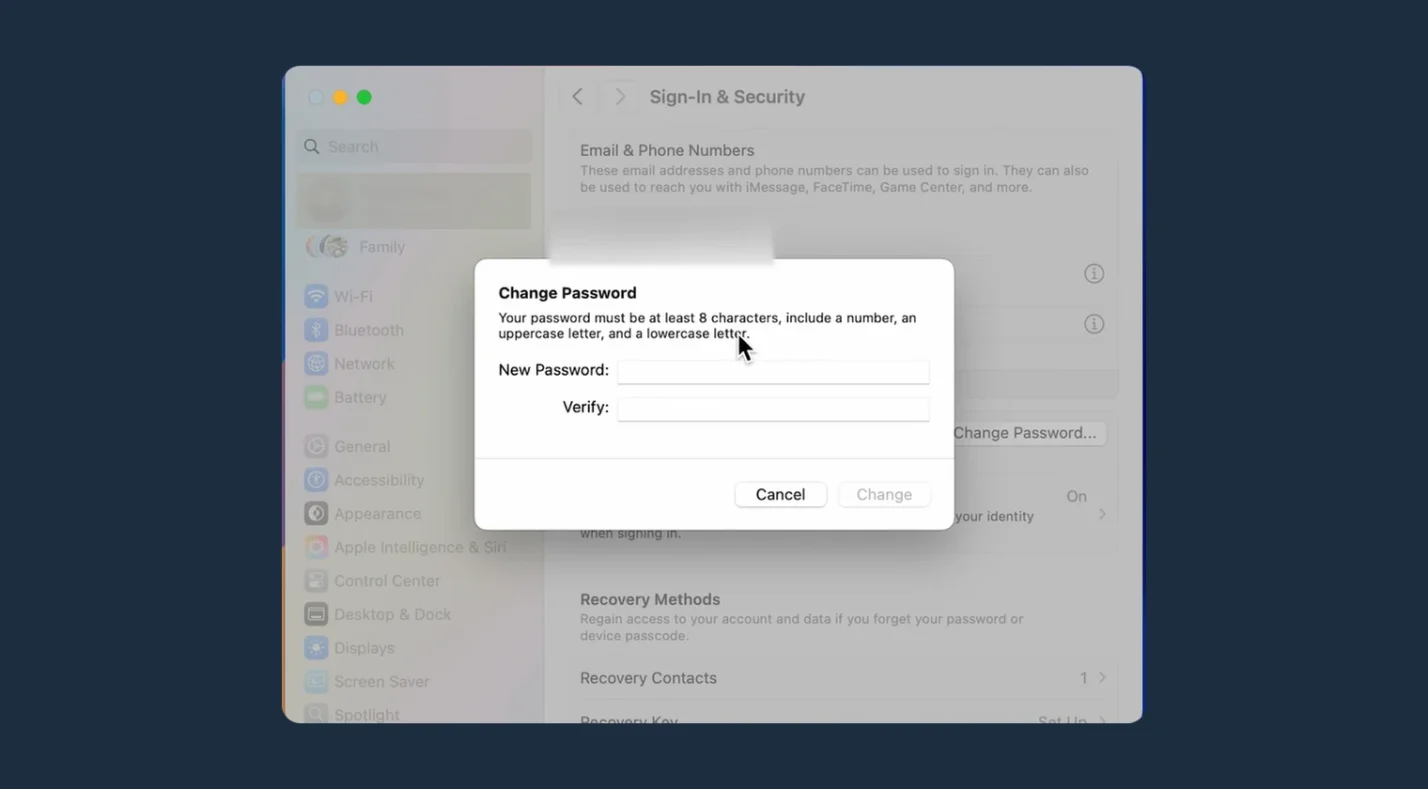
If you still know your current password but want to change it for security reasons, macOS makes the process straightforward. Changing your password periodically helps keep your account secure and reduces the chance of being locked out.
- Open System Settings or System Preferences. Click Users & Groups.
- Select your user account and click Change Password. You may need to enter your current password to proceed.
- Enter your old password, then type and verify a new one. Aim for at least twelve characters and include uppercase and lowercase letters, numbers, and symbols. The key icon next to the password field can generate a strong password for you.
- Add a password hint that only you understand. A subtle hint helps jog your memory without revealing the password to others.
- Click Change Password to finish. Your Mac will immediately use the new password for logins and password‑protected actions.
After updating your login password, review other credentials stored in your Keychain or third‑party password manager. Use unique passwords for each service and consider enabling two‑factor authentication for added protection.
What to Do When You Can’t Reset Your Password
In rare cases, none of the previous methods work. Perhaps you can’t remember your Apple ID credentials, lost your recovery key, and have no alternate admin account. When you’re completely locked out, erasing the Mac and reinstalling macOS will regain access, but it will remove all data.
- Back up your data, if possible. Before erasing, try connecting your Mac to another computer using Target Disk Mode (Intel Macs) or Share Disk in Recovery (Apple silicon). This turns your Mac into an external drive so you can copy important files. External drives can safeguard your saves, mods, and media – our review of the best external hard drives for gaming and backups offers suggestions for reliable, secure drives.
- Start up from macOS Recovery. For Apple silicon Macs, hold the power button and choose Options > Continue. For Intel Macs, press Command (⌘) + R at startup.
- Select “Recovery Assistant” and choose “Erase Mac.” Follow the prompts to delete all data and reinstall macOS. This process removes every user account, so use it only when other methods fail.
- Restore your files. After the reinstall, set up a new user account and restore your data from backup.
Erasing the system resets everything, so keep backups up to date. macOS includes Time Machine, but you can also use a portable drive. The best external SSDs for gaming and data protection list drives that deliver speed and durability for backups.
Keep Your Mac Secure: Best Practices for Gamers
Resetting your Mac password is only part of maintaining security. Gamers often juggle game libraries, mods, and online accounts that can be vulnerable if a machine is compromised. Here are a few habits I’ve adopted over the years:
- Enable FileVault. Encryption protects your hard drive if someone gains physical access. Store the recovery key in a secure password manager. For clearing up old software before encrypting, our guide on how to uninstall apps on Mac walks through cleaning your system and freeing up space.
- Use a password manager. Managing unique passwords across your Apple ID, gaming services, and forums is easier with a manager. Avoid reusing passwords; if one service is breached, others remain safe. Include a hint for your login password but never write down the actual password.
- Turn on two‑factor authentication. For your Apple ID and gaming accounts, 2FA adds another layer of security. Even if someone guesses your password, they can’t access your account without the second factor.
- Regularly clear browser data. Cookies and saved sessions sometimes cause login errors. Our guide to deleting cookies shows how to remove them in Safari and other browsers to fix login issues and improve privacy.
- Use a trusted VPN. Gamers rely on stable, secure connections. A good VPN hides your IP, reduces ping spikes, and protects data from snooping. Our rundown of the best VPNs for Mac evaluates services that work smoothly with macOS and gaming.
- Stay current with updates. Install macOS and application updates promptly. Security patches fix vulnerabilities that attackers exploit. Updating also ensures compatibility with new games.
Security practices like these reduce the chance you’ll need to reset your password in the first place. They also protect your saved games and personal data from being compromised.
After Regaining Access: Optimize Your Mac for Gaming
Once you’ve reset your password and regained control of your machine, take some time to optimize your Mac for gaming. A clean, efficient system helps games run smoothly and reduces future headaches.
- Clean up unused files and applications. Old games, launchers, and utilities take up space and clutter your system. Follow our uninstall apps on Mac guide to remove them safely. Freeing up space improves game load times and reduces the chance of errors.
- Update your game library and drivers. Check for updates to your favorite games and any peripherals, like gaming mice or controllers. Keeping software current minimizes compatibility issues.
- Review your game subscriptions and accounts. Make sure your Apple ID, Steam, and other gaming accounts use strong, unique passwords and 2FA. If you use multiple gaming platforms, consider consolidating login details in a password manager.
- Explore new titles. Now that your Mac is running smoothly, discover games that make the most of its capabilities. Our overview of the best Mac games highlights a variety of genres – from RPGs like Baldur’s Gate 3 to indie gems – so you’ll always have something to play.
A secure and optimized Mac is more than just a productivity tool. It’s a gateway to your gaming world. Keep it in top shape to enjoy seamless sessions without worrying about being locked out.
Keep Your Mac Ready for Adventure
Being locked out of your Mac can feel like losing a key to your digital playground. By mastering how to reset your Mac password, you’re prepared to handle mishaps calmly and quickly. Use your Apple ID or FileVault recovery key when available, boot into macOS Recovery if needed, or ask another admin for help. Always maintain backups so that erasing the system remains a last resort.
Securing your Mac goes hand in hand with password management. Enable FileVault, use strong and unique passwords, and consider a password manager and VPN to protect your gaming sessions. Regularly clear browser data and uninstall unwanted apps to keep your system lean.
If you’re looking to celebrate your regained access, treat yourself – or a friend – to a fresh game. A Steam Wallet Gift Card from our marketplace adds funds to your Steam account instantly, letting you pick up new adventures without delay. With your Mac secure and your library refreshed, you’re ready for the next quest.
FAQs
What is the easiest way to reset my Mac password?
The easiest way to reset your Mac password is to use your Apple ID at the login screen. If you linked your Apple ID when setting up your account, click the reset message, sign in with your Apple ID, and create a new password.
How can H reset a Mac password without an Apple ID?
To reset a Mac password without an Apple ID, boot into macOS Recovery and use the Reset Password assistant. Shut down your Mac, start in Recovery, open Terminal, type resetpassword, and follow the onscreen instructions to set a new password.
Can i reset my Mac password using another admin account?
Yes, you can reset your Mac password using another admin account. Log in to that account, open Users & Groups in System Settings, select the user with the forgotten password, click Reset Password, and enter a new one.
How do I change my Mac password if I know the current one?
To change your Mac password if you know the current one, open Users & Groups in System Settings, select your account, and click Change Password. Enter your old password, type a strong new password, add a hint, and confirm the change.
How many attempts do you get before a Mac locks you out?
You typically get up to ten failed password attempts before your Mac locks you out. Five incorrect entries cause a brief timeout; more attempts increase the delay, and ten consecutive failures may permanently lock your account until you reset it.