How to Open Keyboard on Steam Deck: Mastering the Virtual & Physical Input


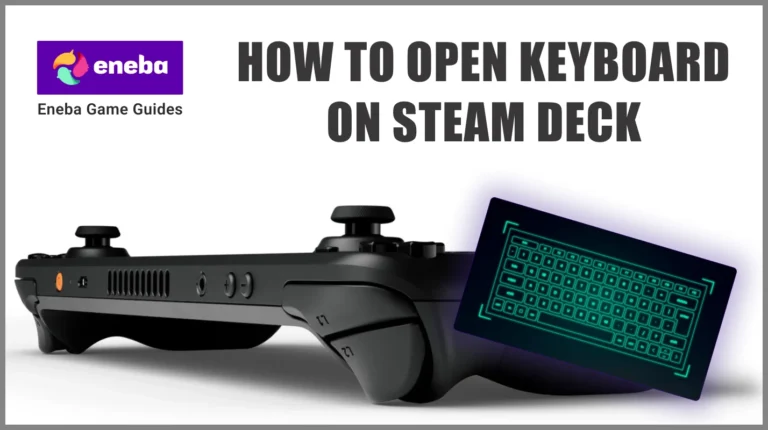
Knowing how to open the keyboard on the Steam Deck is one of the first things new players should learn. Since the handheld doesn’t have real keys like a laptop, you’ll need to use the on-screen keyboard for chatting, searching, and typing passwords.
Many users struggle to find it at first, but once you learn the right shortcuts, it’s easy. This guide shows simple ways to open the keyboard, use button combos, and adjust settings so typing on your Steam Deck feels quick and natural.
Jump to:
How to Open the Keyboard on the Steam Deck
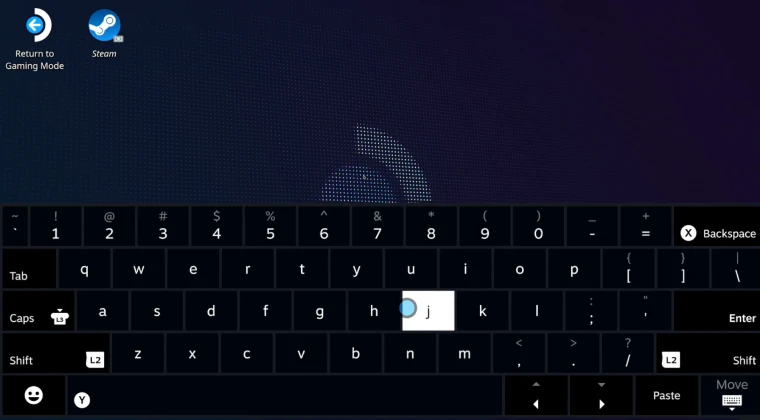
The fastest way to open the keyboard is by pressing the Steam button and the X button at the same time. Hold them briefly, and the virtual keyboard appears on screen. The same combination closes it when you’re finished. Here’s a quick summary:
1. Press Steam + X to bring up the on‑screen keyboard.
2. Wait a second if it doesn’t show up right away. It may take a moment, especially just after switching to desktop mode.
3. Press B or tap the keyboard icon to close it, or repeat Steam + X.
4. Use touch or buttons to type, as explained below.
If the keyboard fails to appear, make sure the Steam client is running. The virtual keyboard depends on the Steam application and will not load if the app is closed or if you’re using a non‑Steam launcher.
Navigating Gaming and Desktop Modes
The Steam Deck offers two interfaces: Gaming Mode (SteamOS) and Desktop Mode. The keyboard behaves differently in each mode.
Gaming Mode Automatically Brings Up the Keyboard
In Gaming Mode, SteamOS detects when you select a text field. Clicking into a search bar or password box usually triggers the keyboard automatically. You can still use Steam + X if it doesn’t appear. Typing feels similar to using a smartphone:
· Touchscreen: Tap keys directly on the seven‑inch display. This is the fastest method for short entries like passwords or searches.
· Trackpads: Move a small cursor with either trackpad. Press down to select a letter. This works well when the deck sits on a table.
· Joysticks/D‑Pad: Navigate the keyboard grid with the left stick or D‑Pad. Press A to choose a character. It’s slower but useful when holding the device tightly.
Because Gaming Mode handles most keyboard logic automatically, extra settings are rarely needed. Only when a game uses an internal browser or log‑in screen does the automatic feature fail; in those situations, Steam + X solves the problem.
Desktop Mode Needs a Button Combination
Desktop Mode is a KDE Linux environment. Here, tapping a text field will not call up the keyboard automatically. Users must press Steam + X to make it appear. This shortcut works anywhere in Desktop Mode – web browsers, file explorers, or terminal windows. To hide the keyboard, press B or click the small icon in the bottom right corner of the keyboard.
Desktop Mode also turns the right trackpad into a mouse. Moving a finger across it moves the cursor, and pressing down simulates a click. Left and right trigger buttons act as left and right mouse clicks. The D‑Pad and left stick work as arrow keys. Understanding these controls makes Desktop Mode easier for browsing, chatting, or writing longer notes.
Operating the Virtual Keyboard
When the on‑screen keyboard is visible, there are three main ways to enter text:
· Trackpads: Each trackpad moves a cursor on the keyboard. Slide your thumb to the desired key and press down to select it. Haptic feedback makes each press feel solid, though this method is slower than touch typing.
· Touchscreen: Tap letters directly like typing on a phone. This approach is quick and familiar.
· Controller Inputs: Use the left joystick or D‑Pad to highlight characters and press A to confirm. In Desktop Mode the X button works like the Windows key, while B acts as Escape. This approach feels similar to console keyboard navigation.
Players can switch between these methods at any time. Some prefer to start with the trackpad for precision and switch to the touchscreen for speed. Mixing input styles offers flexibility depending on how the deck is held.
Essential Shortcuts for Typing and Navigation
Valve assigns several keyboard functions to button combinations. Remembering a few saves time when there’s no physical keyboard.
· Tab: Press Steam + D‑Pad Down to move to the next input field or button.
· Enter/Return: Press Steam + D‑Pad Right to confirm a choice or submit text.
· Escape: Press Steam + D‑Pad Left to back out of menus or cancel actions.
· Screenshot: Press Steam + R1 to capture images of your screen.
· Magnifier: Press Steam + L1 to zoom in on small text, helpful in Desktop Mode.
· Left/Right Click: In Desktop Mode, R2 acts as left click and L2 as right click. Clicking the right trackpad also performs a left click.
· Mouse Control: Press Steam + right stick or use the right trackpad to move the cursor around the screen.
These shortcuts turn the Steam Deck into a capable productivity tool. Users often write emails or edit text documents by relying on them. Shortcuts can be remapped in Steam > Settings > Controller > Desktop Configuration, allowing customization of paddles and sticks.
Customizing Your Keyboard
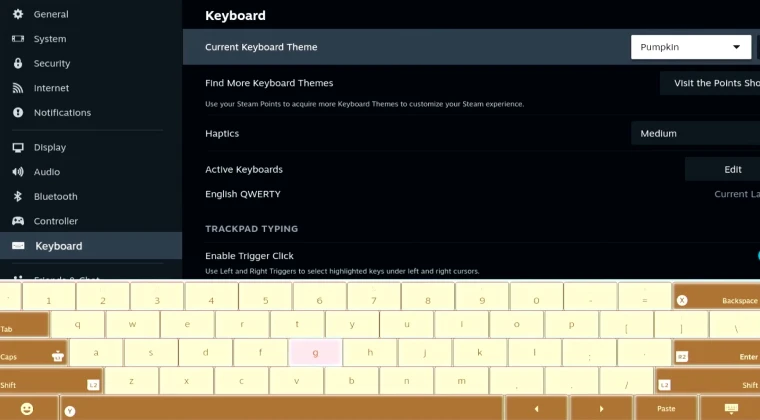
The virtual keyboard can be personalized to fit your style. To change its look or layout:
1. Press the Steam button and choose Settings.
2. Go to Keyboard.
3. Under Current Keyboard Theme, select one of the built‑in themes such as light, dark, or high‑contrast.
4. To add new themes, open View Points Shop and spend Steam Points on downloadable designs.
Multiple languages and layouts can be installed from this menu. Switching between US English and another layout is as simple as toggling a setting. Trying different themes and colors makes the deck feel unique.
Connecting a Physical Keyboard
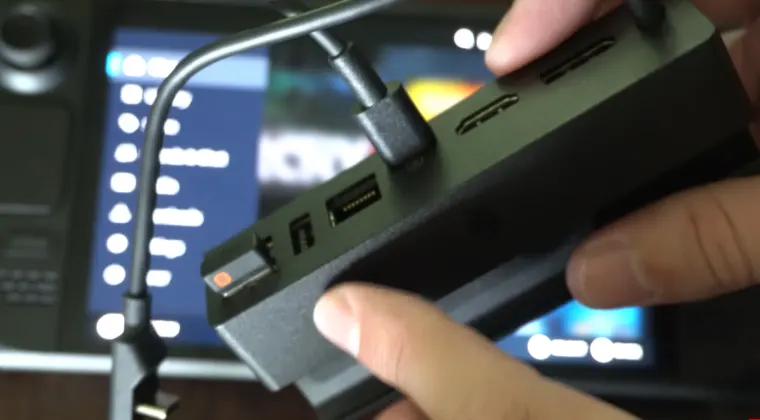
The on‑screen keyboard works for quick messages, but longer typing sessions can become tiring. The Steam Deck supports USB and Bluetooth keyboards:
· USB Keyboard: Connect a wired keyboard via the USB‑C port using a hub or docking station. This setup is reliable and simple. Many hubs include extra ports like HDMI and Ethernet, turning the deck into a small desktop computer.
· Bluetooth Keyboard: In Settings > Bluetooth, toggle Bluetooth on and pair a wireless keyboard. A compact Bluetooth keyboard is handy for travel and frees up the USB‑C port.
· Docking Stations: Docks often provide multiple USB ports, SD card readers, and external display outputs. They are ideal for desk setups with monitors and peripherals. Our Best Steam Deck Accessories article highlights docks that combine portability and performance.
A physical keyboard removes any lag from the virtual one and is better for longer tasks like document editing. The deck recognizes wired and wireless keyboards immediately in both modes.
Troubleshooting a Missing Keyboard
Occasionally the keyboard refuses to show up, even after pressing Steam + X. These steps usually fix the issue:
· Make sure Steam is running. The keyboard depends on the client. Relaunch the app if it’s closed or has crashed.
· Switch modes. If the keyboard won’t appear in Gaming Mode, switch to Desktop Mode and back. Sometimes the operating system needs a quick refresh.
· Update the system. Keep SteamOS updated; patches often fix input bugs.
· Disconnect external devices. When a physical keyboard or controller is connected, the virtual keyboard may stay hidden. Unplug accessories and try again.
· Restart the device. Hold the power button and choose Restart to clear temporary glitches.
These actions resolve most keyboard problems. SteamOS is still evolving, so occasional bugs are expected.
Tips for Comfortable Typing
Typing on a handheld can cause fatigue, but these tips help make it easier:
· Use a stand or case that props up the deck. This frees your hands and improves visibility. The best Steam Deck cases list covers options with adjustable angles.
· Enable haptic feedback in Settings > Keyboard. The slight vibration can help reduce mistakes.
· Adjust trackpad sensitivity in Settings > Controller > Desktop Configuration. Lower sensitivity can steady the cursor in Desktop Mode.
· Practice shortcuts like Steam + D‑Pad until they feel natural. Familiarity improves efficiency.
· Take regular breaks. Handheld typing strains hands and wrists. Switching to a physical keyboard or resting your hands helps prevent discomfort.
Combining these techniques makes typing longer messages or search queries more comfortable.
Beyond the Basics: Extra Features
The virtual keyboard has a few hidden tools that can enhance your experience:
· Emoji panel: Hold the smiley face icon to open an emoji picker for expressive messages.
· Voice dictation: Some apps support voice input. Tap the microphone icon to start speaking when available.
· Multiple layouts: Switch among QWERTY, AZERTY, Dvorak, and others in the keyboard settings.
· Language switching: Install multiple languages and tap the globe icon to change between them quickly.
These features show how Valve tries to make the Steam Deck feel like a complete mini‑computer.
Power Up Your Setup
Learning how to open the keyboard on Steam Deck is only one part of enjoying Valve’s handheld PC. After mastering typing, you can explore our 20 best Steam Deck games list, which showcases indie favorites and big RPGs that run smoothly on the device.
Our guide to Steam Deck accessories covers docks, controllers, and protective gear that improve comfort and portability. If you travel often, check out our rundown of the best Steam Deck cases for durable protection.
Level Up Your Gaming With Our Deals
Once you know how to operate the keyboard, you might want to expand your game library. A good way to do that is by picking up a Steam Wallet Gift Card from our store. Adding funds to your Steam account lets you buy games and downloadable content right away.
Visit our Steam Wallet gift card page for instant delivery and secure checkout, and start exploring thousands of titles without leaving your seat.
FAQs
How do you open the keyboard on the Steam Deck?
To open the keyboard on your Steam Deck, press the Steam button and X together and wait for the virtual keyboard to appear. Use the same combination or press B to close it when finished.
Why won’t my Steam Deck keyboard show up?
If the keyboard won’t show up, make sure the Steam client is running and no physical keyboard is connected. Switching modes or restarting the system often solves the problem.
Can I use a physical keyboard with the Steam Deck?
Yes. A physical keyboard can connect via USB through a hub or docking station or wirelessly via Bluetooth through the settings menu.
How do I close the on‑screen keyboard on Steam Deck?
To close the on‑screen keyboard, press the B button or tap the keyboard’s bottom‑right icon. You can also press Steam + X again to hide it.
How do I change the keyboard theme on Steam Deck?
To change the keyboard theme, press the Steam button, open Settings, and choose Keyboard. Pick a design under Current Keyboard Theme or visit the Points Shop for more options.
To change the keyboard theme, press the Steam button, open Settings, and choose Keyboard. Pick a design under Current Keyboard Theme or visit the Points Shop for more options.