

How to Fullscreen Minecraft: A Complete Guide for Immersive Play


Minecraft’s blocky world is more absorbing when it fills your entire screen, but toggling between windowed and full screen isn’t always obvious. As someone who prefers spending his evenings mining diamonds and weekends building castles, I’ve learned that getting the view right makes a huge difference for a couple of reasons I will cover below.
This article explains how to fullscreen Minecraft on Windows PCs, Macs, and across both Java and Bedrock editions, then digs deeper into the settings that affect full-screen performance and comfort. If you just want a quick F11 shortcut or need a deeper dive into resolution and scaling, read on for a practical walkthrough.
Jump to:
How to Fullscreen Minecraft – Quick Start Guide
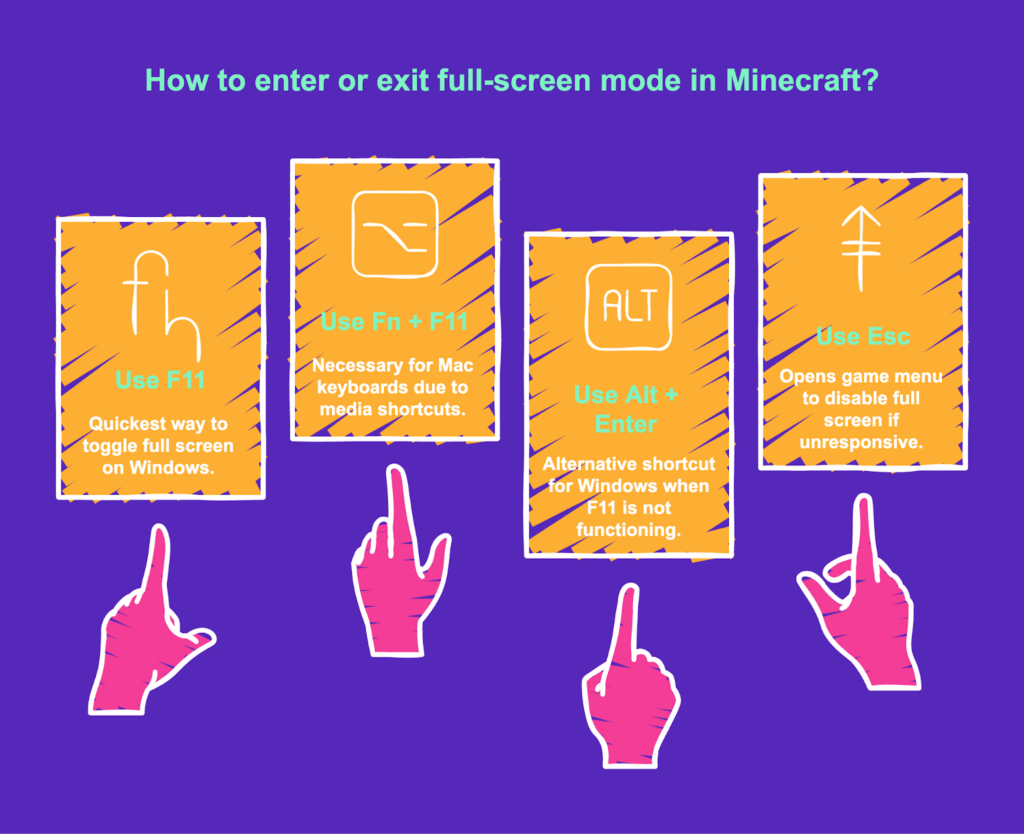
The fastest way to enjoy Minecraft without distractions is by using the keyboard shortcuts built into the game. In most cases, you can toggle full screen with a single key press:
- Press F11 to enter or exit full screen. On Windows PCs running Minecraft Java or Bedrock editions, this key toggles between full-screen and windowed modes. It’s the quickest way to maximize your view.
- On Mac keyboards, use Fn + F11. Apple keyboards often assign F‑keys to media shortcuts. To make Minecraft full screen, you may need to hold Fn and F11 (and sometimes ⌥ Option). In Mission Control settings, uncheck “Show Desktop” if F11 still triggers macOS rather than Minecraft.
- Use Alt + Enter as an alternative. This Windows shortcut forces many applications into full screen and works in Minecraft if F11 isn’t functioning. It’s handy when the F‑keys are bound to system controls or you’re playing on a keyboard without a dedicated F11 key.
- Exit with Esc or another F11 press. If full screen isn’t behaving properly, pressing Esc opens the game menu, where you can disable the full screen option. For unresponsive screens, Alt + Tab switches focus to another window and helps you regain control.
Those shortcuts cover the basics, but Minecraft’s Video Settings offer more customization. The sections below delve into changing the settings menu, adjusting resolution, and fixing common full-screen problems.
Toggling Full Screen in Minecraft Java Edition
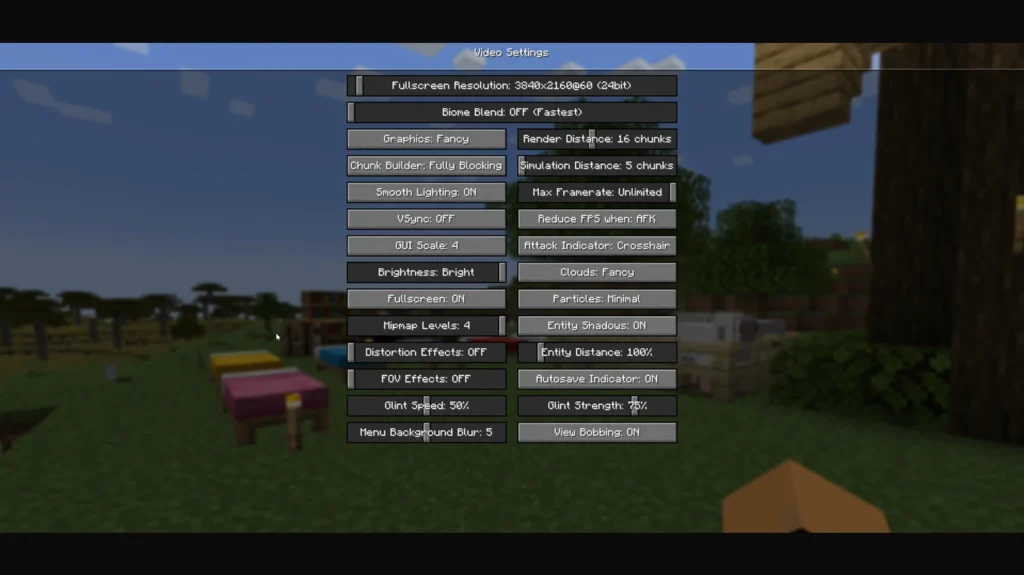
The Java edition gives players finer control over video options. Here’s how to fullscreen Minecraft using the in‑game settings.
Launch Minecraft and open Options
From the main menu, click Options, then Video Settings. This screen controls render distance, brightness, and other graphical settings.
Toggle the Fullscreen option
You’ll see a switch labeled “Fullscreen: OFF.” Click it so it reads “ON.” When you return to the game, the display should automatically expand to fill your monitor. If you prefer staying windowed but want a bigger view, leave this off and use F11 to toggle instead.
Set Full Screen Mode resolution
Below the Fullscreen toggle, there’s a Fullscreen Mode drop‑down. Select a resolution that matches your monitor’s native resolution (e.g., 1920 × 1080). Matching resolutions prevents stretching and makes menus crisp. If your screen size is unusual, experiment to see which resolution fits best.
Adjust GUI Scale
When full screen feels too zoomed‑in, the issue is often the GUI Scale slider. Move it to “2” or “Normal.” This reduces the size of onscreen menus and chat windows so they appear proportional. I once spent days playing with an oversized interface because I forgot about this setting; lowering the GUI scale made everything look right again.
Save and return
Click Done to apply settings, then Done again. If the screen flickers or stays black, press Alt + Tab to return to your desktop and re‑enter the game, or restart Minecraft.
Keyboard Shortcuts and Mac Considerations
Java edition allows remapping of keybinds under Options → Controls. If F11 conflicts with another program or is disabled on your keyboard, choose another key. On Mac, F‑keys may default to system actions. In System Settings → Keyboard → Mission Control, disable “Show Desktop” for F11 so Minecraft can use it. Alternatively, pressing Fn + F11 bypasses macOS shortcuts. I play on a MacBook Air and had to change Mission Control settings before F11 would toggle full screen properly.
Troubleshooting Java Edition Full Screen
Sometimes, F11 only expands the window rather than truly maximizing it. In such cases:
- Check that Fullscreen is ON in Video Settings. Toggling this ensures the game uses your monitor’s native resolution instead of a default size.
- Disable High DPI Scaling on Windows. Right‑click the javaw.exe executable in your Java runtime folder (often under C:\Program Files\Java\jre…\bin), select Properties → Compatibility, then click Change high DPI settings and tick “Override high DPI scaling behavior”. Choose “Application” from the drop‑down. This fixed a bug where my game only occupied part of the screen.
- Update graphics drivers. Out‑of‑date drivers can cause black screens or partial rendering when switching to full screen. Update your GPU drivers from the manufacturer’s website and restart your PC.
- Use borderless windowed tools. Some launchers or mods provide “borderless windowed” mode, which looks full screen but allows you to alt‑tab without the screen flashing. If you stream or use multiple monitors, this can help.
Full Screen Options for Bedrock Editions and Windows 10
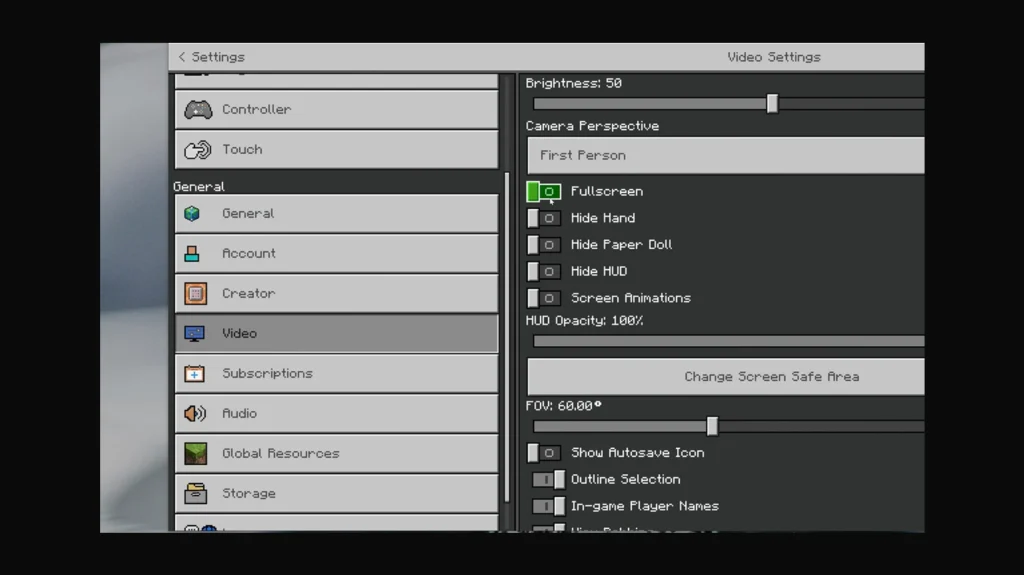
Minecraft Bedrock Edition (also known as the Windows 10/11 version) has a slightly different menu structure. Here’s how to fullscreen Minecraft on Bedrock:
- Open Settings from the main menu. After launching the game, click Settings. You’ll see a long list of categories on the left side.
- Navigate to Video. Under the Video tab on the left panel, look for a switch labeled Fullscreen or Fullscreen control. Toggle this on. The screen should enlarge to fill your display automatically.
- Use F11 as a quick toggle. Despite being more console‑oriented, Bedrock still recognizes the F11 shortcut on Windows. Pressing it will switch between full-screen and windowed modes.
- Adjust the game window size. If F11 doesn’t work or the window doesn’t fill the screen, you can manually drag the window’s edges when Fullscreen is off, then re‑enable Fullscreen to lock in the correct dimensions.
- Resolve performance drops. Bedrock sometimes caps the frame rate at 60 fps when full screen is enabled. To fix this, return to Video Settings and set Resolution to “Current” to match your monitor’s settings, then restart Minecraft. You can also disable VSync (if your GPU supports it) or turn off Windows’ Game Mode.
Bedrock users on tablets or consoles usually play in full screen by default. On Windows devices, F11 and the Video settings toggle provide the same functionality as the Java edition, although the menus differ slightly. Try it out while using Minecraft server hosting.
Fixing Common Full-Screen Issues
Even after toggling the right settings, you might encounter problems like the screen being too big, black screen glitches, or mouse input issues. Here are solutions that have helped me and other players:
Full Screen Appears Zoomed In
If everything looks enlarged after switching to full screen, the issue is likely your GUI scale or Windows display scaling:
- Adjust the GUI Scale in Minecraft. Go to Options → Video Settings → GUI Scale and set it to “Normal” or “2.” This reduces the size of menus and HUD elements.
- Reset Windows scaling. Right‑click your desktop, select Display Settings, and under Scale and layout, set scaling to 100%. Higher values can make applications appear zoomed in when they switch to full screen.
Black Screen When Exiting Full Screen
A known Java edition bug causes a black screen when switching back to windowed mode. To recover:
- Press Alt + Tab to switch to another application and then back to Minecraft. This often forces the game to refresh.
- If you still see a black screen, press F11 again to return to full screen and then exit using Esc → Video Settings → Fullscreen toggled off.
Mouse Input Issues on Linux
Linux users sometimes find their mouse stuck after entering full-screen. According to the Minecraft wiki, hitting Esc once releases the mouse, and pressing Esc again recaptures it. This works for me on Ubuntu whenever my camera gets locked.
Multi‑Monitor Problems
When using multiple monitors, full screen may cover all displays rather than just one. There’s no official fix yet, but using borderless windowed mode or selecting a specific monitor in your graphics control panel can help. If you stream, consider capturing a borderless window to prevent the game from spreading across monitors when alt‑tabbing.
Performance Tips for Full-Screen Mode
Full screen can look beautiful, but sometimes reduces performance. Here’s how to keep your frame rate high:
Match the Game Resolution to Your Monitor
Selecting the native resolution in Full Screen Mode ensures the GPU isn’t scaling the image up or down, which can waste resources. This setting is under Options → Video Settings in Java and Settings → Video in Bedrock.
Disable Windows Game Mode and Fullscreen Optimizations
On Windows, right‑click the Minecraft shortcut, choose Properties, and under the Compatibility tab, check Disable fullscreen optimizations. In Windows’ Gaming settings, turn off Game Mode. I noticed a 10 fps gain when disabling these settings.
Turn off VSync
VSync synchronizes the frame rate with the monitor refresh rate. Disabling it can increase FPS, though it may introduce screen tearing. If your GPU control panel offers a global VSync setting (NVIDIA Control Panel or AMD Radeon Settings), test turning it off.
Upgrade Your Hardware
Low frame rates in full screen often result from insufficient RAM, GPU power, or CPU capability. Upgrading to a mid‑range graphics card or adding RAM makes Minecraft smoother at high resolutions and with shader packs.
Use Performance‑Friendly Mods
Mods like Sodium (for Fabric) or OptiFine (for Forge) optimize rendering and give extra options to limit chunk updates and entity rendering. They can make full-screen smoother, especially on older systems.
Choosing the Right Hardware for a Full‑Screen Experience
A crisp, fluid full-screen experience depends on both software settings and hardware. If you’re using a small laptop or an older monitor, upgrading your setup can make a massive difference.
Here are some considerations:
Invest in a Quality Gaming Monitor
High refresh rates and sharp resolutions make Minecraft smoother. Our guide about the best OLED gaming monitors provides options ranging from budget picks to high‑end displays with quick response times and stunning color reproduction. An OLED monitor with at least a 144 Hz refresh rate removes blur when sprinting across the plains or battling mobs.
Choose a Capable Laptop for Minecraft
If you prefer gaming on the go, our list of the best laptops for Minecraft covers machines that handle large mod packs, shaders, and full-screen play smoothly. Look for devices with dedicated graphics like NVIDIA’s RTX series and plenty of RAM.
Optimize Your Desk Setup
A comfortable monitor position matters when you’re immersed for hours. Our article about the best monitor arms suggests adjustable arms that free up desk space and let you position the screen at eye level. This helps reduce neck strain when playing in full-screen mode for extended sessions.
As someone who once played on a 15‑inch laptop balanced on textbooks, I can attest that upgrading to a larger monitor with a sturdy arm transformed my Minecraft sessions. The game felt more cinematic, and I could play longer without discomfort.
Enjoying Minecraft Without Distractions
Switching to full screen transforms Minecraft’s blocky landscapes into cinematic vistas. Whether you hit F11 for a quick toggle or adjust deeper settings in the options menu, you now know how to fullscreen Minecraft confidently. If you’re also searching for the best VPN for Minecraft to improve security or reduce lag, it’s a good time to configure that alongside your display settings. For the Java edition, remember to match the Full Screen Mode resolution and tweak the GUI scale; for Bedrock, the Video tab handles it all. When things go wrong, a few troubleshooting steps, such as resetting scaling, toggling Fullscreen off and on, or adjusting DPI settings, usually fix the problem.
Full screen will always demand more from your computer, but with the right hardware and settings, you can mine, build, and explore without compromise. If you’re ready to dive into Minecraft for the first time or want to gift the game to a friend, check out our Minecraft: Java & Bedrock Edition game key on Eneba.
FAQs
How do you make Minecraft full screen?
To make Minecraft full screen, press F11 on your keyboard while in the game. This key toggles between windowed and full-screen modes in both Java and Bedrock editions, giving you an instant immersive view. If you’re on a Mac, hold Fn and F11 (and possibly ⌥ Option) to achieve the same effect.
How do you exit full screen in Minecraft without F11?
To exit full screen in Minecraft without F11, press Esc to open the game menu and navigate to Options → Video Settings (Java) or Settings → Video (Bedrock). Toggle the Fullscreen option off, then return to the game. Alternatively, pressing Alt + Enter on Windows switches many applications between full-screen and windowed modes.
Why can’t I fullscreen Minecraft?
The reason why you can’t fullscreen Minecraft is often due to the Fullscreen toggle being off or mismatched resolution settings. Verify that the Fullscreen option is enabled in the Video settings and that the Full Screen Mode resolution matches your monitor’s native resolution. Updating graphics drivers and disabling high DPI scaling in javaw.exe properties also resolves common issues.
How do you make Minecraft full screen on Mac?
To make Minecraft full screen on Mac, hold Fn and press F11 while in the game. Some Apple keyboards require holding ⌥ Option as well. You may also need to disable macOS Mission Control’s “Show Desktop” shortcut for F11 in System Settings → Keyboard. Once configured, F11 toggles full screen just like on Windows.
How do you make Minecraft full screen on Windows 10?
To make Minecraft full screen on Windows 10, press F11 or use the Alt + Enter shortcut while the game window is active. You can also open Settings → Video (Bedrock) or Options → Video Settings (Java) and turn on the Fullscreen switch. Choosing a resolution that matches your monitor under Full Screen Mode ensures the window expands correctly.