


How to Disable Touchpad on Your Laptop: A Gamer’s Guide


When you spend time gaming on a laptop, your palms sometimes brush the trackpad at the worst moment. I’ve had my character jump off a cliff or miss a headshot because a stray touch sent the cursor flying. Learning how to disable touchpad quickly is essential for anyone using an external mouse, no matter if you’re playing first‑person shooters or working on a report.
This guide explains why you might want to turn off the built‑in pointer and walks you through methods for Windows, macOS, and Linux. I’ll also show how to control the touchpad with keyboard shortcuts, manufacturer tools, and BIOS settings so you stay in control.
Jump to:
How to Disable Touchpad: Why Gamers Turn Off Their Trackpads
The touchpad gives you full control of the pointer without carrying an extra device, but it isn’t always the best choice for gaming. I find that an accidental brush of the touchpad can interrupt a combo or spin the camera in the middle of a battle. Disabling the trackpad prevents unwanted clicks and frees your palm space for typing.
Many competitive players prefer a dedicated gaming mouse because it offers better precision, adjustable DPI, and ergonomic comfort. If you’re considering upgrading your laptop, our expert advice on choosing between Dell and HP laptops compares designs, including keyboard and trackpad feel, to help you decide which manufacturer suits your play style.
Turning off the touchpad can also help if you’ve connected an external display and wireless mouse for a desktop‑like setup. You won’t accidentally move the pointer while typing, and you’ll avoid double tapping the pad when you meant to press the spacebar.
Most operating systems include simple toggle switches to disable the trackpad temporarily or permanently, and you can even set it to turn off automatically when a mouse is detected. The following sections cover the fastest ways to do it.
Disable Touchpad on Windows Laptops
Windows remains the go‑to platform for PC gaming, and Microsoft has gradually improved its touchpad controls. Whether you’re running Windows 10 or Windows 11, you can disable or enable the touchpad from the Settings app, Device Manager, or using built‑in hotkeys.
You can also choose to have Windows automatically turn off the touchpad whenever a mouse is connected, so you don’t need to toggle it manually.
Use the Touchpad Toggle Switch in Settings
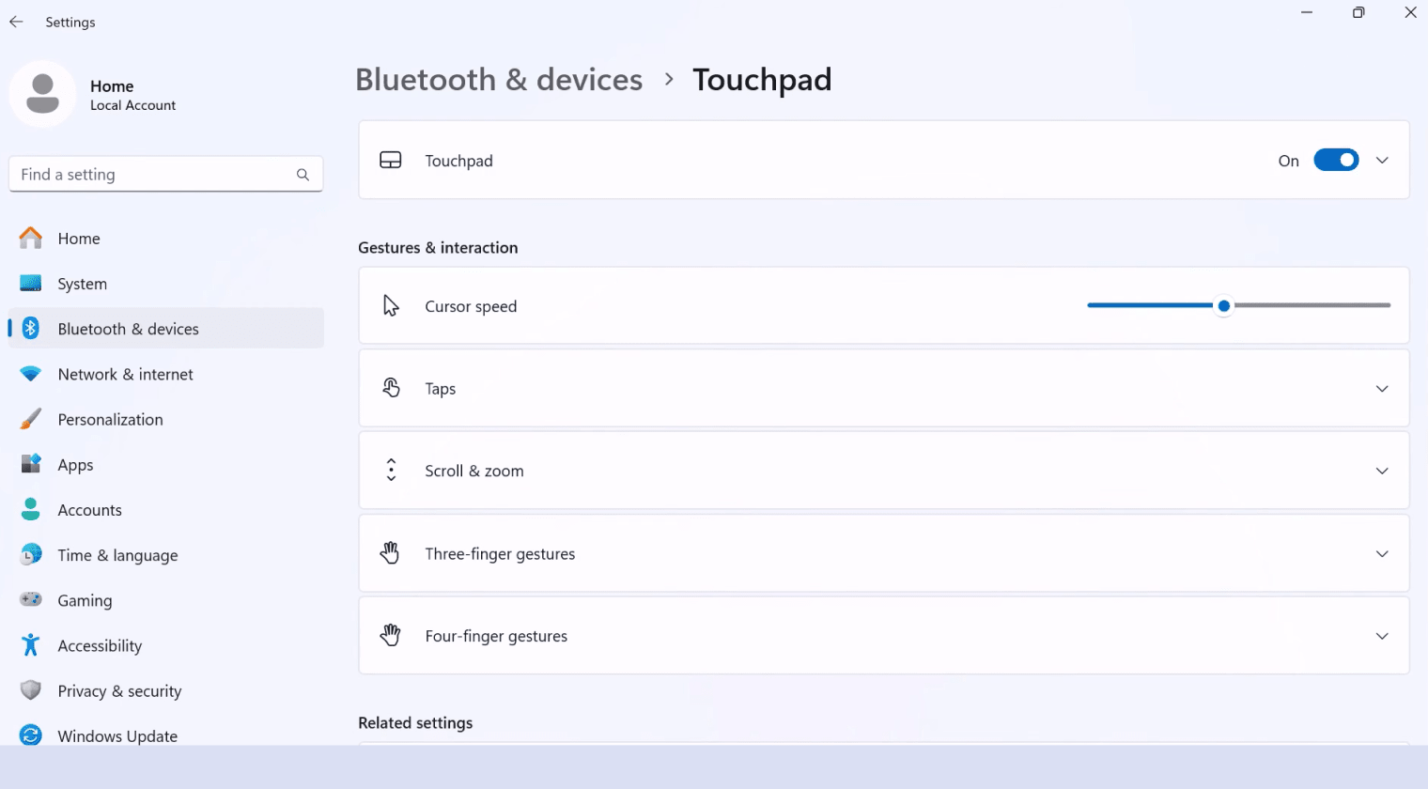
The simplest way to disable your trackpad is through the Settings menu:
- Open Settings by pressing Windows + I or clicking the gear icon in the Start menu.
- In Windows 11, go to Bluetooth & devices > Touchpad. In Windows 10, select Devices and then Touchpad.
- At the top of the page, you’ll see a Touchpad toggle switch. Slide it to Off to disable the touchpad. Slide it back to On when you need it again.
- For Windows 11, click the arrow next to the toggle to expand additional options. Here you can uncheck Leave touchpad on when a mouse is connected, allowing Windows to disable it automatically whenever it detects a mouse.
This method is quick and doesn’t require administrator rights. If the toggle is greyed out or missing, check that your drivers are installed correctly or try the Device Manager method below.
Disable Touchpad via Device Manager
If your laptop’s settings page doesn’t include a toggle or it doesn’t stay off, you can disable the touchpad driver directly:
- Right‑click the Start button and choose Device Manager.
- Expand Mice and other pointing devices. Your touchpad may show up as HID‑compliant mouse, Synaptics Touchpad, ELAN Touchpad, or something similar.
- Right‑click the touchpad entry and select Disable device. Confirm any prompts. This will turn off the touchpad until you enable it again.
- To re‑enable the touchpad, repeat these steps and choose Enable device.
Disabling the driver prevents the system from loading the touchpad at all, so make sure you have an external mouse connected before doing this. If you accidentally disable the wrong device and lose all pointer control, reconnect a USB mouse to regain access.
Automatically Turn Off the Touchpad When a Mouse Is Connected
Many laptops offer a setting to disable the touchpad whenever a mouse is plugged in. Windows includes this option in the touchpad settings. After following the steps in the Touchpad Toggle Switch section, expand the Touchpad options and uncheck Leave touchpad on when a mouse is connected.
When you plug in a USB or Bluetooth mouse, the trackpad will turn off automatically; when you remove the mouse, it will turn back on. This hands‑free approach is ideal if you frequently switch between portable and desktop modes.
Keyboard Shortcuts for Common Brands
Many manufacturers include keyboard shortcuts to toggle the trackpad. These are helpful when you need to disable the touchpad quickly without opening menus. The exact combination varies by brand:
- HP: Press Fn + F6 or Fn + F9, depending on your model. Look for a key with a touchpad icon.
- ASUS: Use Fn + F6 or Fn + F9. Newer models may even display a notification when the touchpad is disabled.
- Acer: Press F10 alone on some models. Others use Fn combined with F2, F6, or F7.
- Lenovo: Use the function key marked with a rectangle and diagonal line, typically F6 or F8.
When you press the appropriate shortcut, your system toggles the touchpad on or off. If nothing happens, check your laptop’s manual or the manufacturer’s software utility (such as Lenovo Vantage or Dell QuickSet) for the correct key combination. Always confirm that you have an external mouse ready before disabling the touchpad.
Disabling the Touchpad on macOS and Linux
If you play games on a MacBook or a Linux laptop, you can still control your trackpad settings. Both platforms provide built‑in options to disable the touchpad when you don’t need it.
Turning Off the Trackpad on macOS
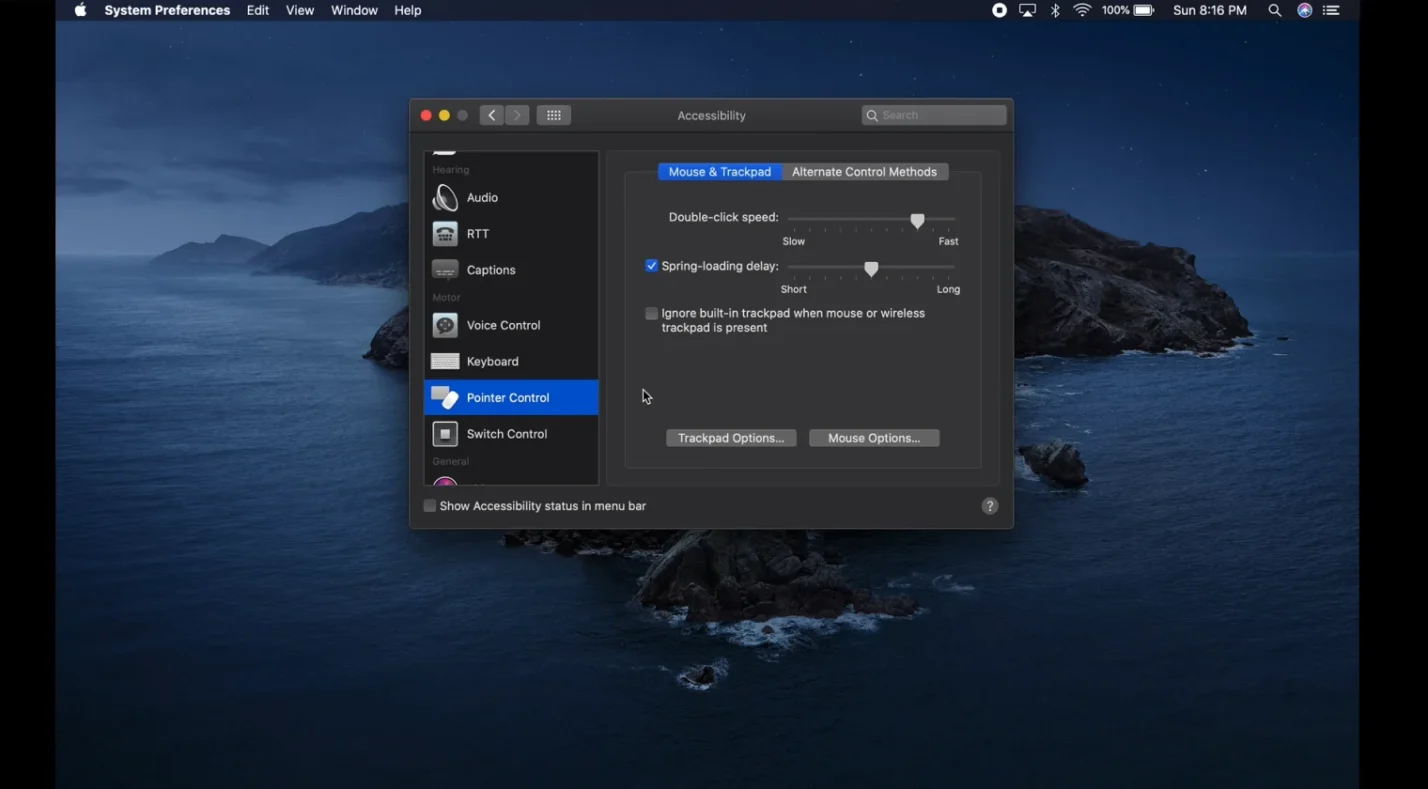
macOS doesn’t offer a simple on/off switch like Windows, but it does allow you to ignore the built‑in trackpad when another pointing device is present. Here’s how to find that setting:
- Click the Apple menu and choose System Settings (older versions call it System Preferences).
- Select Accessibility in the sidebar.
- Click Pointer Control, then select Mouse & Trackpad.
- Check the box labelled Ignore built‑in trackpad when mouse or wireless trackpad is present.
When this option is active, macOS will disable the trackpad as soon as you connect a USB or Bluetooth mouse. Disconnect the mouse and your trackpad will work again. If you need to disable the trackpad permanently, you can use a third‑party utility or turn it off in firmware settings, but most gamers prefer the automatic mode.
Using Settings or Command Line in Linux
Linux distributions vary, but most provide a graphical control panel for input devices. On GNOME or Cinnamon, open Settings and look under Mouse & Touchpad. You’ll find a toggle to disable the trackpad or to disable it while typing. KDE users can open System Settings > Input Devices > Touchpad and adjust the enable/disable toggle.
For a more universal approach, Linux offers command‑line tools. One common method uses xinput:
- Install xinput using your package manager if it isn’t already available (sudo apt install xinput on Ubuntu or sudo yum install xinput on Fedora).
- List your input devices with xinput –list and note the ID of your touchpad.
- Disable the device with xinput –disable <ID>. To re‑enable, use xinput –enable <ID>.
Another option is to use gsettings on systems with Wayland. Run gsettings set org.gnome.desktop.peripherals.touchpad send-events disabled to turn off the touchpad. These commands allow you to script a hotkey or create a shell script for quick toggling.
Advanced Controls: OEM Utilities and BIOS Settings
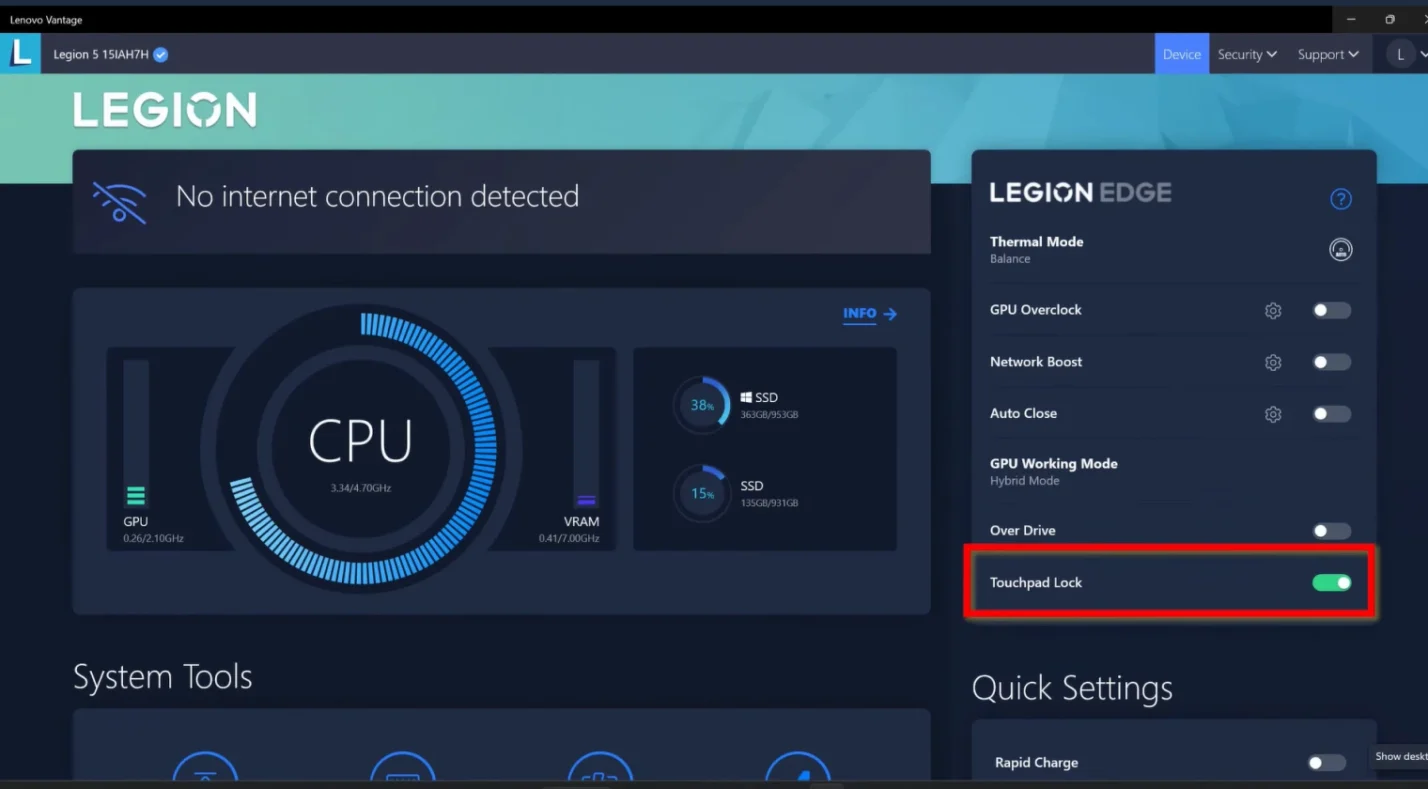
Some laptops ship with manufacturer utilities that offer more advanced touchpad options. For example, Synaptics Control Panel, Dell Touchpad, Lenovo Vantage, and ASUS Armoury Crate can adjust sensitivity, palm‑check (which ignores accidental touches while typing), and multi‑finger gestures. In these apps, you can often check a box to Disable the internal pointing device when an external USB mouse is attached, or set a hotkey to toggle the touchpad.
If your computer doesn’t respect Windows or macOS settings, you can disable the touchpad at the firmware level:
- Restart your laptop and press the BIOS/UEFI setup key (often F2, Del, or Esc).
- Look under the Advanced or Devices tab for a setting called Internal Pointing Device, Touchpad, or TrackPad.
- Change the setting to Disabled, save changes, and exit. The touchpad will remain off until you change this setting again.
Disabling the touchpad in BIOS prevents the operating system from recognizing it at all. You should only use this option if you always rely on a mouse, as you’ll need that external device to navigate the menus if you want to re‑enable the trackpad later.
Troubleshooting and Tips for Leaving the Touchpad Off
Here are a few troubleshooting tips if the touchpad toggle is missing or doesn’t respond:
- Update your drivers. Make sure your system has the latest touchpad drivers from Windows Update, your laptop manufacturer, or Apple. Out‑of‑date drivers can cause the toggle to be greyed out.
- Restart your laptop. A quick reboot can resolve many hardware glitches. If your touchpad won’t disable after you flip the switch, restart and try again.
- Check for vendor software. Some laptops override the Windows or macOS toggle with their own control panel. Open Lenovo Vantage, HP Quick Launch Buttons, or similar utilities to find a separate touchpad setting.
- Use an external mouse before disabling. Always have a wired or wireless mouse connected when you disable the touchpad via Device Manager or BIOS. Otherwise, you might find yourself without a working pointer.
- Re‑enable the touchpad easily. If you accidentally disable the touchpad but have keyboard access, open Settings and re‑enable it, or use the keyboard shortcut for your brand.
Adjusting Sensitivity and Gestures Instead of Disabling
If your primary complaint is the touchpad being overly sensitive rather than unwanted touches, consider adjusting the sensitivity or palm‑check features instead of turning it off entirely. In Windows, the Touchpad settings page lets you choose Most Sensitive, High, Medium, or Low sensitivity, and adjust multi‑finger gestures.
macOS allows you to modify tracking speed and enable or disable taps to click. Some gamers prefer to leave the touchpad on at a lower sensitivity so they can make quick adjustments without lifting their hands.
Personalizing Your Gaming Setup with Better Peripherals
Disabling the touchpad is only part of creating a comfortable gaming experience. A quality mouse, keyboard, and surface can make a bigger difference than you might expect. I upgraded to a lightweight wireless mouse and noticed my aim improved, because I could flick faster and didn’t have to worry about a cable snagging. Check out our wireless gaming mouse picks to find a mouse that matches your preferred grip style and DPI range.
A good mouse pad improves tracking accuracy and provides a consistent surface for quick movements. If you’re still using the back of a notebook, our gaming mouse pad recommendations highlight large cloth and hard‑surface pads that suit different types of games.
Pair your new mouse and pad with a mechanical keyboard for responsive keystrokes; our guides to the best mechanical keyboards explore switches and form factors to help you choose.
Take Control of Your Cursor and Your Games
Learning how to disable the touchpad gives you more control over your gaming sessions and daily tasks. Windows users can flip a switch in Settings or Device Manager, macOS gamers can tell their system to ignore the trackpad when a mouse is present, and Linux users can use graphical settings or command‑line tools like xinput.
Keyboard shortcuts and manufacturer utilities provide quick ways to toggle the touchpad, and BIOS settings offer a permanent solution if you never use it. Adjusting sensitivity and palm‑check options can also solve problems without disabling the pad entirely.
Once your input devices are tuned to your liking, reward yourself with new games or in‑game goodies. A Steam Wallet Gift Card from our marketplace adds funds to your Steam account so you can pick up the latest releases or DLC packs. With your touchpad out of the way and high‑quality peripherals at hand, you’ll enjoy a more immersive and accurate gaming experience.
FAQs
How do I disable the touchpad on my laptop?
To disable the touchpad on your laptop, open the system settings and look for Touchpad or Mouse & Touchpad, then toggle the touchpad off or use a function‑key shortcut. On Windows, it’s under Bluetooth & devices > Touchpad; on macOS, check Pointer Control.
How do I disable touchpad when a mouse is connected?
To disable touchpad when a mouse is connected, open your operating system’s touchpad settings and uncheck “Leave touchpad on when a mouse is connected.” Windows and some Linux desktops automatically turn off the pad when they detect an external mouse.
How do I disable touchpad in Windows 10 and Windows 11?
To disable touchpad in Windows 10 and Windows 11, go to Settings, select Devices or Bluetooth & devices, then Touchpad, and use the toggle switch to turn it off. You can also disable the driver via Device Manager if the toggle isn’t available.
How do I disable the touchpad on a MacBook?
To disable the touchpad on a MacBook, open System Settings and navigate to Accessibility > Pointer Control > Mouse & Trackpad, then check “Ignore built‑in trackpad when mouse or wireless trackpad is present.” Connect a mouse to activate this setting.
Can I permanently disable my laptop’s touchpad?
Yes, you can permanently disable your laptop’s touchpad by entering your BIOS or UEFI settings and turning off the internal pointing device, or by disabling the touchpad driver in Device Manager. Be sure you have an external mouse before making this change.