How to Add Robux to Child Account: A Parent’s Complete Guide

Eneba Hub contains affiliate links, which means we may earn a small commission if you make a purchase through them—at no extra cost to you. Learn more


Recent update
This list is regularly updated to match what’s trending and in-demand among gamers.
If you’re trying to figure out how to add Robux to a child account, the process is actually more straightforward than you’d think. This guide is designed specifically for parents, guardians, and anyone managing a child’s Roblox account who wants to ensure safe and secure transactions.
Throughout this article, I’ll walk you through the complete process, from purchasing Robux to setting up parental controls and troubleshooting common issues. You’ll learn about different payment methods, whether you can transfer Robux from one account to another, how to prevent unauthorized purchases, and the best practices for keeping your child’s account protected while they enjoy their favorite platform.
Jump to:
How to Add Robux to a Child’s Roblox Account
If you’re wondering what Robux is, here’s the simple answer: Robux serves as Roblox‘s virtual currency, which lets players unlock premium items, accessories, and exclusive content that enhance their gaming experience. Here’s how to buy Robux for a child account:
Step 1 – Log in to the Child’s Account
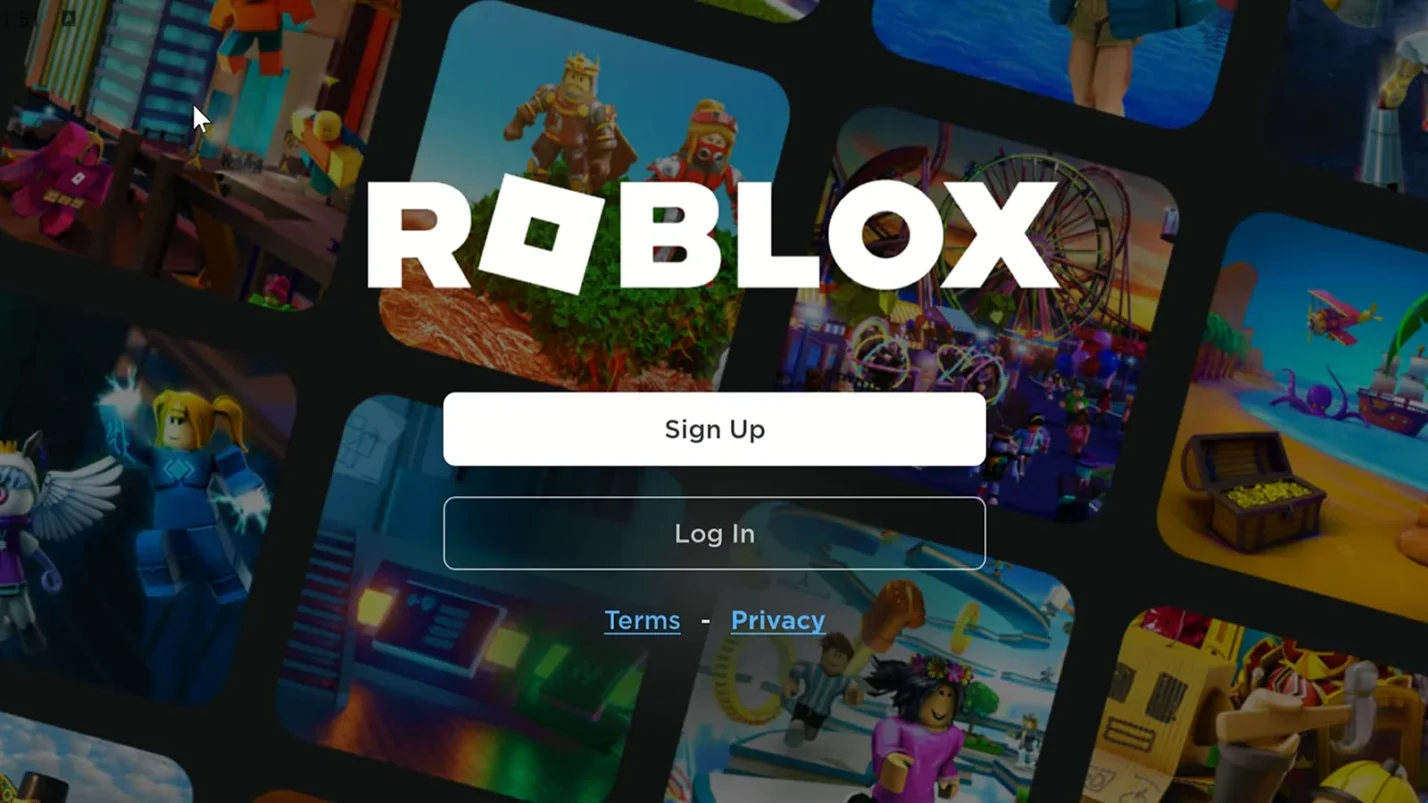
The first step when learning how to add Robux to child account is accessing the correct account properly. You can log into your child’s Roblox account from any PC, games console, tablet, or mobile device. Navigate to the official Roblox website or open the mobile app, then enter the username and password for the child’s account.
If comfort matters most, playing Roblox on a tablet is the best way to go. If your kid prefers sharper control, the keyboard-and-mouse layout on a laptop/PC makes navigation much easier.
Use strong passwords that combine letters, numbers, and symbols to keep the account secure. Avoid using shared login credentials across multiple platforms. Also make sure the device is secure and that you’re logged out of any public computers after completing your purchase.
Step 2 – Navigating the Robux Purchase Page
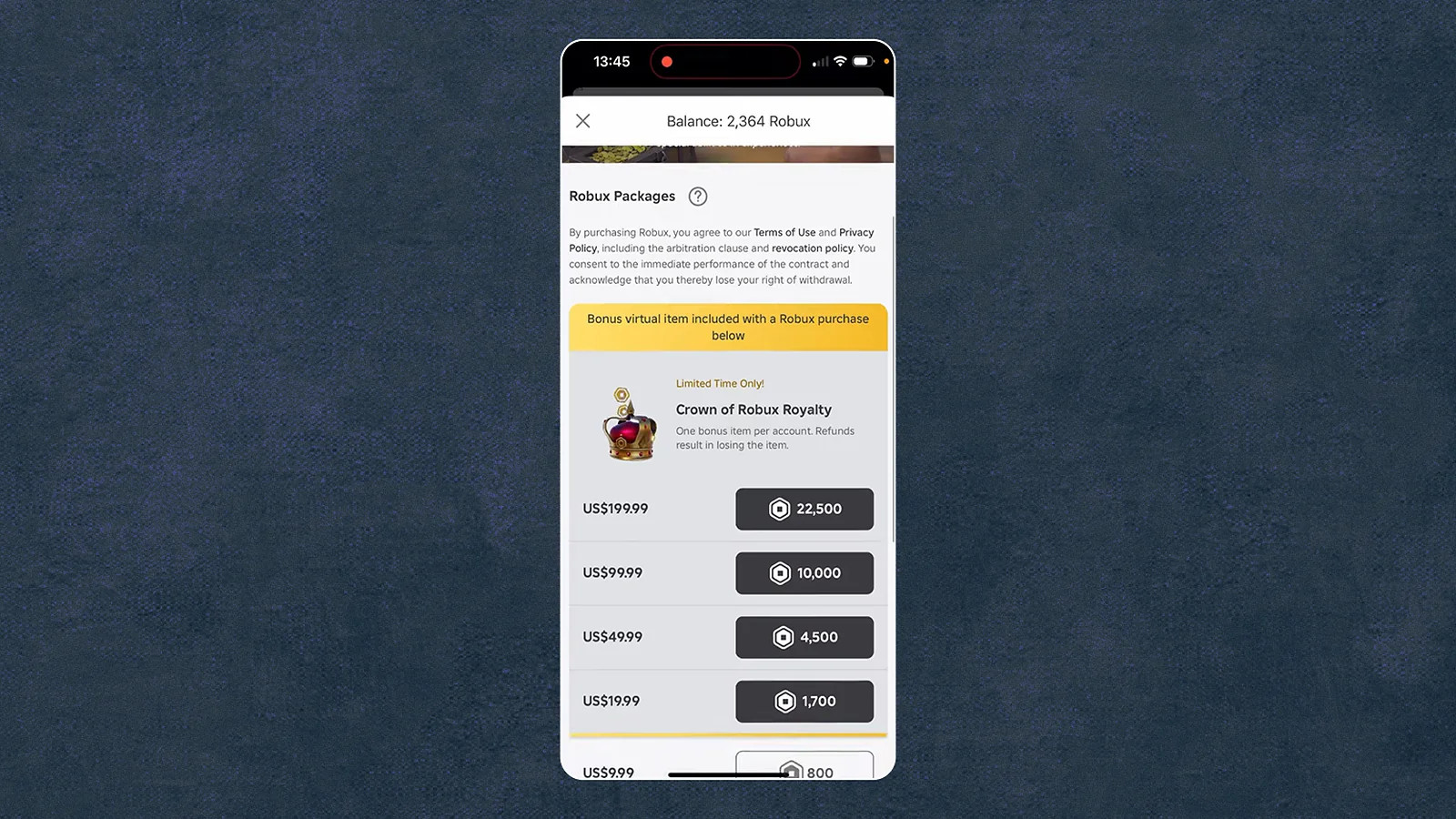
If your main question is “how do I buy Robux for my child?” or how to add Robux to child account step by step, then here’s exactly how to do it. Once logged in, locate the Robux purchase section by clicking on the gold Robux icon at the top of the screen. This icon appears consistently across both the website and mobile app interfaces. The purchase page displays various Robux packages with different price points, ranging from small amounts for casual players to larger bundles for dedicated gamers.
Here’s a breakdown of current Robux packages so you know exactly what to budget before adding Robux to your child’s account. If you’re wondering “Can you transfer Robux from one account to another?”, note that this isn’t possible.
| Robux Amount | Web/Gift Card Price | Mobile App Price | Best For |
|---|---|---|---|
| 400 Robux | $4.99 | ~$4.99 | First-time top-up, testing the waters |
| 800 Robux | $9.99 | ~$9.99 | Casual players, one-off item purchases |
| 1,700 Robux | $19.99 | ~$16.99 | Most popular choice, good everyday value |
| 4,500 Robux | $49.99 | ~$42.99 | Dedicated players, multiple purchases |
| 10,000 Robux | $99.99 | ~$84.99 | Best value per Robux, high-usage accounts |
Buying through the Roblox website or redeeming a gift card gives up to 25% more Robux than purchasing through the iOS App Store or Google Play, because Roblox passes the app store fee savings directly to you. For parents who want the most out of every dollar when they add Robux to a kids’ account, web or gift card purchases are the smarter choice.
Step 3 – Choosing a Payment Method
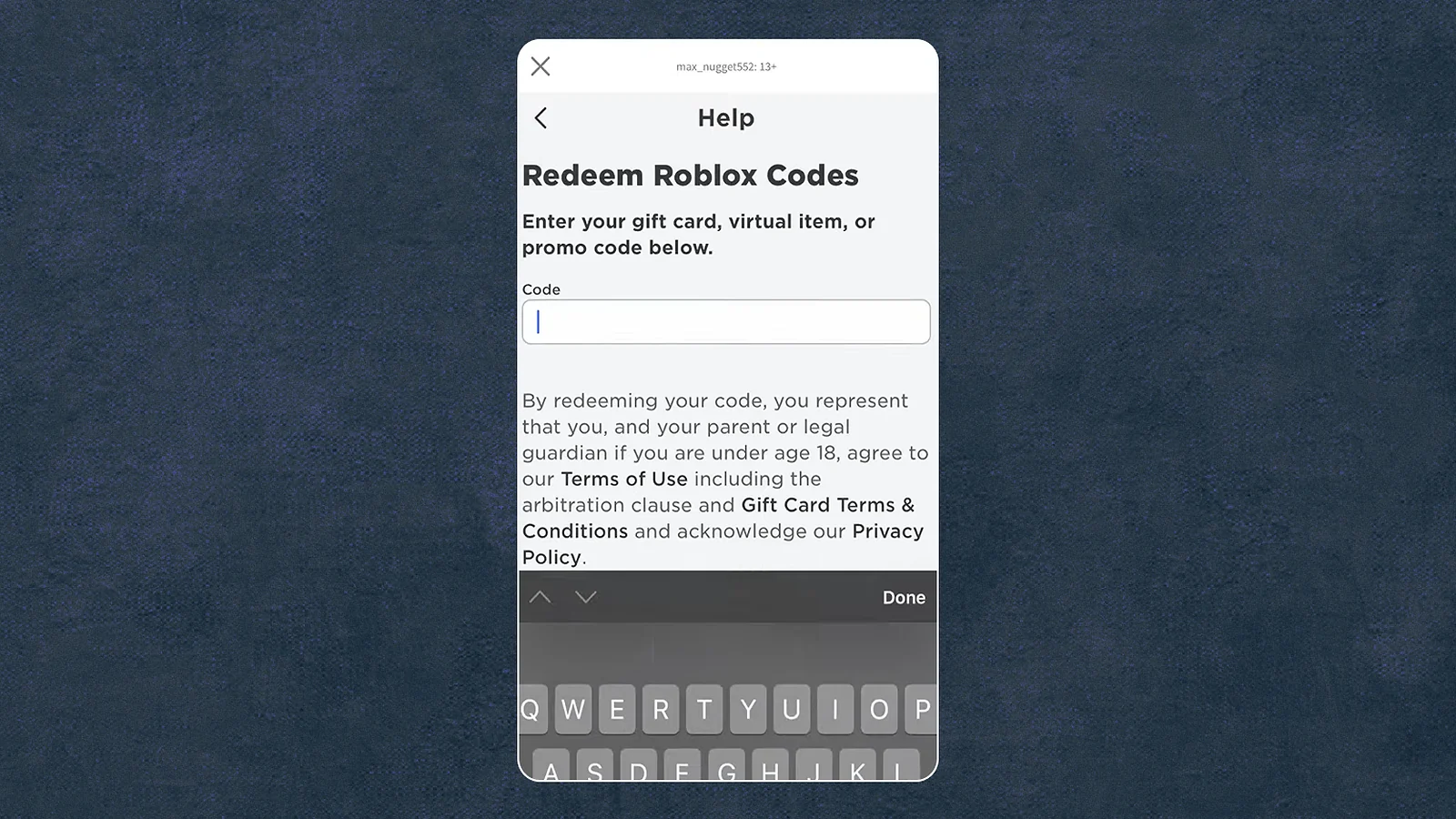
Roblox accepts several payment methods to add Robux to a kids account. The available options include credit cards, debit cards, PayPal, mobile payments through app stores, and Roblox gift cards.
Credit and debit cards offer the quickest transaction process, but require you to save payment information on the platform. PayPal provides an extra security layer by keeping your card details separate from Roblox.
Roblox gift cards give you the most control over spending since you purchase them for specific amounts and redeem them directly on the account, which is why many parents prefer them when figuring out how to add Robux to child account on a fixed budget.
For parents wanting strict budget limits, gift cards work exceptionally well because once the card value is depleted, no additional charges can occur without purchasing another card.
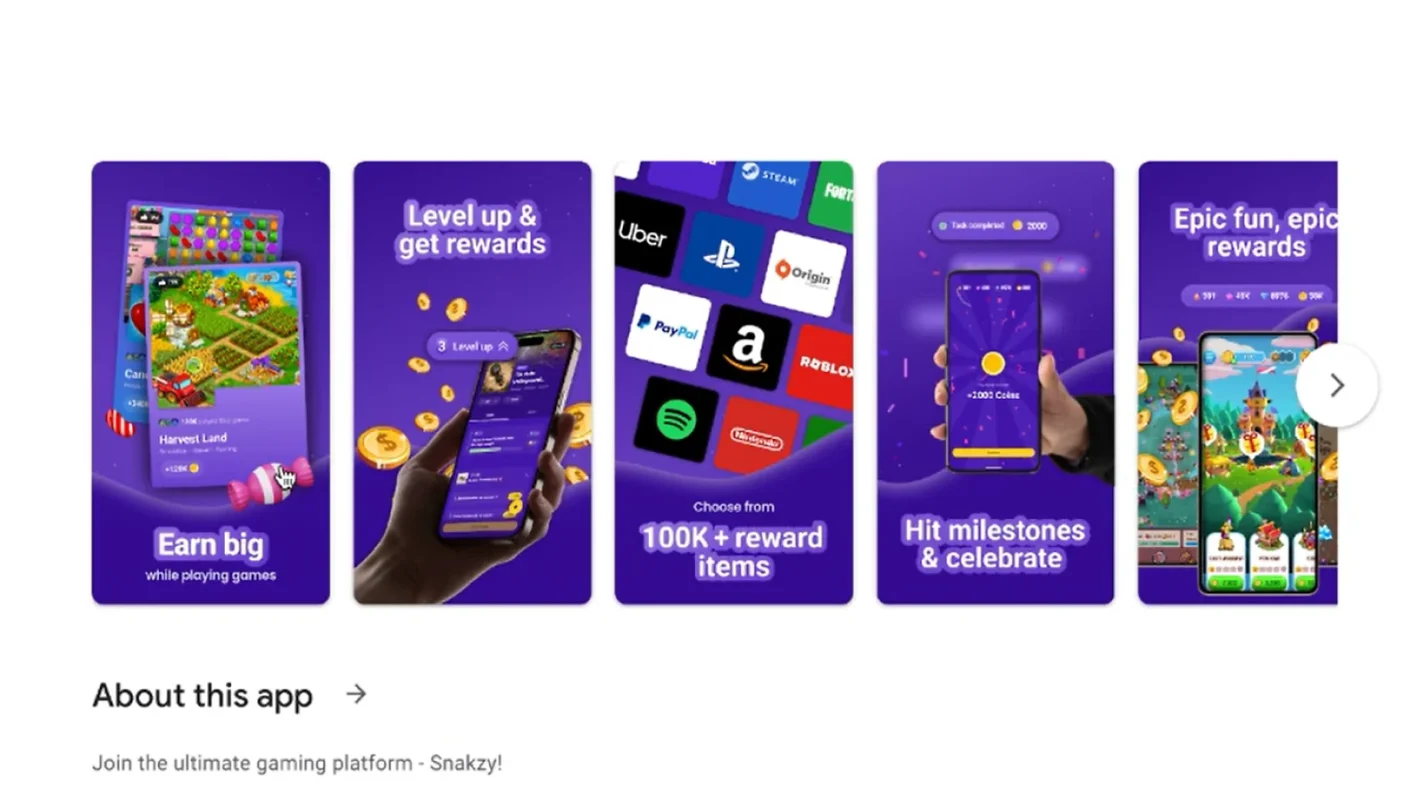
It can also be a teaching moment for financial literacy: apps like Snakzy lets you earn gift cards by playing mobile games, and this provides a natural way to explain the concept of earning. The coins you earn transfer to the Eneba wallet and can be redeemed for your kid’s Roblox gift cards, which shows the simple connection between effort and reward.
Mobile payments going through the iOS App Store or Google Play Store charge through your existing app store account. This method is convenient if you already use these platforms for other purchases, though it may make tracking Roblox-specific spending slightly more difficult.
Play games and get paid with Snakzy.
Mobile payments going through the iOS App Store or Google Play Store charge through your existing app store account. This method is convenient if you already use these platforms for other purchases, though it may make tracking Roblox-specific spending slightly more difficult.
Step 4 – Confirming the Purchase
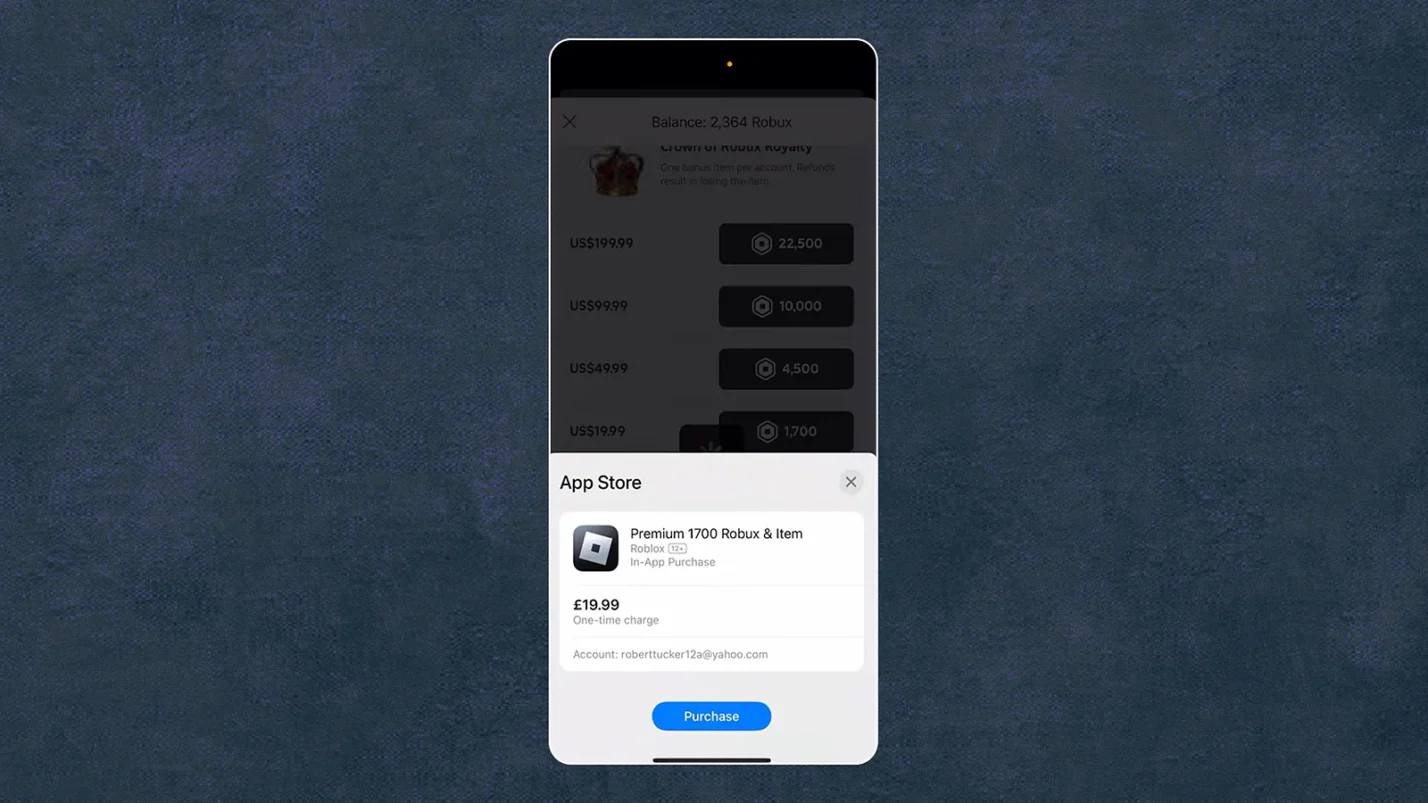
The final step of how to add Robux to child account is reviewing all purchase details carefully before finalizing the transaction. The confirmation screen shows the Robux amount, total cost, and your selected payment method. Make sure these details match your intended purchase before proceeding.
Click the purchase button to complete the transaction. You should receive a confirmation message almost immediately, along with an email receipt sent to the account’s registered email address. Robux typically appear in the child’s account within minutes, though occasionally there may be a slight delay of up to an hour during peak usage times.
Troubleshooting Common Issues When Adding Robux
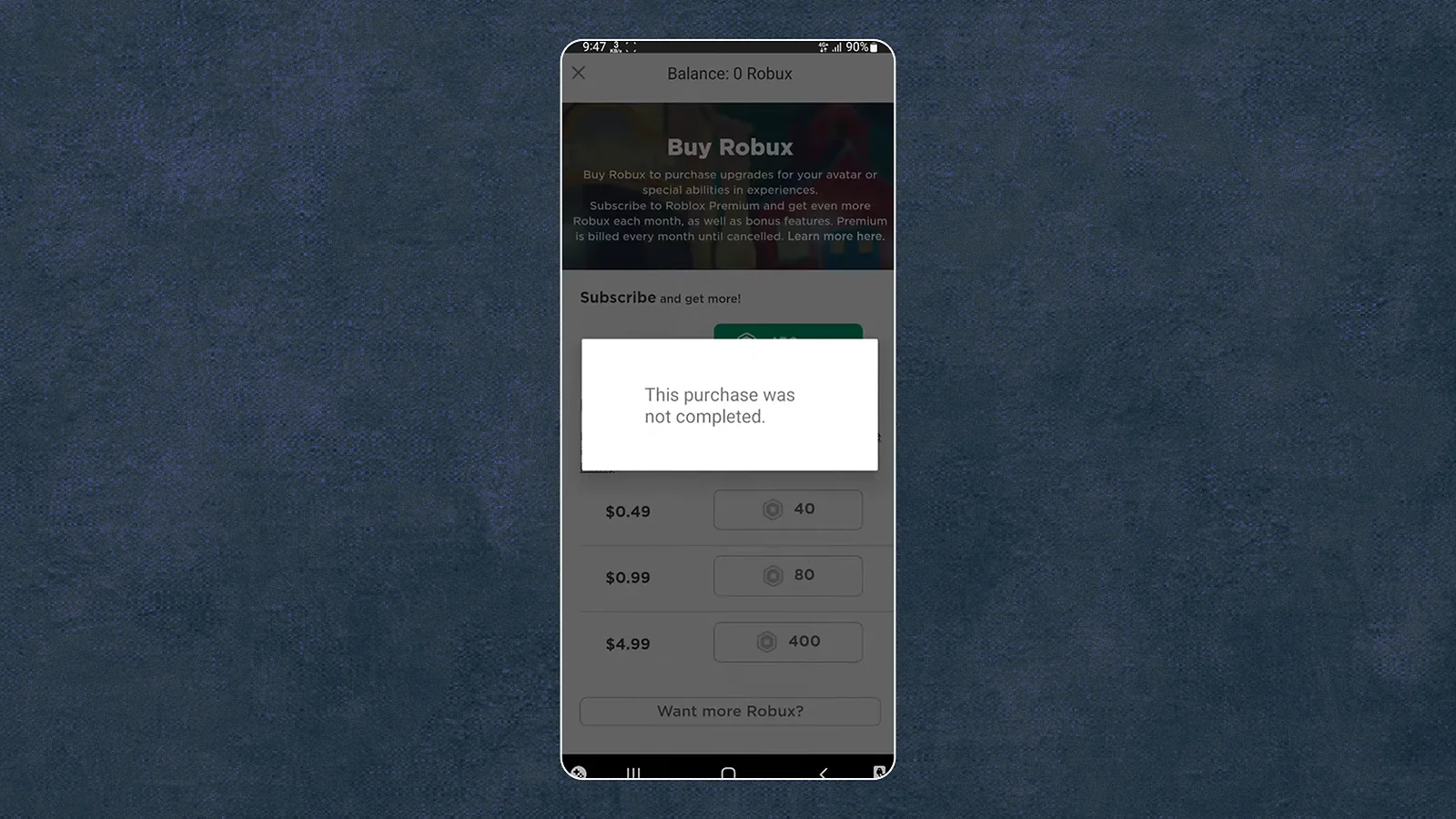
Even when you follow every step of how to add Robux to child account correctly, purchases don’t always go smoothly. Here’s how to fix the most common problems.
| Problem | Most Likely Cause | Fix |
|---|---|---|
| Transaction failed | Incorrect payment details | Double-check card number, expiration date, CVV, and billing address |
| Purchase not processing | Roblox server outage | Check Roblox’s official status page or social media, then try again later |
| Robux not appearing after payment | Delivery delay | Wait up to 1 hour, then check transaction history in Settings to confirm it went through |
| Persistent missing Robux | Payment or account issue | Contact Roblox Customer Support with your receipt, username, and issue description (response within 24–48 hours) |
Keep all confirmation emails and receipts – support resolves issues significantly faster when you can provide transaction proof.
Platform-Specific Fixes
- PC/Browser – Clear your browser cache and cookies, then attempt the purchase again
- Mobile (iOS/Android) – Update the Roblox app to the latest version and ensure you have a stable internet connection before purchasing
Console – Robux gift cards cannot be redeemed directly on Xbox or PlayStation. If you’re also trying to figure out how to add funds to a PS5 wallet for child accounts, open the PlayStation Store, select Add Funds, and pay via card or PSN card (but PSN wallet funds cannot be used to buy Robux). For Robux specifically, redeem a Roblox gift card on the official Roblox website on a phone or PC first, then the balance will appear on any device, including console.
How to Set Up a Parent Account and Link It to Your Child’s One
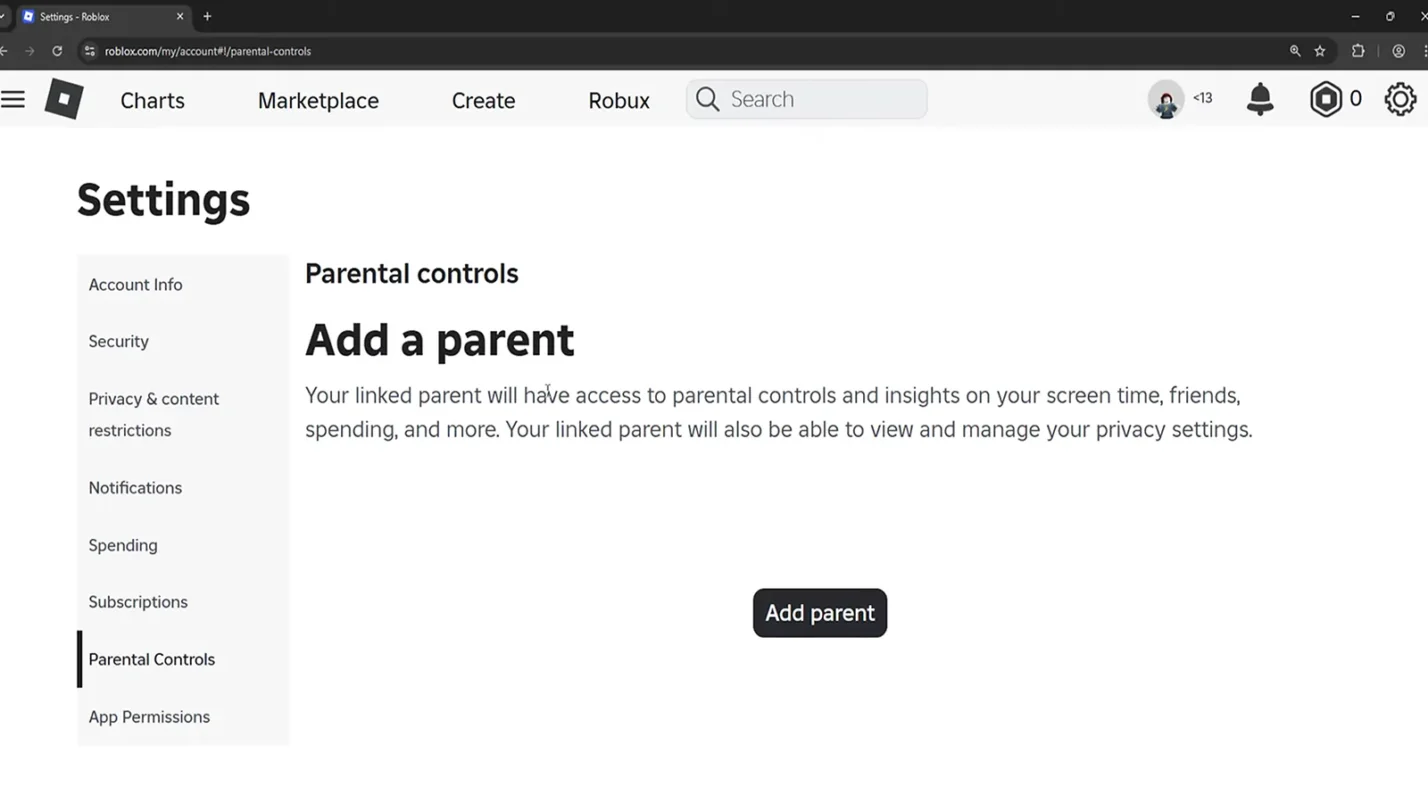
Before configuring any controls or completing how to add Robux to a child account safely, setting up a linked parent account is the right first move. Roblox’s current system lets you manage everything from your own device without logging into your child’s account every time, and it’s the foundation for adding Robux to a child’s account safely going forward.
Here’s how to do it:
- Create your own Roblox account if you don’t already have one. It’s free and takes two minutes
- Verify your age using a government-issued ID or credit card (you must be 18 or older; this is required to unlock parent privileges)
- On your child’s device, go to Settings → Account Info → Add Parental Recovery Email and enter your email address
- Still on the child’s device, go to Settings → Parental Controls → Add Parent and enter your email again
- Check your inbox and confirm the link via the email Roblox sends you
- From this point forward, manage all parental controls, spending limits, and screen time from your own Roblox account under Settings → Parental Controls
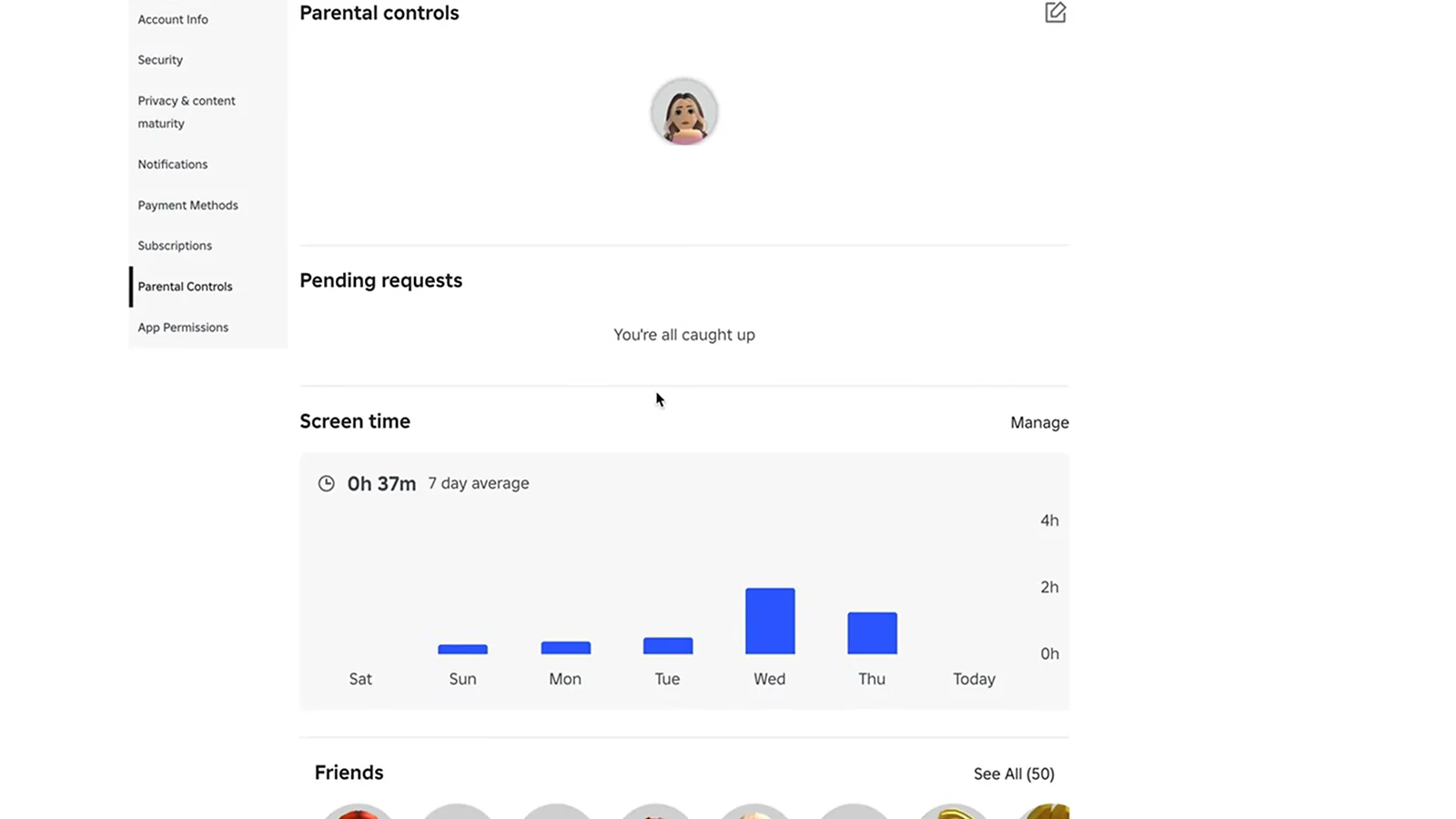
Once linked, you also gain access to insights about your child’s daily screen time and on-platform connections, all without touching their account.
Setting Up Parental Controls and Keeping Your Child’s Account Secure
Protecting your child on Roblox means covering two things at once: controlling how Robux get spent and securing the account itself. Here’s everything you need to set up.
Spending Controls
Navigate to account settings by clicking the gear icon, then select “Parental Controls” or “Account Restrictions”.
| Setting | What It Does | Where to Find It |
|---|---|---|
| Monthly Spending Limit | Caps total Robux purchases per month | Parental Controls → Spending Limits |
| Account PIN | Requires a 4-digit code before any purchase | Security Settings → Account PIN |
| Purchase Approval | Sends notification to the parent’s email; you must approve before it processes | Parental Controls → Purchase Approval |
| Monthly Spending Report | Shows exactly where Robux is being spent | Account Settings → Transaction History |
To put the numbers in perspective, the players with the most Robux in Roblox have accumulated billions through years of creating and trading. This is why understanding the platform’s economy helps you set realistic expectations with your child from the start.
Set a PIN only you know and ensure you never write it somewhere your child can find it, and never share it with them directly. Console parents should also note that how to add funds to a PS5 wallet for child accounts differs from adding Robux directly because PSN wallet funds cannot be used for Robux purchases, so always use a Roblox gift card redeemed on the website instead.
If full pre-approval feels like too much friction for older children, Spending Notifications offer a lighter-touch alternative. Enable this setting to receive an email alert every time a transaction completes, so you stay informed without needing to approve each purchase in advance. You can choose between receiving notifications for all transactions or only when spending exceeds a threshold you set.
Find it under Parental Controls → Spending notifications in your parent account.
Screen Time Controls
Roblox’s built-in screen time tools let you set a hard daily limit on how long your child can play. In your parent account, go to Settings → Parental Controls → Screen time → Daily limit and choose anywhere from 15 minutes to over three hours. Under the same menu, Top Experiences shows which games your child plays most, which gives you a clearer picture of where their time actually goes.
Setting a daily limit is especially useful for younger children who struggle to self-regulate. The platform enforces the cutoff automatically.
Privacy & Communication Controls
- Restrict incoming messages to “Friends Only” or “No One” based on your child’s age
- Limit who can join them in games and who can invite them to VIP servers
- Control content maturity levels and what types of games they can access
These settings work together. Spending limits stop unauthorized purchases, while communication controls reduce exposure to strangers.
Account Security
- Enable two-factor authentication (2FA) in Security Settings because every login attempt triggers a verification code sent to your email or phone
- Monitor Purchase History regularly (Settings → Transaction History) to catch unauthorized spending early, as it logs every Robux transaction with dates and amounts
- If you notice unusual activity, change the password immediately and review all security settings
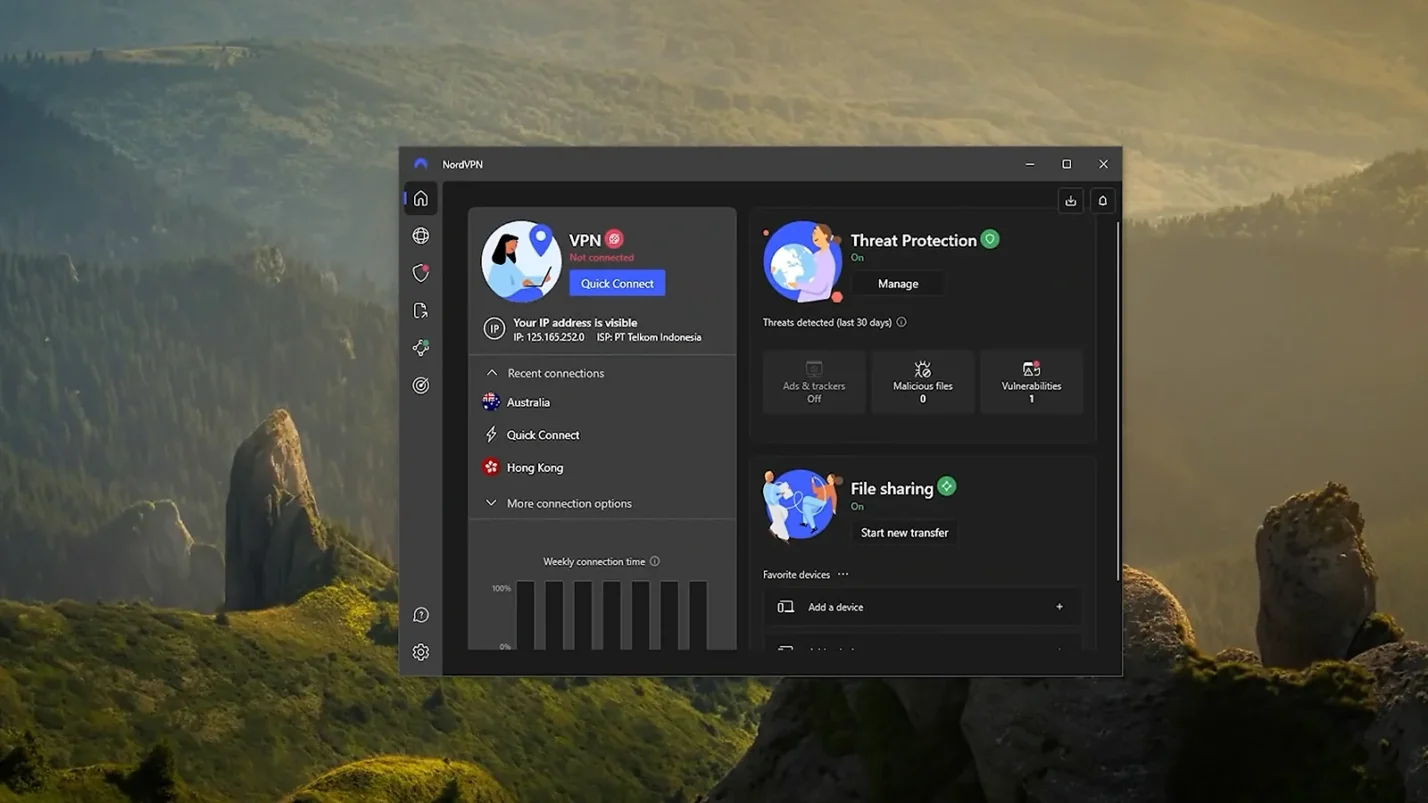
For families who want an extra layer of protection beyond Roblox’s built-in tools, a VPN like NordVPN encrypts your child’s internet connection and blocks malicious sites at the network level, which is useful across all games and platforms, not just Roblox.

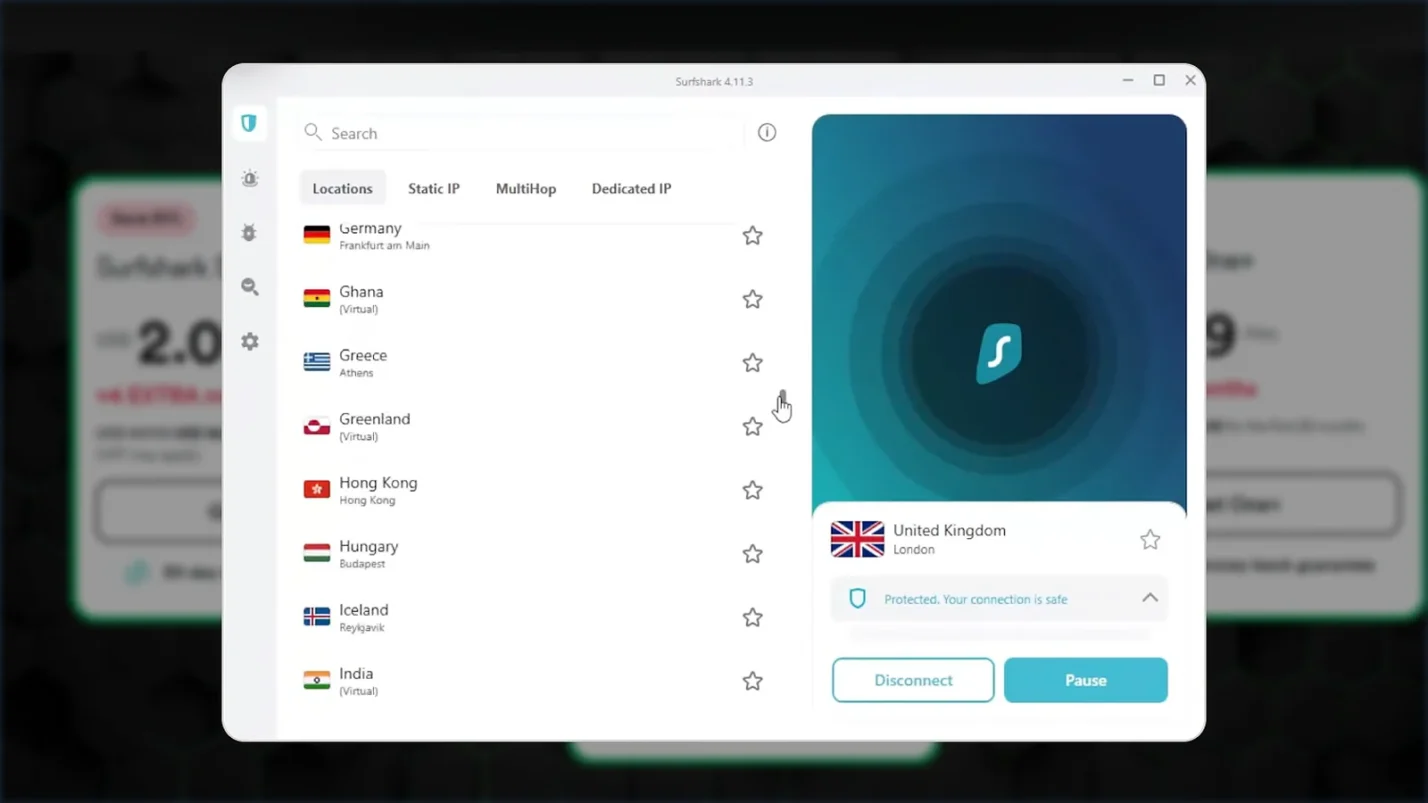
Surfshark is worth considering for families, specifically, as one subscription covers unlimited devices, so every phone, tablet, and computer/console in the house is protected under a single plan.

Teaching Your Child
Parental controls work best alongside direct conversations. Teach your child to:
- Never share their password with anyone, including friends who offer to “help”
- Report immediately if someone asks for personal information or login credentials
- Understand that spending real money is happening every time they buy Robux
Older children who show interest in the platform’s economy might also enjoy learning how to earn Robux and how to make money on Roblox by creating games and items.
Review all settings regularly as your child grows. What’s appropriate at 8 looks different at 12. For families exploring the best games like Roblox, these same security principles apply across most gaming platforms.
Managing Your Child’s Robux and Gaming Experience
The step-by-step process from logging in to confirming purchases becomes routine after a few transactions, and knowing how to troubleshoot common issues saves you time and stress when problems arise.
Remember that parental involvement makes the biggest difference in creating a positive gaming experience. Regular conversations about spending, security, and online safety help your child develop healthy digital habits. The controls and limits you set today teach valuable lessons about budgeting and responsible online behavior that extend far beyond gaming.
Take advantage of all the security features and parental controls Roblox provides. Combined with open communication about why these measures matter, you create an environment where your child can enjoy Roblox safely while you maintain peace of mind about their online activities.
Check out Eneba‘s Robux section for competitive pricing on Roblox gift cards and other gaming currency options that make adding funds to your child’s account even more convenient.

FAQs
Yes, you can set monthly spending limits through the parental controls section in account settings. Enable the Account PIN feature to require approval for all purchases.
If Robux isn’t showing up after purchase, wait up to one hour, as delays are common. Check your transaction history to confirm the purchase was processed. If Robux still doesn’t appear, contact Roblox Customer Support with your receipt.
To prevent unauthorized Robux purchases, enable two-factor authentication and set an Account PIN in security settings. Never share login credentials and regularly monitor the account’s purchase history for unusual activity.
Yes, you can add Robux to your child’s account using PayPal. It’s an accepted payment method on Roblox. Select it during checkout and log in to your PayPal account to authorize the transaction securely.
To add a Robux gift card to your child’s account, log in to the child’s account, navigate to the gift card redemption page, scratch off the code on the card, and enter the PIN. The Robux value appears immediately after redemption.
To add Robux to your child’s account, or if you’re wondering how to put Robux on your account as a parent managing purchases, the process is the same: purchase directly through the Roblox website or app using accepted payment methods, or redeem gift cards. Parents should handle all transactions for children under 13.
Many parents look for how to transfer Robux to another account, but Roblox doesn’t support direct transfers between accounts. Instead, log in to the child’s account and purchase Robux directly there, or give them a Roblox gift card to redeem.