Can You Connect a PS5 Controller to a PS4? Everything You Need to Know


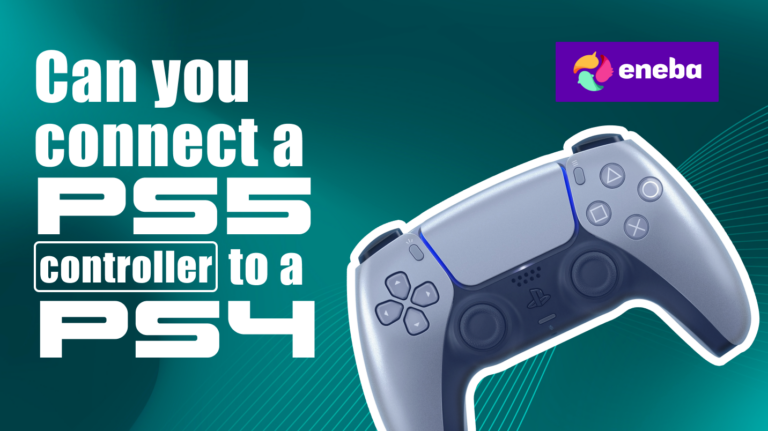
Many players still own a PS4 console, and it’s natural to wonder: can you connect a PS5 controller to a PS4?
The jump from the PlayStation 4 to the PlayStation 5 brought not only a more powerful console but also a redesigned controller. The DualSense wireless controller is packed with haptic feedback, adaptive triggers, and a fresh ergonomic shape that makes even simple games feel more immersive.
In this article I’ll break down Sony’s official stance on compatibility, explain why the two generations don’t naturally work together, and share workarounds that might help if you’re determined to bridge the gap.
Jump to:
Can You Connect a PS5 Controller to a PS4? Official Compatibility Explained
Sony’s official answer is straightforward: the DualSense wireless controller is not compatible with the PS4 console. Plugging the controller into the USB port with a USB‑C to USB cable will charge its battery, but the light bar may only blink briefly and none of the buttons will register on the older console. I tried connecting my own DualSense and saw the same behaviour. The player indicator lights never changed from the default pattern, and the PS button couldn’t bring up the home screen.
There are several reasons for this limitation. The PS5 controller includes advanced features such as haptic feedback, adaptive triggers, and an integrated microphone, which rely on new system software hooks.
The PS4 controller (DualShock 4) communicates over Bluetooth and micro‑USB using protocols that DualSense doesn’t fully support. Sony also designed the next‑generation controller to take advantage of PS5 console hardware; older systems lack the firmware to recognise its inputs. In other words, the two devices were never meant to talk to each other directly, and there is no on screen instructions or official firmware update to make them compatible.
If you just need to recharge your DualSense, any standard USB cable that meets the USB standard will work. Connect the cable to the PS4 console and the controller will charge; you’ll see the light bar slowly pulse orange. Once the battery is topped up, the light bar flashes quickly and turns off. That’s the extent of official support – there is no Sony patch that suddenly enables playing games on the PS4 with a DualSense, and there likely never will be.
Why the DualSense Controller Isn’t Compatible With the PS4
It helps to understand the major features of the DualSense to see why it doesn’t work with a PS4. Unlike the DualShock 4, the new controller uses a USB‑C connector for wired charging and faster data transfer, and it transmits more complex data packets over Bluetooth. Its adaptive triggers can dynamically change resistance for actions such as drawing a bow, and its haptic feedback uses precise actuators rather than the simple rumble motors found in the DualShock 4. These upgrades require firmware support on the host console, and the PS4 simply doesn’t have that support.
Another difference is the way the DualSense handles the light bar and player indicator. On a PS4 controller, the glowing strip across the top changes colour to show which player you are. On the DualSense, the light bar frames the touchpad, while four small player indicator lights on the front identify up to four players. The PS4’s operating system looks for the old LED patterns to assign user profiles, so a DualSense connected directly to the system remains unrecognised.
Sony also deliberately limits backward compatibility to encourage developers to design games around the new hardware. PS5 console games make heavy use of the adaptive triggers and haptic feedback, and PS4 games lack the code to drive those effects. Even if the PS4 could accept input from a DualSense, most titles wouldn’t know how to take advantage of its extra features. Instead, Sony recommends continuing to use the DualShock 4 with PS4 games and reserving the DualSense for PS5 or other devices.
Workarounds: How to Connect a PS5 Controller to a PS4 via Remote Play and Adapters
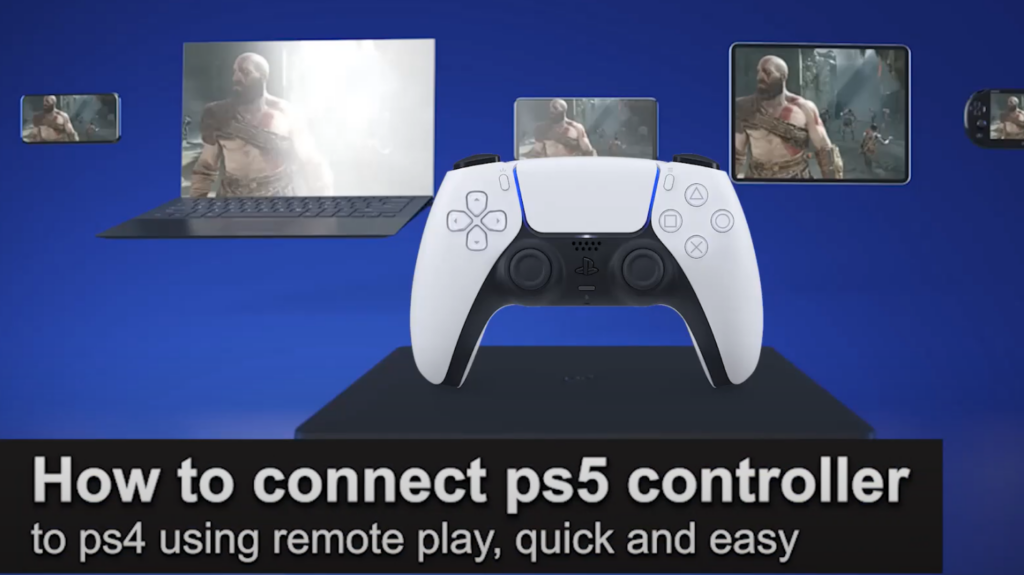
While there’s no official support, resourceful players have found workarounds that let you use a DualSense on a PS4 by routing the input through another device. Below are two methods I’ve tested. Neither is perfect, and both come with compromises, but they do work if you understand what to expect.
Remote Play Method
The easiest way to pair a PS5 controller with a PS4 is to use Sony’s Remote Play feature. Instead of connecting the controller directly to the console, you connect it to a PC, Mac, PS5, or mobile device and stream the PS4’s screen. To set this up:
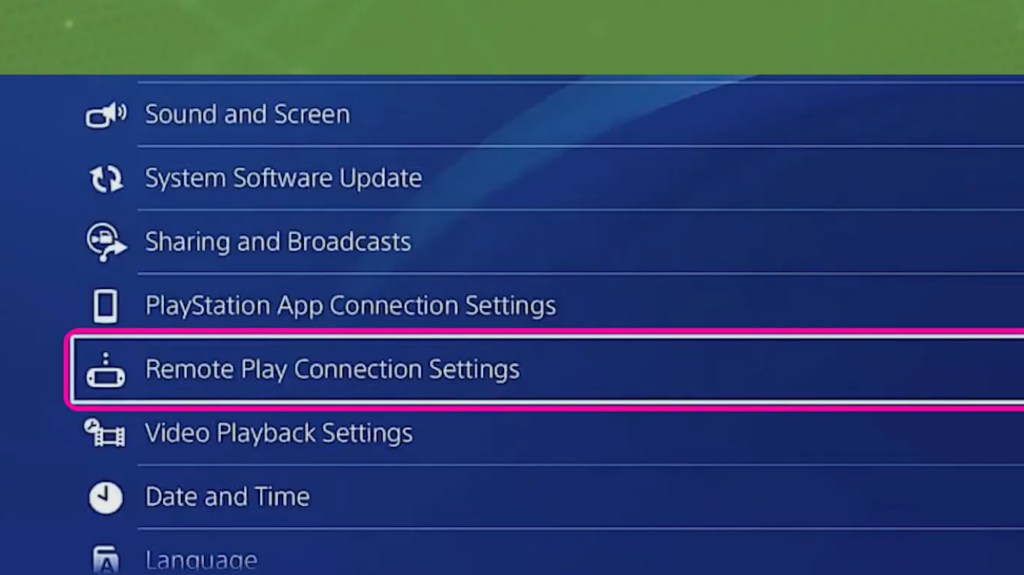
- Prepare the PS4 console: On the PS4’s home screen, go to Settings > Remote Play Connection Settings and enable Remote Play. Activate the console as your primary PS4 and allow turning it on from the network. These settings make it accessible when you’re away from the TV.
- Install the Remote Play app: Download Sony’s Remote Play app on your computer or smartphone. Sign in with the same PlayStation Network account you use on the PS4.
- Pair the DualSense to the remote device: Hold the create button and PS button on the DualSense until the light bar blinks. On your PC or mobile device, turn on Bluetooth and select the controller from the list. The player indicator will glow once paired. If you prefer a wired connection, plug a USB‑C cable into the controller and your computer.
- Connect to the PS4: Launch the Remote Play app and choose PS4. The app searches for your console and streams its video. From here, the DualSense acts as your input device, and you can play games as if you were sitting at the TV.
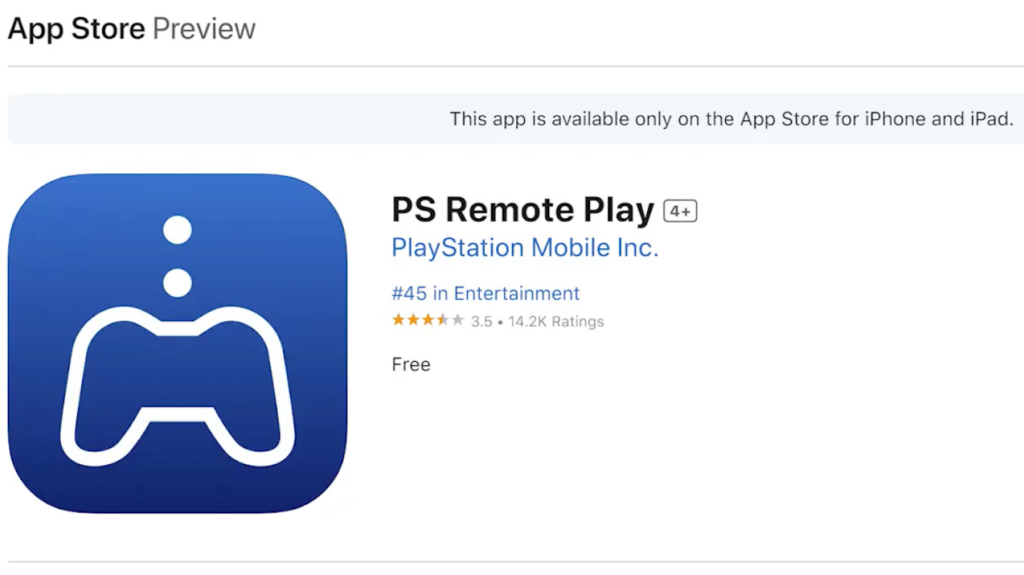
Using Remote Play has some downsides. Because the controller is talking to your PC or smartphone rather than the PS4 itself, there’s a small amount of input lag. The video stream can stutter if your internet connection isn’t strong, and features like adaptive triggers and haptic feedback are disabled because the PS4 games don’t support them. When I tested this method, it worked fine for single‑player adventures but felt sluggish in competitive multiplayer.
Adapter Method
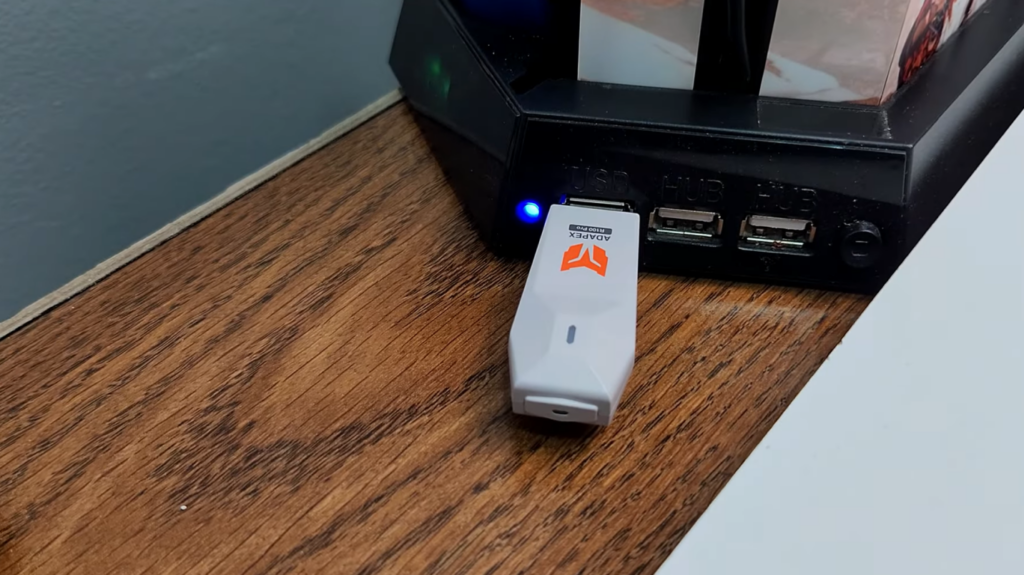
Another workaround involves using a third‑party adapter that acts as a bridge between the DualSense and the PS4. These USB dongles mimic a PS4 controller, translating the input from the PS5 controller into something the older console can understand. Devices such as the Brook Wingman series or Cronus and Titan converters plug into the PS4’s USB port and then pair with the DualSense over Bluetooth. Once connected, the PS4 thinks a regular DualShock 4 is attached.
The setup varies by product but generally involves the following steps:
- Plug the adapter into the PS4’s USB port and wait for its player indicator to light up.
- Put your DualSense into pairing mode by holding the PS button and create button until the light bar pulses.
- Follow the instructions supplied with the converter to pair it with the DualSense. Some adapters require you to press a button or use a small switch to initiate pairing.
- Once the light bar flashes to indicate a successful connection, you should be able to play games on your PS4 using the DualSense.
These adapters are a clever solution, but they aren’t cheap and sometimes introduce compatibility issues. In my experience, basic inputs like the sticks and buttons worked, but advanced features like adaptive triggers and the touchpad didn’t translate perfectly.
The hardware may also need firmware updates to stay compatible with new PlayStation updates. If you’re curious about cross‑platform accessories, our news piece on the Wingman FGC 2 converter explains how devices like these allow you to connect a variety of controllers across systems. Keep in mind that using unlicensed hardware can violate Sony’s terms of service, so proceed at your own risk.
Comparing DualSense and DualShock 4: Understanding the Generation Gap
Before deciding if it’s worth using a DualSense on a PS4, it helps to compare the two controllers. The DualSense offers features designed specifically for the PS5 console. Its adaptive triggers provide variable resistance, making pulling a bowstring or firing a gun feel more realistic. The haptic feedback can simulate textures and impacts more accurately than the simple rumble in the DualShock 4. There’s a built‑in microphone and improved speaker, along with a larger, more responsive touchpad. The create button replaces the old share button, offering new ways to capture and broadcast gameplay.
The DualShock 4, on the other hand, was tailored for the PS4’s hardware. It uses a micro‑USB connector, has a smaller battery, and its light bar is more prominent. The triggers feel lighter, and its rumble is less nuanced. Most PS4 games were built with this controller in mind, so the user interface and game mechanics align with its limitations. When I switch back to a DualShock 4, I miss the extra heft of the DualSense, but I appreciate its reliability on older titles.
If you’re curious about which PS5 controller might suit your play style, our guide on the best PS5 controllers breaks down several models and their strengths. It’s a great starting point if you’re considering an upgrade or a secondary controller for your PS5.
Alternative Ways to Use the DualSense Controller
Just because the DualSense doesn’t work directly with a PS4 doesn’t mean it’s restricted to the PS5. You can connect the PS5 controller to other devices, including PC, Mac, Android, and iOS, via Bluetooth or a USB cable. Here’s how I set it up on my PC:
- Ensure the player indicator lights are off by pressing and holding the PS button until the controller shuts down.
- Hold the create button and PS button together until the light bar blinks rapidly.
- On your computer, open the Bluetooth settings and select “Add Bluetooth or other devices,” then choose the DualSense from the list. Windows 11 recognises it automatically, though I use the DS4Windows utility for extra customization.
- For a wired connection, simply plug a USB‑C cable into the controller and the computer. The operating system installs drivers automatically.
Once paired, many PC games support the DualSense as a generic controller. Titles optimized for PlayStation hardware may even enable adaptive triggers and haptic feedback when connected via USB. On mobile devices, you can pair the controller using the same button combo and enjoy cloud streaming services or play games through Remote Play. Just remember that some features may not work on all platforms, and battery life will vary depending on vibration intensity.
Should You Use a PS5 Controller on a PS4?
After spending time with both the DualSense and the DualShock 4, my advice is to stick with the PS4 controller if you primarily play games on the older console. Using a DualSense through Remote Play or an adapter adds layers of complexity, costs extra money, and doesn’t unlock the major features that make the new controller special. You also risk increased input delay and incomplete functionality. If you occasionally want to play a PS4 title while streaming or you only own the newer controller, Remote Play is the most accessible method. For most players, though, the simplest solution is to use the hardware designed for the system.
There is also the question of value. The DualSense retails at a higher price than a DualShock 4, and some third‑party adapters are even more expensive. Unless you already own a PS5 and want to keep your controller count down, investing in a dedicated PS4 pad often makes more sense. That said, if you enjoy exploring new tech and are comfortable troubleshooting, experimenting with these workarounds can be a fun project.
Conclusion: Bridging Generations With the Right Tools
So, can you connect a PS5 controller to a PS4? Officially, no – Sony’s support stops at charging the DualSense on an older system. However, the community has devised two functional methods: streaming your PS4 over Remote Play or using a specialised adapter that translates DualSense inputs. Both solutions allow you to play games, but neither brings the full DualSense experience to the PS4. You’ll need to accept some limitations in exchange for the convenience of using one controller across generations.
If you’d rather invest in new adventures than hardware gymnastics, a PlayStation Network gift card can be a smarter choice. With a voucher like our $10 PlayStation Network Card, you can top up your wallet and pick up PS4 classics or PS5 upgrades without worrying about compatibility. Whether you’re saving for the next DualSense colourway or stocking up on indie gems, adding funds to your PSN account opens the door to countless possibilities. It’s a simple way to keep enjoying your favourite platform while planning your next upgrade.
FAQs
Can a PS5 controller work with a PS4 console?
The short answer is no. The DualSense lacks official firmware support on the PS4, so connecting it directly via USB cable or Bluetooth will only charge the battery and the system won’t recognise inputs. You’ll need to use Remote Play or an adapter if you want to control the PS4 with a DualSense.
How do I connect a PS5 controller to a PS4 using Remote Play?
To connect a PS5 controller to a PS4 using Remote Play, you first enable Remote Play in the PS4’s settings and install the Remote Play app on your PC or mobile device. Then, put the DualSense into pairing mode by holding the create button and PS button, connect it to your remote device, and launch the Remote Play app to stream your PS4. The controller will send its inputs through the remote device to your PS4.
Can I pair a PS5 controller to a PS4 via Bluetooth?
No, you cannot pair a PS5 controller to a PS4 via Bluetooth because the PS4 doesn’t include drivers to communicate with the DualSense. While both devices use Bluetooth, the protocols differ, and the PS4 lacks the software to interpret the DualSense’s signals. An external adapter is required to translate between them.
Why won’t my PS5 controller connect to my PS4?
The reason why your PS5 controller won’t connect to your PS4 is because Sony never designed the PS4 firmware to recognise the DualSense. When you try to pair the controller, the light bar may blink, but the PS4 will ignore it. This is a deliberate limitation, and there is no official update to change it.
Do DualSense features like haptic feedback and adaptive triggers work on PS4 games?
DualSense features like haptic feedback and adaptive triggers do not work on PS4 games because those games were developed for the DualShock 4 and the PS4 operating system. Even through Remote Play or an adapter, the PS4 isn’t capable of sending the rich feedback signals required to activate these features, so the DualSense behaves like a standard gamepad.