

How To Connect AirPods To MacBook: The Complete Guide


AirPods are my go‑to wireless earbuds when I want to jump into a game or listen to music without being tied down by cables. If you’re wondering how to connect AirPods to MacBook, you’re in the right place. This article walks you through the entire process, from the initial pairing to customizing settings and troubleshooting common issues. I’ll share a few personal tips along the way to help you get the most out of your AirPods on Mac.
Jump to:
How To Connect AirPods To MacBook: Quick Start
Connecting AirPods to a Mac is easier than many gamers expect. Apple designed the pairing process to be quick and intuitive, so you can jump back into your game or playlist with minimal fuss. Here’s a clear, step‑by‑step breakdown:
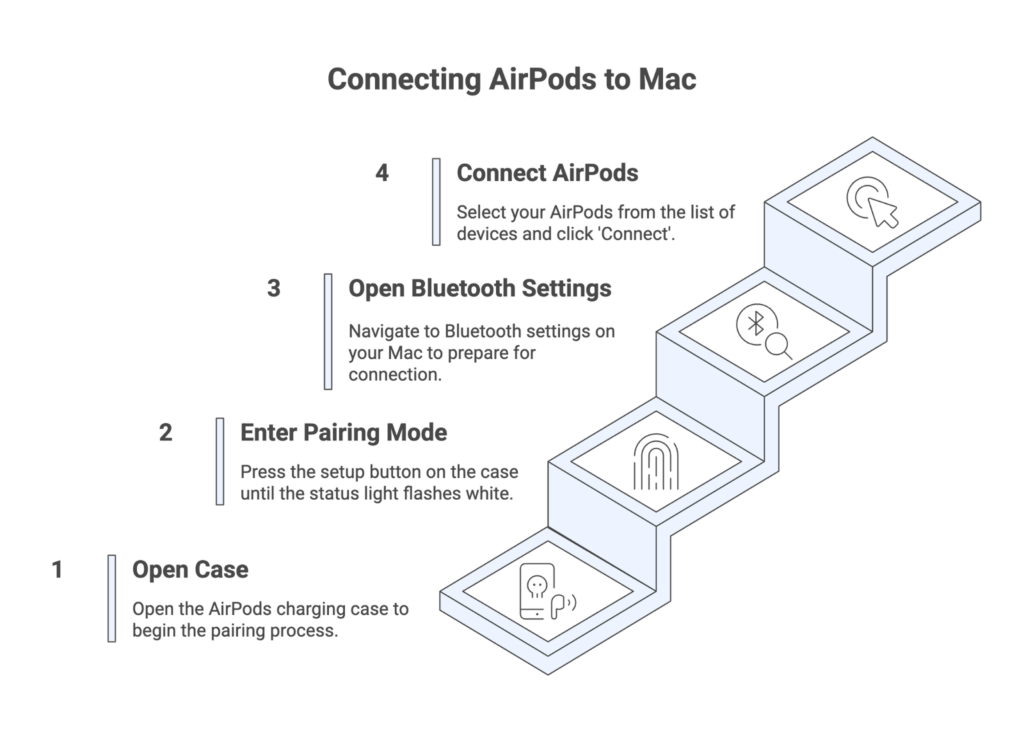
- Open the case. With your AirPods in their charging case, open the lid. Keep the buds inside the case for now.
- Enter pairing mode. Press and hold the setup button on the back of the case (or the noise control button on AirPods Max) until the status light flashes white. This means your AirPods are ready to pair.
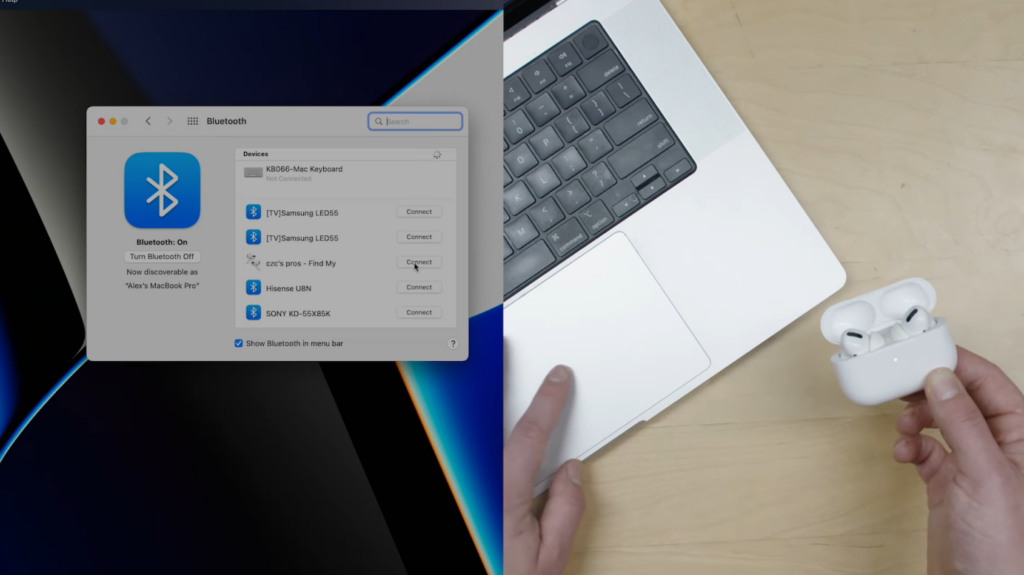
- Open Bluetooth settings on your Mac. Click the Apple logo and choose “System Settings,” then select Bluetooth from the sidebar. Make sure Bluetooth is turned on.
- Connect. Hover over your AirPods in the list of devices and click Connect. When the connection is complete, you’ll see them listed as “Connected.”
I’ve found that adding the Bluetooth or Sound icon to the menu bar makes this process even faster. Once added, you can open the status menu and connect your AirPods in a couple of clicks. If you’re still debating whether a Mac is the right platform for gaming, check out our in‑depth comparison of Mac and PC performance and ecosystems in our Mac vs PC guide.
Pairing AirPods With Your Mac Using iCloud
When you use the same Apple ID on your Mac and iPhone, pairing AirPods on one device automatically makes them available on all other Apple devices. This is one of my favorite ecosystem perks; I can remove AirPods from my ears after gaming on Mac and pop them back in to take a call on my iPhone without re‑pairing. For automatic switching to work smoothly, make sure you’re signed in to iCloud on your Mac. Then, open System Settings > Bluetooth, select your AirPods in the list, and confirm the option to connect automatically. This setting tells macOS whether to connect your AirPods whenever they’re nearby or only when you last used them.
Here’s a tip from my own setup: if you frequently switch between Mac and iOS devices for gaming, enable automatic switching. It saves time and prevents unexpected disconnects. If you prefer to manually control your audio devices (for instance, when running resource‑intensive games on a MacBook), set your AirPods to connect only when last connected. For a broader look at headphones tailored to gamers, including premium open‑back models, take a look at our round‑up of the best Sennheiser headphones for gaming.
Customize AirPods Settings on Mac
Once your AirPods are paired, fine‑tuning the controls can enhance your gaming sessions. macOS lets you adjust AirPod settings like double‑tap gestures, noise control, and spatial audio within System Settings. Wear your AirPods, make sure they’re connected, then go to System Settings and click your AirPods in the sidebar.
Here’s what you can tweak:
- Double‑tap or button assignments. Depending on your model, you can set a double‑tap or press-and-hold action to play/pause, skip tracks, or activate Siri. I set mine to quickly pause the game when someone walks into the room.
- Noise control modes. AirPods Pro and AirPods Max let you switch between Active Noise Cancellation and Transparency mode. If I’m gaming in a noisy environment, I choose noise cancellation to block distractions, but Transparency mode is great for hearing teammates in the room.
- Spatial Audio. For supported games or movies, you can enable spatial audio for a more immersive soundstage. While it’s not a full replacement for dedicated gaming headsets, it adds depth to certain titles.
After customizing, your preferences will sync across Apple devices. If you’re still in the market for a headset that’s purpose‑built for gaming, explore our best gaming headset guide for options with surround sound, AI noise cancellation, and longer battery life.
Connect AirPods To Non‑Apple Devices
AirPods aren’t locked into Apple’s ecosystem. You can use them like standard Bluetooth headphones with Windows PCs, Android phones, or gaming consoles. However, features like Siri and automatic switching won’t work. Here’s how to pair AirPods to a non‑Apple device:
- Enable Bluetooth on your device. On an Android phone, go to Settings > Connections > Bluetooth. On a Windows PC, open Settings > Bluetooth & devices and turn Bluetooth on.
- Put your AirPods in pairing mode. With your AirPods in the charging case, open the lid and hold the setup button until the status light flashes white. For AirPods Max, press and hold the noise control button. AirPods 4 users should double‑tap the case when the lid is open.
- Select AirPods from the Bluetooth list. When your AirPods appear in the list of available devices, tap or click them to connect. You can now use them for audio and calls, though assistant features are unavailable.
I’ve used my AirPods with a Nintendo Switch via a third‑party Bluetooth adapter, and the process works similarly. Just remember to disable automatic switching on your Mac, or your AirPods may attempt to reconnect to macOS when you’re in the middle of a mobile game.
Troubleshooting and Tips
Even though AirPods usually pair without any hiccups, occasional issues do arise. Here are some solutions to common problems:
- AirPods won’t enter pairing mode. Close the case, wait a few seconds, then open it and hold the button again. If the light still doesn’t flash, charge your AirPods for a few minutes.
- AirPods don’t appear in Bluetooth settings. Make sure Bluetooth is turned on and your Mac is within range. If your AirPods still don’t show, restart Bluetooth by toggling it off and on in System Settings.
- Audio cuts out during gameplay. Interference from other wireless devices can cause da dropout. Move away from routers or USB hubs, and ensure there’s a clear line of sight between your AirPods and Mac.
- Switching between devices is inconsistent. If automatic switching isn’t working, sign out of and back into iCloud on your devices, then set your AirPods to connect automatically. Update macOS and iOS to the latest versions to resolve any software bugs.
I also recommend keeping your AirPods firmware up to date by connecting them to an iPhone occasionally. Firmware updates improve stability and performance, which is especially helpful for competitive gaming sessions on a MacBook.
Wireless Freedom For Gaming And Beyond
Knowing how to connect AirPods to MacBook opens up a versatile audio experience for gaming, music, and productivity. Start by placing your AirPods in the case and holding the setup button until the status light flashes, then use Bluetooth settings on your Mac to connect. Take advantage of iCloud for automatic switching across Apple devices, and customize noise control and gestures to suit your playstyle. Don’t forget that AirPods also work with non‑Apple devices, though some features will be limited. Consider using VPN on iPhone to keep your safety in check.
If you’re looking to expand your Apple ecosystem or gift a fellow gamer, consider grabbing an Apple Gift Card from our marketplace. It’s a convenient way to stock up on games, apps, or accessories, and you can use it toward future upgrades like AirPods Pro 2 or Mac apps.
FAQs
How do I connect my AirPods to my Mac for the first time?
To connect your AirPods to your Mac for the first time, open the AirPods case, press and hold the setup button until the status light flashes white, then choose your AirPods in Bluetooth settings on your Mac. After they’re connected, you can adjust settings like noise control and gesture actions through System Settings.
Why are my AirPods not showing up on Mac Bluetooth?
The reason why your AirPods are not showing up on your Mac’s Bluetooth menu is often because Bluetooth is turned off or the AirPods aren’t in pairing mode. Make sure Bluetooth is enabled on your Mac and hold the setup button on the case until the light flashes. If you still don’t see them, restart Bluetooth or reset your AirPods.
Can I automatically switch AirPods between my iPhone and Mac?
Yes, you can automatically switch AirPods between your iPhone and Mac if both devices are signed in to the same Apple ID and running the latest software. Set your AirPods to connect automatically in Bluetooth settings, and they’ll hop between devices when you start playback on either device.
How do I reset my AirPods on a Mac?
To reset your AirPods on a Mac, put them in the charging case, close the lid for 30 seconds, then open it and hold the setup button for about 15 seconds until the status light flashes amber and then white. After that, follow the usual pairing steps to reconnect them to your Mac.
Can I use AirPods with Android or Windows devices?
Yes, you can use AirPods with Android or Windows devices by treating them as standard Bluetooth earbuds. Turn on Bluetooth, put your AirPods in pairing mode, and select them from the list of available devices. However, features like Siri, automatic switching, and spatial audio won’t be available on non‑Apple platforms.