



Why is My CPU Usage So High? Find the Cause and Fix It Fast



You boot up your PC, and before you’ve even opened a game or launched a program, your system feels sluggish. The fans are roaring, your mouse stutters across the screen, and everything takes twice as long to respond. You open Task Manager, and there it is – your CPU is pegged at 90% or even 100%, seemingly for no reason.
High CPU usage means your processor is working at or near its maximum capacity. While brief spikes during intensive tasks are normal, sustained high usage causes lag, overheating, reduced frame rates, and potential long-term hardware damage. If you’re wondering why your CPU usage is so high when you’re barely doing anything, you’re not alone. This article breaks down the 12 most common reasons, shows you how to identify the culprit, and provides straightforward fixes.
Jump to:
Why Is My CPU Usage So High?
High CPU usage generally happens when your processor is handling more tasks than it can efficiently manage, or when specific processes demand excessive resources. When too many programs run simultaneously, when software malfunctions, or when hardware struggles to keep up, your CPU maxes out trying to keep everything running.
The reasons behind why CPU usage is high vary widely – from simple issues like too many browser tabs to serious problems like malware infections. Many users experience CPU at 100 for no reason, only to discover multiple background culprits working simultaneously. The key is identifying which specific cause applies to your situation, then applying the appropriate fix. Here are the 12 most common causes behind high CPU usage and what triggers them.
1. Too Many Background Apps

Background applications run continuously without you actively using them, consuming CPU cycles even when minimized. Programs like messaging apps, cloud storage clients, game launchers, and system utilities all compete for processor time. You’ll spot this issue when Task Manager shows dozens of processes running simultaneously, each taking a small percentage that adds up. This commonly happens after installing multiple programs that automatically start with Windows, creating a resource drain you never intended.
2. Heavy Browser Usage (Tabs & Extensions)
Modern web browsers are resource-intensive, especially with multiple tabs open. Each tab runs as a separate process, and media-rich websites with videos, animations, or ads drain CPU power rapidly. Browser extensions add another layer of resource consumption, particularly ad blockers, productivity tools, and security extensions that scan every page. I’ve seen systems grind to a halt with just 15-20 tabs open in Chrome or Edge, especially on older hardware that wasn’t designed for modern web standards.
3. Outdated or Corrupted Drivers
Drivers act as translators between your hardware and operating system. When they’re outdated or corrupted, your CPU works overtime compensating for inefficient communication, leading to unnecessary processing overhead. Graphics drivers are particularly problematic – a corrupted GPU driver can force your CPU to handle rendering tasks it shouldn’t. You’ll notice this when specific hardware functions poorly or when usage spikes after updating Windows without corresponding driver updates from manufacturers.
4. Malware or Hidden Crypto-Miners
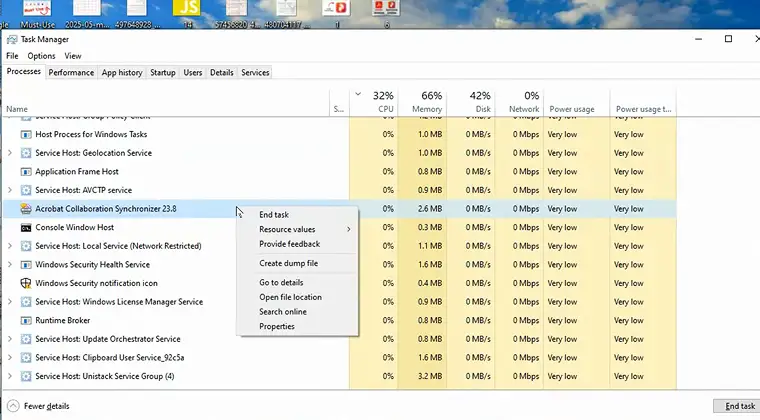
Malicious software often uses your CPU for cryptocurrency mining or as part of a botnet. These programs deliberately hide their activity while maxing out your processor to generate profit for attackers. Signs include high CPU usage when idle, unfamiliar processes in Task Manager, or your system heating up despite minimal activity. Crypto-miners are especially sneaky, throttling themselves when you open Task Manager to avoid detection, then ramping back up when you close it.
5. Windows Update Loops
Windows Update sometimes gets stuck in continuous download-install-restart cycles, keeping your CPU busy indefinitely. The Windows Modules Installer Worker and Update Orchestrator Service can consume 30-50% CPU for hours. This typically happens after failed updates or when Windows attempts to install problematic patches repeatedly. The process runs in the background, preventing your system from ever truly idling and creating what causes high CPU usage even when you’re not actively using your computer.
6. Resource-Heavy Games or Editing Software
Games and creative applications like Photoshop, Premiere Pro, or modern AAA titles are designed to maximize CPU usage. This is normal during active use, but problems arise when these programs don’t release resources properly after closing, or when you’re running them on hardware below minimum specifications. Background processes from game launchers like Steam, Epic Games, or EA App can also contribute significantly, even when you’re not actively gaming, constantly checking for updates and syncing data.
7. Overheating and Thermal Throttling
When your CPU overheats, it automatically reduces its clock speed to prevent damage – a process called thermal throttling. Ironically, this makes your processor work longer at reduced efficiency, creating sustained high usage percentages. Dust buildup, dried thermal paste, or inadequate cooling cause overheating.
Understanding what a good CPU temp is helps you recognize when thermal issues are forcing your processor to work harder than necessary, typically manifesting when temps exceed 80-90°C, and performance worsens the longer your system runs.
8. Too Many Startup Programs
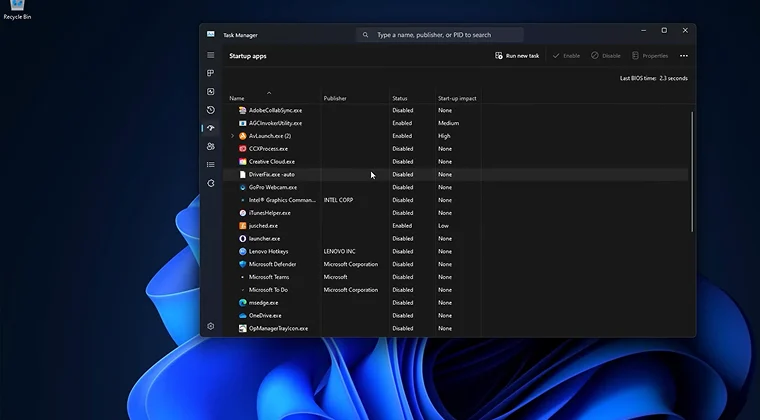
Startup programs launch automatically when Windows boots, immediately consuming CPU resources. Over time, you accumulate dozens of startup entries from installed software, each thinking it needs to run constantly. This creates an initial usage spike that can last 5-10 minutes after booting, and some programs never fully relinquish those resources. Common offenders include updater services, cloud sync clients, and manufacturer utilities that provide minimal benefit while consuming disproportionate system resources.
9. Low RAM Forcing CPU Compensation
When your system runs out of RAM, Windows uses your hard drive as “virtual memory” – a process that forces your CPU to manage constant data swapping. This dramatically increases CPU usage as your processor works overtime moving data between RAM and storage. You’ll experience this when running memory-intensive applications or having too many programs open simultaneously. Systems with 8GB RAM or less are particularly vulnerable, especially when multitasking or running modern games that demand increasingly larger memory pools.
10. Search Indexing Processes
Windows Search Indexer catalogs your files for faster searching, but it continuously scans your drive in the background, consuming significant CPU resources during the indexing process. This is especially problematic after major Windows updates, when installing new programs, or when adding large amounts of data to your drives. The process is named “SearchIndexer.exe” in Task Manager and can run for hours on larger drives, particularly mechanical hard drives that process data slower than SSDs.
11. Cloud Sync Tools (OneDrive, Dropbox)
Cloud storage services constantly monitor your files for changes and sync them to remote servers. Applications like OneDrive, Dropbox, Google Drive, and iCloud can spike CPU usage when syncing large files or folders with many small files. The synchronization engine runs continuously, and any connectivity issues cause repeated sync attempts that further tax your processor. This becomes especially noticeable when working with large project folders containing thousands of files that need constant monitoring.
12. Old Hardware Struggling With New Software
Software developers optimize for modern hardware, leaving older processors struggling with current applications. What ran smoothly five years ago now demands more processing power due to feature bloat, higher resolution assets, and less efficient code. Systems with CPUs older than 6-8 years often show high usage even during basic tasks like web browsing or word processing. Upgrading to a gaming-grade CPU becomes necessary when your current processor can’t maintain playable frame rates even at lower settings.
How to Identify What’s Causing High CPU Usage
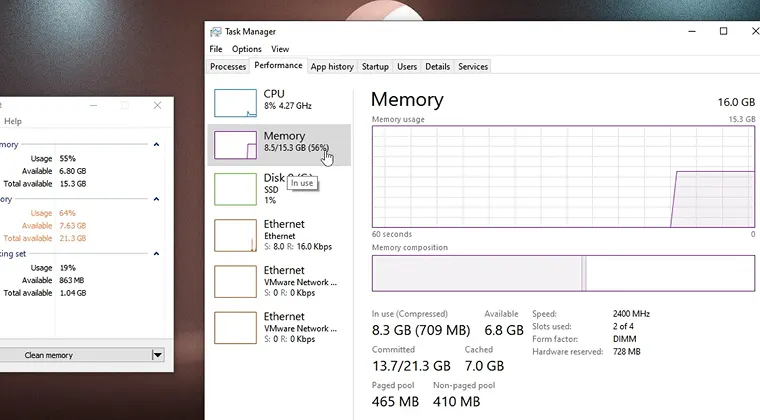
Task Manager is your primary diagnostic tool for pinpointing high CPU usage culprits. Press Ctrl+Shift+Esc to open it, then click the “Processes” tab. Click the “CPU” column header to sort processes by usage – the biggest offenders appear at the top.
Look for specific process names consuming significant percentages. System processes like “System” or “Windows Explorer” should typically stay below 5% during idle. Third-party applications showing 20%+ usage deserve investigation. Pay attention to unfamiliar process names, especially ones with random characters or those running from unusual file locations.
The “Performance” tab provides a real-time CPU usage graph showing overall utilization over the last 60 seconds. Consistent usage above 80% indicates a serious problem, while intermittent spikes suggest specific triggers. The “Details” tab offers more granular information, including process IDs and exact memory usage, useful for identifying duplicate processes or tracing problematic software back to their parent applications.
For deeper analysis, click “Open Resource Monitor” at the bottom of the Performance tab. This shows which specific services and handles each process is using, helping you understand why a particular program is consuming so many resources. Cross-reference high-usage processes with their file locations by right-clicking them and selecting “Open file location” – legitimate software lives in Program Files, while malware often hides in temporary folders or user directories.
How to Fix High CPU Usage
Start with the simplest solutions before attempting complex fixes.
- Restart your PC first – this clears temporary processes and resets system states, resolving many transient CPU issues immediately.
- Close high-usage processes through Task Manager by right-clicking them and selecting “End task.” Be cautious with system processes, but third-party applications are safe to terminate. Learning how to lower cpu usage through process management becomes second nature once you understand which applications legitimately need resources.
- Update your GPU, chipset, and system drivers through Device Manager or manufacturer websites. Outdated drivers cause inefficient hardware communication that burdens your CPU. Focus on graphics drivers first, as these have the biggest impact on system performance during both gaming and general use.
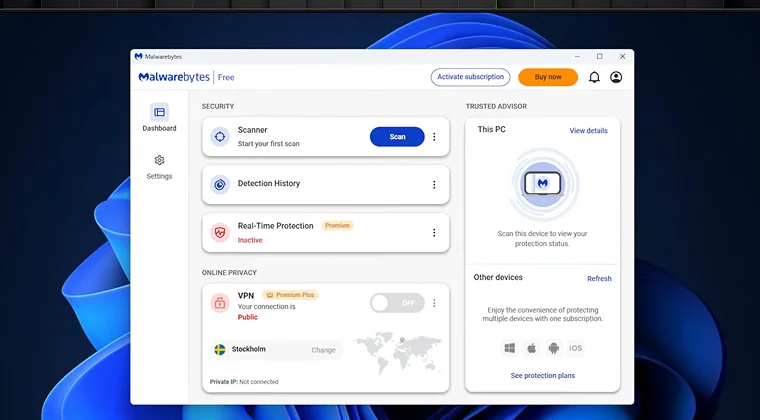
- Run a full malware scan using Windows Defender or your preferred antivirus software. Use Malwarebytes or similar tools for a second opinion if you suspect infections. Crypto-miners and malware are common causes of unexplained high CPU usage.
- Change your Power Plan to “Balanced” or “High Performance” through Control Panel > Power Options. The “Power saver” plan limits CPU frequency, paradoxically causing higher usage percentages as your processor works longer to complete tasks.
- Disable unnecessary startup programs by opening Task Manager > Startup tab and disabling entries you don’t need immediately at boot. This prevents resource competition during Windows startup and reduces baseline CPU usage throughout your session.
- Reduce browser tabs and disable unnecessary extensions through your browser’s settings menu. Install pending Windows updates through Settings > Update & Security > Windows Update. Improve cooling and clean dust from your system using compressed air. Investing in a great cpu cooler becomes essential when stock cooling can’t handle your processor’s heat output.
- Pause cloud sync applications temporarily. Lower in-game settings or application quality preferences. Disable unnecessary Windows visual effects by searching “Performance Options” in the Start menu. Reset Windows only as a last resort through Settings > Update & Security > Recovery.
Understanding how hot is too hot for the CPU helps you recognize when cooling upgrades become mandatory rather than optional. Most CPU problems resolve with these straightforward fixes, restoring your system to normal performance within minutes.
When You Should Worry

Most high CPU usage issues resolve with simple fixes, but certain warning signs indicate serious problems requiring immediate attention. Loud fans running constantly for hours suggest your cooling system can’t keep up with heat generation, potentially leading to thermal damage if left unchecked.
Temperatures consistently above 90°C under normal use indicate inadequate cooling or thermal paste failure. While CPUs can technically handle these temperatures, sustained exposure shortens their lifespan dramatically. Monitor your temps using HWMonitor or similar utilities.
System freezing or stuttering during basic tasks points to deeper issues. When your system becomes unresponsive randomly, it suggests either hardware failure, severe malware infection, or critical driver conflicts. This often signals the need for either professional repair or hardware replacement, particularly if your current setup can’t maintain stability even with a high-efficiency laptop optimized for your workload.
High CPU usage (50%+) when your system should be idle is never normal. A healthy Windows installation should sit at 5-15% usage with no programs open. Persistent idle usage indicates background malware, stuck Windows processes, or hardware problems requiring professional diagnosis.
Random usage spikes without apparent cause, especially when accompanied by network activity, often indicate malware or unwanted software phoning home. If you see consistent spikes every few minutes aligned with network traffic in Resource Monitor, investigate the specific processes immediately.
Get Your Performance Back on Track
High CPU usage stems from identifiable causes – whether it’s resource-hungry browser tabs, outdated drivers, thermal throttling, or malware infections. Most issues resolve through systematic troubleshooting: closing unnecessary processes, updating drivers, improving cooling, or adjusting startup programs. The key is monitoring your Task Manager regularly to catch problems early before they compound into serious performance degradation.
Your CPU deserves the same care as any critical component. Regular maintenance like cleaning dust, updating software, and monitoring temperatures prevents most high-usage scenarios from developing. When your system runs smoothly, you can focus on what matters – whether that’s dominating in competitive matches, grinding through creative projects, or simply browsing without frustration.
If you’re building or upgrading your setup to avoid CPU bottlenecks altogether, choosing a powerful CPU that matches your workload prevents performance headaches before they start. Our marketplace offers competitive pricing on gaming hardware that keeps your system running at peak performance, letting you focus on what you enjoy rather than fighting with Task Manager.
A properly configured gaming pc eliminates the constant troubleshooting cycle, giving you more time gaming and less time fixing. Spend your time dominating lobbies and exploring new worlds, not diagnosing why your fans won’t stop screaming.
FAQs
Yes, sustained 100% CPU usage is harmful to your system. While brief spikes during intensive tasks are normal, constant maximum usage causes excessive heat generation, accelerates hardware degradation, and indicates your processor can’t handle current demands efficiently.
High idle CPU usage typically results from background processes like Windows Update, malware infections, stuck indexing services, or cloud sync applications running without your knowledge. Check Task Manager to identify which specific processes are consuming resources when nothing should be running.
When your system shows 100% usage with no visible programs open, you’re likely experiencing malware infection, Windows Update stuck in a loop, corrupted system files, or hardware failure causing the CPU to work inefficiently even during idle states.
High CPU usage is normal during gaming, video rendering, 3D modeling, compiling code, running antivirus scans, or performing Windows updates. Any intentional intensive task should utilize maximum CPU capacity – concern only arises when usage stays elevated after completing these activities.
Gaming demands significant CPU resources for physics calculations, AI processing, game logic, and coordinating with your GPU. Modern titles are designed to utilize available CPU capacity fully, so seeing 70-100% usage during gameplay is expected and indicates proper system utilization.