

How to Set Up Dual Monitors for Seamless Gaming and Productivity


Adding a second monitor doubles your workspace and makes gaming, streaming, and everyday tasks feel smoother. I’ve used dual monitors for years, and in the following sections, I’ll explain how to set up dual monitors so you can enjoy a similar upgrade.
Jump to:
How to Set Up Dual Monitors
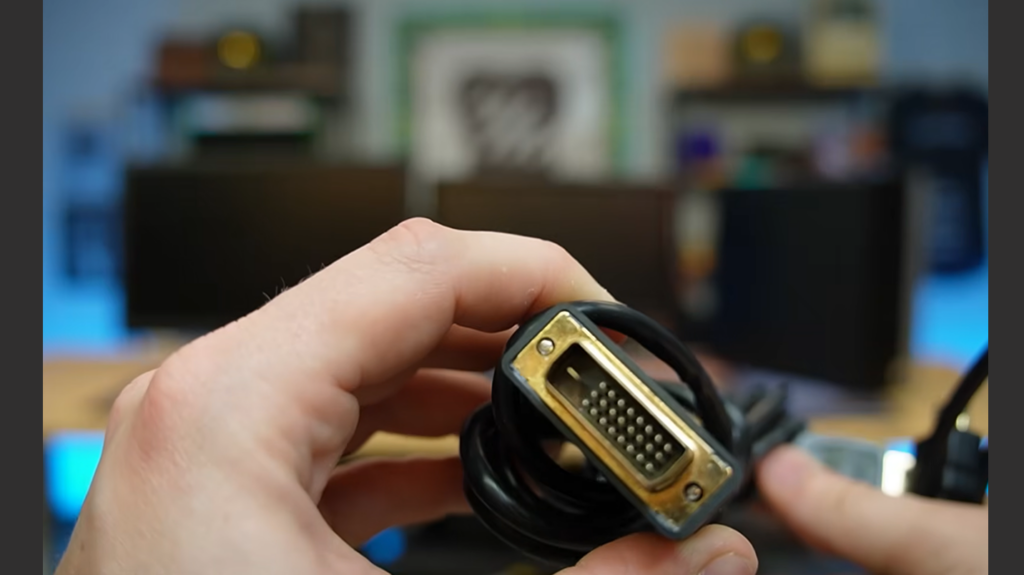
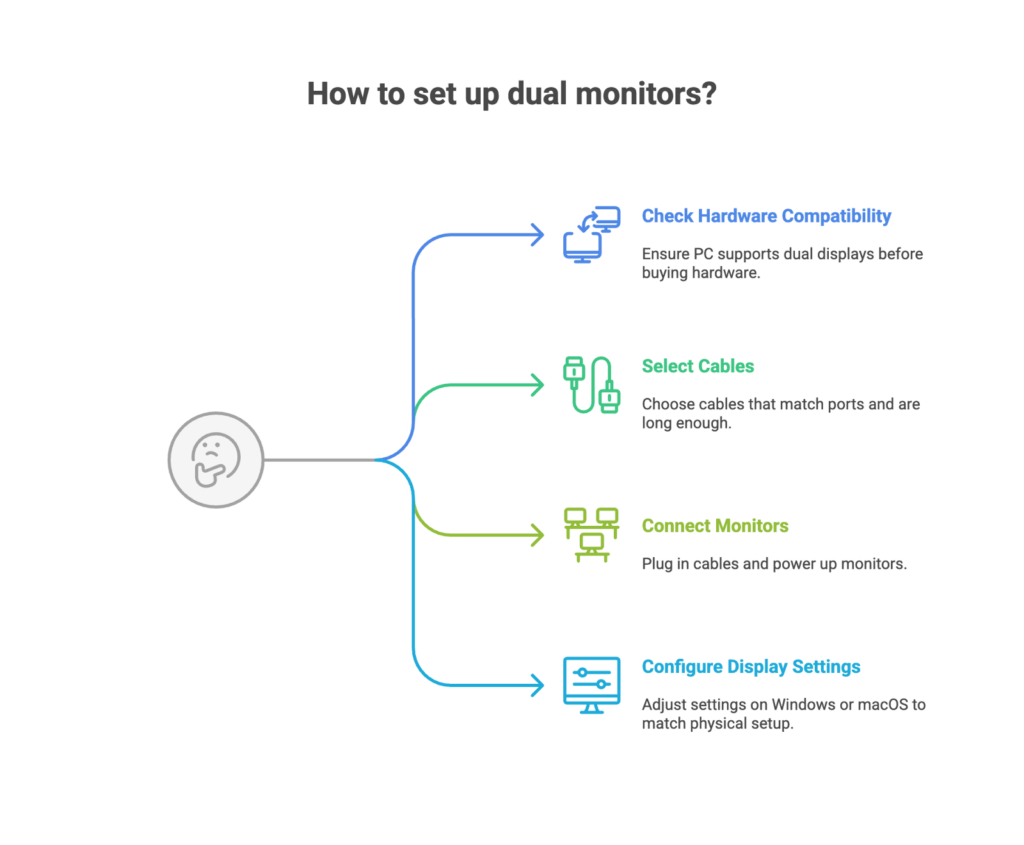
Before buying hardware, confirm that your PC or laptop can support two displays. Most modern graphics cards or integrated chips have at least two video outputs, but older machines may need an upgraded card. Next, check the ports on your PC and monitors. HDMI and DisplayPort carry both video and audio; USB‑C and Thunderbolt often power portable monitors, while VGA and DVI are older options. Pick cables that match the ports and make sure they’re long enough for your desk arrangement.
To connect your monitors, shut down your computer and plug the video cables into your PC and monitors. Power up each display, then turn on the PC. In most cases, the system will detect both screens. If not, check that each monitor’s input source matches the cable you used and verify that the connections are secure. Portable displays that draw power over USB may not need a separate power cord.
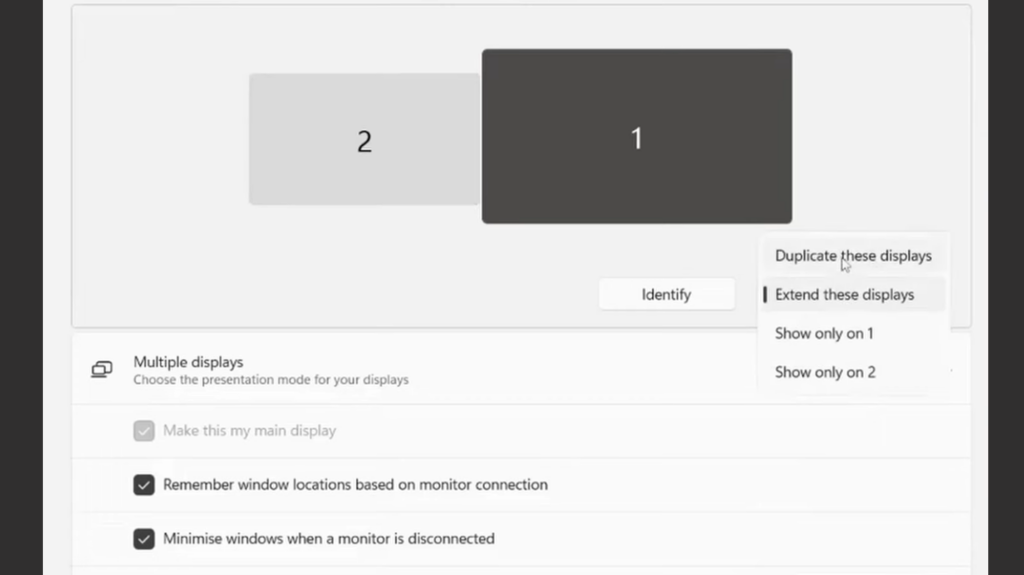
On Windows, open Settings → Display, click Identify to see which monitor is which, and drag the display icons so they match your physical setup. Select Extend these displays to stretch your desktop across both screens or Duplicate if you want the same view on each monitor. You can also change resolution and scaling settings here. On macOS, go to System Settings → Displays, choose Arrange, and drag the monitors into place. You can mirror displays or extend the desktop and adjust resolution and brightness.
How to Set Up Dual Monitors for Streaming PC Games with Steam Link
Dual monitors are perfect for gaming and streaming. Steam Link lets you stream games from your gaming PC to another device, like a laptop, phone, or tablet. When I play, I often keep the game on one monitor and open chat, guides, or system monitoring on the second screen. To get started with using Steam Link, make sure the Steam client is running on your host PC, then install the Steam Link app on the device you want to stream to. Sign in with your Steam account and follow the pairing instructions. Steam will test your local network and suggest the best connection mode.
A wired Ethernet connection offers the lowest latency, but strong Wi‑Fi (preferably 5 GHz) also works. Steam Link uses an efficient protocol to deliver real‑time video and audio, and you can connect a controller via Bluetooth for comfort.
Streaming games while using two monitors can be a productivity boost. The second display keeps your desktop uncluttered and makes multitasking easy. For mobile setups or travel, consider a portable display like the ZenScreen Duo, which provides two screens in a fold‑out design and supports both USB‑C and Mini HDMI. It’s a handy way to bring dual‑screen productivity to a café or LAN party.
Choosing Monitors and Gear for Dual‑Monitor Gaming
Picking the right monitors is about balancing price, size, and performance. A pair of 27‑inch monitors with 1440p resolution offers crisp visuals and plenty of space. High refresh rates (120–180 Hz) and fast response times reduce motion blur during intense gameplay. Adjustable stands help you find a comfortable viewing angle. Our roundups of the best Asus monitors and best Dell monitors showcase models like the ASUS ROG Strix XG27ACS and Dell S2725DS, which feature high refresh rates, multiple ports, and adjustable stands.
When learning how to set up dual monitors, you’ll find that you don’t need identical displays. I started with a 24‑inch 1080p screen paired with a 27‑inch 1440p monitor. It worked, but dragging windows between them felt awkward because the sizes and resolutions differed. Upgrading to two matching 27‑inch displays made window management smoother. If your budget is tight or you travel frequently, portable displays like the ZenScreen Duo fold out to provide dual screens without taking up much space.
Optimizing Network and Streaming Settings for Remote Play
Good network performance is essential when streaming games with Steam Link. Understanding how to set up dual monitors also means ensuring your network keeps up. Here are a few tips to avoid lag:
- Use wired connections: Ethernet reduces latency and jitter compared to Wi‑Fi. If you must use wireless, connect to a 5 GHz network and keep the device close to the router.
- Limit network traffic: Streaming video or large downloads on the same network can cause stutters. Pause other downloads or prioritize your gaming device in your router settings.
- Adjust streaming quality and encoding: In the Steam Link settings, lower the resolution or frame rate if you notice lag and enable hardware encoding so your GPU handles the video stream. A 1080p/60 fps stream usually performs well on most networks.
These tweaks will help your streamed Steam games feel responsive and smooth. A second monitor also makes it easier to monitor performance metrics or chat without interrupting your game.
Troubleshooting Dual‑Monitor Issues
When troubleshooting how to set up dual monitors, most issues have simple solutions:
- Blank screen: Make sure the monitor is powered on and set to the correct input. Try reconnecting the cable or testing a different port.
- Wrong resolution or scaling: Adjust display settings in Windows or macOS to match the monitor’s native resolution.
- Unpredictable mouse movement: Arrange your monitors correctly in the display settings so the cursor travels naturally between screens.
- Second monitor not detected: Use the Detect button in Windows or reconnect cables on macOS. Restarting your devices often fixes detection issues.
- Streaming lag: Switch to wired Ethernet, lower stream quality, and close other bandwidth‑heavy applications.
Leveraging Dual Monitors for Work, Creativity, and Learning
Dual monitors aren’t just for gaming. When I write or code, I keep documentation on one screen and my project on the other, which saves time that would otherwise be spent switching windows. Video editors and digital artists benefit from previewing their work on one display while editing on the other. Teachers and students can keep video calls on one screen and notes on the other. Our ZenScreen Duo article points out that portable dual‑screen monitors can bring this productivity anywhere. Once you start using two screens, it’s hard to go back.
Elevate Your Setup and Unlock New Possibilities
Learning how to set up dual monitors is easier than it sounds. Check that your PC supports multiple displays, choose the right cables, connect and power everything, then arrange your screens in the system settings. With the hardware in place, you can stream games via Steam Link on one display while browsing or chatting on the other.
To fully unlock your gaming potential, consider adding funds to your Steam Wallet with a Steam Gift Card from Eneba. Our digital cards let you purchase games, downloadable content, and in‑game items. Visit our marketplace to choose a card and start exploring new titles on your dual‑monitor setup.
FAQs
How do I connect dual monitors to my PC?
To connect dual monitors to your PC, plug each monitor’s video cable into a compatible port on your computer while the PC is off, then power up the monitors and turn on the PC. Most operating systems detect the displays automatically; if not, open the display settings and click Detect. Make sure each monitor’s input source matches the cable used.
What cables do I need for a dual monitor setup?
The cables you need for a dual monitor setup are HDMI or DisplayPort for most modern monitors, USB‑C or Thunderbolt for portable or newer displays, and VGA or DVI for older hardware. Match the cable to the ports on your PC and monitor, using adapters if necessary.
Can I use different monitor models together?
Yes, you can use different monitor models together, but mixing sizes or resolutions can make windows appear inconsistent when dragged across screens. Matching resolution and size provides a smoother experience.
How do I rearrange my displays in Windows?
To rearrange your displays in Windows, go to Settings → Display, click Identify to see which monitor is which, then drag the display icons to match their physical arrangement. Select Extend or Duplicate depending on whether you want to expand or mirror your desktop.
Why won’t my second monitor be detected?
The reason why your second monitor won’t be detected is that the PC isn’t recognizing it, or the cable is loose. Verify power and input settings, use the Detect button in Windows, or reconnect the cables and restart your devices.