




How to Install Linux on Windows 10: A Gamer’s Guide


Learning how to install Linux on Windows 10 is a rite of passage for PC enthusiasts. I love the freedom open‑source software offers when modding games or hosting servers. Thankfully you don’t need to abandon Windows; you can run Linux alongside it using WSL, virtual machines, or a dual boot. This guide explains each method and shares tips from my experience.
Jump to:
How to Install Linux on Windows 10 Using WSL: Quick Start for Gamers
The Windows Subsystem for Linux (WSL) is the easiest way to bring Linux to a Windows desktop. It integrates with your file system and uses a real Linux kernel, so you can launch shells and apps alongside regular Windows programs.
To use it, your system must run Windows 10 version 2004 or later. In an administrator PowerShell window run wsl –install; the command downloads the default Ubuntu environment and enables WSL 2 by default. Add a -d flag to select a different distribution. After the restart you’ll create a username and password and can immediately start running commands.
I lean on WSL when I need to run command‑line tools or host a lightweight server without leaving Windows. It’s ideal for modding, scripting, or testing code quickly. Our Mac vs PC guide compares user experience and hardware choices.
Run Linux on Windows 10 with Virtual Machines
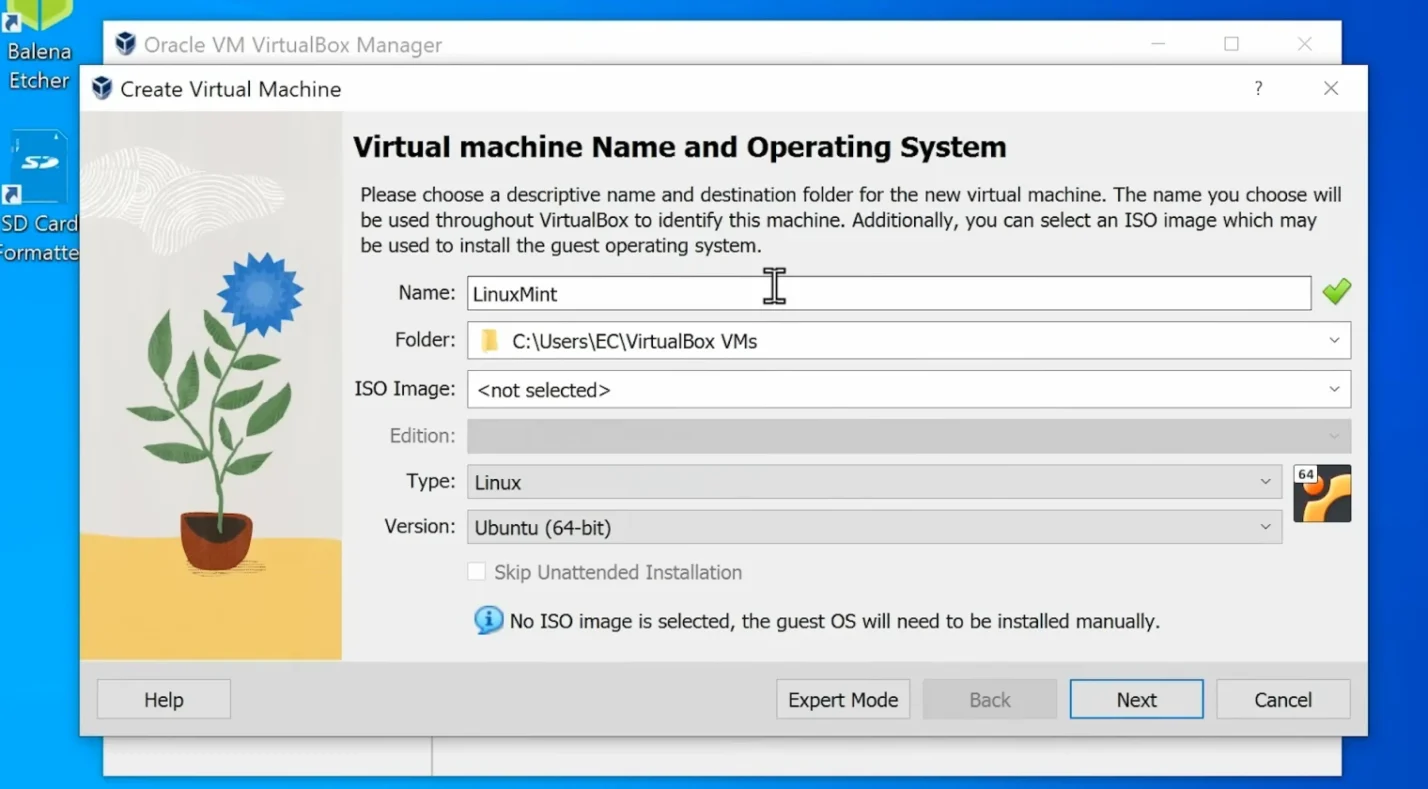
Virtual machines (VMs) offer a middle ground between WSL and a full install. A VM is a software‑defined computer; you can run any distribution inside its own window and isolate it from your main system.
Microsoft notes you can run multiple distros in separate VMs. To set one up, enable hardware virtualization in BIOS, install a hypervisor (Hyper‑V comes with Windows 10 Pro, while VirtualBox and VMware Player work on Home editions), create a new VM, allocate a few gigabytes of RAM and disk space, attach your chosen ISO, and follow the on‑screen prompts.
Because a VM emulates an entire machine, it consumes more resources than WSL. The trade‑off is isolation and the ability to snapshot or clone the entire environment. If you’re working on a compact setup, our guide on the best mini gaming PCs shows how small rigs can still handle virtualization.
Dual Boot Linux and Windows 10: Bare Metal Power
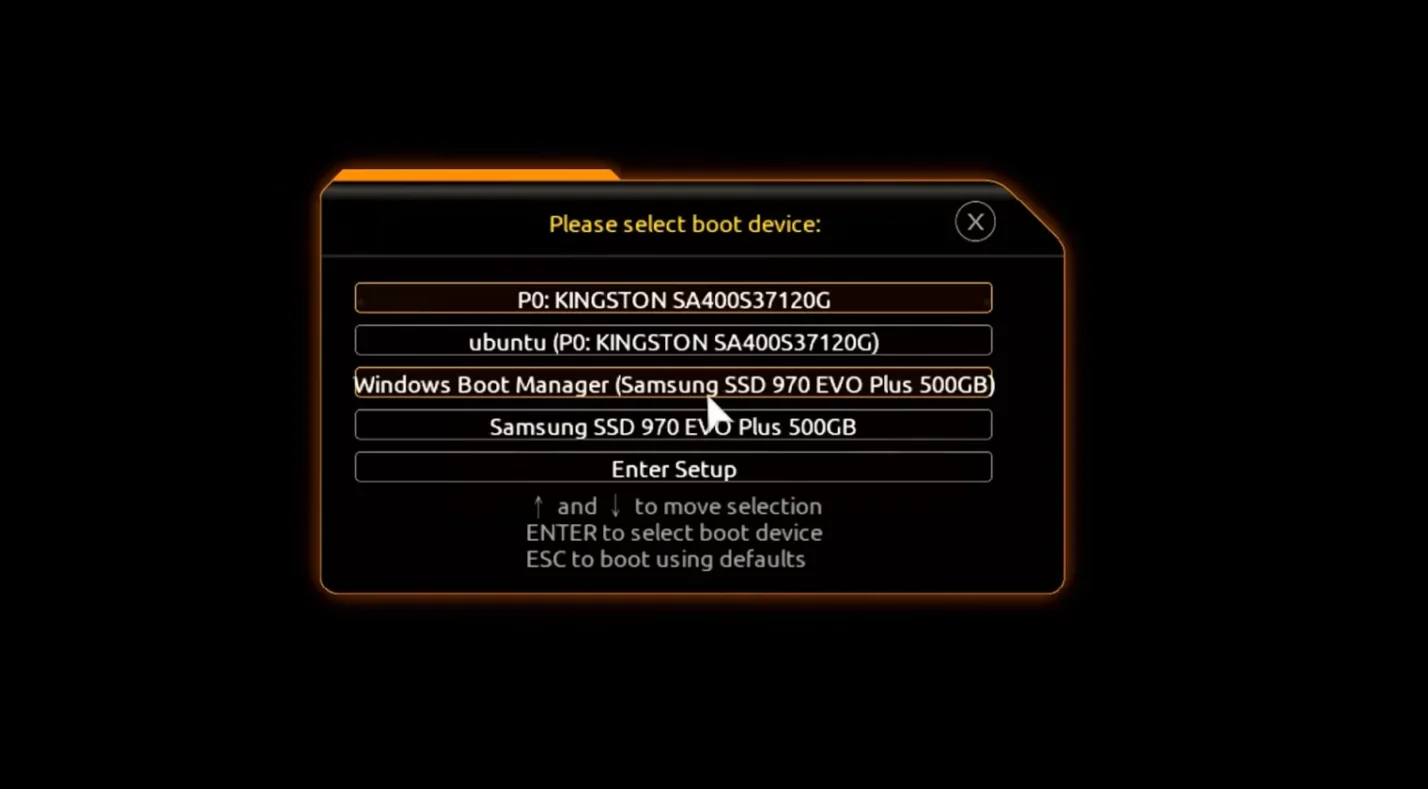
Running Linux directly on hardware yields the highest performance and access to every component. Dual‑booting installs Linux and Windows on separate partitions; when you power on, a boot menu lets you choose which system to load. Microsoft’s guidance notes you’ll need to create a bootable USB and carve out free space on your drive for the Linux installer.
The process is simple in concept:
- Back up your data
- Shrink your Windows partition to make room for Linux
- Write your chosen ISO to a USB drive and boot from it
- Select “Install alongside Windows” during setup
After installation, GRUB presents a menu for selecting Windows or Linux. Dual‑booting allows you to use Linux for intensive tasks like compiling code or running dedicated game servers without virtualization overhead, but you must reboot to switch systems and take care not to overwrite your Windows partition.
Beginners might prefer WSL or a VM until they’re comfortable with partitions. If your current rig struggles with new games, our list of the best gaming PCs under $1000 showcases affordable hardware that handles dual‑boot setups with ease.
Choose the Right Linux Distribution and Tools
A big part of learning how to install Linux on Windows 10 is deciding which distribution to use. There are more than six hundred active distros, but only a handful are common among newcomers.
Ubuntu and Linux Mint are friendly to beginners thanks to easy installers and large communities. Fedora provides cutting‑edge software, Debian values stability, and Arch Linux offers a build‑it‑yourself approach.
Consider your experience level and hardware: lightweight variants such as Xubuntu or Lubuntu run well on older machines, while enterprise distributions like Red Hat Enterprise Linux or SUSE Linux Enterprise Server offer long‑term support. Gamers may gravitate toward SteamOS or general‑purpose distros with Proton support, whereas security professionals might choose Kali Linux.
Before committing, test a few options with a live USB session. It boots the operating system directly from a USB drive so you can evaluate hardware compatibility and the desktop environment without altering your disk. That’s how I discovered which distro played nicely with my GPU and audio drivers.
Why Gamers Should Care About Linux on Windows
You might wonder why learning how to install Linux on Windows 10 matters when your current setup works fine. Linux is highly customizable and efficient for running dedicated game servers, and many distributions have stricter permission models than Windows. I host Valheim and Minecraft servers on Linux because they run smoothly in the background.
With devices like the Steam Deck and handheld PCs using Linux under the hood, learning it today makes it easier to troubleshoot and customize future gear. Even if Windows remains your daily driver, understanding Linux broadens your options when hardware and gaming trends shift.
Wrapping Up and Next Steps
We’ve explored three pathways for bringing Linux to a Windows 10 PC: WSL for quick integration, VMs for isolated experiments, and dual‑booting for full hardware access. Choose the method that best matches your comfort level and goals. Start simple with WSL, graduate to VMs when you need more separation, and opt for dual‑booting when you want a native desktop environment without virtualization overhead.
Once you’ve set up your new system, enjoy titles that run seamlessly on Linux. Our Stardew Valley Steam key plays on Windows, macOS, and Linux, letting you cultivate your virtual farm no matter which operating system you prefer. Swing by our store to pick up this relaxing RPG and reward yourself for mastering Linux installation.
FAQs
How do I install Linux on Windows 10 step by step?
To install Linux on Windows 10, first choose your method. Use WSL for a quick setup by running wsl –install in an elevated PowerShell prompt; for a VM, install a hypervisor, create a new VM, and attach a Linux ISO; and for dual‑booting, shrink your Windows partition, make a bootable USB, and select “Install alongside Windows.”
Can I install Linux on Windows 10 without a USB drive?
Yes, you can install Linux on Windows 10 without a USB drive by choosing WSL or a virtual machine. WSL downloads the distribution directly from Microsoft’s servers and a VM mounts the ISO from your hard drive, so you never need to write it to external media.
Will installing Linux delete my Windows 10 files?
No, if you’re careful. WSL and VMs don’t alter Windows partitions, and dual‑boot installers create new partitions on free space when you choose “Install alongside Windows,” so your files remain intact as long as you follow the prompts and back up important data.
How do I switch between Windows and Linux on a dual‑boot system?
To switch between Windows and Linux on a dual‑boot system, restart your computer and select either Windows or Linux from the GRUB boot menu using the arrow keys. This menu appears every time you power on and loads your chosen OS when you press Enter.
Can I remove Linux from Windows 10 easily?
Yes. Just uninstall the distribution using the method appropriate for your setup. In WSL, run wsl –unregister <DistroName>; for VMs, delete the VM; and for dual‑booting, delete the Linux partitions in Disk Management and restore the Windows boot manager with bootrec /fixmbr from a recovery environment. Always back up your data first.