How to Clean Keyboard Switches


Your keyboard takes a beating every day. Between gaming marathons, typing sessions, and the occasional snack at your desk, dust, crumbs, and sticky residue build up around and inside your switches. This guide walks you through how to clean keyboard switches and keycaps properly.
I’ve cleaned dozens of keyboards over the years, and the difference in feel after a thorough cleaning is remarkable. I’ll cover the tools you need, steps for washing keycaps and cleaning around switches, and when to remove switches for deep cleaning on hot-swappable boards.
You’ll also learn safety tips to avoid damaging your keyboard and maintenance schedules to keep everything running smoothly. By the end, you’ll know exactly how to maintain your mechanical keyboard and extend its lifespan.
Jump to:
How to Clean Keyboard Switches
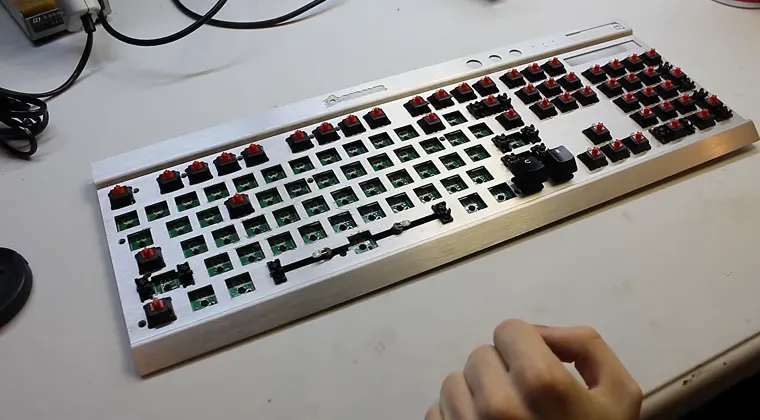
Cleaning mechanical keyboard switches involves removing keycaps, washing them separately, and clearing debris from the switch plate and stems. Start by unplugging your keyboard and photographing the key layout so you can reassemble it correctly. Use a keycap puller to remove caps, then soak them in lukewarm soapy water while you brush debris from exposed switches.
For surface cleaning, use cotton swabs dipped in isopropyl alcohol to wipe around each switch stem. This removes sticky residue without harming electrical components. If you have a hot-swappable keyboard, you can remove individual switches with a switch puller and clean the plate thoroughly. Always let everything dry completely before reassembling to prevent moisture damage.
1. Gather Tools & Prepare Your Keyboard
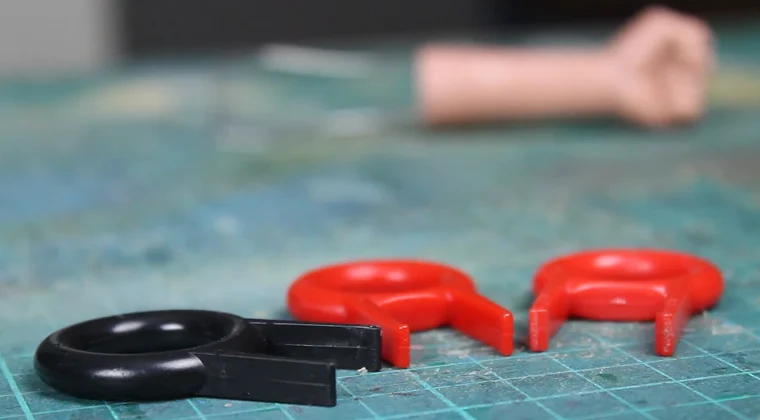
Before starting, collect the right cleaning supplies to avoid damaging your keyboard. You’ll need:
- a keycap puller (usually wire or plastic),
- a switch puller if your board supports hot-swapping, a container for soaking keycaps, mild dish soap, a soft-bristled brush, cotton swabs, tweezers,
- 70–90% isopropyl alcohol, and
- microfiber cloths or paper towels.
Optional tools include compressed air or a small vacuum with a brush attachment for removing loose particles.
Unplug your keyboard first – this is non-negotiable for safety. Take a clear photo of your keyboard layout, especially if you have a non-standard arrangement or custom keycap sets. This reference photo saves frustration during reassembly. Set up a clean workspace with good lighting and enough room to lay out keycaps without losing anything.
A keycap puller protects your caps from cracks that happen when prying them off with fingers or tools. Photographing your layout helps tremendously with keys like function rows or non-standard bottom rows that are easy to mix up.
2. Cleaning Keycaps
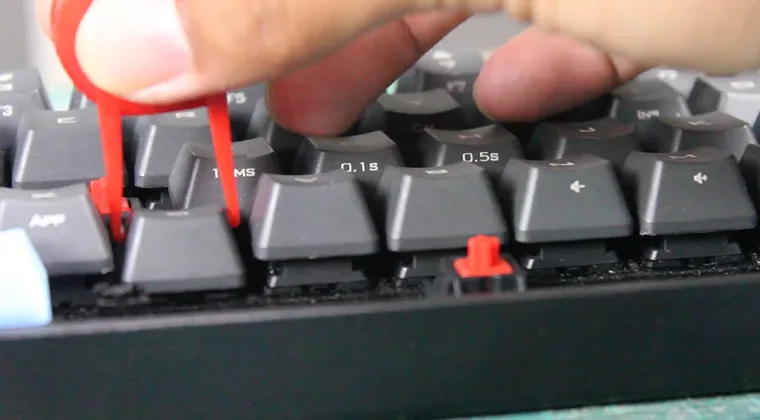
Press your keycap puller down around a keycap so the wire or plastic arms catch the edges underneath, then pull straight up with steady pressure. Start with larger keys like the spacebar or shift keys to get comfortable with the technique. Remove all keycaps and place them directly into a container – don’t leave them scattered where they might get lost.
Fill the container with lukewarm water and add a few drops of mild dish soap. Swish the keycaps around to loosen surface grime, then let them soak for about 30 minutes. Shake or stir the container every 10 minutes to help dislodge debris. Hot water can warp plastic keycaps, so stick with lukewarm temperatures.
After soaking, rinse each keycap under clean running water and use a cloth to wipe away remaining residue. Lay them upside down on a clean towel to air-dry completely – this usually takes 2–3 hours. Make sure keycaps are 100% dry before reinstalling, as moisture can corrode switch contacts.
3. Cleaning Around the Switches
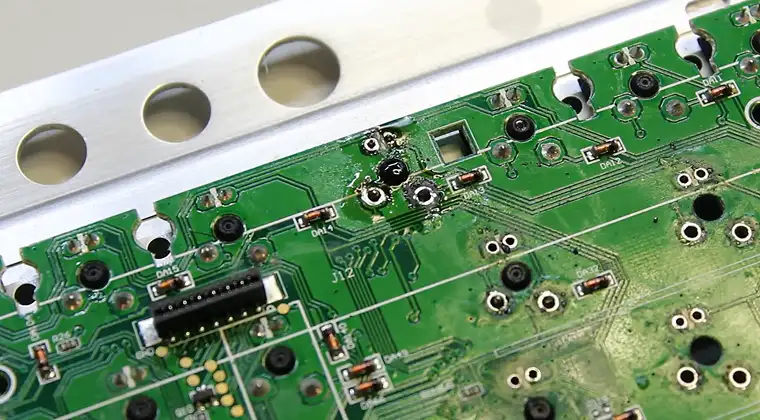
With keycaps removed, you’ll see dust, hair, and crumbs sitting on the keyboard plate. Use your soft brush to sweep debris toward one edge, working gently around stabilizers (the metal bars under larger keys) to avoid pushing particles down into the PCB. A small vacuum held at an angle can help draw out stubborn debris without scattering it.
Dip cotton swabs in isopropyl alcohol – wring out excess liquid so they’re damp but not dripping. Gently wipe around each switch stem and between neighboring switches, rotating the swab to use clean sections. The alcohol dissolves oils and sticky residue left by fingers. For particularly grimy areas, use a lightly soapy solution on the swab, then follow up with a dry swab to remove soap residue.
Tweezers help remove hairs wedged between switches where brushes can’t reach. If using compressed air, angle the nozzle to blow particles toward the edges. Change cotton swabs frequently to avoid spreading grime.
4. Deep Cleaning: Removing & Cleaning Switches
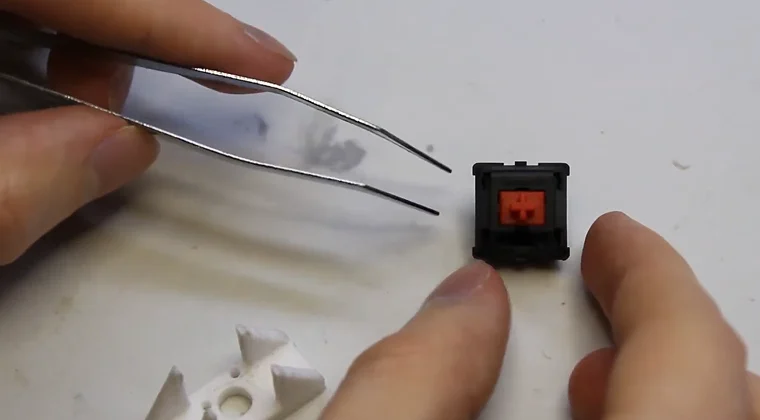
Deep cleaning makes sense if keys feel scratchy even after surface cleaning, or if you want to modify switches. This step only applies to hot-swappable keyboards – soldered boards require desoldering, which I don’t recommend unless you’re experienced with electronics work.
Align your switch puller’s hooks with the clips on opposite sides of a switch, press down gently, and pull straight up. The switch should release with a light wiggle. Remove all switches and set them aside. If your keyboard has a removable top plate, unscrew it carefully and clean it in lukewarm soapy water with your brush, then dry thoroughly.
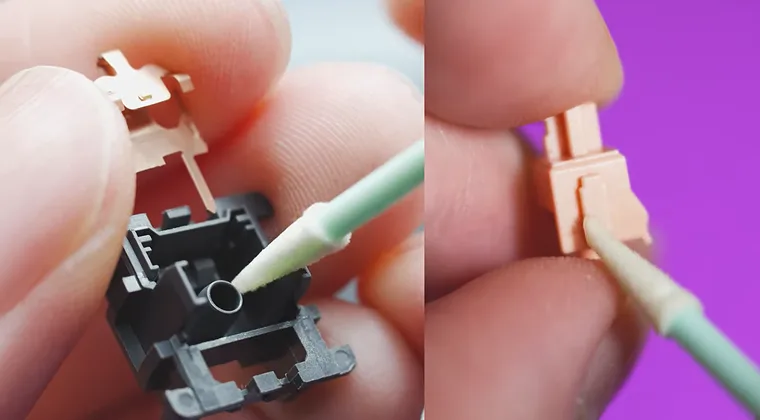
You can clean switch housings by wiping the exterior and stem with alcohol-dampened swabs. For thorough cleaning, carefully open the switch housing and wipe the stem, spring, and housing interior with cotton swabs and isopropyl alcohol. Be warned: opening switches may void warranties, and losing tiny springs is easy.
When reassembling, reinstall stabilizers first, align switches with plate cutouts, then press each switch firmly until it clicks into place. If you’re looking for a board that simplifies this process, many of the best mechanical keyboards now feature hot-swappable sockets.
Requirements for Cleaning Keyboard Switches
Cleaning keyboard switches safely requires preparation and the right approach. Always unplug your keyboard before starting any cleaning process to prevent electrical shorts or damage. Take a photo of your key layout before removing anything – this simple step prevents hours of frustration trying to remember where modifier keys belong.
Use proper tools designed for keyboards: keycap and switch pullers, soft brushes, cotton swabs, and tweezers. Metal tools or excessive force can scratch the plate or crack keycaps. Wooden toothpicks sometimes help with tight spots, but avoid screwdrivers or knives that can slip and gouge surfaces.
Allow adequate drying time for all components. Keycaps need at least 2–3 hours to dry completely after washing, while cleaned plates should air-dry for several hours. Moisture trapped in switches can cause corrosion or short circuits on the PCB, so patience here is critical.
Check if your keyboard supports hot-swapping before attempting to remove switches. Hot-swappable boards let you pull switches without soldering tools, making maintenance much more accessible. Standard soldered keyboards require desoldering each switch, which beginners should avoid. Many affordable options among the best budget gaming keyboards now include hot-swap functionality.
Only use safe liquids: lukewarm water with mild dish soap works for keycaps and plastic plates, while 70–90% isopropyl alcohol is ideal for cleaning around switches. Never submerge the PCB or any electrical assembly in water.
Why Cleaning Keyboard Switches Matters
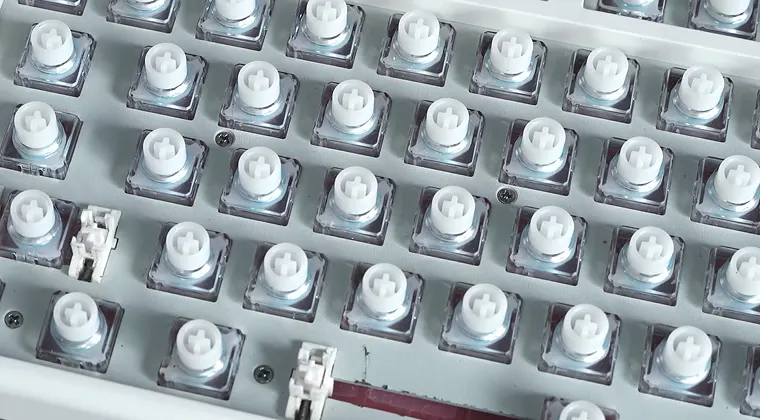
Regular maintenance of your keyboard switches delivers tangible benefits beyond just looking clean. Better responsiveness is the most immediate improvement – when you remove debris and sticky residue from around switch stems, each keypress actuates smoothly without hesitation or double-registering. I’ve fixed dozens of “broken” keyboards that just needed a thorough cleaning.
Hygiene is a bigger deal than most people realize. Studies show keyboards harbor more bacteria than toilet seats because oils from your fingers, food particles, and dead skin cells accumulate between keys. Cleaning reduces bacterial buildup and creates a healthier workspace, especially important if you share keyboards or work in dusty environments.
Durability improves dramatically with routine cleaning. Grime accelerates wear on switch components and can cause corrosion on metal contact points. Keeping switches and the plate debris-free extends your keyboard’s lifespan by years, protecting your investment in quality hardware. Whether you’re using a compact 60% gaming keyboard or a full-size board, proper care preserves your investment.
Here’s how different users benefit from clean switches:
- Gaming – Clean switches deliver smooth, reliable actuation for competitive play where milliseconds matter and missed inputs cost matches.
- Typing – Debris-free switches provide consistent tactile feedback and reduce typing errors caused by sticky or sluggish keys.
- Office Use – Hygienic switches create a healthier work environment and reduce allergens that accumulate in rarely-cleaned keyboards.
- Hot-Swappable Boards – Deep cleaning lets you swap or lube switches easily after clearing out buildup, opening up customization options.
- Preventive Care – Regular quick cleanings prevent heavy buildup and reduce time spent on full disassembly later.
Best Ways for Cleaning Your Keyboard For Optimal Performance and Longevity
Establish a realistic cleaning schedule based on your usage environment. I do a quick wipe-down and debris removal weekly, taking maybe 5 minutes to brush away visible dust. Every 4–6 weeks, or whenever keys start feeling sticky, I’ll do a thorough cleaning with keycap removal and detailed swabbing. If you eat at your desk or work in a dusty environment, clean more frequently.
Practice on switch testers or spare keyboards if you’re new to the process. Removing and cleaning keycaps gets easier with repetition, and you’ll develop a feel for how much pressure different keycap pullers require. Many enthusiasts keep a cheap backup board specifically for testing cleaning methods.
Watch tutorial videos from trusted keyboard communities and read user reviews about different cleaning approaches. Methods vary depending on whether you’re maintaining a wireless gaming keyboard or a wired board, and some switch types have specific cleaning requirements.
Maintain a small cleaning kit at your desk with a keycap puller, soft brush, cotton swabs, and a small bottle of isopropyl alcohol. Having tools within arm’s reach makes it effortless to do quick 2-minute cleanings whenever you notice buildup, preventing the heavy grime accumulation that requires full disassembly later.
Consider investing in a hot-swappable keyboard if you plan to clean or swap switches regularly. The flexibility to pull switches without soldering makes deep cleaning and experimentation straightforward. You can try new switches, clean thoroughly, or replace a single faulty switch without specialized tools.
Preventive measures reduce cleaning frequency dramatically. Avoid eating directly over your keyboard – crumbs are the number one source of switch problems I’ve encountered. Use a desk mat to catch debris before it reaches your keyboard, and cover your board with a dust cover when away from your desk for extended periods.
Conclusion
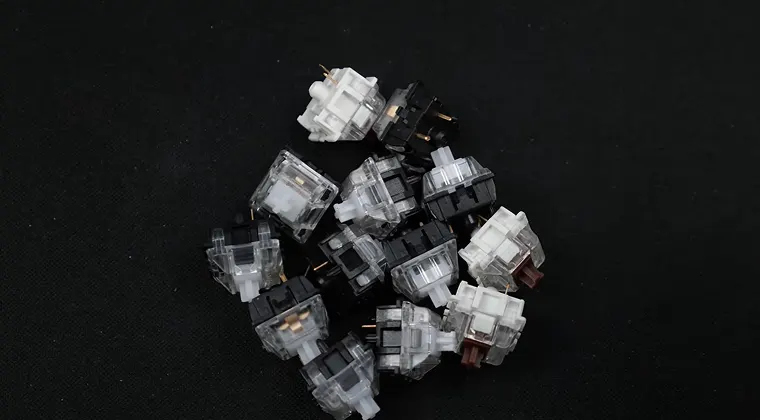
Regular cleaning of keyboard switches and keycaps keeps your board performing at its best while extending its lifespan and improving hygiene. Whether you’re doing a quick surface clean or a full deep clean with switch removal, following the safe methods outlined here protects your investment and ensures consistent performance. The difference between a maintained keyboard and a neglected one is dramatic – smoother keypresses, better responsiveness, and a board that lasts years longer.
Start with basic cleaning today and work up to more thorough maintenance as you become comfortable. Remember to always unplug first, let everything dry completely, and use proper tools designed for keyboards. With patience and the right approach, you’ll keep your switches feeling factory-fresh. Explore the best gaming keyboards at Eneba.
FAQs
You should perform a quick surface cleaning weekly by brushing away debris and wiping down the keyboard plate. A thorough deep clean with keycap removal is recommended every 4–6 weeks, or sooner if keys feel sticky or unresponsive.
Yes, you can clean keyboard switches without removing them by using cotton swabs dipped in isopropyl alcohol to wipe around stems and between switches. This surface cleaning method removes most debris and sticky residue without requiring disassembly.
Yes, washing keycaps in lukewarm water with mild dish soap is completely safe and the recommended cleaning method. Just make sure to rinse them thoroughly and let them air-dry completely for 2–3 hours before reinstalling to prevent moisture damage.
If a switch still feels sticky after cleaning, try applying a small amount of isopropyl alcohol directly to the stem and working the switch by pressing it several times. For persistent stickiness on hot-swappable boards, remove the switch and clean or replace it.
Yes, you need a few basic tools for safe cleaning: a keycap puller to remove caps without damage, soft brushes for debris removal, cotton swabs for detailed cleaning, and isopropyl alcohol for dissolving residue. These inexpensive tools prevent damage and make cleaning much easier.