




How to Remove Games from Steam Library: Manage Your Game Collection 2026


After managing my own 400-game library for years and testing countless titles for our guides here at Eneba Hub, I’ve learned that knowing how to remove games from Steam library is important to manage your sanity when you’re actually trying to find something to play.
Look, I get it. Your Steam library has probably turned into a digital graveyard of impulse purchases, free weekend trials, and those bundle games you claimed but never touched.
This guide covers everything from basic uninstalling to permanent deletion, plus what happens to your achievements and save files along the way.
Jump to:
How to Remove Games from Steam Library: Understanding Your Options
Steam gives you three main ways to deal with unwanted games, and picking the wrong one can lead to serious regret later.
Uninstalling removes game files from your hard drive but keeps everything else intact. Your achievements stay on your profile, your playtime keeps counting, and the game remains visible in your library. This is your go-to option when you need storage space but might want to play again someday.
Hiding games removes them from your library view without touching any data. Think of it like putting games in a drawer instead of throwing them away. I use this constantly for games I’ve finished or titles I don’t want friends seeing when they browse my profile.
Permanent deletion only works for free-to-play games and demos. Once you delete these, they’re gone from your account completely. Your achievements vanish, your playtime disappears, and you’ll need to re-add them from scratch if you change your mind.
The key difference comes down to what Steam considers a financial transaction. Since you paid money for purchased games, Valve maintains those records permanently for consumer protection. Free-to-play titles don’t have this restriction, which is why they’re the only games you can truly delete.
Key Differences Between Removal Methods
| Removal Method | Game Visibility | Achievements Preserved | Playtime Preserved | Save Files | Reversibility |
| Uninstalling | Visible in library | Yes | Yes | Preserved locally | Fully reversible |
| Hiding | Hidden from view | Yes | Yes | Preserved locally | Fully reversible |
| Permanent Deletion | Completely removed | No | No | Preserved locally | Irreversible |
| Refund | Completely removed | No | No | Preserved locally | Requires repurchase |
Step-by-Step Instructions for Removing Games from Your Steam Library
Uninstalling Games Through the Desktop Client
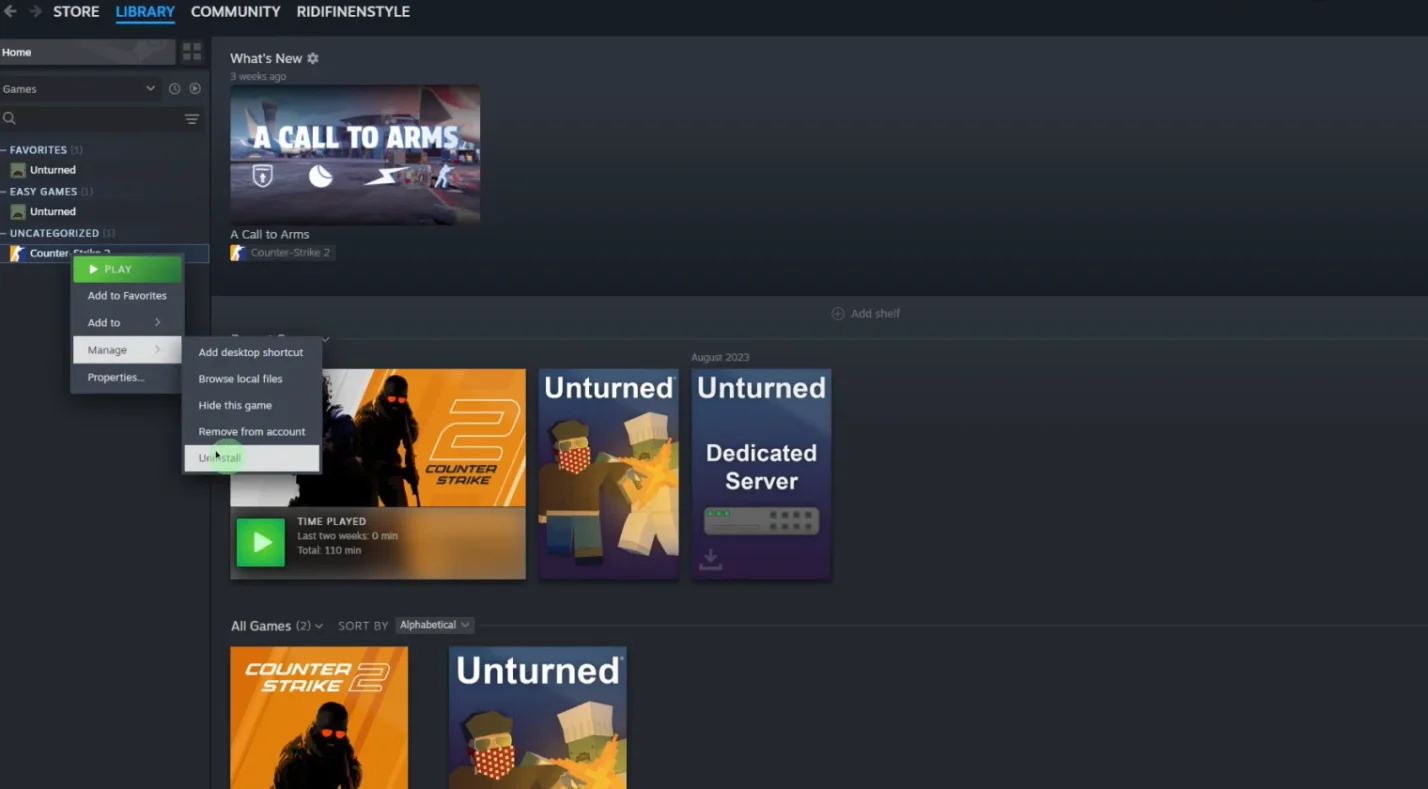
Open your Steam client and head to your library. Find the game you want to uninstall in the list, then right-click on it. Select “Manage” from the dropdown menu to open the game management panel.
Click the “Uninstall” button and confirm when Steam asks if you’re sure. The client will start removing game files immediately. Small indie games disappear in seconds, but massive AAA titles can take several minutes depending on your drive speed.
After uninstalling, the game shows “Not Installed” in your library. You can reinstall anytime by clicking the “Install” button that replaces the uninstall option. Your achievements, playtime, and save files all remain exactly where they were.
Hiding Games from Your Steam Library View
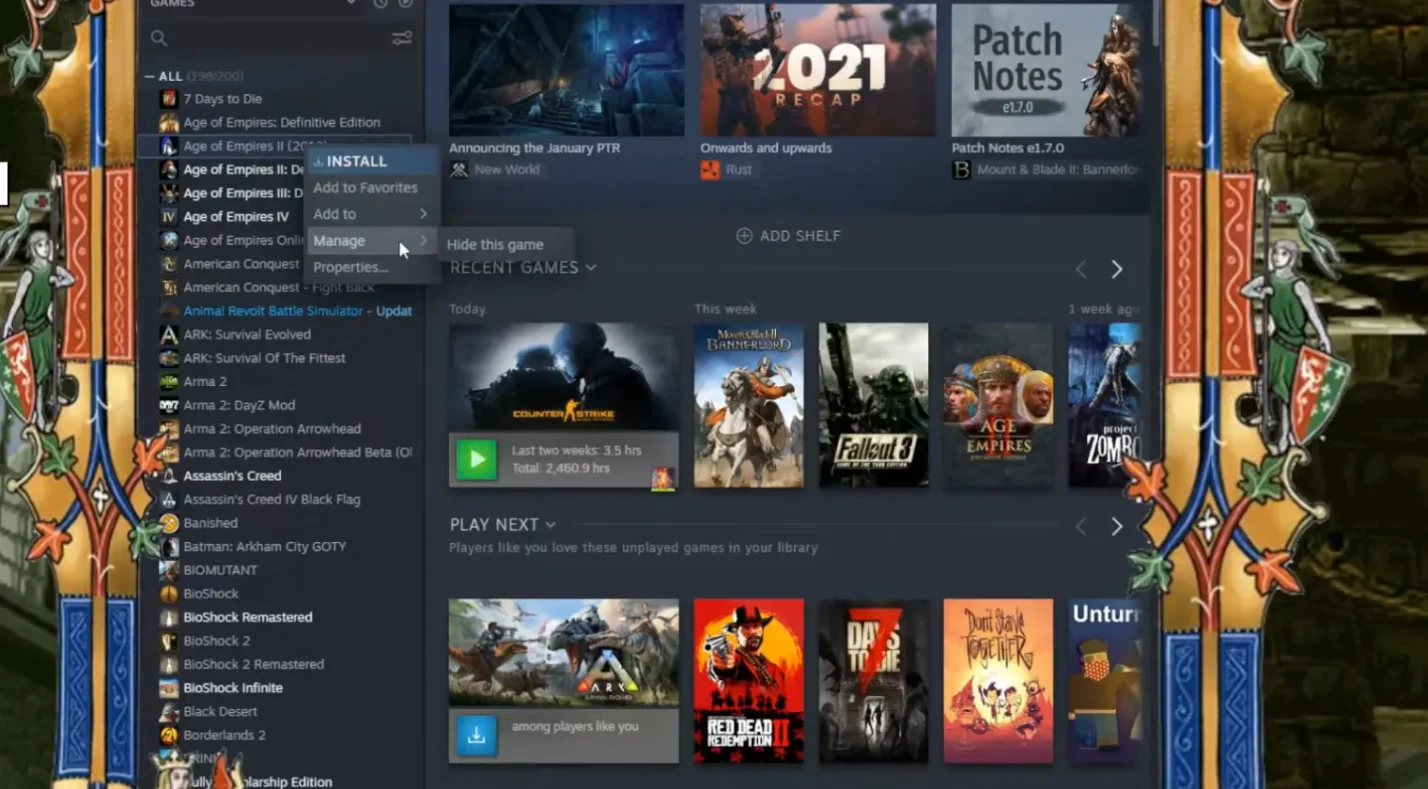
Navigate to your library and find the game you want to hide. Right-click on the title and look for “Hide this game” in the context menu. Some Steam versions put this option inside the “Manage” submenu instead.
Click to hide the game and confirm your choice. The game disappears from your standard library view immediately. Hidden games don’t show up when you browse normally, but they’re still part of your account.
To view hidden games later:
- Click the “View” dropdown at the top of your library
- Select “Hidden Games” from the menu
- Browse your complete list of hidden titles
- Right-click any hidden game and select “Remove from Hidden” to restore it
I keep about 30 games hidden at any given time. These are mostly completed titles I’m proud of finishing but don’t need cluttering my active library. When friends ask about specific games, I can unhide them temporarily to show off achievements or screenshots.
Permanently Removing Free-to-Play Games and Demos
Open your library and locate the free-to-play game or demo you want to delete permanently. Right-click on it and select “Manage” to access the game management interface.
Look for a “Remove from Account” or “Delete” button. This option only appears for free-to-play content and demos, not purchased games. Click the delete button and read Steam’s warning carefully.
Confirm the deletion when prompted. Steam emphasizes that this action is permanent and cannot be undone. The game vanishes from your library within seconds, taking all your achievements and playtime data with it.
Using Steam Web Interface for Browser-Based Removal
Visit steampowered.com and log into your account. Click your username in the top-right corner and select “Account Details” from the dropdown menu.
Navigate to “Licenses and product key activations” or “Manage my games and apps” to see your library in web format. The browser interface shows your games in a scrollable list with basic management options.
The web interface has serious limitations compared to the desktop client. You can view game details and check installation status, but you won’t find hide or delete buttons here. Browser-based management works mainly for checking your library status, not for major organizational tasks.
Managing Achievements, Save Data, and Playtime Records During Game Removal
Understanding Data Preservation and Loss During Different Removal Methods
When you uninstall a game, your achievements stay permanently attached to your Steam profile. Your playtime continues displaying on your account page, and your local save files remain in their original folders outside the Steam directory.
Hiding games works identically to uninstalling for data preservation. All your achievements, playtime stats, and save files stay exactly where they were. The only thing that changes is the game’s visibility in your library view.
Permanent deletion creates a completely different outcome. Steam removes your achievement data from public display, erases your playtime record from their servers, and cuts off Steam Cloud synchronization for that game’s saves. Your local save files stay on your computer, but you lose the ability to sync them across devices through Steam’s infrastructure.
After testing this extensively for our how to level up on Steam guide, I discovered that third-party achievement tracking sites sometimes preserve archived snapshots of your profile from before deletion. This means your deleted game’s playtime might still show up on external databases even though Steam no longer displays it.
What Happens to Your Data
| Data Type | Uninstalling | Hiding | Permanent Deletion | Refunding |
| Achievements | Fully preserved | Fully preserved | Removed from profile | Removed from profile |
| Playtime | Fully preserved | Fully preserved | Erased from Steam | Erased from Steam |
| Local saves | Preserved | Preserved | Preserved | Preserved |
| Cloud saves | Preserved | Preserved | May be removed | May be removed |
| Purchase history | Visible | Visible | Removed | Removed |
Platform-Specific Considerations and Steam Deck Library Management
Managing Games Specifically on Steam Deck
Most Steam Deck users keep only actively played games installed on the device. The full library remains accessible through Steam’s cloud system, and you can install new games in seconds whenever your interests shift. This workflow leverages remote installation capabilities without requiring permanent removal of anything.
For players managing Steam Deck storage, understanding that removal isn’t necessary for device management changes everything. Simple uninstallation combined with strategic collections achieves optimal results without permanent data loss. Check out our guide on the best Steam Deck accessories for storage expansion options that reduce the need for constant uninstalling.
Managing Library Across Multiple Devices
Steam synchronizes your library, collections, and hiding preferences across all devices logged into your account. Organizational decisions made on your desktop automatically appear on your laptop and Steam Deck within seconds.
This real-time synchronization proves valuable when using Steam’s streaming features to play games from your main PC on other devices. If you hide a game on your desktop, it disappears from your laptop’s library view immediately. Understanding this system-wide effect helps you make intentional organizational choices.
The cross-device synchronization also extends to remote play functionality. When you want to play Steam games on your phone through Steam Link, your organizational structure carries over to the mobile interface, maintaining consistency across your entire gaming ecosystem.
For players managing multiple Steam accounts, each account maintains completely separate libraries and organization settings. Family members can customize their own libraries without affecting each other’s setups. This separation works well in households with shared gaming hardware where different people have different organizational preferences.
Need help navigating Steam Deck’s interface while managing your library? Our guide on how to open keyboard on Steam Deck covers essential navigation tips for the handheld.
Troubleshooting Common Issues with Game Removal
Resolving Stuck or Failed Uninstallation Processes
Sometimes uninstallation fails, leaving games showing as installed despite your removal attempts. Start with the basic troubleshooting step of restarting your computer, which resolves most transient issues preventing proper uninstallation.
After restarting, try uninstalling the game again through the standard method. If the problem persists, you’re dealing with corrupted files or incomplete installation states that need manual intervention.
Navigate to your Steam games folder using Windows File Explorer or Mac Finder. The default location is C:\Program Files\Steam\steamapps on Windows or ~/Library/Application Support/Steam/steamapps on Mac. Find the specific game folder and delete it manually to bypass Steam’s automated process.
After manual deletion, check your library to verify Steam recognizes the game as uninstalled. If Steam still shows it as installed, clear Steam’s download cache through Settings > Downloads > Clear Download Cache. Restart the Steam client after clearing the cache to refresh its understanding of your installed games.
The manual deletion method works reliably when Steam’s normal uninstall process gets stuck. Just make sure you’re deleting the right game folder to avoid accidentally removing something you wanted to keep.
Similar cache issues can affect your browser-based Steam experience. If you’re having trouble with the web interface, our guide on how to delete cookies covers browser maintenance steps that often resolve persistent Steam website problems.
Recovering Accidentally Deleted or Removed Games
If you permanently delete a free-to-play game and regret it later, your only recovery option is reinstalling through the publisher’s website or launcher. This creates a fresh account with zero achievements, playtime, or progression from your previous sessions.
To avoid deletion regret, adopt a personal policy of hiding games instead of permanently removing them. This provides organizational benefits without destroying recovery options. Hidden games stay accessible whenever you change your mind about playing them again.
Third-party achievement tracking websites sometimes preserve historical snapshots of your Steam profile from before deletion. These archived records don’t restore game access or progression, but they document your previous accomplishments for personal record-keeping.
Building a Sustainable Library Management System
Establish a personal library management policy that reflects your actual gaming habits. Maybe you hide completed games, maintain genre-based collections, and reserve permanent deletion only for free-to-play titles you’re absolutely certain you’ll never touch again. This systematic approach prevents library regret while maintaining organizational benefits.
Taking 30 minutes every few months to review your library keeps everything manageable. Apply organizational tools consistently, and only remove games that meet your personal criteria. This maintains long-term satisfaction without the regret of impulsive decisions.
After organizing your library and removing unwanted titles, you might want to refill it with quality games that match your actual interests. If you’re browsing new titles or figuring out how to change region for Steam, you can also browse our selection of Steam gift cards to add funds for your next carefully-chosen gaming experience. Building a curated library of games you’ll actually play beats maintaining a massive collection of titles gathering digital dust.
FAQs
What’s the difference between uninstalling and permanently removing a game from Steam?
To understand the difference between uninstalling and permanently removing a game from Steam, uninstalling only removes game files from your computer while keeping the game in your library with all achievements and playtime preserved, whereas permanent removal completely erases the game from your account and only works for free-to-play titles. Purchased games cannot be permanently removed through standard methods, only uninstalled or hidden from view.
Can I hide games from my Steam library without deleting them?
Yes, you can hide games from your Steam library without deleting them by right-clicking the game title and selecting “Hide this game” from the context menu. Hidden games remain fully accessible and preserve all your achievements, playtime, and save data while simply removing them from your standard library view.
Will I lose my game progress and achievements if I permanently remove a game?
Yes, you will lose your game progress and achievements if you permanently remove a game because Steam erases achievement data from public display and removes playtime records from their servers when you delete free-to-play titles. However, uninstalling or hiding games preserves all your achievements, playtime, and local save files completely intact.
Can I reinstall a game after permanently removing it from my Steam account?
To reinstall a game after permanently removing it from your Steam account, purchased games can always be reinstalled since they’re never truly deleted from your library, while free-to-play games must be re-added from the Steam store as a completely fresh account with no previous achievements or progression. Refunded games require repurchasing before you can access them again.
How do I remove games from my Steam library on Steam Deck?
To remove games from your Steam library on Steam Deck, use the same process as the desktop client by navigating to your library, right-clicking the game title, selecting “Manage,” and choosing either “Uninstall” to free storage space or “Hide” for organizational purposes. The Steam Deck interface provides identical removal options to desktop Steam with the same data preservation guarantees.