Can You Play Steam Games on Your Phone? Everything You Need to Know

The ability to take your entire PC library with you feels like something out of science fiction, yet it’s within reach thanks to modern streaming technology. But can you play Steam games on your phone? The short answer is yes, with a few caveats. Rather than running Windows software directly on a mobile device, you stream the video, audio, and control signals between your gaming PC and your phone. This guide explains how that works, what you need, and how to get the most out of it.
Jump to:
Can You Play Steam Games on Your Phone: Understanding Steam Link
Valve’s Steam Link technology makes it possible to play games from your Steam library on screens far away from your desk. The games themselves still run on a computer, but the action is encoded and sent over your network to a secondary device. Inputs from your controller, mouse, or touch screen are relayed back to the host PC almost instantly. With Steam Link, I was able to move from my desk to the living room and keep playing without any hassle. That low‑latency experience is the key to making remote play enjoyable.
The Steam Link app is free and available for Android, iOS, and many smart TVs. Once installed on your phone, it scans your network for computers running Steam. After pairing, you can browse your library, launch games, and even access Steam chat. Remote Play Together extends the feature further by letting friends join local co‑op sessions even if they don’t own the game. Because the app simply displays a video stream, almost any modern phone or tablet can handle it. The heavier lifting happens on the host computer, which does the actual rendering and encoding.
If you’d like a deep dive into how the technology works and how to optimize it for different platforms, our Steam Link guide breaks down everything from network protocols to VR streaming. It’s a great resource if you want to go beyond the basics and explore advanced features.
What You Need to Play Steam Games on Your Phone
Streaming PC games to a phone is surprisingly forgiving, but there are still some minimum requirements. Your host computer must run the Steam client on a supported operating system, Windows 7 or newer, macOS 10.10 or newer, SteamOS, or Linux. A quad‑core CPU and a dedicated GPU with hardware H.264 encoding provide the smoothest results. If your graphics card is aging and struggling with modern titles, consider upgrading; you’ll find options for every budget in our roundup of the best GPUs for gaming. A capable GPU not only makes local gameplay smoother but also improves the quality of the stream sent to your phone.
The network is just as important as the hardware. For the best performance, connect your PC to your router with an Ethernet cable. A wired connection ensures low latency and eliminates interference from other devices. If you must use Wi‑Fi, choose a 5 GHz network with a strong signal and minimal congestion. Modern Wi‑Fi 6 or Wi‑Fi 7 routers handle high‑bit‑rate streaming much better than older models, so investing in a reliable router can make a noticeable difference. Our article on the best ASUS routers explains what to look for in a gaming router and suggests models that balance price and performance.
On the mobile side, most phones and tablets running Android 5.0 or later or iOS 11.0 or later will work. The device needs hardware‑accelerated H.264 decoding, which virtually all recent mobile chipsets support. Make sure your phone has enough storage to install the Steam Link app and enough battery life for extended play sessions. Tablets with larger screens can improve the experience, especially for games with complex interfaces. If you’re shopping for a dedicated portable screen, our best gaming tablets list highlights devices that combine powerful processors with bright displays and long battery life.
Finally, consider your control scheme. While Steam Link offers touch controls, most games are designed for a controller or mouse and keyboard. A Bluetooth gamepad such as the Xbox Wireless Controller, DualShock 4, or Razer Kishi will make most games more enjoyable. You can also connect a keyboard and mouse to your phone with a USB‑C hub or dock, though this setup is less portable. For immersive play on a television, Valve’s original Steam Link hardware and many smart TVs support USB devices directly.
How to Set Up Steam Link on Your Phone
Once you have the necessary hardware, setting up Steam Link is straightforward. Follow these steps to start playing Steam games on your phone:
1 – Prepare Your PC
Turn on your gaming computer, launch the Steam client, and log in. In the Steam settings, open the “Remote Play” tab and ensure the feature is enabled. If you haven’t updated Steam in a while, let it download the latest version before continuing. Running the game you want at least once locally ensures all files are updated.
2 – Connect Your Devices to the Same Network
For your first session, keep your phone and PC on the same local network. Using the same router reduces latency and simplifies device discovery. If you later stream over the internet, both devices must have fast upload and download speeds and stable connections.
3 – Download the Steam Link App
Open the Google Play Store or Apple App Store on your phone and search for “Steam Link.” Install the app, then launch it. It will prompt you to grant permission to find devices on your network.
4 – Pair Your Phone With Your PC
When the app finds your PC, tap its name. Steam will display a four‑digit code on your phone. Enter this code into the prompt on your computer to authorize the connection. The app may perform a quick network test to suggest optimal streaming settings.
5 – Connect a Controller
If you’re using a Bluetooth controller, pair it with your phone now. On Android, open Settings → Bluetooth, then put the controller in pairing mode and select it from the list. On iOS, go to Settings → Bluetooth and follow the same steps. Once paired, the Steam Link app will detect it automatically. You can also choose on‑screen touch controls, though they may feel awkward for complex games.
6 – Start Streaming
After pairing, the app will show your Steam library. Tap “Start Playing” to launch Big Picture Mode on your phone. Navigate to a game and choose “Stream.” The game will open on your PC while sending audio and video to your phone. If everything is configured correctly, the experience should feel smooth and responsive.
| Pro Tip |
| If you encounter lag or stuttering, open the streaming settings from the app’s overlay. You can cap bandwidth, reduce resolution, or switch between balanced and fast modes. Lowering the in‑game resolution and turning off vertical sync on your PC can also help. For best results on wireless connections, minimize interference by moving closer to your router and disconnecting other devices from the network. |
Controls and Comfort on Mobile
Playing PC games on a touch screen is possible, but most titles are easier with a physical controller. The Steam Link app includes a customizable touch overlay that mimics a gamepad. You can reposition buttons, adjust their size, and save profiles for different games. This works well for slower‑paced experiences, but for anything requiring quick reflexes, tactile feedback matters.
I often pair my phone with an Xbox Wireless Controller, which connects easily via Bluetooth and feels familiar in hand. PlayStation DualShock 4 and DualSense controllers also work well, though some models may require enabling pairing mode by holding specific buttons. Mobile‑specific controllers like the Razer Kishi clamp onto the sides of your phone, which turns it into a handheld console. If you prefer keyboard and mouse, you can use a USB‑C or Lightning adapter to connect them, though that setup is less comfortable on a couch.
Steam Input lets you remap buttons and create per‑game configurations. You can assign mouse movement to a right stick or adjust sensitivity for touch inputs. When playing strategy or management games, I sometimes switch to touch controls for their precision. For shooters and action games, a controller provides consistency and comfort.
Which Steam Games Play Best on a Phone?
Not all games translate equally well to a small screen. Titles with simple interfaces, slower pacing, or built‑in controller support are ideal. Here are some categories and examples that work particularly well when you stream games to your phone:
- Indie platformers and roguelikes. Games like Hades, Dead Cells, and Celeste feature tight controls and colorful art styles that shine on a mobile display. Sessions are often short, making them perfect for quick play.

- Turn‑based strategy and card games. Slay the Spire, Civilization VI, and Divinity: Original Sin 2 give you time to think between actions. Their interfaces scale well to touch screens, and lag is less noticeable.

- Puzzle and simulation games. Portal 2, Factorio, and Stardew Valley require planning rather than twitch reflexes. They benefit from the ability to pause and resume easily.

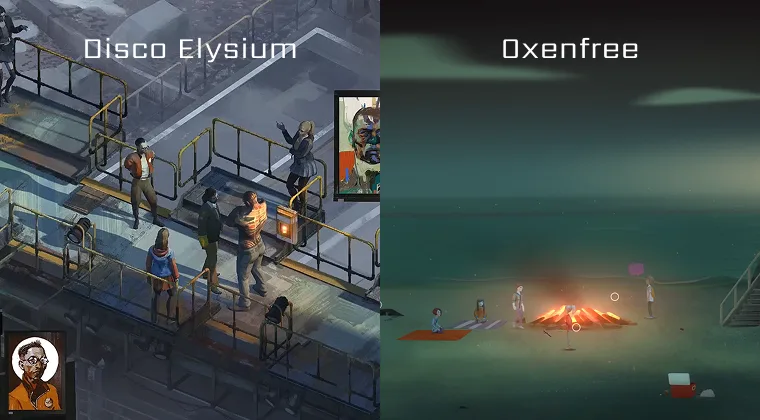
- Adventure and narrative‑driven games. Story‑focused titles like Disco Elysium or Oxenfree rely on exploration and dialogue, which translates well to remote play.
Fast‑paced competitive shooters and fighting games are more demanding. They can still work if your connection is excellent and you use a controller, but any latency becomes noticeable. Experiment with your own library to see which games feel comfortable, and remember that you can always adjust streaming quality to find the right balance.
Troubleshooting and Tips for Smooth Streaming
Even with the right setup, you might encounter occasional hiccups. Use these tips to improve your experience:
Optimize Your Network
Whenever possible, run an Ethernet cable between your PC and router. If you’re using Wi‑Fi, place the router in a central location and avoid obstacles. Consider upgrading to a Wi‑Fi 6 or Wi‑Fi 7 router if your current one struggles with multiple devices.
Adjust Streaming Settings
In the Steam Link app, open the overlay and choose between Fast, Balanced, or Beautiful modes. Fast reduces latency at the cost of image quality, while Beautiful prioritizes visuals. You can also set a maximum bandwidth or resolution.
Update Drivers and Firmware
Keep your graphics drivers up to date on your PC and install the latest firmware for your router. Bugs in older software can cause crashes or poor performance.
Limit Background Tasks
Pause downloads, streaming video, or other high‑bandwidth activities on your network while gaming. Close unnecessary applications on your PC to free system resources.
Test Remote Play Outside Your Home
Steam Link can stream over the internet if both your PC and phone have strong connections. Forward the correct ports (UDP 27031 and 27036, TCP 27036 and 27037) in your router’s settings if automatic configuration fails. Keep in mind that latency will be higher than on a local network.
Enjoying PC Gaming on the Go
Streaming your PC games to a phone opens up new ways to play. You can relax on the couch, pick up a game during a commute, or turn a spare room into a gaming lounge without moving your entire computer setup. With the right hardware, a solid network, and some fine‑tuning, the experience feels surprisingly close to playing at your desk. For gamers traveling to places like China, a VPN that works in China can help you bypass restrictions and access your games without issue. Also, knowing the best way to change region for Steam can give you access to different titles to add to your library of favorites.
Once you’re comfortable with Steam Link, you might want to expand your library or give the gift of gaming to friends. A Steam Wallet Gift Card from our store is a convenient way to add funds to your account or share the joy with others. It delivers a digital code instantly, and after redeeming it, you can use the balance to buy games, DLCs, and other content on Steam. Treat yourself or a friend, and keep your library growing while you explore new ways to play.
FAQs
Can you play Steam games on your phone without a PC?
No, you cannot play Steam games on your phone without a PC. The Steam Link app streams games from a computer that runs Steam, so a gaming‑capable PC or Mac is required. Without a host machine to render and encode the game, your phone cannot run Windows‑based titles on its own.
How do you play Steam games on your phone?
To play Steam games on your phone, you must connect your phone and PC through the Steam Link app. Install the app, pair it with your computer on the same network, and then launch games from your library to stream them. Pairing a controller improves the experience for most titles.
What are the requirements to run Steam games on a phone?
The requirements to run Steam games on a phone include a capable PC, a compatible mobile device, and a strong network connection. Your PC should have at least a quad‑core CPU and a GPU with hardware encoding, while your phone needs hardware‑accelerated video decoding and either Android 5.0 or iOS 11 or newer. A 5 GHz Wi‑Fi network or Ethernet connection ensures low latency.
Can I use a controller to play Steam games on my phone?
Yes, you can use a controller to play Steam games on your phone. Bluetooth gamepads like the Xbox Wireless Controller or PlayStation DualShock 4 pair easily with most mobile devices. Using a controller provides more accurate input and makes many games more enjoyable than touch controls.
Why won’t Steam Link connect to my PC?
The reason why Steam Link won’t connect to your PC is usually due to network configuration issues or outdated software. Make sure both devices are on the same network, Steam is updated, and Remote Play is enabled. If you’re connecting over the internet, ensure the necessary ports are forwarded on your router.