



Can You Play Minecraft on Mac? A Complete Guide for 2026

Minecraft is one of the most popular survival games ever made. As a long‑time Mac user, I often get asked the same question: can you play Minecraft on Mac? The short answer is yes, but the details depend on which edition you want to run and how much performance you expect. In this guide, I’ll outline the major differences between the Java and Bedrock editions, explain how to install the game on macOS, and share personal tips on hardware, optimization, and workarounds for features that aren’t officially supported. By the end, you’ll know exactly how to explore blocky worlds, gather resources, craft armor, and tackle mobs on your Apple computer.
Jump to:
Can You Play Minecraft on Mac? Understanding Editions and Compatibility
The first thing to understand is that Minecraft has two main editions: Java Edition and Bedrock Edition. The Java edition is written in Java and has been available for macOS, Windows, and Linux since the early days of the game. It runs natively on macOS and supports most mods, community servers, and technical features. If you want to create redstone contraptions, climb mountains, search for resources in randomly generated chunks, or install shaders for improved visuals, the Java edition is the best choice.
Bedrock edition, on the other hand, is the version built for consoles, mobile devices, and Windows. It uses different code and offers cross‑platform play across Xbox, PlayStation, Nintendo Switch, PC, and mobile. Unfortunately, there is no official Bedrock client for macOS as of September 2025. That means you can’t download a native Bedrock app for macOS directly from the developer.
Despite this limitation, Bedrock players can still join Java users on servers if everyone is running the same edition. When my friends and I play together, we use Java edition Realms or community servers so our Mac and PC players can explore the same map. Bedrock players who want to connect to Java servers need a plug‑in like GeyserMC running on the host machine, but it adds complexity and isn’t officially supported.
You might also wonder whether Mac users can play with console or mobile players. For cross‑platform play, you must be on the Bedrock edition. Since Bedrock doesn’t run natively on macOS, this kind of cross‑play requires either a virtual machine or a cloud solution, both of which are covered later in this article. With the Java edition, cross‑play is limited to other computers running Java (Windows or Linux). Keep that distinction in mind when buying the game key because you’ll need the correct edition for your desired multiplayer experience.
Setting Up Minecraft on macOS – Installation and Configuration
If you choose the Java edition, installing Minecraft on macOS is straightforward. First, make sure your Mac meets the minimum system requirements: at least macOS 10.14.5 (Mojave), a 3.2 GHz processor or Apple M‑series chip, 4 GB of RAM, and a graphics card supporting OpenGL 4.4. Newer Macs easily exceed these requirements, but older models may struggle when generating large worlds or loading complex crafting recipes.
Next, purchase a Java edition key. I recommend picking up a digital key from the Eneba marketplace because it often bundles both Java and Bedrock in one affordable package. Once you have a key:
- Create or sign in to your Microsoft account. Minecraft uses Microsoft authentication, so you’ll need a free account to redeem the game and play online.
- Download the Minecraft Launcher for macOS from the official site. The launcher is a small app that manages installation, updates, and mod profiles.
- Install the launcher by dragging the downloaded .dmg file into your Applications folder. This step sometimes triggers a macOS security prompt; go to System Settings > Privacy & Security and choose “Open Anyway” if needed.
- Redeem your key in the launcher or on the official website. Once redeemed, select Play in the launcher to download the necessary game files. The initial install takes less than a gigabyte but expands as you explore your world.

After installation, you’ll land in the main menu, where you can create a new world or join a multiplayer server. When generating a world, choose your difficulty, game mode (Survival, Creative, Hardcore, or Adventure), and world settings such as seed and structure generation. Your Mac will then start building the world in 16 × 16 × 256 chunks. On slower systems, world generation may cause short stutters; lowering render distance in the video settings can help. Adjusting graphics from Fancy to Fast and turning off smooth lighting also reduces the strain on integrated GPUs.
Mac gamers who enjoy exploring endgame content should bookmark our Netherite guide on the Eneba Hub. It explains where to find ancient debris, how to smelt it, and why netherite armor and tools are worth the effort. As you progress, learning to secure better gear will make your adventures safer and more efficient.
Performance Tips and Hardware Considerations for Mac
Running Minecraft smoothly on a Mac comes down to matching hardware to your expectations. From my experience, any modern MacBook Air or MacBook Pro with an M‑series processor handles Minecraft Java Edition at medium settings without issue. However, adding shaders, high‑resolution texture packs, or large mod packs can push memory usage and generate heat.
Here are some tips I’ve found useful:
Choose the Right Mac Model
While an old Intel Mac can run vanilla Minecraft, M‑series models provide better battery life and graphics performance. If you’re considering a new computer, our MacBook gaming guide on the Eneba Hub reviews seven MacBooks optimized for gaming and recommends the best options for different budgets and playstyles.
Monitor Resource Usage
The F3 debug screen shows frames per second and memory allocation. If your FPS drops, lower your render distance, disable VSync, or reduce particle effects. Closing background apps frees up memory and CPU cycles, which is especially important on older devices.
Consider Mods Sparingly
Mods like OptiFine improve performance by offering fine‑tuned graphics settings and dynamic lighting. However, large mod packs or heavily scripted modifications can cause lag. Always check mod requirements before installing.
Use Game Mode on Macos Sonoma (Macos 14) or Later
Apple’s Game Mode prioritizes your game’s access to CPU and GPU resources. In my tests, enabling Game Mode boosted FPS by 10–15 percent in busy areas.
Keep Your Mac Cool
Long sessions generate heat, which throttles performance. Use a cooling pad and ensure your Mac’s vents are clear of dust. For intensive tasks like exploring new biomes or building large structures, taking breaks also helps prevent overheating.
To make your Mac perform better, match your settings to your hardware. On my MacBook Air, I cap render distance at 10 chunks and disable fancy graphics. On a MacBook Pro, you can bump it to 20 chunks and enable shadows. Adjusting these sliders based on your machine’s capabilities ensures smoother gameplay without excessive frame drops.
You might also want to look at the best laptops for Minecraft, since performance varies depending on whether you prioritize portability, graphics, or battery life.
Playing Minecraft Bedrock on a Mac – Virtualization and Cloud Workarounds
Because there isn’t a native Bedrock client for macOS, Mac players who want to join friends on consoles or mobile devices need to use workarounds.
There are two ways to play Bedrock on a Mac: virtualization and cloud gaming.
Virtualization Tools Like Parallels or UTM
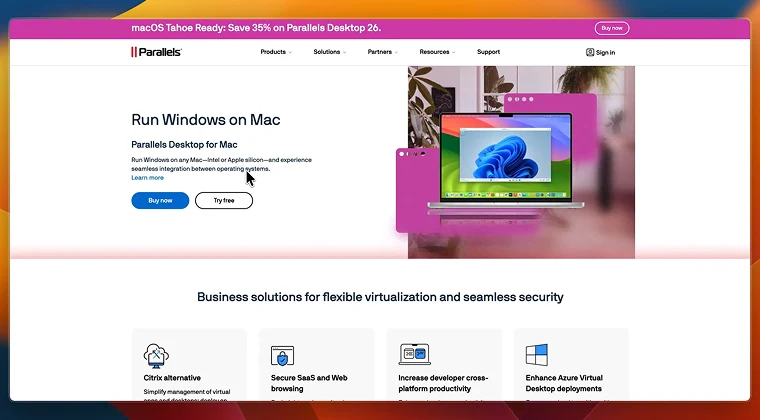
These programs create a virtual Windows environment within macOS. After installing Windows through Parallels, you can download Minecraft Bedrock from the Microsoft Store. In my tests, Bedrock runs smoothly on M‑series chips with moderate render distances. The downside is that you must purchase a Windows license and allocate disk space for the virtual machine. If you have an older Intel Mac, Boot Camp is another option. Boot Camp partitions your drive and installs Windows natively, delivering better performance than virtualization, but you have to reboot whenever you want to switch operating systems.
If you aren’t sure whether Minecraft is the right game for you, make sure to read our detailed comparison of Minecraft and Fortnite. Both games emphasize creativity and survival but appeal to very different audiences, which explains why so many players experiment with both across platforms.
Cloud Gaming Services
Another solution is to use services like Xbox Game Pass Ultimate (via Xbox Cloud Gaming) or a cloud PC provider. With Game Pass, you stream the Bedrock version from Microsoft servers to your browser. I’ve used Game Pass to play with friends on Xbox; it works well if your internet connection is stable, but picture quality can degrade during heavy network traffic. Cloud PC services like Shadow allow you to rent a virtual Windows computer. You can install Bedrock there and stream the output to your Mac. Cloud gaming saves local storage and bypasses the need for Windows licenses, but monthly fees add up over time.

No matter which method you choose, remember that cross‑platform play requires everyone to run the same edition. If your friends play on Bedrock via console or mobile, virtualization or cloud solutions are your only options on Mac. If they use Java on a PC, the native Java edition will suffice. The good news is that a single purchase of Minecraft: Java & Bedrock Edition provides access to both editions, so you don’t have to buy the game twice.
Enhancing Your Minecraft Experience on Mac – Mods, Multiplayer, and Challenges
Once you’ve installed the game and optimized your settings, it’s time to deepen your adventure. To make the most of your playtime, consider the following:
Try Mods and Texture Packs
The Java edition community has thousands of mods that add new biomes, creatures, and tools. Mod loaders like Forge or Fabric let you install individual modifications or full mod packs. For example, a map mod adds mini‑maps and waypoints, while a gear mod introduces new armor and weapons. Always back up your save files before experimenting with mods.
Join Multiplayer Servers
From minigames to survival realms, servers provide social experiences. Java servers range from vanilla survival worlds to large networks offering SkyBlock, BedWars, and role‑play. Mac users can connect to these servers using the IP address. Realms, Mojang’s subscription service, lets you create a persistent private world for up to ten players. It’s the simplest way to play with friends across Mac, PC, and Linux. If you’re looking for inspiration on challenges, our guide on taming foxes in Minecraft explores how to earn a fox’s trust and make it a companion, adding a fun goal to your survival world.
Pursue Endgame Goals
After defeating the Ender Dragon, there is still so much to explore. Many players aim to upgrade their diamond tools to netherite, the strongest material in the game. Our Netherite guide mentioned earlier is an excellent starting point for that journey. You can also attempt complex redstone builds, design automatic farms, or tackle achievements like “How Did We Get Here?”, which requires collecting every status effect in the game.
Stay Updated
Mojang releases major updates every year, adding new blocks, mobs, and mechanics. Ensure your launcher stays current so you can access the latest features. When a new version drops, I like to create a copy of my world and try the new items in a separate save. This practice keeps your main world safe from potential bugs.
Minecraft encourages you to explore its environments, regardless of whether you’re mining deep beneath the ground, wandering through lush forests, or travelling across southeast slopes to find desert temples. Each biome contains unique materials and creatures. Many of the best survival stories come from unplanned encounters being ambushed by skeletons while gathering flower petals for dye or stumbling upon a village just before nightfall. Keep a shield, a bow and arrow, and a few blocks of dirt in your hotbar so you can build a quick shelter if needed.
Mac Adventures
Mac users often assume that gaming is limited on their platform, but as I’ve shown, you can play Minecraft on a Mac?. The native Java edition runs smoothly on modern Macs and supports the same crafting, building, and adventuring experiences found on Windows. Performance improves further if you choose an M‑series MacBook, adjust graphics settings, and use macOS Game Mode. For those who need cross‑platform play with console or mobile friends, virtualization and cloud services provide reliable workarounds for running the Bedrock edition.
As you consider diving into Minecraft on your Mac, remember to pick the right edition, ensure your hardware meets the game’s requirements, and explore the countless ways to customize your experience. And when you’re ready to build your first shelter, fight the Ender Dragon, or scour the Nether for ancient debris, check out our marketplace for a Minecraft: Java & Bedrock Edition key on Eneba. With one purchase, you get both versions of the game, which makes it easy to enjoy Minecraft natively or through a virtual machine on your Mac.
FAQs
Can you play Minecraft on a MacBook?
Yes, you can play Minecraft on a MacBook. You simply need to download the official launcher, redeem a Java edition key, and ensure your Mac meets the minimum system requirements. Newer M‑series MacBooks handle the game smoothly, while older models may require lower graphics settings to maintain good performance.
Can Mac and PC users play Minecraft together?
Yes, Mac and PC users can play Minecraft together, but only if they are using the same edition of the game.The Java edition allows cross‑play between macOS, Windows, and Linux computers. If you want to play with friends on consoles or mobile devices, everyone must use the Bedrock edition, which requires virtualization or cloud gaming on a Mac.
How do you download Minecraft on a Mac?
To download Minecraft on a Mac, you need to purchase a Java edition key and sign in to your Microsoft account. Then you download the Minecraft Launcher for macOS from the official site, move it to your Applications folder, and open it. Once you redeem your key inside the launcher, click the Play button to download the game files and start playing.
Can you play Minecraft Bedrock Edition directly on Mac?
No, you cannot play Minecraft Bedrock Edition directly on macOS because there is no native Bedrock client for Mac. However, you can play the Bedrock version on a Mac through virtualization software like Parallels or Boot Camp, or by streaming it through a cloud gaming service. These methods let Mac players join friends on consoles or mobile devices.
Why is Minecraft laggy on Mac?
The reason why Minecraft may be laggy on Mac is because of limited hardware resources or high graphics settings. Older Macs with less RAM and weaker GPUs struggle with large worlds, high render distances, or heavy mod packs. Reducing render distance, closing other applications, updating drivers, and using macOS Game Mode can improve performance.