


How to Redeem V-Bucks on Epic Games

Eneba Hub contains affiliate links, which means we may earn a small commission if you make a purchase through them—at no extra cost to you. Learn more

I’ve been playing Fortnite since its early days, and figuring out how to redeem V-Bucks properly can save you from frustrating errors and delays. V-Bucks are the lifeblood of any Fortnite player’s arsenal. These digital coins unlock everything that makes your character stand out
The Epic Games redeem V-Bucks process might seem straightforward, but different platforms handle redemption differently. Some players use gift cards, others prefer direct digital purchases, and many run into issues along the way. I’ve dealt with my fair share of redemption headaches, from invalid codes to platform linking problems.
Jump to:
V-Bucks
This guide walks you through every method of redeeming V-Bucks on Epic Games. I’ll cover the standard redemption process, platform-specific instructions for PlayStation, Xbox, PC, and mobile, plus solutions to common problems. By the end, you’ll know exactly how to get those V-Bucks into your account without hassle.
How to Redeem V-Bucks on Epic Games
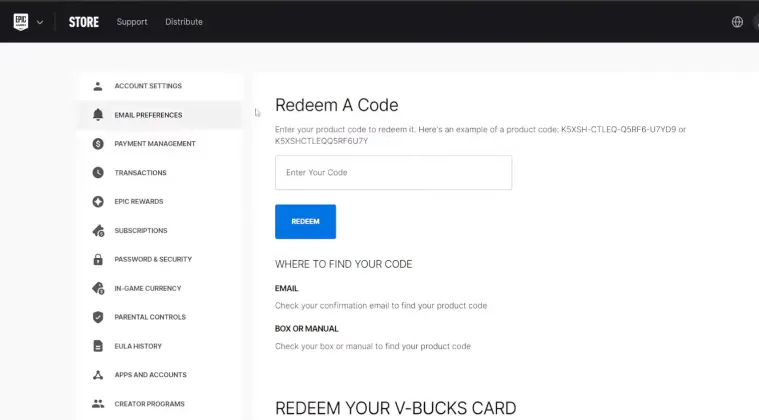
Redeeming V-Bucks on Epic Games starts with logging into your account. Have your redemption code ready before you start; searching for a misplaced card can eat up time and potentially trigger a session timeout.
Step 1: Log Into Your Epic Games Account
Open your web browser and head to the Epic Games website. Click the account icon in the top right corner and enter your login credentials. Make sure you’re using the correct account linked to your Fortnite profile.
Step 2: Navigate to the Redemption Section
Once logged in, hover over your account name and select “Redeem Code” from the dropdown menu. This takes you directly to the redemption page. Some players miss this option because it’s tucked away in the account settings. The page should display a text field asking for your code.
Step 3: Enter Your Redemption Code
Grab your Fortnite gift card and carefully scratch off the protective coating to reveal the code. Type the code exactly as shown, including any dashes or special characters. Double-check every character before submitting because one wrong letter means starting over.
The Epic Games V-Bucks redeem system accepts codes from authorized retailers. Physical gift cards typically have 16-digit codes, while digital codes from online stores might vary in format. Never purchase codes from unauthorized resellers because they often sell invalid or region-locked cards.
Step 4: Confirm the Redemption
After entering your code, click the “Redeem” button. A confirmation screen appears showing the amount of V-Bucks you’ll receive. Review the details and click “Confirm” to complete the process. Your V-Bucks balance should update within a few minutes.
Check your V-Bucks balance in Fortnite by launching the game and looking at the top right corner of the main menu. The number should reflect your new total. If it doesn’t appear immediately, restart the game client to force a refresh.
Some players wonder what V-Bucks are and why the redemption process matters. Understanding the currency system helps you make better purchasing decisions and avoid wasting money on unwanted items.
V-Bucks are the lifeblood of any Fortnite player’s arsenal. These digital coins unlock everything that makes your character stand out, including the best Fortnite skins and battle passes.
How to Redeem V-Bucks on Different Platforms
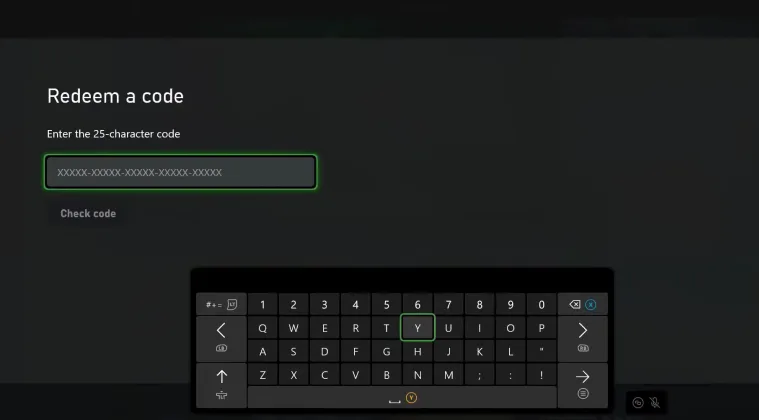
The how to redeem Fortnite V-Bucks card Epic Games process varies slightly across platforms. I play on multiple devices, and each one has quirks that can trip up new players.
PC Redemption
PC players have the most straightforward experience:
- Launch the Epic Games launcher and log in.
- Navigate to your account settings, select “Redeem Code,” and enter your gift card code.
- The launcher handles everything automatically without needing to visit the website.
- Your V-Bucks appear in Fortnite within seconds after confirmation.
PlayStation Redemption
PlayStation users need to link their Epic Games account to their PlayStation Network account first.
- Go to the PlayStation Store, select “Redeem Codes,” and enter your Fortnite gift card code.
- The system asks you to confirm the redemption.
- Your V-Bucks transfer to your Epic Games account automatically if the accounts are properly linked.
I recommend verifying your account connection before purchasing gift cards. Many players buy PlayStation-specific Fortnite cards without realizing their accounts aren’t linked, leading to redemption failures.
Xbox Redemption
Xbox players follow a similar process:
- Press the Xbox button on your controller, navigate to the Store tab, and select “Redeem Code.”
- Enter your code and confirm.
- The V-Bucks sync with your Epic Games account as long as you’ve linked the accounts through the Epic Games website.
Some Xbox users prefer redeeming codes through the Microsoft website instead. Both methods work equally well in my experience.
Mobile Redemption
Mobile players on iOS or Android should use the Epic Games website for redemption. The mobile apps don’t include built-in redemption features due to platform restrictions.
- Open your mobile browser.
- Visit the Epic Games site, log in, and follow the standard redemption steps.
- Your V-Bucks appear across all platforms because the currency is account-based, not device-specific.
Players interested in games like Fortnite should note that most battle royale titles use similar cross-platform currency systems.
Common Issues When Redeeming V-Bucks
I’ve encountered plenty of redemption problems over the years. Here are the most common issues and how to fix them:
Invalid Code Errors
The “invalid code” error appears when the system doesn’t recognize your redemption code. Check for typos first because confusing similar characters like “0” and “O” causes most invalid code problems. If you’ve verified the code is correct, the card might not be activated at the point of sale. Contact the retailer where you purchased it.
Region restrictions also trigger invalid code errors. Gift cards purchased in one country might not work in another.
Balance Not Updating
Sometimes the redemption succeeds but your V-Bucks balance doesn’t reflect the new amount. Force close Fortnite completely and restart it to trigger a balance refresh. If that doesn’t work, log out of your Epic Games account in the game, then log back in. The system rechecks your account status during login.
Epic Games servers occasionally experience delays during major events or updates. If you’re redeeming V-Bucks on patch day, expect longer wait times.
Account Linking Problems
Players who haven’t linked their console accounts to Epic Games can’t redeem V-Bucks properly. Visit the Epic Games website, go to your account settings, and select “Connections.” Link your PlayStation Network, Xbox Live, or Nintendo account by following the on-screen prompts. After linking, previously redeemed V-Bucks might not transfer retroactively.
If you’re encountering connection issues while linking your account, try using one of the best VPNs for Fortnite to improve your connection and ensure smoother account verification.
Payment Method Issues
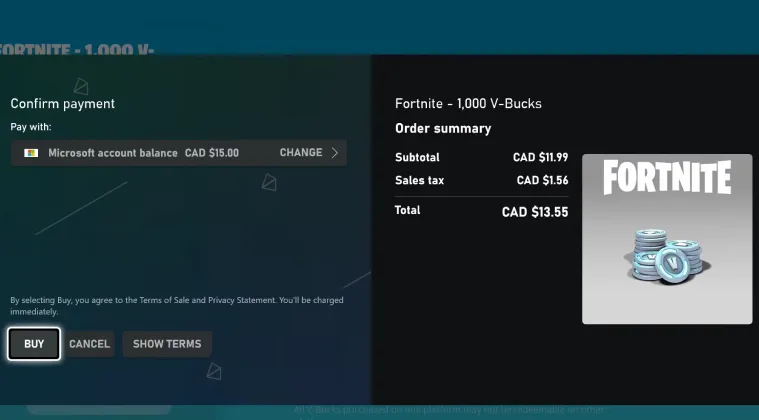
Digital purchases require valid payment information on file. If your credit card expires or gets declined, the transaction fails. Update your payment method in your Epic Games account settings before attempting to buy V-Bucks directly.
Some banks flag gaming purchases as potential fraud. If your payment gets declined repeatedly, contact your bank to authorize Epic Games transactions.
Making the Most of Your V-Bucks
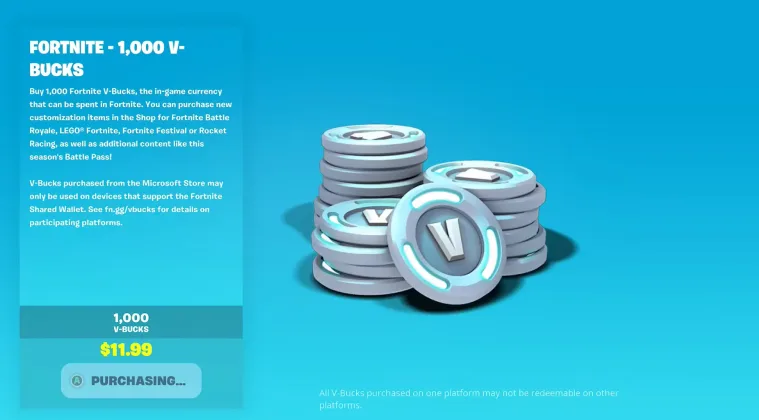
Now that you know how to redeem V-Bucks on Epic Games, spend them wisely. I’ve wasted plenty of V-Bucks on impulse purchases I later regretted.
Always check the region compatibility of gift cards before buying them as gifts. Nothing’s worse than giving someone a card they can’t redeem.
Keep your Epic Games account properly linked to all your gaming platforms to ensure seamless V-Bucks access everywhere. Competitive players interested in Fortnite esports often need V-Bucks for tournament-required cosmetics.
Update your payment methods regularly for smooth digital purchases. Expired cards cause failed transactions during time-sensitive deals. Monitor Epic Games server status if redemption takes longer than expected. The official Epic Games status page shows real-time service information.
Players looking into how to make money on Fortnite can reinvest earned currency into their accounts through various redemption methods. Snakzy is another option for those looking to earn free V-Bucks gift cards by playing mini-games.
Here’s how it works: you earn coins by playing games on Snakzy, then transfer those coins to your Eneba wallet. From there, you can purchase all kinds of gift cards, including Xbox or PlayStation gift cards that work for V-Bucks purchases.
While Snakzy doesn’t offer in-game currency gift cards directly on its platform, the Eneba wallet integration gives you access to a wide range of gaming gift cards. It’s a fun way to earn what you need for Fortnite and other platforms without spending your own money.
Play games and get paid with Snakzy.

FAQs
Log into your Epic Games account, navigate to “Redeem Code,” enter your gift card code, and confirm. V-Bucks appear in your Fortnite account within minutes.
Yes, V-Bucks are account-based. Once redeemed through Epic Games, they’re available on all linked platforms including PC, PlayStation, Xbox, and mobile devices.
Restart Fortnite completely or log out and back into your Epic Games account. Server delays during peak times can cause temporary display issues.
Use a mobile browser to access the Epic Games website. Log in, select “Redeem Code,” and enter your gift card code. The mobile app doesn’t support direct redemption.
Verify the code for typos, check region compatibility, and confirm the card was activated at purchase. Contact the retailer if the code remains invalid after verification.
Purchase from authorized retailers only. Follow their platform-specific instructions, which typically provide an Epic Games redemption code via email or receipt.
Launch Fortnite and look at the top right corner of the main menu. Your current V-Bucks total displays next to your account name and level.
Log in to Epic Games, hover over your account name, select “Redeem Code” from the dropdown menu, and enter your code in the text field provided.
Open PlayStation Store, select “Redeem Codes,” enter your 16-digit code, and confirm. Ensure your PlayStation Network account is linked to Epic Games first.