How to Open Steam Overlay and Master Valve’s In‑Game Interface

Opening the Steam overlay mid‑game feels second nature once you learn where the settings live and which hotkey triggers it. Knowing how to open Steam overlay quickly helped me stay in touch with friends, check achievements, and even browse guides without ever alt‑tabbing.
In this step‑by‑step guide I’ll show you how to enable the overlay, customize the shortcut keys, explore its features, and troubleshoot common problems so you can focus on playing.
Jump to:
How to Open Steam Overlay
Valve’s overlay lives in the Steam client, so you need to turn it on before a hotkey will do anything. The instructions below apply whether you’re gaming on a desktop rig or a portable device:
Enable the overlay in Steam
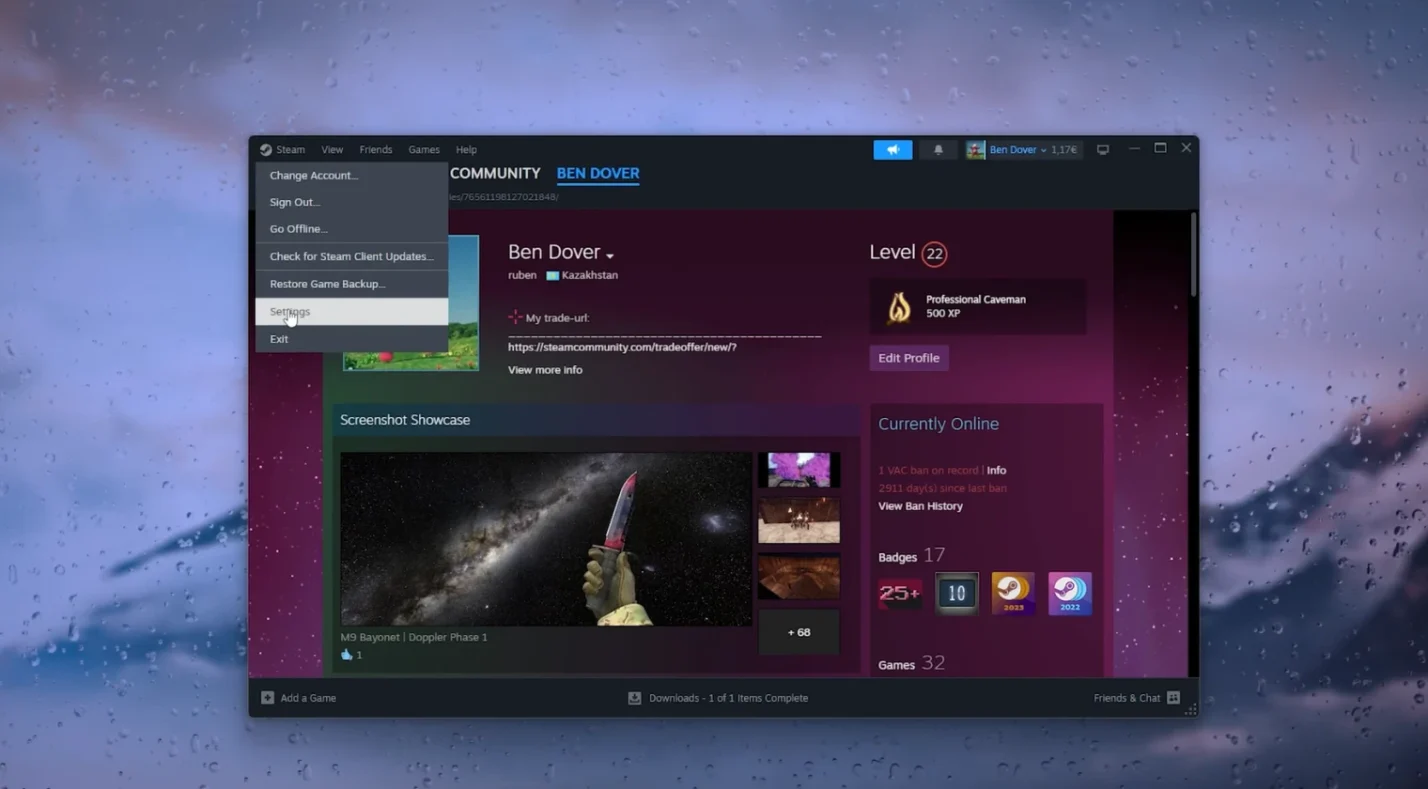
- Launch the Steam client and click Steam in the top‑left corner. Choose Settings (Windows) or Preferences (macOS).
2. In the left sidebar select In‑Game. Toggle Enable the Steam Overlay while in‑game. This setting turns the overlay on for your entire library.
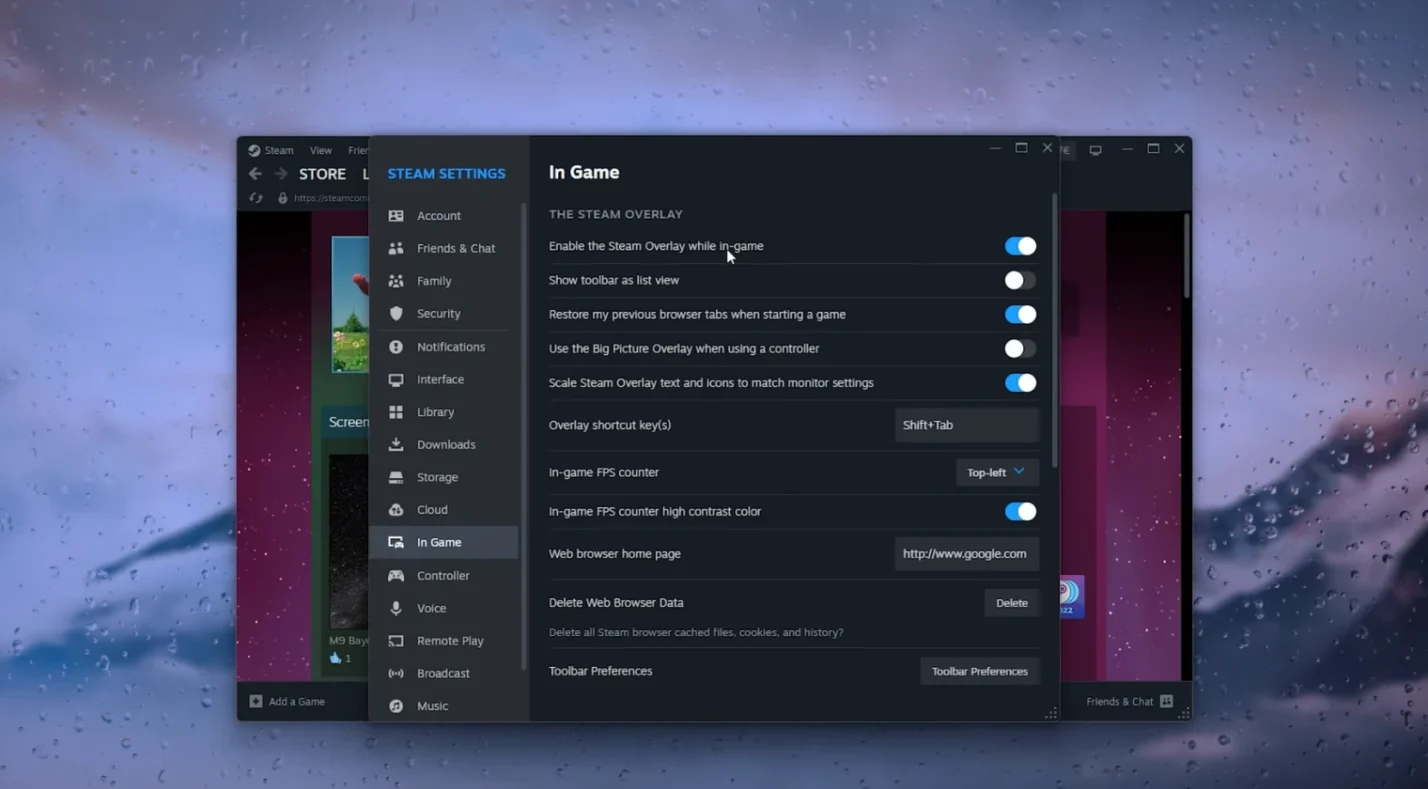
3.Note the Overlay shortcut key(s) in the right pane. By default the combination is Shift + Tab, but you can click the field and press a different combination if Shift+Tab conflicts with other programs. I switched mine to Alt + Backtick because I use Shift+Tab in my text editor.
Enable the overlay for a specific game
Even when the global overlay is on, it can be disabled per game. To ensure you can open it everywhere:
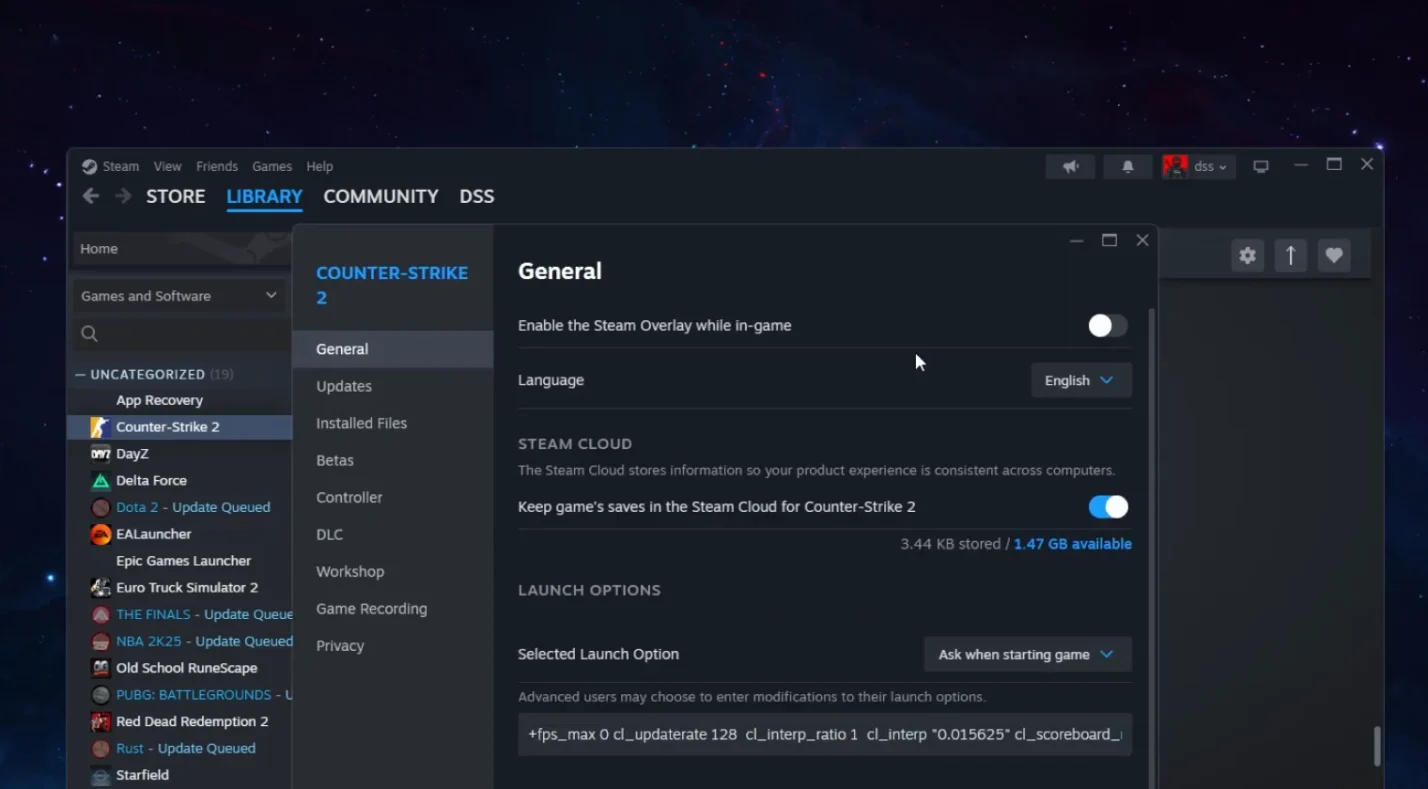
- Return to your Library, right‑click a game, and select Properties.
- In the General tab, toggle Enable the Steam Overlay while in‑game.
- Launch the game and press your chosen hotkey (or Shift+Tab by default) to open the overlay. If nothing appears, continue to the troubleshooting section below.
Use a controller to open the overlay
On Valve hardware like the Steam Deck and most modern controllers, pressing the Steam button opens the overlay.
If your controller lacks a dedicated Steam button, map the overlay function to another key by going to Settings > Controller and remapping the Guide Button Chord Configuration. You can also assign a custom shortcut under In‑Game > Overlay shortcut keys to something easy to hit on your gamepad.
What Steam Overlay Can Do for You
This is more than just a chat window. Once you know how to open Steam overlay, you unlock a toolkit of in‑game utilities:
- Game overview: The info icon provides a snapshot of playtime, recent news, and direct links to the community hub and guides.
- Achievements tracker: The medal icon shows which achievements you’ve unlocked and what you’re close to earning.
- Notes and to‑do lists: Click the pencil to jot down strategies or track collectibles. Your notes are saved per game and sync across PCs.
- Timer: A clock lets you set session limits and displays elapsed time, helping me avoid marathon sessions.
- Guides and community discussions: The book and chat icons link directly to fan‑written manuals and discussion boards so you can find solutions without leaving your match.
- Screenshots: Use the camera icon to capture and manage screenshots.
- Friends list and chat: The friends icon shows who’s online, lets you join their lobbies, and supports group chats.
- Web browser: A built‑in browser lets you search the web without alt‑tabbing.
- Controller settings and basic options: Gear icons provide controller remapping and quick access to Steam settings. A minimize button collapses overlay windows when you need a clear view, and status indicators show the time, battery level, and session length.
These tools helped me plan boss fights in Elden Ring, track quest notes in Baldur’s Gate 3, and coordinate with friends for raids. They also make remote play easier because you can check network performance or change streaming resolution without leaving the game.
If you want to extend your PC gaming beyond your desk, our Steam Link setup guide explains how to stream games to a TV or a second computer and shows how the overlay complements Remote Play.
Troubleshooting When Steam Overlay Doesn’t Work
Sometimes pressing Shift + Tab does nothing. Before you reinstall Steam, run through these fixes based on my own experiences and community advice:
- Refresh the overlay toggle: Turning the overlay off and back on can resolve temporary glitches. Open Steam > Settings > In‑Game, toggle Enable the Steam Overlay off, then on again. Restart Steam and test the hotkey.
- Verify per‑game settings: If the overlay is disabled for one game, right‑click the game in your Library, select Properties, and ensure the Enable the Steam Overlay while in‑game switch is on. I once wondered why my overlay wouldn’t appear in Destiny 2, only to discover I’d unchecked this box while troubleshooting another issue.
- Run Steam as an administrator: Steam sometimes needs elevated privileges to draw on top of games. Navigate to your installation directory (usually C:\Program Files (x86)\Steam), right‑click Steam.exe, select Properties > Compatibility, and check Run this program as an administrator. Repeat for GameOverlayUI.exe to ensure the overlay component has the same permissions.
- Check your hotkey: Make sure you’re pressing the correct shortcut. The default is Shift + Tab, but you may have changed it. Go to Settings > In‑Game and look at Overlay shortcut key(s). If the combination is blank or conflicts with another app, click the field and set a new key combination.
- Verify game files: If the overlay works in most games but not in one, the game’s files might be corrupted. Right‑click the game in your Library, choose Properties, go to Installed Files, and click Verify integrity of game files to replace missing or corrupted data.
- Check for interfering software: Other overlays (Discord, GeForce Experience, MSI Afterburner), antivirus programs, or even firewalls can block Steam’s overlay. Try disabling third‑party overlays and temporarily turn off your firewall to test if the overlay appears. You can re‑enable protection afterward and add Steam to your exception lists. If you suspect startup apps are interfering, perform a clean boot by disabling non‑Microsoft services.
- Update or reinstall Steam: Outdated clients can cause overlay issues. Click Steam > Check for Steam Client Updates and install any patches. If problems persist, reinstalling Steam can refresh overlay components. Just back up your game files first to avoid long downloads.
Steam Overlay Across Devices
A big reason I learned how to open steam overlay was because I use multiple devices. The overlay behaves slightly differently on each platform:
- Steam Deck: Press the Deck’s Steam button to open the overlay. You can adjust performance settings, check battery life, or switch to Desktop Mode. Pairing the Deck with a dock unlocks couch gaming on a TV; our best Steam Deck docks list highlights versatile hubs that keep the overlay responsive by providing Ethernet, HDMI, and plenty of USB ports.
- Mobile via Steam Link: When you stream games to your phone using the Steam Link app, tap the screen with three fingers (or a designated overlay button) to open the overlay. You still access chat, guides, notes, and more, though the interface is optimized for touch. For a full walkthrough on streaming and control schemes, check our guide that answers can you play Steam games on your phone.
- Big Picture Mode and console controllers: Using Big Picture Mode on a TV automatically adjusts the overlay for larger screens. Pressing the Guide button on an Xbox or PlayStation controller opens the overlay, provided controller support is enabled in Settings > Controller.
On every platform, enabling the overlay and customizing the hotkey ensures you can reach the features you need. If you run into performance hiccups, reduce the overlay’s use on lower‑end hardware or disable some widgets to free resources.
Keep Exploring With Steam and Eneba
Mastering how to open Steam overlay is just the start. Once you’re comfortable bringing up the overlay and configuring its widgets, you can spend more time enjoying your games and less time fiddling with windows. Valve continues to update the interface, and features like Remote Play Together and Notes make co‑op sessions smoother than ever.
If you’re looking to add to your library or share the gift of gaming, a Steam Gift Card is a flexible way to load your Steam Wallet. It lets you pick up new releases, DLC, or cosmetics right from within the overlay. I’ve used gift cards from Eneba to grab seasonal deals without exposing my credit card, and activating them takes just a few clicks.
FAQs
How do I open the Steam overlay while gaming?
To open the Steam overlay while gaming, press Shift + Tab on your keyboard or the Steam button on compatible controllers. Make sure you’ve enabled the overlay in Steam > Settings > In‑Game and for the specific game in its Properties menu.
Why won’t my Steam overlay open?
The reason why your Steam overlay won’t open is often because the overlay is disabled, the hotkey was changed, or another program is interfering. Verify the overlay is enabled globally and per game, check your shortcut key, and disable conflicting overlays or antivirus software.
How do I change the Steam overlay hotkey?
To change the Steam overlay hotkey, go to Steam > Settings > In‑Game and click the Overlay shortcut key(s) box. Press your preferred key combination, then confirm to save it. This lets you avoid conflicts with other programs.
Does the Steam overlay work on the Steam Deck?
Yes, the Steam overlay works on the Steam Deck; you open it by pressing the Deck’s Steam button. The overlay includes performance settings tailored for handheld gaming and can be accessed even when the Deck is docked to a TV.
What can I do if the Steam overlay causes lag?
If the Steam overlay causes lag, you can minimize its resource usage by disabling unnecessary widgets or turning it off for demanding games. Steam notes that the overlay consumes CPU and GPU resources, so limiting its use on lower‑end hardware can improve performance.