




How to Make Skyrim Fullscreen: Step‑by‑Step Guide and Tips

Getting the most out of a sprawling open‑world RPG often comes down to visibility and focus. As someone who has spent hundreds of hours exploring Tamriel, I know that a distracting desktop or sluggish frame rate can quickly derail a dragon fight and make you whiff your first shout.
Learning how to make Skyrim full-screen reduces input lag, boosts your FPS, and helps you stay immersed when every swing matters. Below you’ll find straightforward steps to toggle display modes, advice on choosing between full screen, borderless, and windowed modes, and solutions for common problems. I’ll also share personal tips to create a more immersive playing environment and point you toward gear guides from our Hub to help you build the perfect setup.
Jump to:
How to Make Skyrim Fullscreen – Quick Guide
When you’re itching to pickpocket a guard and don’t want to fumble through settings, here’s a simple method for going full screen:
1. Launch the game through its launcher. Start Skyrim from Steam using the Play button, which opens the Bethesda launcher or the Special Edition launcher. You can’t adjust display mode from the main menu once the game loads.
2. Open the Options menu. In the launcher, click Options. The original and Special Edition launchers provide a simple settings window.
3. Disable windowed mode. Uncheck Windowed Mode or Borderless to force full screen. Leaving this box ticked will run the game in a window.
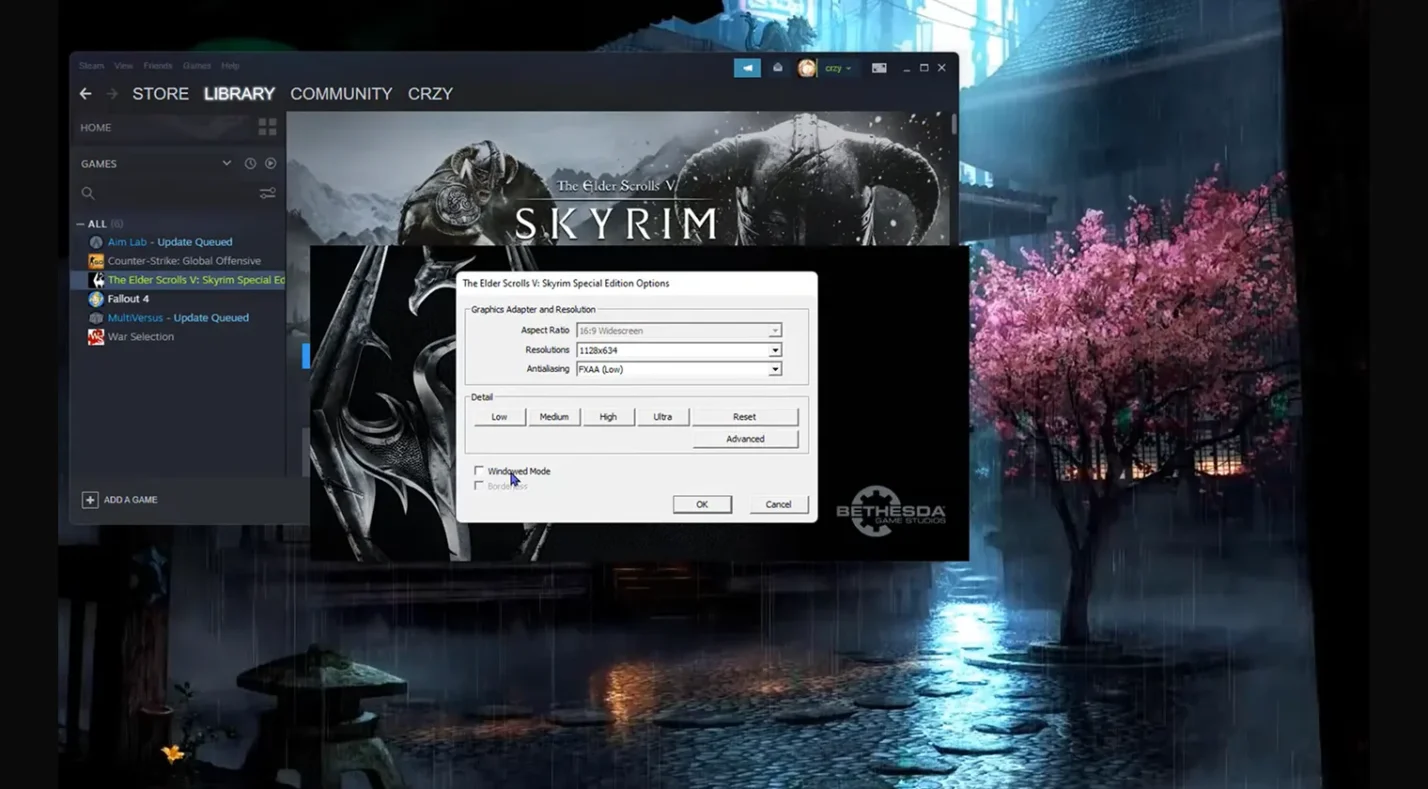
4. Match your resolution. Choose the resolution that matches your monitor’s native resolution (for example, 1920 × 1080 or 2560 × 1440). This prevents black bars or stretched images.
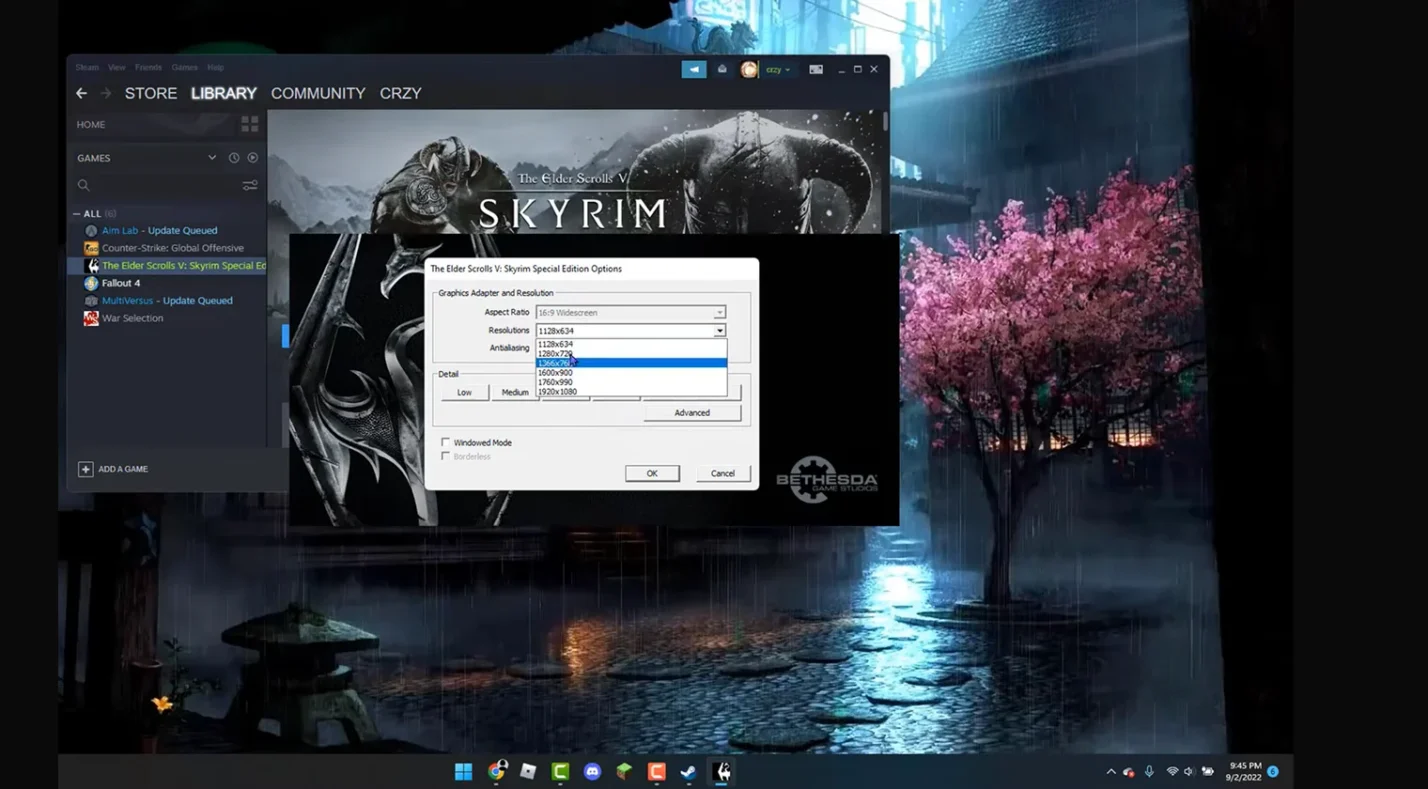
5. Apply changes and play. Click OK and then Play. The game should switch to full screen immediately.
6. Use Alt + Enter for quick toggles. If you need to switch quickly while in a dungeon, press Alt + Enter to toggle between full-screen and windowed modes without opening the menu. I use this to take notes during mod testing or when I need to tab out to a browser mid‑session.
Full screen dedicates more of your PC’s resources to the game. Windows turns off most of its desktop compositing, which reduces overhead and allows your GPU to prioritize Skyrim. On one of my older builds, switching from borderless to full screen added 10–15 FPS. While results vary by system, this quick change often delivers smoother motion and better input response.
Understanding Windowed, Borderless, and Full‑Screen Modes in Skyrim
Bethesda’s RPG offers three display modes. Each has advantages depending on your habits and hardware, so it’s important to know what you’re choosing.
Full Screen Mode
Full‑screen mode takes over your entire display. Because it bypasses the operating system’s desktop composition, it usually provides the highest frame rates and lowest latency. Competitive players and those who value immersion tend to prefer full screen.
You can’t see other windows or the taskbar, so it’s easier to stay focused. However, the downside is that Alt‑Tabbing minimizes the game; returning can cause brief stutters, which isn’t ideal if you’re managing a stream or chat.
Borderless Mode
Borderless windowed mode runs the game in a window without visible borders while matching your desktop resolution. It looks like full screen but behaves like a window. Alt‑Tabbing is instant, which is great if you’re listening to music or using voice‑chat apps. Performance is usually within a few frames of full screen on modern hardware, but older systems may notice lower FPS.
I sometimes use borderless mode when testing mods because it lets me swap to my mod manager quickly without minimizing the game. For more information about high‑quality monitors that can make this mode shine, check out our guide to the best OLED gaming monitors.
Windowed Mode
Traditional windowed mode runs Skyrim inside a movable window. It’s useful if you need constant access to other applications or use multiple monitors. However, it has the smallest play area and can feel cramped on smaller screens.
Performance is usually lower than full screen because your GPU has to render the desktop and game simultaneously. Unless you have a specific reason to use it, borderless is typically a better compromise.
Choosing between these modes depends on your setup and priorities. If you’re investing in a new display to get the most from these modes, explore our Hub’s best Elder Scrolls games ranking, which includes Skyrim and recommendations on hardware that pairs well with each title. It’s a great starting point for understanding which monitors and resolutions complement different RPG experiences.
How to Make the Skyrim Launcher Feel Full‑Screen
Many players want the Skyrim launcher (the part where you adjust options and manage data files) to fill the screen. While the launcher can’t enter true full-screen, you can resize it to better fit your display. Here’s what has worked for me on Windows 10 and Windows 11:
Windows 10
1. Hide the taskbar. Right‑click the taskbar and choose Taskbar settings. Toggle on Automatically hide the taskbar in desktop mode. This frees vertical space.
2. Open the launcher. Launch Skyrim and wait for the launcher to appear.
3. Resize the window. Drag the edges of the launcher to fit your screen. On my 1440p monitor, expanding it to near full size makes it easier to read mods and options.
Windows 11
1. Hide the taskbar. Right‑click the taskbar, open Taskbar settings, then go to Taskbar behaviors and enable Automatically hide the taskbar.
2. Launch Skyrim and open the launcher as above.
3. Resize the window. Drag the corners until it occupies most of the screen. Windows 11 will remember the size the next time you open it.
After applying these settings, the launcher will remember its size each time you open it. The hidden taskbar means nothing blocks the bottom edge. While it isn’t truly full screen, it feels more immersive and allows the data files and options to scale properly. For more ideas on optimizing your gaming space – including monitor placement and lighting – explore our guide to the best gaming setup ideas on Eneba Hub.
Fixing Full‑Screen Problems in Skyrim
Occasionally, you might run into issues where the game refuses to go full screen or reverts to another mode. Here are troubleshooting steps that have helped me and other players.
Match Your Desktop Resolution
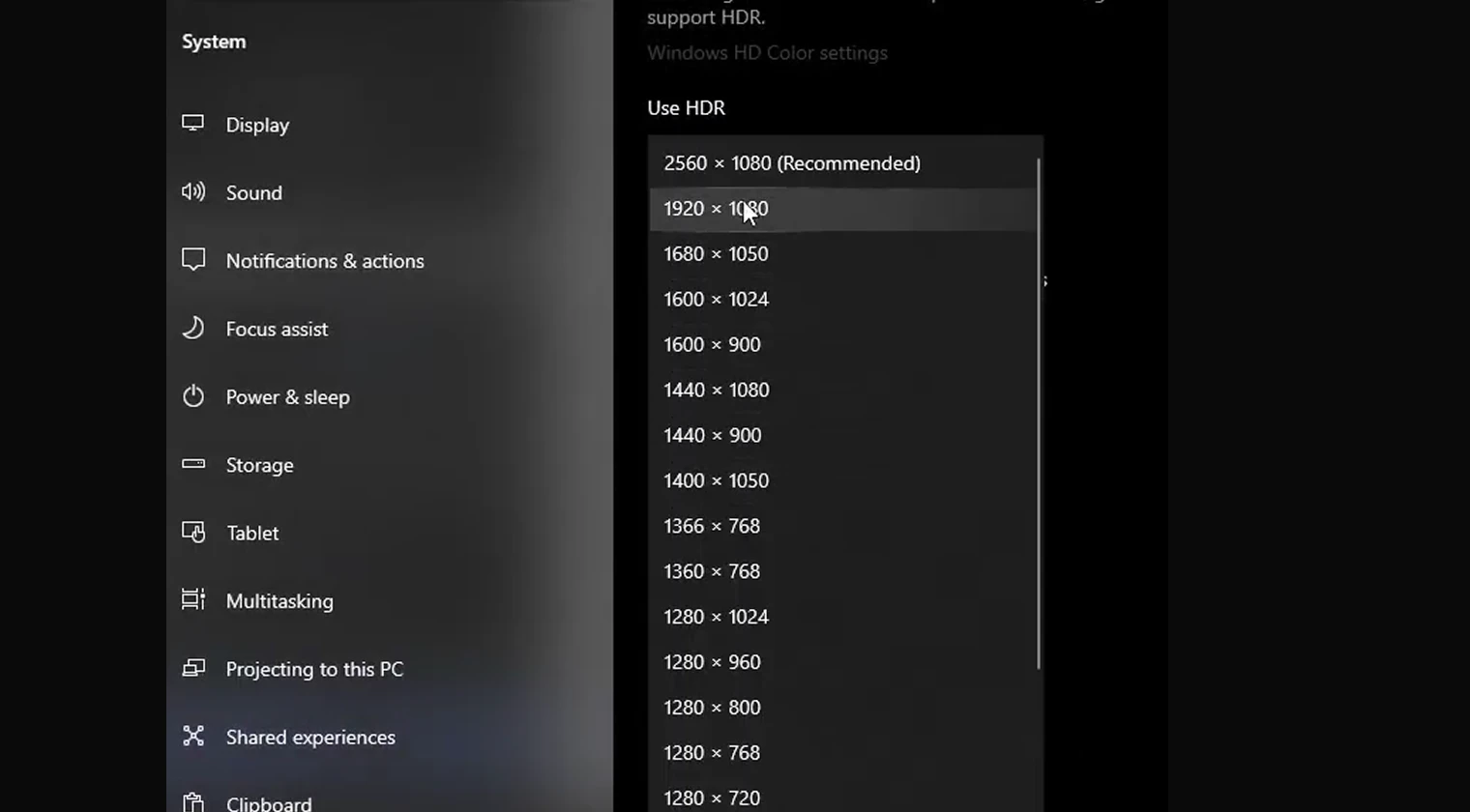
If Skyrim won’t fill the screen or appears stretched, check your Windows display settings. Right‑click the desktop, choose Display settings, and ensure the resolution matches your monitor’s native resolution. Then open the launcher and pick the same resolution under the Options menu. Mismatched resolutions can cause scaling issues and black bars.
Use Alt + Enter
Sometimes the game gets stuck between modes. Pressing Alt + Enter twice can force the game to recognize full‑screen mode again. This shortcut toggles between windowed and full screen. I’ve used it when the game randomly switched back to borderless after Alt‑Tabbing.
Update Graphics Drivers
Outdated GPU drivers can cause display problems. Visit the official site for your graphics card (NVIDIA, AMD, or Intel) and install the latest drivers. I once spent an entire evening wondering why full screen wouldn’t work – turns out my drivers hadn’t been updated in months.
Check Multi‑Monitor Settings
If you have multiple monitors, Skyrim might launch on the wrong screen or refuse to fill the primary display. Make sure your desired gaming monitor is set as the primary display in Windows. For NVIDIA users, disable Surround or any desktop scaling that could interfere. If you regularly switch between monitors, borderless mode might be a better choice.
Edit the Configuration File
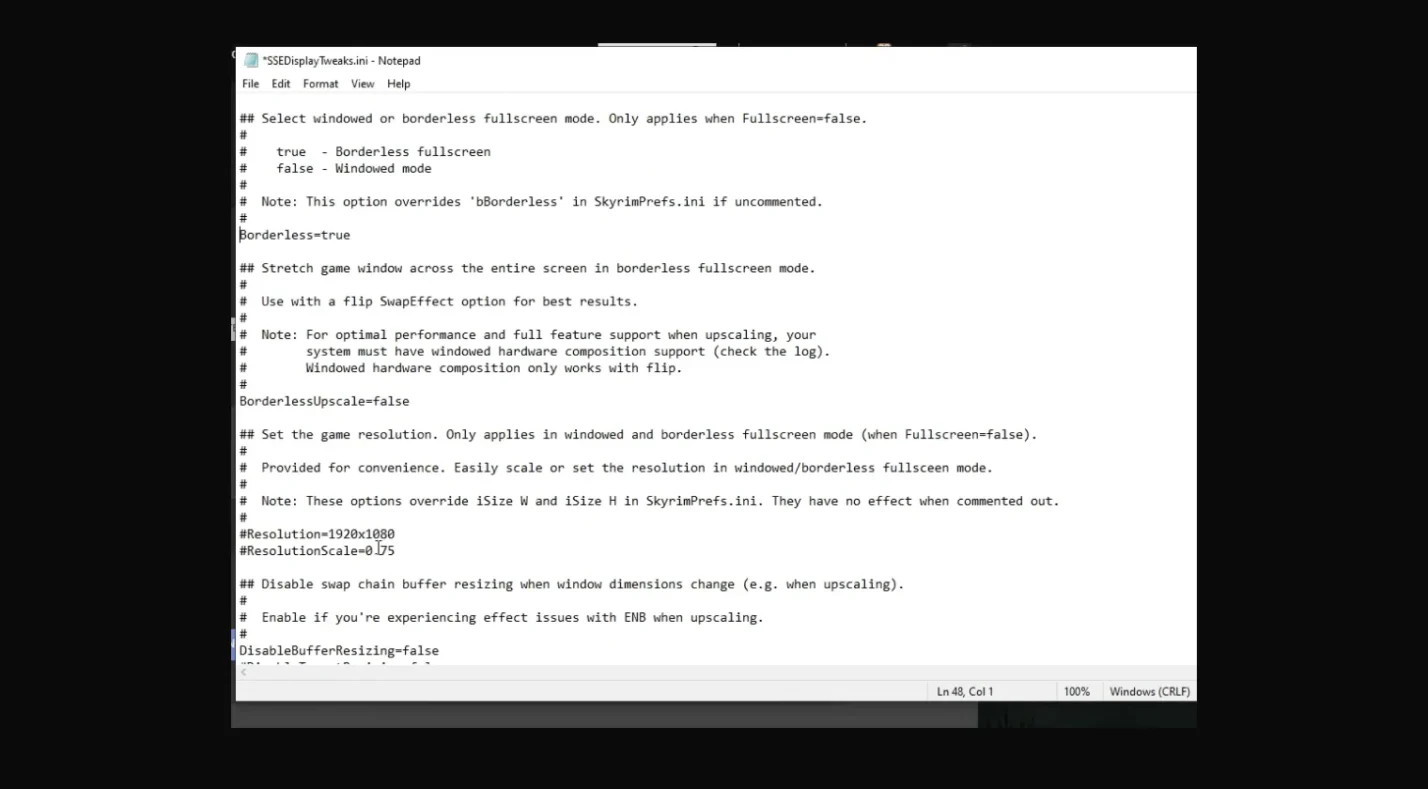
For persistent issues, you can manually set full screen in the configuration file:
1. Locate SkyrimPrefs.ini. Navigate to C:\Users\YourUsername\Documents\My Games\Skyrim or Skyrim Special Edition and open SkyrimPrefs.ini with a text editor. If you use Mod Organizer 2, find the INI in your profile folder.
2. Adjust the [Display] section. Set bFull Screen=1 to force full screen and bBorderless=0 to disable borderless mode. Specify iSize W= and iSize H= values that match your monitor’s resolution, such as iSize W=1920 and iSize H=1080.
3. Save the file and set it to read‑only. Right‑click SkyrimPrefs.ini, choose Properties, and tick Read‑only. This prevents the launcher from overwriting your settings. Remember to remove the read‑only flag if you want to change resolutions later.
Editing the file ensures the game launches in full screen even if you changed the mode in the last session. This method works for both the original game and the Skyrim Special Edition.
Why Playing Skyrim in Full Screen Matters
You might wonder whether switching display modes is worth the effort. From my experience and the experiences of many players, full screen offers several benefits.
- Higher performance. Exclusive full screen reduces overhead by letting your GPU focus on the game. This can translate to higher FPS and lower input latency, critical in a fast‑paced melee or archery fight.
- Fewer distractions. Without the desktop or taskbar visible, your attention stays on the world. I find this helps with map awareness and reacting to dragon shouts.
- Improved immersion. A full‑screen view makes the province feel larger and more vibrant. This can make long sessions more enjoyable.
- Better compatibility with adaptive sync. Certain high‑refresh displays enable technologies like G‑Sync or FreeSync only in full screen. If you’ve invested in a high‑refresh monitor, you’ll want to take advantage of these features. If you’re considering an upgrade, our list of the best OLED gaming monitors linked above has recommendations that can complement your new display and sharpen your visuals.
While borderless and windowed modes have their place – especially for streamers or multitaskers – hardcore adventurers often stick to full screen for maximum performance. Ultimately, the right mode depends on your setup and priorities. Our Hub article comparing Elden Ring vs Skyrim offers insight into how other games handle display options and performance, which can inform your decision.
Mastering Full Screen and Beyond
Optimizing your display settings might seem like a small tweak, but it can make a noticeable difference in how responsive and immersive Skyrim feels. Start by learning how to fullscreen Skyrim using the launcher or the Alt + Enter shortcut. Then consider whether full-screen, borderless, or windowed mode best suits your play style. If you run into issues, matching your resolution, updating drivers, and editing SkyrimPrefs.ini can resolve most problems. Finally, don’t neglect your hardware; the right monitor and setup can unlock the full potential of your favorite RPG.
If you’re ready to revisit Tamriel or play Skyrim for the first time, The Elder Scrolls V: Skyrim Anniversary Edition (PC) Steam Key from our marketplace includes the Special Edition and all Creation Club content. You can pick it up on Eneba at a great price: Skyrim Anniversary Edition Steam Key GLOBAL. Purchasing through our marketplace supports the work we do on the Hub and gives you instant access to the game and its vast modding community.
FAQs
How do I toggle fullscreen in Skyrim quickly?
To toggle fullscreen in Skyrim quickly, press Alt + Enter during gameplay. This shortcut instantly switches between full‑screen and windowed modes so you can jump in and out of other apps without opening the options menu.
Why won’t Skyrim stay fullscreen?
The reason why Skyrim won’t stay full screen is usually a resolution mismatch or conflicting settings. Match the game and monitor resolutions, uncheck Windowed Mode, and update drivers or disable overlays to stop it from reverting.
Can I change Skyrim’s resolution without opening the game?
Yes, you can change Skyrim’s resolution without opening the game by editing SkyrimPrefs.ini in your Documents\My Games folder. Set iSize W and iSize H to your desired resolution and tweak bFull Screen and bBorderless as needed, then save the file.
Can I play Skyrim in borderless windowed mode?
Yes, to play Skyrim in borderless windowed mode, select Windowed Mode and tick Borderless or set bFull Screen=0 and bBorderless=1 in SkyrimPrefs.ini. Borderless mode mimics fullscreen and lets you Alt + Tab easily.
How do I make Skyrim fullscreen on a second monitor?
To make Skyrim fullscreen on a second monitor, launch the game in windowed mode, drag it to the other display, then press Alt + Enter. You can also set the second monitor as your primary display or use borderless mode for easier switching.
[1] Top Elder Scrolls Game: Ranking the Best Titles Ever
[2] Skyrim Special Edition Display Settings