How to Fullscreen League of Legends: Step‑by‑Step Guide and Display Tips

Getting the most from a match often comes down to visibility and focus. As a diehard midlane Zed main, I know that a distracting desktop or sluggish frame rate can quickly derail a ranked climb and make you choke even against a wannabe Yasuo main. Learning how to fullscreen League of Legends also reduces input lag, boosts your FPS, and helps you stay focused when every trade matters. Below you’ll find straightforward steps to toggle display modes, advice on choosing between full screen, borderless, and windowed modes, and solutions for common problems. I’ll also share personal tips to create a more immersive playing environment and point you toward gear guides from our Hub to help you build the perfect setup.
Jump to:
How to Fullscreen League of Legends – Quick Guide
When you’re in the heat of a match, you don’t want to fumble through settings. Here’s a simple method for going full screen in‑game:
- Launch a match. Start any game mode or practice tool. You can’t adjust display mode from the client lobby.
- Open the Options menu. Once the game loads, press Esc to open the settings menu.
- Navigate to the Video tab. On the left‑hand side, you’ll see several categories. Click Video.
- Select window mode. Find the Window Mode dropdown and choose Full Screen. You can also pick Borderless or Windowed, which I’ll explain later.
- Match your resolution. For best results, set the resolution to match your monitor’s native resolution (for example, 1920×1080 or 2560×1440). This prevents stretched images or black bars.
- Apply the changes. Click Apply to confirm. The screen should switch to your chosen mode immediately.
If you need to switch quickly while in a match, press Alt + Enter. This keyboard shortcut toggles between full-screen and windowed modes without opening the menu. I use it to take notes during games or when I need to tab out to the browser mid-match.
Why It’s the First Step
Full-screen mode dedicates more of your PC’s resources to the game. Windows turns off most of its desktop compositing, which reduces overhead and allows your GPU to prioritize League of Legends. For me, switching from borderless to full screen added 10 to 15 FPS on an older laptop. While results vary by system, this quick change often delivers smoother motion and better input response.
Understanding Windowed, Borderless, and Full-Screen Modes in League of Legends
League of Legends offers three display modes. Each has advantages depending on your habits and hardware, so it’s important to know what you’re choosing.
Full Screen Mode
Full-screen mode takes over your entire display. Because it bypasses the operating system’s desktop composition, it usually provides the highest frame rates and lowest latency. Competitive players tend to prefer full screen for this reason. You can’t see other windows or the taskbar, so it’s easier to stay focused. However, the downside is that alt‑tabbing out minimizes the game; returning can cause brief stutters, which isn’t ideal if you’re managing a stream or chat.
Borderless Mode
Borderless windowed mode runs the game in a window without visible borders while matching your desktop resolution. It looks like full screen but behaves like a window. Alt‑tabbing is instant, which is great if you’re streaming, listening to music, or using voice‑chat apps. Performance is usually within a few frames of full screen on modern hardware, but older systems may notice lower FPS. As someone who streams for friends, I sometimes use Borderless so I can quickly switch to Discord without the game minimizing.
Windowed Mode
Traditional windowed mode runs League of Legends inside a movable window. It’s useful if you need constant access to other applications or use multiple monitors. However, it has the smallest play area and can feel cramped on smaller screens. Performance is usually lower than full screen because your GPU has to render the desktop and game simultaneously.
If you’re investing in a new display to get the most from these modes, check out our guide to the best gaming monitors, which explains refresh rates, response times, and resolutions in plain language and helps you pick a screen that complements whatever mode you prefer.
How to Make the League Client Feel Full-Screen
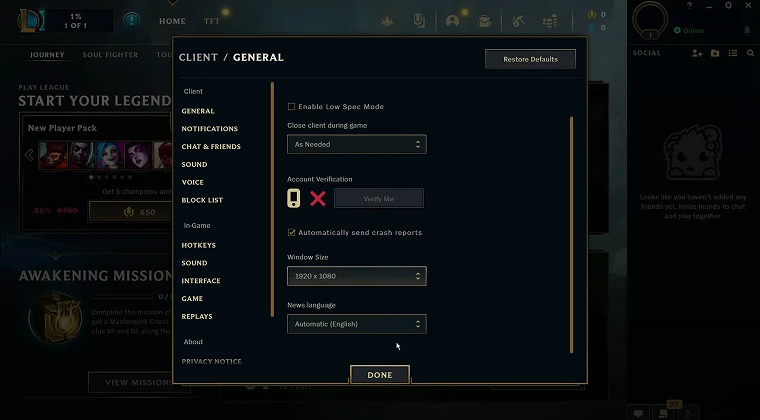
Many players want the League of Legends client (the part where you pick champions and chat with friends) to fill the screen. The client can’t enter true full screen, but you can resize it to better fit your display. Here’s what has worked for me on Windows 10 and Windows 11.
Windows 10
- Hide the taskbar. Right‑click the taskbar and choose Taskbar settings. Toggle on Automatically hide the taskbar in desktop mode. This frees vertical space.
- Launch League of Legends. Log in and wait for the client to load.
- Open client settings. Click the gear icon in the top‑right corner of the client window.
- Set window size. Under General, find Window Size and choose the resolution that matches your monitor. On my 1440p screen, selecting 2560×1440 lets the client fill most of the display.
Windows 11
- Hide the taskbar. Right‑click the taskbar, open Taskbar settings, then go to Taskbar behaviors and enable Automatically hide the taskbar.
- Launch League of Legends and open the client settings as above.
- Select window size. Choose your monitor’s resolution from the Window Size dropdown.
After applying these settings, the client will remember its size each time you open it. The hidden taskbar means nothing blocks the bottom edge. While it isn’t truly full screen, it feels more immersive and allows the in‑client store and lobby to scale properly.
For more ideas on optimizing your gaming space, including monitor placement and lighting, explore our guide to the best gaming setup ideas.
Fixing Full-Screen Problems in League of Legends
Occasionally, you might run into issues where the game refuses to go full screen or reverts to another mode. Here are troubleshooting steps that have helped me and other players.
Match Your Desktop Resolution
If League of Legends won’t fill the screen or appears stretched, check your Windows display settings. Right‑click the desktop, choose Display settings, and ensure the resolution matches your monitor’s native resolution. Then open the game and pick the same resolution under the Video tab. Mismatched resolutions can cause scaling issues and black bars.
Use Alt + Enter
Sometimes the game gets stuck between modes. Pressing Alt + Enter twice can force the game to recognize full-screen mode again. This shortcut toggles between windowed and full screen. I’ve used it when the game randomly switched back to borderless after alt‑tabbing.
Update Graphics Drivers
Outdated GPU drivers can cause display problems. Visit the official site for your graphics card (NVIDIA, AMD, or Intel) and install the latest drivers. I once spent an entire evening wondering why full-screen wouldn’t work. Turns out my drivers hadn’t been updated in months.
Check Multi‑Monitor Settings
If you have multiple monitors, League of Legends might launch on the wrong screen or refuse to fill the primary display. Make sure your desired gaming monitor is set as the primary display in Windows. For Nvidia users, disable Surround or any desktop scaling that could interfere. If you regularly switch between monitors, borderless mode might be a better choice.
Edit the Configuration File
For persistent issues, you can manually set full screen in the configuration file:
- Navigate to your League of Legends installation directory (typically C:\Riot Games\League of Legends\Config on Windows).
- Open game.cfg with a text editor like Notepad. If you don’t see it, open the LeagueClient and it will generate one after a match.
- Under the [General] section, set WindowMode=0 (0 is full screen, 1 is borderless, 2 is windowed). Specify Width= and Height= values that match your monitor’s resolution, such as Width=1920 and Height=1080.
- Save the file and right‑click it. Choose Properties and tick Read‑only. This prevents the game from overwriting your settings.
Editing the file ensures the game launches in full screen even if you changed the mode in the last session. Just remember to remove the read‑only flag if you want to change resolutions later.
Why Playing League of Legends in Full Screen Matters
You might wonder whether switching display modes is worth the effort. From my experience and the experiences of many players, full-screen mode offers several benefits.
Higher Performance
Full screen reduces overhead by letting your GPU focus on the game. This can translate to higher FPS and lower input latency, which is critical in a fast‑paced MOBA.
Fewer Distractions
Without the desktop or taskbar visible, your attention stays on the match. I find this helps with map awareness and reacting to pings.
Improved Immersion
A full‑screen view makes the Rift feel larger and more vibrant. This can make long sessions more enjoyable.
Better Compatibility With Some Monitors
Certain high‑refresh displays enable adaptive sync technologies like G‑Sync or FreeSync only in full screen. If you’ve invested in a high‑refresh monitor, you’ll want to take advantage of these features. If you’re considering an upgrade, our list of the best gaming mice for League of Legends has recommendations that can complement your new display and sharpen your accuracy.
While borderless and windowed modes have their place, especially for streamers or multitaskers, competitive players often stick to full screen for maximum performance. Ultimately, the right mode depends on your setup and priorities.
Mastering Full Screen and Beyond
Optimizing your display settings might seem like a small tweak, but it can make a noticeable difference in how responsive and immersive League of Legends feels. Start by learning how to fullscreen League of Legends using the in‑game menu or the Alt + Enter shortcut. Then consider whether full-screen, borderless, or windowed mode best suits your playstyle. If you run into issues, matching your resolution, updating drivers, and editing the game.cfg file can resolve most problems. Finally, don’t neglect your hardware; the right monitor, mouse, and setup can unlock the full potential of your favorite MOBA.
If you’re ready to bring a new skin or champion into your roster, a League of Legends gift card from our marketplace makes it easy. The digital card delivers Riot Points instantly, so you can spend less time worrying about payment methods and more time climbing the ladder. Head over to the League of Legends Gift Card to pick one up.
FAQs
How do I toggle fullscreen in League of Legends quickly?
To toggle fullscreen in League of Legends quickly, press Alt + Enter during a match. This keyboard shortcut immediately switches between full-screen and windowed or borderless modes. It’s useful if you need to access another application or return to focus on the game without digging through the settings menu.
Why won’t League of Legends stay fullscreen?
The reason why League of Legends won’t stay full-screen is often related to resolution mismatches or conflicting settings. Make sure your in‑game resolution matches your monitor’s native resolution and that Window Mode is set to Full Screen. Updating graphics drivers and disabling overlays from other software can also resolve persistent mode switching.
Can I change League of Legends resolution without opening the game?
Yes, you can change the League of Legends resolution without opening the game by editing the game.cfg file in the Config folder. Set Width= and Height= to your desired resolution and adjust WindowMode= if needed. Save the file and mark it as read‑only to ensure the game launches with those settings.
Can I play League of Legends in borderless windowed mode?
Yes, you can play League of Legends in borderless windowed mode by selecting Borderless from the Window Mode dropdown in the Video settings. This mode fills the screen without borders and allows seamless alt‑tabbing, though it may slightly reduce FPS compared to full screen on older hardware.
How do I make the League of Legends client full screen on Windows 11?
To make the League of Legends client full screen on Windows 11, right‑click the taskbar and open Taskbar settings, then enable Automatically hide the taskbar. Launch the client, click the gear icon, and choose your monitor’s resolution from the Window Size dropdown. While the client can’t become a true full screen, these steps maximize its size and free up screen space.