


How to Delete Cookies: A Gamer’s Guide to Clearing Browser Data



Cookies are small text files that help websites remember your preferences, but they also build up over time and can cause lagging browsers, login issues, and privacy concerns. In this guide, I explain how to delete cookies across popular browsers, why it matters for gamers, and how clearing these files improves your online experience. If you’re playing a competitive shooter or reading up on gaming news, a clean browser helps you stay focused on the fun.
Jump to:
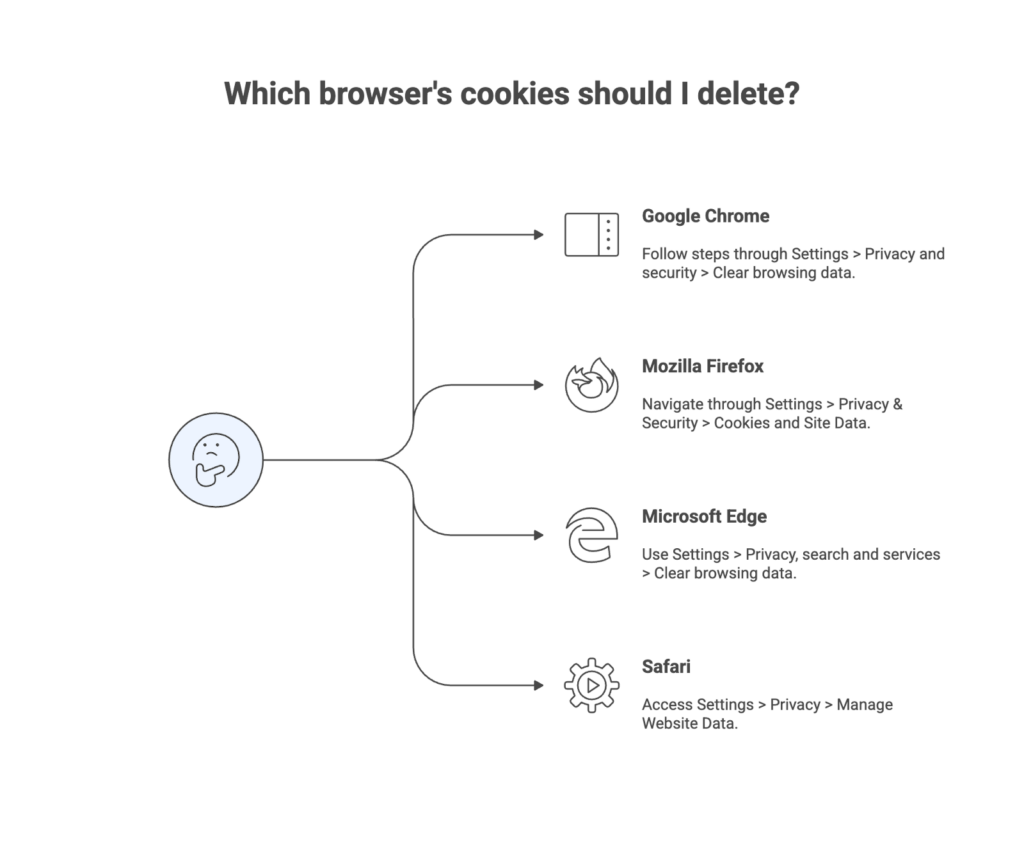
How to Delete Cookies: Quick Steps for Every Browser
If you need results fast, here is a snapshot of how to delete cookies across major browsers:
- Google Chrome (Windows or Mac): open the three-dot More menu, choose Settings, then Privacy and security. Select Clear browsing data, pick a time range, tick Cookies and other site data, and select Clear data.
- Mozilla Firefox: open the menu and pick Settings. On the Privacy & Security page, scroll to Cookies and Site Data and press Clear Data. Check Cookies and Site Data and confirm.
- Microsoft Edge: select the three-dot menu, go to Settings, and under Privacy, search and services, choose Clear browsing data. Check Cookies and other site data and click Clear now.
- Safari (Mac): open Safari, then choose Settings (or Preferences on older versions) and go to Privacy. Click Manage Website Data or Remove All Website Data, then confirm to delete cookies.
These steps clear cookies across devices quickly. If you need more details or want to clear cache and cookies for specific browsers, the next section dives deeper. For a broader context about the privacy challenges facing gamers, our article on payment methods, censorship, and privacy concerns highlights how corporate policies shape data practices.
Deleting Cookies in Chrome, Firefox, Edge, and Safari
Here is how to delete cookies in Chrome, Firefox, Edge, and Safari.
Chrome: Clear Cookies and Cache Together
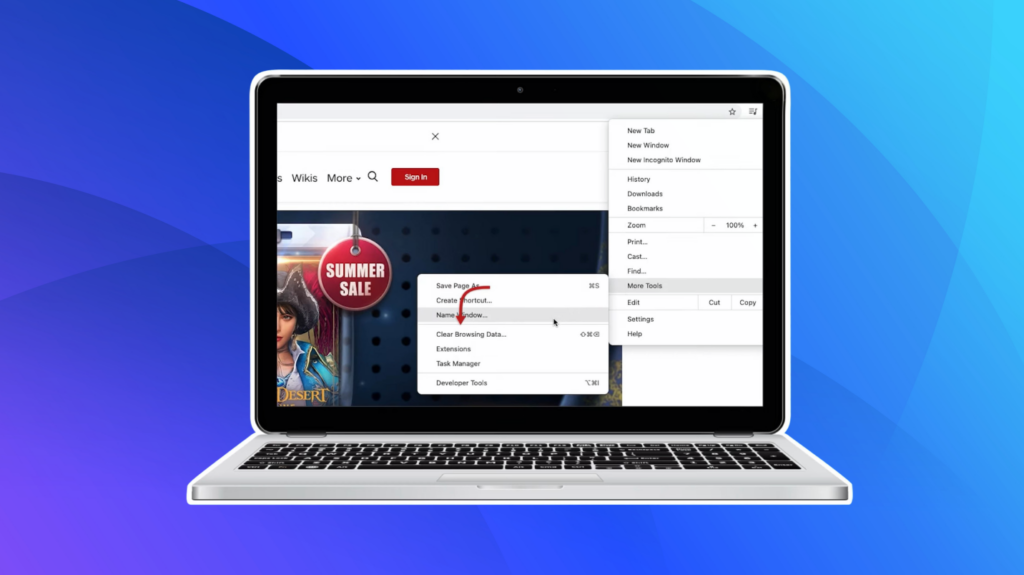
To delete cookies in Chrome, open the browser and click the More icon (three vertical dots). Select Settings, then navigate to Privacy and security. Choose Clear browsing data, pick a time range (for example, All time for a complete reset), and check Cookies and other site data. If your browser feels sluggish, also check the Cached images and files to clear the cache. Click Clear data. Clearing cookies removes saved login sessions, so be prepared to sign back into your favorite websites after the reset.
Firefox: Managing Cookies for Privacy
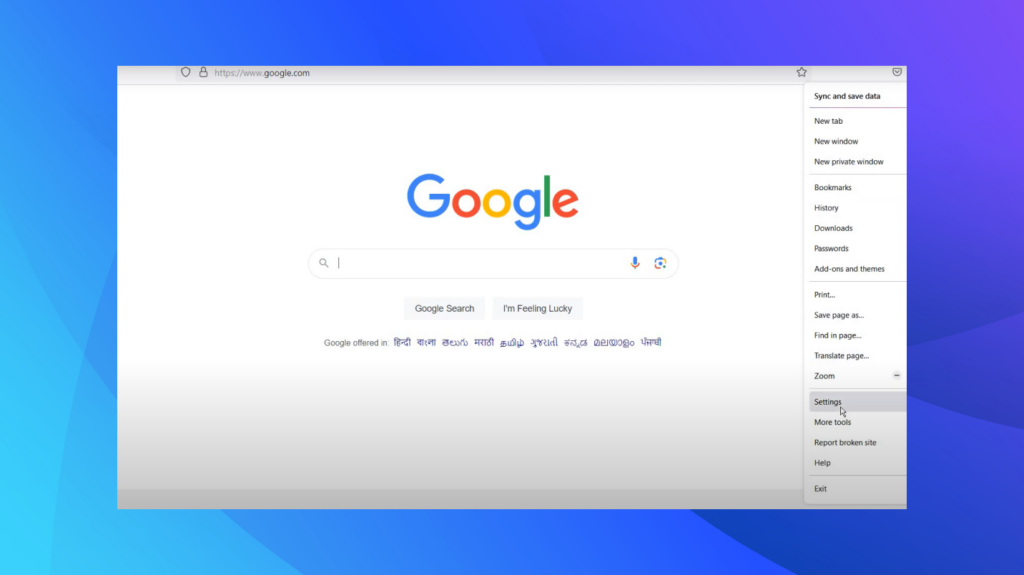
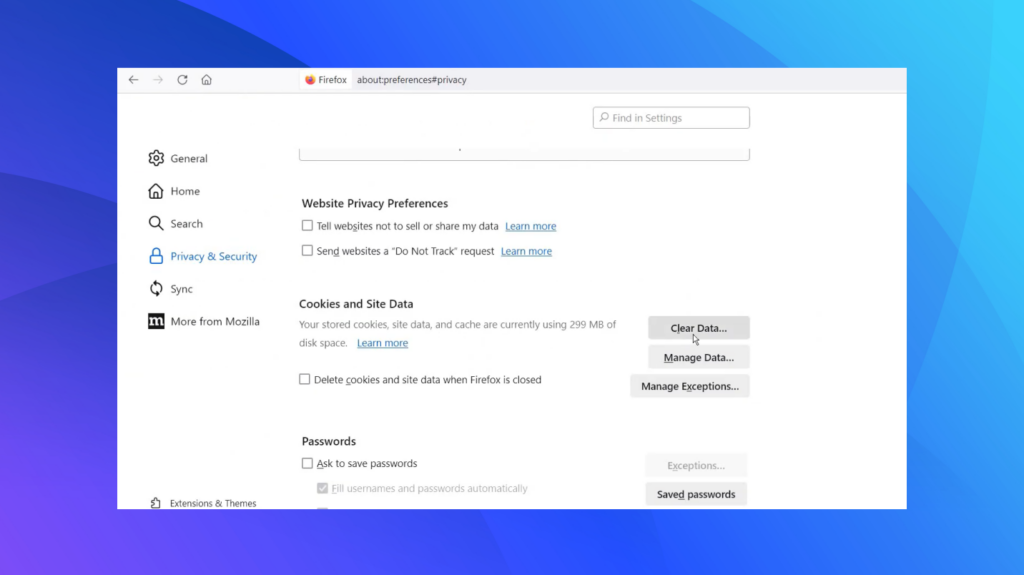
Firefox groups cookies with other site data under Privacy & Security. Click the hamburger menu, then Settings. Under Cookies and Site Data, select Clear Data. Tick Cookies and Site Data, and confirm by clicking Clear. For more control, you can press Manage Data to remove cookies from specific websites. Clearing cookies can fix issues such as unexpected website behavior or games that won’t load correctly. As a gamer, I’ve solved random login problems in browser-based MMOs by wiping cookies and relogging.
Edge: Clean Up Your Browser on Windows and Xbox
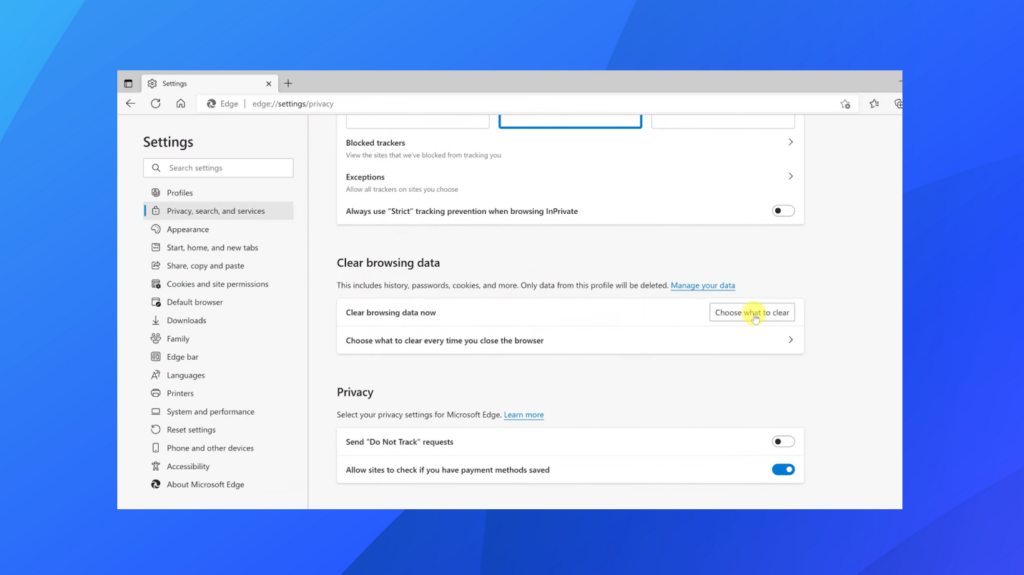
Microsoft Edge shares many similarities with Chrome because they both run on Chromium. To delete cookies, click the three-dot menu, then Settings. Go to Privacy, search and services, and scroll to Clear browsing data. Click Choose what to clear, select a time range, then check Cookies and other site data. You can also select Cached images and files to clear the cache. Click Clear now. If you use Edge on your Xbox or Windows PC for game streaming, clearing cookies can resolve issues when connecting to cloud gaming services.
Safari: Delete Cookies on Mac and iOS
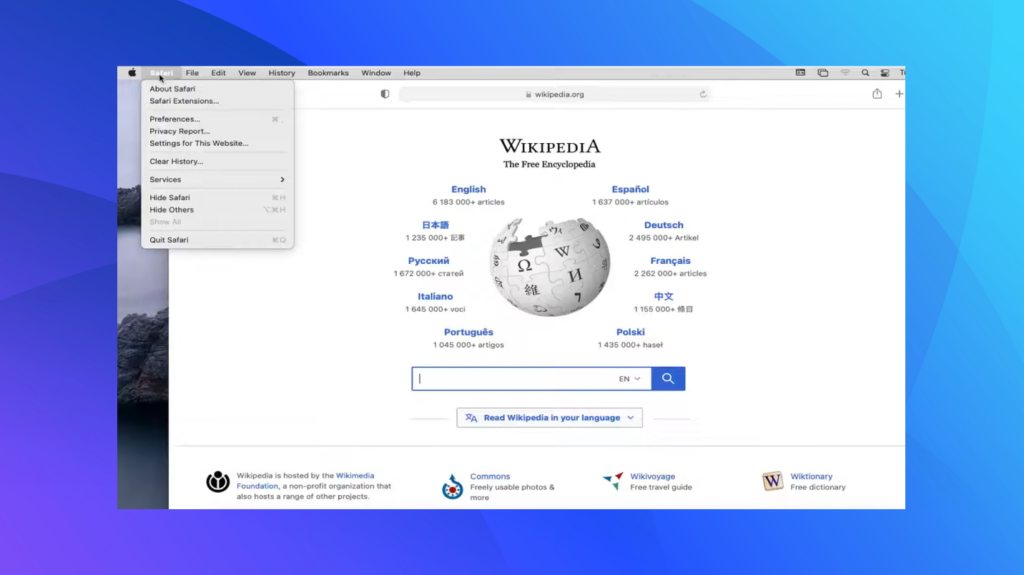
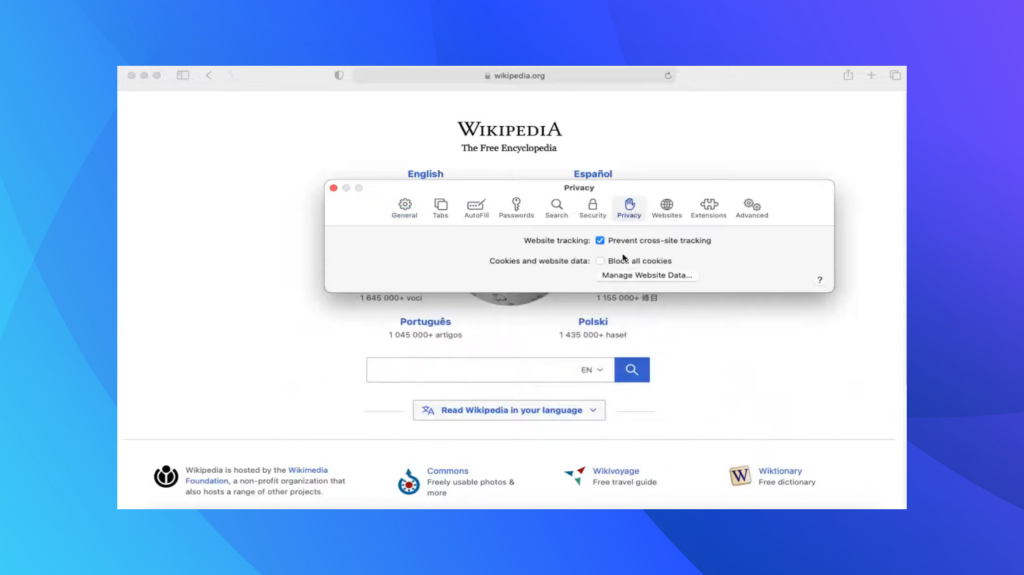
On a Mac, open Safari, then click Safari in the menu bar and choose Settings (or Preferences on older versions). Go to the Privacy tab, click Manage Website Data, and either remove individual sites or click Remove All. Confirm when prompted. To delete cookies on iOS devices, open the Settings app, scroll down to Safari, and select Clear History and Website Data. Clearing cookies improves performance on your iPhone or iPad when browsing gaming guides or managing your game library on the go.
Clearing Cookies on Older Browsers
If you still use Internet Explorer or a niche browser, look for a History or Privacy menu. In Internet Explorer, choose Tools > Internet Options, under Browsing history, click Delete, then check Cookies and website data before confirming. While older browsers aren’t ideal for modern gaming communities, clearing cookies remains a helpful maintenance task.
Understanding Cookies: Why Deleting Them Matters for Gamers
Cookies improve your experience by remembering site preferences, login tokens, and shopping carts. First-party cookies come directly from the site you visit, while third-party cookies track you across sites to deliver targeted ads. As a gamer, cookies help sites remember your language preference, saved progress in browser games, or items you’ve added to our marketplace. However, they can also accumulate outdated data. When a game update rolls out, stale cookies sometimes cause loading errors or prevent you from seeing new features. Clearing cookies refreshes your browser’s memory and solves these issues.
Another reason to delete cookies is to protect privacy. Third-party cookies follow you across websites and build profiles of your interests. Removing them limits cross-site tracking and gives you more control over your data. This ties into broader debates about privacy in gaming. In a recent Eneba Hub article discussing payment methods, censorship, and privacy concerns, the author points out how corporate policies can affect gamers’ access to content and personal data. Clearing cookies is a small but meaningful step toward safeguarding your information.
Finally, deleting cookies can improve performance. Large cookie files slow down your browser and take up disk space. This can cause stuttering during game streams or delays when loading pages. By periodically clearing cookies and cached files, you ensure smoother browsing and better responsiveness, especially when playing browser-based games or managing digital libraries.
Privacy and Security Considerations When You Delete Cookies
Here are the privacy and security considerations when you delete cookies.
First Party vs. Third Party Cookies
First-party cookies store your preferences for a single site, such as saved login information or items left in a shopping cart. Deleting these cookies will sign you out, but it can also resolve login loops or corrupted sessions. Third-party cookies are set by advertisers or analytics services. Removing them stops cross-site tracking but does not harm core functionality. Understanding this difference helps you decide which data to remove.
In our article where we compare Mac and PC for gamers and professionals, we highlight the security and privacy advantages of Mac computers while cautioning that no system is immune to threats. When deleting cookies, think of it as another security measure that keeps your browser lean and reduces the surface area for trackers.
How Often Should You Clear Cookies?
How often you delete cookies depends on your browsing habits. If you regularly visit dozens of sites and notice slow load times, clearing cookies once a month keeps your browser responsive. For sensitive browsing sessions, such as managing our marketplace purchases or redeeming gift cards, you might clear cookies immediately after finishing. Some gamers prefer to delete cookies before installing game mods or patches to avoid conflicts. A balanced approach lets you enjoy personalized settings without sacrificing privacy.
Other Privacy Tools
Deleting cookies is only one part of online privacy. You can also adjust your browser’s cookie settings to block third-party cookies or prompt you each time a site wants to save data. Many browsers offer tracking protection or built-in VPN services.
Optimizing Your Gaming and Browsing Setup
Deleting cookies is one piece of optimizing your gaming experience. Hardware and environment matter too. In our article on the best gaming accessories for pro play, we explored desks with cable management, chairs with ergonomic support, and headsets that reduce fatigue. Using a well-organized desk with built-in cable routes keeps your workspace tidy and reduces the frustration of tangled wires when you are clearing your digital clutter. A comfortable chair helps maintain posture during long gaming sessions, while quality peripherals let you react quickly in competitive games. A streamlined physical setup complements a clean digital one.
As a gamer, I’ve noticed that clearing cookies often pairs with other maintenance tasks. After wiping cookies, I might dust my keyboard, check for driver updates, or adjust my router settings to optimize ping. This holistic approach ensures that both hardware and software work together for the best performance.
Clean Up and Keep Playing: A Gamer’s Wrap Up
Removing cookies is part of maintaining a smooth, private, and responsive online life. In this guide, I showed you how to delete cookies in Chrome, Firefox, Edge, Safari, and even older browsers. I explained why clearing cookies matters for gamers who want fast load times, secure browsing, and fewer glitches. When you understand the difference between first and third-party cookies, you can tailor your cleanup routine to suit your needs. Pairing this digital housekeeping with a tidy physical setup, including ergonomic chairs and cable-friendly desks, keeps your entire gaming environment running smoothly.
If you’re looking for a convenient way to upgrade your gaming library after cleaning up your browser, consider grabbing a Steam Wallet Gift Card 50 USD from our store. Add funds to your Steam Wallet so you can pick up new games right away. It’s an easy treat for yourself or a perfect gift for a friend who appreciates a spotless setup and fresh titles.
FAQs
How do I delete cookies?
To delete cookies, open your browser’s settings, navigate to the privacy or security section, and select the option to clear browsing data with cookies checked. Then confirm the deletion. Each browser has slightly different menus, so follow the steps outlined above for Chrome, Firefox, Edge, or Safari.
Should I delete cookies or cache first?
The decision to delete cookies or cache first depends on your goal; cookies store login sessions and preferences, while cache stores temporary files that speed up page loading. Deleting cache can fix display issues without signing you out, whereas deleting cookies addresses login problems and privacy concerns. Many people choose to clear both at the same time for a fresh start.
Is it safe to delete cookies?
Yes, it is safe to delete cookies, because doing so removes only small text files stored by your browser. Clearing cookies will sign you out of websites and reset preferences, but it will not harm your system or delete important data. After deleting cookies, simply log back in to your favorite sites.
How do I delete cookies for a specific site?
To delete cookies for a specific site, open your browser’s settings and look for a cookies or site data section that lists individual websites. Select the site you wish to clear and remove its cookies. This feature lets you troubleshoot one website without affecting others.
Does deleting cookies delete saved passwords?
Deleting cookies does not delete saved passwords stored in your browser’s password manager, because those are kept separately from cookies. However, clearing cookies will log you out of sites, so you’ll need to enter your credentials again. Make sure your passwords are saved or recorded elsewhere before clearing cookies.