




Is Overwatch 2 Cross Platform?

Finding friends in the hero‑shooter scene isn’t always easy when your crew is scattered across consoles and PC. As someone who plays on both a gaming PC and a Nintendo Switch, I know how frustrating it can be when you want to squad up but discover that your games don’t talk to each other. Overwatch 2 promised to fix that problem with full crossplay and cross‑progression, but the details aren’t as straightforward as hitting “play.” Before diving into matches, it helps to know which platforms can connect, how competitive matchmaking pools work, and what happens to your hard‑earned skins when you switch devices. In this article, I’ll share what I’ve learned by linking my own accounts and testing the system with friends, plus insights from Blizzard’s recent updates.
Jump to:
Platform Availability: Is Overwatch 2 Cross Platform?
Blizzard’s sequel to its wildly popular hero shooter launched as a free‑to‑play title across multiple systems. Overwatch 2 is available on Windows PC, Xbox One, Xbox Series X|S, PlayStation 4, PlayStation 5, and Nintendo Switch. Cross-platform in the broadest sense means you can download and play the same game on different hardware. In this case, Overwatch 2 delivers the same 5v5 experience on consoles and PC, with seasonal content, maps, and heroes releasing simultaneously.
Players occasionally confuse cross‑platform availability with true crossplay. Just because the game exists on multiple devices doesn’t mean those devices interact seamlessly. Many older games are technically “cross-platform” but lack unified lobbies or shared progression. Overwatch 2 aims to go further by letting friends on any supported system queue up together and by tying your unlocks to your Blizzard account so you don’t lose progress when you switch hardware.
Cross‑Platform Play (Crossplay)
Crossplay is the feature that allows PC and console players to join the same matches. In Overwatch 2, crossplay is turned on by default, and it covers most game modes. I can team up with my cousin on Xbox and my friend on PlayStation for Quick Play, Arcade, or custom games without extra setup. This connectivity is powered by Blizzard’s Battle.net service. PC players automatically use Battle.net, while console users must link their platform accounts to a free Battle.net account. Once linked, all friends show up under your Battle.net friends list, and invites work across systems.
However, crossplay isn’t uniform across every mode. For competitive play, Blizzard separates matchmaking pools to keep a balanced competitive environment. PC users (including console players using a mouse and keyboard) are placed in one pool, while controller players on console have their own pool. This separation prevents mouse-and-keyboard accuracy from dominating controller players. For casual modes, mixed groups use PC-style matchmaking, which means console players join PC servers and aim assist is adjusted accordingly. I’ll cover those nuances below.
Enabling crossplay is simple: create or log in to your Battle.net account, link your Xbox, PlayStation, or Nintendo accounts in the Connections section, and launch Overwatch 2. The game will display a numeric code or QR code that you confirm through your Battle.net profile. Once authenticated, your console account becomes part of your unified Battle.net identity. From there, you can add friends by entering their BattleTag or associated email and invite them into your group just as you would on PC.
Crossplay Support by Platform
PC and Console Integration
PC, PlayStation, Xbox, and Nintendo Switch players can all share lobbies in Quick Play, Arcade, and custom games. If a group contains both PC and console players, the matchmaking system places the entire group into the PC pool. This guarantees consistent tick rates and server quality. It also means console players may lose certain controller benefits when teaming with PC friends. As someone who often swaps between PC and Switch, I’ve noticed slightly longer queue times when crossplay is disabled, so keeping it on usually leads to faster matches.
Console‑Only Matchmaking
Console players who want to avoid mouse‑and‑keyboard opponents can disable crossplay in the game’s options. When disabled, you’ll only be matched with players using the same console family who also disabled crossplay. This narrows the matchmaking pool and often increases wait times. Competitive mode for consoles brings together players from PlayStation, Xbox, and Nintendo Switch, but it still excludes PC players. This separation maintains parity among controller inputs while allowing console users on different brands to compete in ranked play.
Input Pools and the 2025 Update
In Season 18, Blizzard introduced native mouse and keyboard support on consoles and redefined matchmaking pools. Players can now join either the Mouse & Keyboard pool or the Controller pool. If you connect a mouse and keyboard on console, the game prompts you to switch to the Mouse & Keyboard pool.
In this pool, you are matched with PC players and other console users who made the same choice. Switching pools also splits your internal matchmaking rating, so your rank in one pool doesn’t carry over to the other. I tested this by playing a handful of games in each pool; my rank in the Controller pool remained untouched by my performance with mouse and keyboard.
A key detail is that aim‑assist is disabled for anyone in the Mouse & Keyboard pool, even if you swap back to a controller mid‑match. Console players who stick to controllers and group with PC friends in Quick Play or Arcade still benefit from aim‑assist. This nuance means casual crossplay feels fairer than it did at launch, when console aim‑assist was entirely disabled whenever a PC player joined the party.
Platform‑Specific Limitations and Partial Compatibility
Crossplay in Overwatch 2 comes with a few restrictions designed to balance competitive integrity and handle hardware differences:
- Competitive Mode Separation: PC and console players cannot queue together in ranked play. Console users from different platforms share a pool, while PC players and any console players using a mouse and keyboard form the separate pool. This ensures mouse precision doesn’t dominate controller users and helps maintain a balanced competitive environment.
- Aim‑Assist Adjustments: Console players lose aim‑assist when playing in the Mouse & Keyboard pool or when crossplay is disabled manually. After the Season 18 update, console players using controllers retain aim‑assist when playing casually with PC friends. This makes quick matches feel more natural and keeps the skill gap from widening unfairly.
- Matchmaking Pools and Devices: Controller players on PC cannot join the Controller pool. To enjoy aim‑assist and controller matchmaking, you must play on console hardware. Using unapproved peripherals to mimic a controller on console is considered cheating and may lead to account bans.
- Opting Out: Players can turn off crossplay from the options menu. PC players cannot opt out entirely because they’re always part of the Mouse & Keyboard pool, but console users can. Disabling crossplay restricts your matchmaking to others who made the same choice and generally increases queue times.
These limitations are important when planning sessions with friends. I’ve had evenings where we wanted to play ranked matches together, only to discover a PC player in the group locked us into the wrong pool. Understanding the input pools ahead of time avoids those surprises.
Cross‑Save and Cross‑Progression

Cross‑save and cross‑progression refer to carrying your progress, cosmetics, and unlocks between systems. Blizzard implemented a robust cross‑progression system that links your game data to your Battle.net account rather than to a specific console or PC. Whenever you log in on a different device, your account syncs, and all unlocked heroes, skins, sprays, and career statistics travel with you.
Cross‑save is particularly helpful if you play on multiple devices like I do. I often start matches on my PC at home and then continue on Switch when traveling. Because my progression is tied to my Battle.net account, I don’t have to grind Battle Pass tiers twice. The same applies when moving between console brands; your PlayStation unlocks follow you to Xbox so long as both accounts are linked to the same Battle.net profile.
Cross‑progression was introduced ahead of the game’s full launch and required players to merge their existing Overwatch profiles. Blizzard warned that there is only one chance to merge multiple console accounts, so it’s critical to double-check which accounts you connect. Once merged, your account receives all cosmetics and progress from each platform, but you can no longer link different accounts on the same platform.
Cross‑Save Support
Technically, Overwatch 2 doesn’t use a separate cross‑save feature; instead, cross‑progression achieves the same outcome. Your save data is stored on Battle.net, so when you log in from any platform, your progression updates automatically. This includes Battle Pass progress, hero levels, player icons, sprays, skins, and currency. Even achievements and endorsements move across platforms, though platform‑specific trophies remain on their native systems.
After merging accounts, all future progress accrues to your Battle.net profile regardless of which device you play on. In my experience, items purchased on Xbox appear immediately when I log in on PC. For players who have spent years collecting skins, this unified inventory is a game‑changer because you no longer have to choose a primary platform. It’s also a relief when a console fails; you can simply install the game elsewhere and resume where you left off without contacting support.
Cross‑Progression Support
Cross‑progression covers the mechanics of account merging and the boundaries around what transfers. Here are the key points:
- One Account Per Platform: You can link one Xbox, one PlayStation, one Nintendo Switch, and one PC profile to a single Battle.net account. If you have multiple accounts on a platform, you must pick one; progress on unlinked accounts doesn’t transfer.
- Merge Process: When you first launch Overwatch 2 on a console, the game prompts you to select which accounts to merge. You confirm via a QR code or a numeric code. Once confirmed, your console accounts are locked to your Battle.net account.
- Cooldown Period: After linking, you can unlink a console account, but there’s a 1‑year cooldown before you can link a new one. If you accidentally link the wrong profile, you may be stuck with limited options for a full year.
- Shared Cosmetics and Progress: All items in your Hero Gallery – skins, emotes, sprays – are unified on the merged account. Duplicate cosmetics are merged automatically. Competitive ranks from different consoles merge by taking the highest rank, while statistics like playtime add together.
- Separate Skill Ratings: Competitive skill ratings remain distinct for PC and console input pools. Your rank on PC does not impact your console rank. This preserves balance across input devices.
Overall, cross‑progression ensures you never have to start from scratch when switching devices. It rewards investment in the game, no matter where you play, and gives you flexibility to jump between systems without losing your identity.
Account Linking
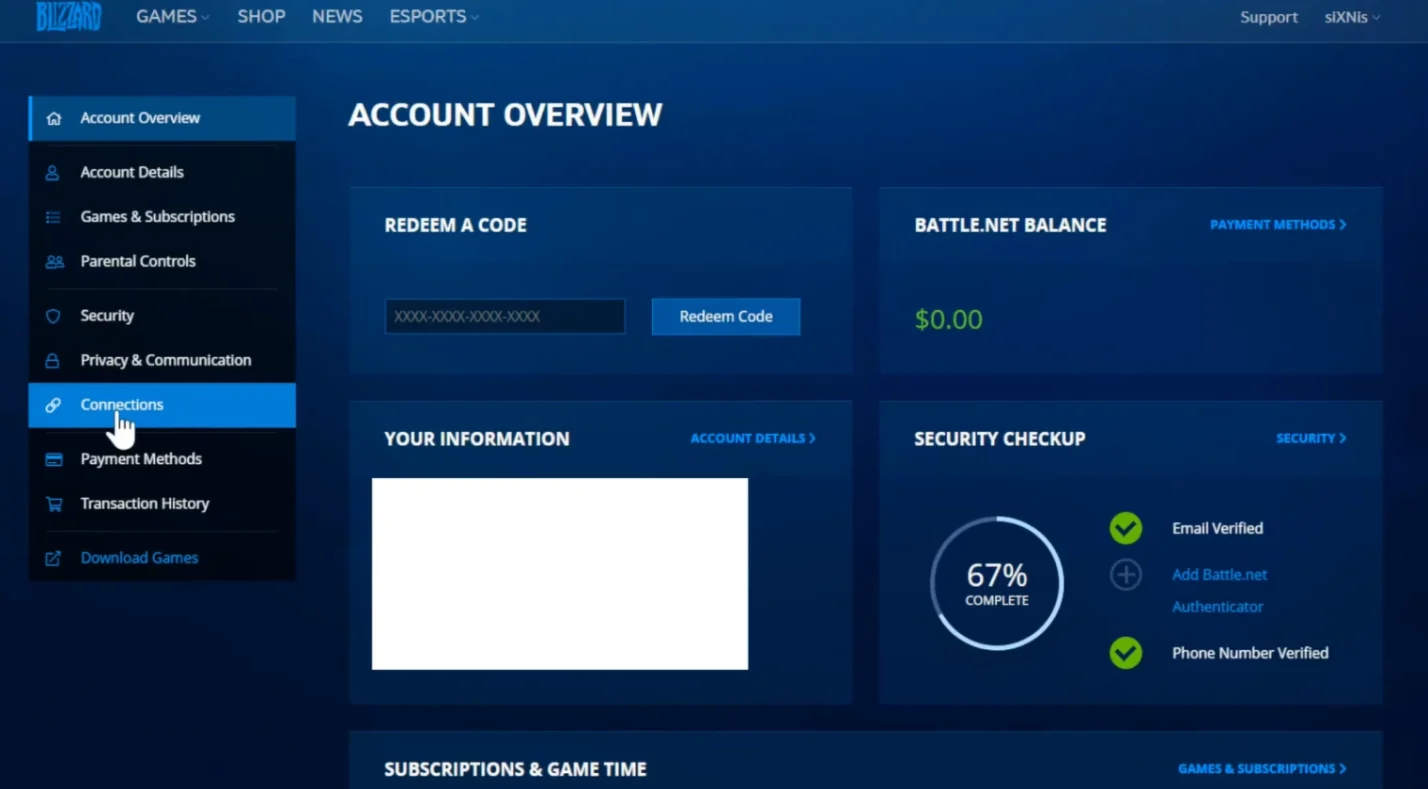
Linking your accounts is the gateway to both crossplay and cross‑progression. Here’s how to do it based on my own setup:
- Create a Battle.net Account: If you play on console, visit Blizzard’s Battle.net website or use the mobile app to create a free account. PC players already have one.
- Link Console Accounts: Log in to Battle.net and go to Account Settings. Under “Connections” select your console network (Xbox Live, PlayStation Network, or Nintendo Account) and follow the prompts to authorize access.
- Launch Overwatch 2: On your console, start the game. You’ll see a unique alphanumeric code and a QR code. Use your phone to scan or manually enter the code at battle.net/pair.
- Confirm Merge: After entering the code, confirm the connection. The next time you log in, the game shows the accounts being merged. Double-check that the correct console profile is selected; once you confirm, the merge can’t be undone until the cooldown period expires.
- Repeat for Other Consoles: If you own multiple consoles, repeat the process for each. You’ll end up with one unified Battle.net profile that holds all your progression.
A typical issue I see among my coaching clients is forgetting to link their primary console account before launching the game, which leads to progress being stored on a secondary or guest profile. To avoid this, always check which console account is active before scanning the QR code. If you run into errors, Blizzard’s support pages provide troubleshooting steps, but the most common fix is unlinking the account and waiting for the cooldown.
Developer/Publisher Comments and Future Plans
Blizzard introduced crossplay to the Overwatch franchise back in 2021 and framed it as a beta feature. The developers stated they would monitor feedback and adjust matchmaking, aim‑assist, and balancing. Over time, those promises have materialized through regular patch notes and blog updates. The 2025 Defense Matrix post outlined the new mouse and keyboard support for consoles and explained the creation of separate input pools, clarifying that aim‑assist remains for controller players who join casual crossplay matches. It also highlighted Blizzard’s commitment to fair play by taking action against unapproved peripheral users.
Blizzard also continues to invest in progression systems. The 2025 Weekly Recall article on Progression 2.0 talked about streamlining hero levels and improving reward visibility. While not directly tied to crossplay, these changes show Blizzard is still evolving the game around player feedback. In my conversations with other players, there’s enthusiasm for future improvements such as per‑mode crossplay toggles and better communication tools across platforms.
In interviews, developers have hinted at potential cross‑platform party chat and further refinements to aim‑assist curves. They also noted that cross‑play and cross‑progression support will remain core to the game’s design. That means new heroes, maps, and limited‑time events will launch simultaneously on all systems, and players can expect unified progression to persist. As the technology stabilizes, the team may revisit competitive pool boundaries, but fairness will stay the priority.
Summary

Overwatch 2 answers the big question “Is Overwatch 2 cross-platform?” with a mostly resounding yes. The game is free‑to‑play on PC, Xbox, PlayStation, and Nintendo Switch, and crossplay is enabled by default for Quick Play, Arcade, and custom games. Linking your console accounts to a Battle.net profile lets you invite friends across systems and preserves your progress, cosmetics, and achievements through a robust cross‑progression system.
Competitive integrity leads Blizzard to split matchmaking pools by input method, so PC players and console players using a mouse and keyboard compete separately from controller users. Aim-assist adjustments and the option to disable crossplay give players control over their experience, while the Season 18 update allows console users to keep aim-assist in casual crossplay matches. Using a top VPN for Overwatch can also help keep connections stable across platforms. Account linking is a one-time process, so double-check your profiles before merging. Once complete, your Battle.net account holds all of your skins, credits, and hero levels, making it easy to switch between platforms.
If you enjoy discovering games that bridge hardware barriers, check out our roundup of the best cross‑platform games. It highlights titles like Minecraft, Fortnite, and Rocket League that fully embrace crossplay and cross‑progression. This article helped me appreciate how different developers tackle account linking, matchmaking, and progression across devices, and it may help you decide where to spend your gaming time.
As you jump into Overwatch 2 across your devices, consider enhancing your experience with our digital offerings. The Overwatch 2 Invasion Bundle on Eneba bundles story missions with Overwatch coins and a legendary skin, and it syncs seamlessly with your merged account. Having tested it myself, I found that the extra coins make unlocking Battle Pass tiers faster, and the skin adds personality across every platform. Whatever your platform of choice, crossplay and cross‑progression ensure your investment travels with you.
FAQs
Is Overwatch 2 cross‑platform between PC and consoles?
Overwatch 2 is cross‑platform between PC and consoles for Quick Play, Arcade, and custom games. Competitive mode separates PC and console players to maintain balance.
Does Overwatch 2 support cross‑progression?
Yes, Overwatch 2 supports cross‑progression. Link your console accounts to a Battle.net profile, and your progress and cosmetics will follow you across platforms.
Can I disable crossplay in Overwatch 2?
You can disable crossplay in Overwatch 2 via the options menu. Console players then only match with others who also disabled it. PC players can’t fully opt out.
How do I link my console accounts to Battle.net?
To link your console accounts to Battle.net, create or log in to a Battle.net account, connect your console network under Connections, and confirm the code displayed in-game.
Does aim‑assist work when playing with PC friends?
Aim‑assist remains active for console players using controllers in casual matches with PC friends. It turns off in competitive mode or when you use a mouse and keyboard.
Can I merge multiple console accounts from the same platform?
No, you can only link one console account per platform to a Battle.net profile. After merging, there’s a one‑year cooldown before you can unlink and link another.
Why can’t PC and console players compete together in ranked matches?
PC and console players can’t compete together in ranked matches because Blizzard separates input methods. Mouse‑and‑keyboard precision would otherwise create an unfair advantage.